Managed data schema
Scheduled Journeys is available in Accelerator version 26.2.3. Contact your Customer Success Manager (CSM) for more information.
Managed Data Schema configuration requires the System Admin role and write-level access to your data warehouse. Contact your Customer Success Manager (CSM) for more information.
Overview
Managed Data Schema is designed to read from and write to a designated schema in your data warehouse. For journeys, Managed Data Schema is used to provision and maintain Journey State Tables — the authoritative record of every user currently in a journey, including their tile position, wait timing, re-entry history, and evaluation bookkeeping data.
Because the Journey State Table lives in your warehouse, your data never leaves your environment. MessageGears writes state into the schema you designate and reads it back during each evaluation cycle.
Managed Data Schema configuration must be completed before User Profiles can be created and before any journey can be activated.
Supported warehouse types
Managed Data Schema supports the following native warehouse connection types for journey state tracking:
- Snowflake
- Google BigQuery
- Amazon Redshift
- Databricks
JDBC connections are not supported. If your Accelerator instance uses JDBC-based connections, contact your CSM before proceeding.
What Managed Data Schema provisions
When you configure Managed Data Schema for journeys, Accelerator creates and manages the following in the designated schema:
| Object | Description |
|---|---|
| Journey State Tables | Track current journey members, their tile position, wait timing, entry timestamp, and re-entry history for each journey |
MessageGears handles table creation, schema evolution, and ongoing writes to this table. You do not need to create the table manually. Your DBA creates the MG_MANAGED schema and grants the database user the permissions described below.
What resources do you need?
| Resources | Location | Tasks |
|---|---|---|
| Database administrator (DBA) | Your data warehouse | Create the schema and grant permissions |
| System Admin | Accelerator instance | Configure Managed Data Schema in Admin menu |
Prerequisites
Before configuring Managed Data Schema, confirm the following:
Accelerator database connection
- A native data warehouse connection is established in Accelerator (Admin → Data → Database Connections) with the purpose tag of Managed data schema.
In your data warehouse
- Your DBA has created a schema called
MG_MANAGEDin your warehouse for MessageGears writes. Accelerator does not create the schema itself. The templates in the next section include the step that creates it. - A database user has been created in your warehouse with the permissions listed in the next section
To create a new database connection or update your existing connection to include the Managed data schema purpose, see the Adding and managing database connections guide.
Note that creating a new connection may require additional steps, such as creating or updating Stage and File storage configurations.
Required permissions in the data warehouse
These user, role, or IAM permissions must be applied to the schema or dataset before you complete the Managed Data Schema configuration in Accelerator. The connection test in the setup flow validates that the required permissions are in place.
These are the same template instructions Accelerator displays in Step 2: Select your database type when you select a database type.
- Snowflake
- BigQuery
- Redshift
- Databricks
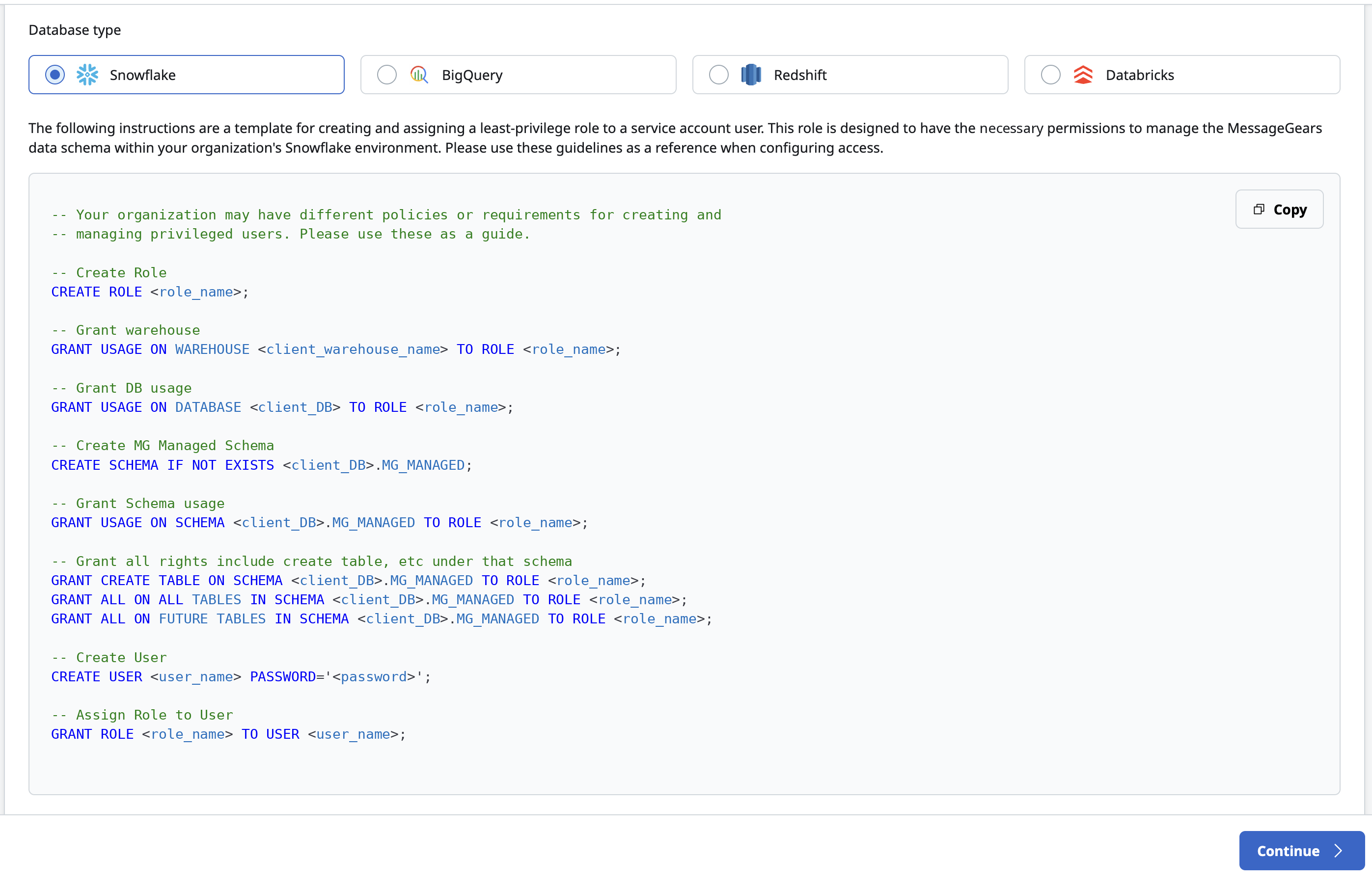
The following instructions are a template for creating and assigning a least-privilege role to a service account user. This role is designed to have the necessary permissions to manage the MessageGears data schema within your organization's Snowflake environment. Please use these guidelines as a reference when configuring access.
-- Your organization may have different policies or requirements for creating and
-- managing privileged users. Please use these as a guide.

-- Create Role
CREATE ROLE <role_name>;

-- Grant warehouse
GRANT USAGE ON WAREHOUSE <client_warehouse_name> TO ROLE <role_name>;

-- Grant DB usage
GRANT USAGE ON DATABASE <client_DB> TO ROLE <role_name>;

-- Create MG Managed Schema
CREATE SCHEMA IF NOT EXISTS <client_DB>.MG_MANAGED;

-- Grant Schema usage
GRANT USAGE ON SCHEMA <client_DB>.MG_MANAGED TO ROLE <role_name>;

-- Grant all rights include create table, etc under that schema
GRANT CREATE TABLE ON SCHEMA <client_DB>.MG_MANAGED TO ROLE <role_name>;
GRANT ALL ON ALL TABLES IN SCHEMA <client_DB>.MG_MANAGED TO ROLE <role_name>;
GRANT ALL ON FUTURE TABLES IN SCHEMA <client_DB>.MG_MANAGED TO ROLE <role_name>;

-- Create User
CREATE USER <user_name> PASSWORD='<password>';

-- Assign Role to User
GRANT ROLE <role_name> TO USER <user_name>;
The following instructions are a template for creating a dataset and granting the necessary IAM permissions to a service account. This configuration is designed to provide the minimum required access to manage the MessageGears data schema within your organization's BigQuery environment. Please use these guidelines as a reference when configuring access.
# Your organization may have different policies or requirements for creating and
# managing privileged users. Please use these as a guide.

# Create Role
# (bigquery.jobs.create is the compute permission, equivalent to GRANT USAGE ON WAREHOUSE)
gcloud iam roles create <role_name> \
  --project=<project_id> \
  --title="<role_name>" \
  --description="MessageGears managed data role" \
  --permissions=bigquery.jobs.create

# Create User
# (BigQuery has no CREATE USER — a service account serves as the principal)
gcloud iam service-accounts create <service_account_id> \
  --project=<project_id> \
  --display-name="<service_account_id>"

# Grant DB usage
gcloud projects add-iam-policy-binding <project_id> \
  --member="serviceAccount:<service_account_email>" \
  --role="roles/bigquery.metadataViewer"

# Create MG Managed Schema
bq mk --dataset --location=<location> <project_id>:MG_MANAGED

# Grant Schema usage + create table + all current and future tables
bq add-iam-policy-binding \
  --member="serviceAccount:<service_account_email>" \
  --role="roles/bigquery.dataEditor" \
  <project_id>:MG_MANAGED

# Assign Role to User
gcloud projects add-iam-policy-binding <project_id> \
  --member="serviceAccount:<service_account_email>" \
  --role="projects/<project_id>/roles/<role_name>"
The following instructions are a template for creating a role and assigning least-privilege permissions to a database user. This configuration is designed to provide the minimum required access to manage the MessageGears data schema within your organization's Redshift environment. Please use these guidelines as a reference when configuring access.
-- Your organization may have different policies or requirements for creating and
-- managing privileged users. Please use these as a guide.
-- Note: Older Redshift clusters may require using Groups instead of Roles.

-- Create Role
CREATE ROLE <role_name>;

-- Grant warehouse / Grant DB usage
-- N/A in Redshift: there is no warehouse object (compute is the cluster), and there is
-- no database-level USAGE grant. Access is granted per-schema (see Grant Schema usage).

-- Create MG Managed Schema
CREATE SCHEMA IF NOT EXISTS MG_MANAGED;

-- Create User
-- Created before default privileges below so they can target this user.
CREATE USER <user_name> PASSWORD '<password>';

-- Assign Role to User
GRANT ROLE <role_name> TO <user_name>;

-- Grant Schema usage
GRANT USAGE ON SCHEMA MG_MANAGED TO ROLE <role_name>;

-- Grant Create Table permission
GRANT CREATE ON SCHEMA MG_MANAGED TO ROLE <role_name>;

-- Grant all rights on existing tables in schema
GRANT ALL ON ALL TABLES IN SCHEMA MG_MANAGED TO ROLE <role_name>;

-- Grant all rights on future tables
-- FOR USER <user_name> so tables MessageGears creates inherit the privileges.
ALTER DEFAULT PRIVILEGES FOR USER <user_name> IN SCHEMA MG_MANAGED
GRANT ALL ON TABLES TO ROLE <role_name>;
The following instructions are a template for creating a schema and granting least-privilege permissions to a principal. This configuration is designed to provide the minimum required access to manage the MessageGears data schema within your organization's Databricks environment. Please use these guidelines as a reference when configuring access.
-- Your organization may have different policies or requirements for creating and
-- managing privileged users. Please use these as a guide.

-- Create Role / Create User
-- Databricks has no CREATE ROLE / CREATE USER SQL. Create a service principal or group
-- in the admin console (Account Admin > Service Principals or Groups) and use that name
-- as <role_name> below; the principal is both the role and the user.

-- Grant warehouse usage
-- N/A in SQL: SQL warehouse access is managed via the permissions API/UI
-- (SQL Warehouse > Permissions > CAN_USE), not a GRANT statement.

-- Grant DB usage (catalog)
GRANT USE CATALOG ON CATALOG <client_catalog> TO `<role_name>`;

-- Create MG Managed Schema
CREATE SCHEMA IF NOT EXISTS <client_catalog>.MG_MANAGED;

-- Grant Schema usage
GRANT USE SCHEMA ON SCHEMA <client_catalog>.MG_MANAGED TO `<role_name>`;

-- Grant Create Table permission
GRANT CREATE TABLE ON SCHEMA <client_catalog>.MG_MANAGED TO `<role_name>`;

-- Grant all rights on existing and future tables
-- Schema-level SELECT, MODIFY cascades to all current and future tables in the schema.
GRANT SELECT, MODIFY ON SCHEMA <client_catalog>.MG_MANAGED TO `<role_name>`;
Configure Managed Data Schema in Accelerator
Step 1: Navigate to Managed Data Schema
In the MessageGears navigation, select Admin → Data → Managed Data Schema.
Step 2: Select your database type
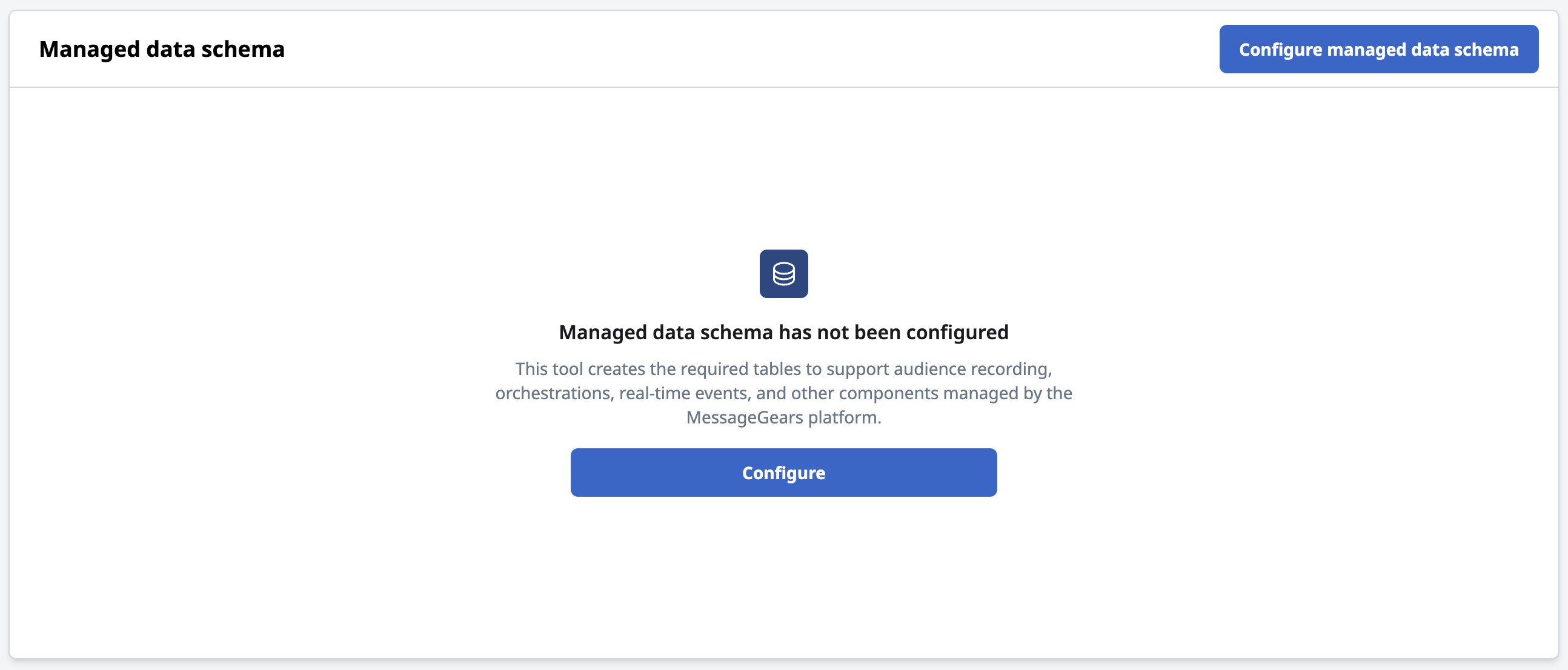
- Click Configure managed data schema
- Select the Database type. Accelerator displays template instructions for configuring the role, service account, or IAM settings for the
MG_MANAGEDschema. These are the same templates shown in Required permissions in the data warehouse. If your DBA hasn't applied them yet, complete that step before you continue. Click Continue.
Step 3: Select your database connection
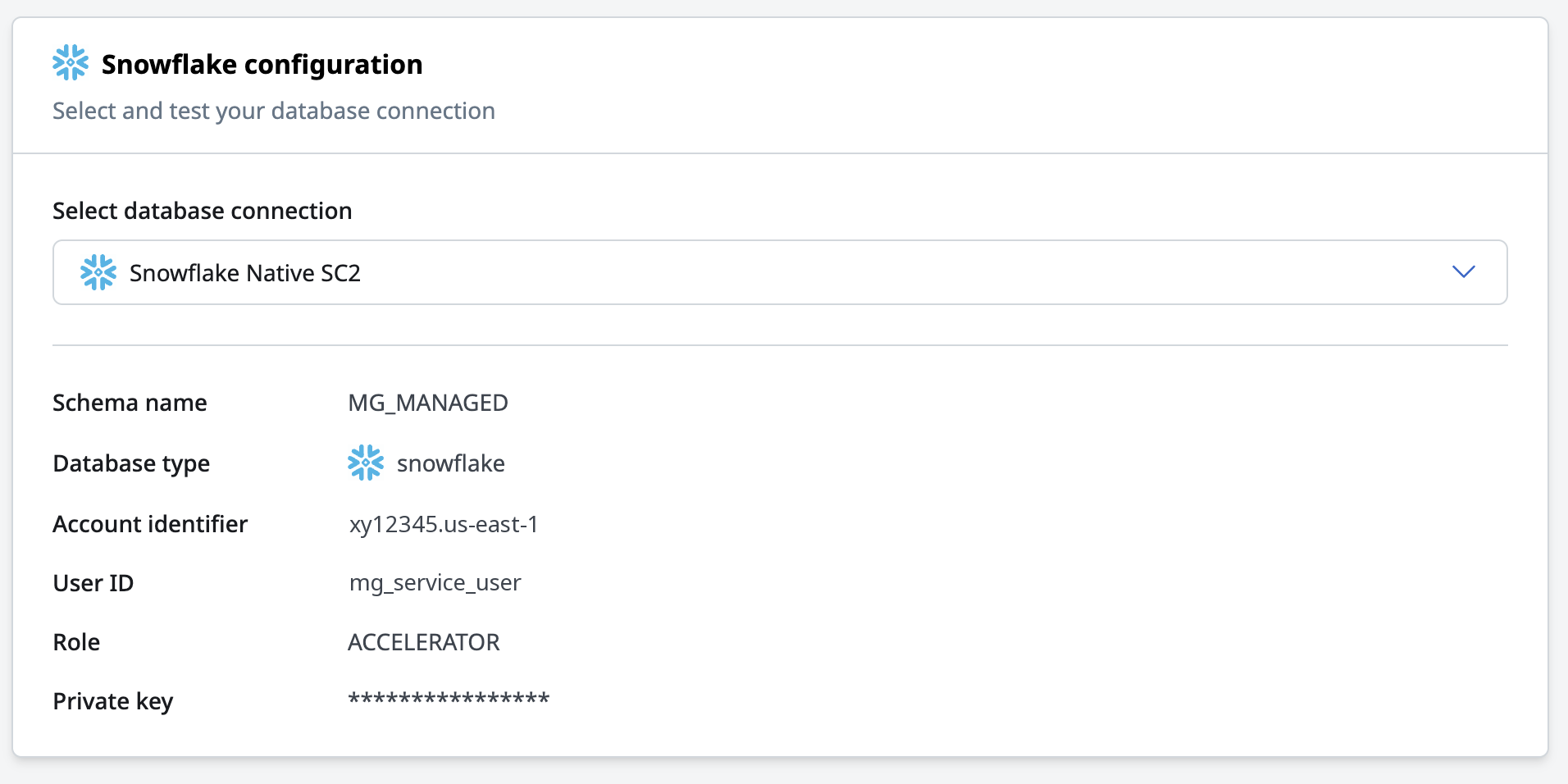
In the Database connection dropdown, select the native warehouse connection you want to use for journey state tracking
Only native database connections with a tagged Purpose of Managed data schema appear. If your connection does not appear, confirm it is configured as a native connection type and tagged with the Managed data schema Purpose in Admin → Data → Database Connections.
Managed Data Schema needs to use the same database connection as your Audiences and User Profiles for Journeys.
Step 4: Test and save the connection
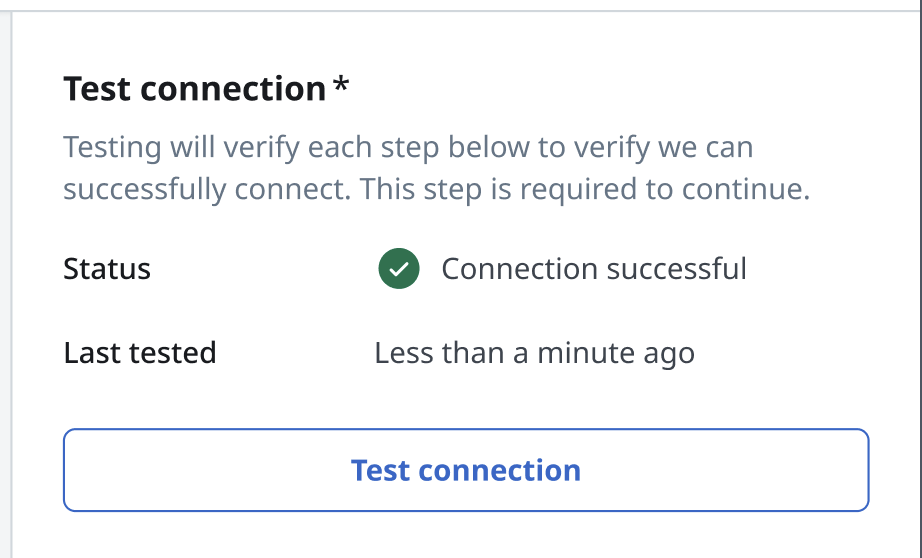
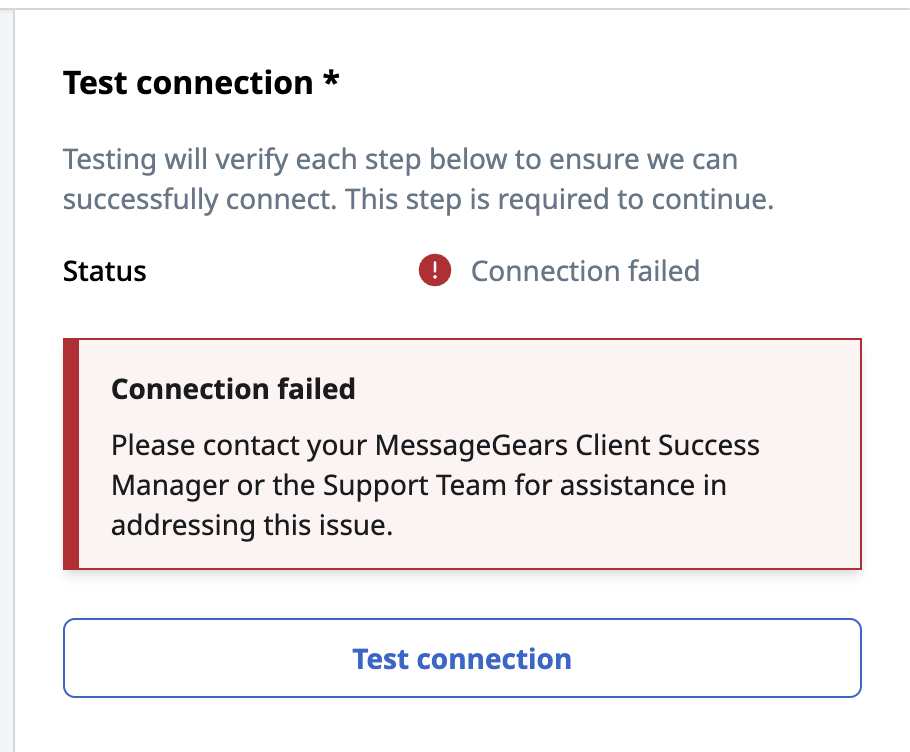
- Click Test connection
Accelerator validates that the database user associated with the selected connection has the required permissions on the selected MG_MANAGED schema. If the test fails, review the permissions listed in the previous section and retry.
- Click Save
Accelerator saves the Managed Data Schema configuration. MessageGears will automatically create Journey State Tables in the designated schema the first time a journey activates and runs its first evaluation cycle.
Next steps
With Managed Data Schema configured, you can proceed to the next prerequisite:
For a full overview of all prerequisites, see Journeys prerequisites.