Journey audience recording overview
Journey audience recording is available in Accelerator version 26.4.1.
Track the path each user takes through a journey and analyze it in your own data warehouse. When you turn on audience recording for a journey, Accelerator writes a row to your audience recording table each time it evaluates a user at a tile. The result is a step-by-step history for each user: when they entered, which messages they reached, which branch they took, and when they left.
Journey audience recording uses the same audience recordings that you set up for campaigns. A data admin maps journey-specific macros to the table's columns, and a journey builder turns recording on in the journey's entry settings.
Audience recording is a journey-level setting, not a journey tile. You can't add an audience recording as a destination in a Destination tile. For more information about Destination tiles, see Journey tiles.
How journey audience recording works
A campaign audience recording is a snapshot: one row for each recipient at the moment the campaign launches. A journey runs over many evaluation cycles, and users move through several tiles over days or weeks, so a single snapshot can't describe it. Instead, a journey audience recording is a transition log, with one row for each user at each tile they're evaluated at.
| Campaign audience recording | Journey audience recording | |
|---|---|---|
| Rows written | One row for each recipient. | One row for each user at each tile evaluation. |
| Written when | The campaign launches. | Each journey evaluation cycle runs. |
| Recipient attributes | Come from the campaign audience at launch. | Come from the journey's user profile at the time of each evaluation. |
| Re-entry | Not applicable. | Each entry produces its own rows. |
| Table volume | Roughly the size of the audience. | The size of the audience multiplied by the number of tiles and evaluations, which can be much larger. |
Which evaluations write a row
When audience recording is on, Accelerator writes a row in each evaluation cycle for every user who moves through the journey:
- Entry - A user enters or re-enters the journey. The node name for this row is always Entry.
- Message tiles - A user reaches an Email, Push, SMS, or Multi-channel tile. Accelerator writes the row even if the send fails, because the user was still evaluated at the tile.
- Time delay tiles - A user enters a time delay tile. Users who are still waiting in a time delay tile from an earlier evaluation aren't recorded again.
- Segment split tiles - A user lands in a branch. The row records the branch the user landed in, so each user has exactly one row for each segment split they pass through.
- Percent split tiles - A user is assigned to an arm. The row records the arm, using the arm's ID and label, not the split tile's own ID and name.
- Exits - A user leaves the journey.
Exits
How an exit is recorded depends on how the user left the journey:
- The user completes the journey - Accelerator records the exit against a node, with a node ID and node name.
- The user leaves before completing the journey - If no tile evaluation took place, for example because the user's profile was missing or the tile they were waiting in was deleted, the node ID and node name are empty (NULL).
The audience recording doesn't record why a user exited.
When recording starts and stops
- Turning recording on - Recording starts at the next evaluation cycle. Users already in the journey are recorded from their next tile evaluation. Accelerator doesn't backfill earlier evaluations.
- Turning recording off - Accelerator stops writing rows at the next evaluation cycle. Rows already written stay in your table.
Before you begin
- An audience recording on a native database connection - Journey audience recording writes only to native database connections. For more information about native connections, see Creating a new Audience Recording.
- Access to audience recordings - Creating and editing audience recordings, and setting the Journeys default, requires the Admin tier of the Data engineer role. For more information, see User roles.
- Access to journeys - Turning on audience recording for a journey requires the Journey Author role with a Standard or Admin permission tier. For more information, see Journey roles.
Map journey macros in an audience recording
To record journey data, map journey evaluation macros to columns in your audience recording table. You map them in the same Recipient attributes dropdown that you use for campaign audience recordings.
Journey evaluation macros
| Macro | Returns |
|---|---|
${evaluation.journeyId} | The journey's unique ID. |
${evaluation.journeyName} | The journey's name at the time of the evaluation. If you rename the journey later, earlier rows keep the earlier name. |
${evaluation.nodeId} | The ID of the tile, branch, or arm the user was evaluated at. For an entry row, this is the ID of the journey's entry point. Empty (NULL) when a user leaves the journey without a tile evaluation. |
${evaluation.nodeName} | The name of the tile, branch, or arm at the time of the evaluation. Entry for an entry row. For a percent split arm with no label, the arm's ID. Empty (NULL) when a user leaves the journey without a tile evaluation. |
${evaluation.correlationId} | The ID of the evaluation run. All rows written in the same evaluation cycle share a correlation ID. |
Date and time macros
To record when each evaluation ran, map one of these Gears macros to a column:
${Gears.campaignLaunchDateTime}- The launch time of the evaluation cycle, as a UTC timestamp in the formatyyyy-MM-ddThh:mm:ssZ. We recommend this macro for recording evaluation time, because every row from the same evaluation cycle gets the same value.${Gears.date?string("yyyy-MM-dd HH:mm:ss")}- The date and time the row is written, in the format you specify.
For more information, see Gears macros.
Recipient attributes
In a journey audience recording, recipient attributes come from the journey's user profile, not from its audience. The values reflect the user's profile at the time of each evaluation, not at the time they entered the journey. For more information about user profiles, see About user profiles.
Map a user profile attribute with ${Recipient.<attribute name>}, using the attribute's name exactly as it appears in the profile. The capital R is required; a lowercase ${recipient.<attribute name>} doesn't resolve.
Macros that don't apply to journeys
The ${job.*} macros, such as ${job.campaignId} and ${job.campaignName}, describe a campaign launch and don't work in a journey audience recording. Accelerator lists every macro in the dropdown, whichever kind of recording you're building, so map only the macros that match how you use the recording.
${job.*} macros work only in campaigns, and ${evaluation.*} macros work only in journeys. A macro that isn't available causes an error. Configure a separate audience recording for campaigns and for journeys.
Example recording
The following example shows rows for two users in a journey. The data admin mapped ${Gears.campaignLaunchDateTime} to an evaluatedAt column and two user profile attributes to email and tier columns. IDs are shortened for readability.
| recipientId | nodeName | nodeId | correlationId | evaluatedAt | tier | |
|---|---|---|---|---|---|---|
| CUST-001 | Entry | 3be1e411 | CORR-500 | 2026-10-01T09:59:59Z | john@example.com | Gold |
| CUST-002 | Entry | 3be1e411 | CORR-500 | 2026-10-01T09:59:59Z | sarah@example.com | Silver |
| CUST-001 | Day 1 Email | ND-301 | CORR-500 | 2026-10-01T10:00:00Z | john@example.com | Gold |
| CUST-002 | Day 1 Email | ND-301 | CORR-500 | 2026-10-01T10:00:00Z | sarah@example.com | Silver |
| CUST-001 | 3-Day Wait | ND-302 | CORR-501 | 2026-10-04T10:00:00Z | john@example.com | Gold |
| CUST-002 | 3-Day Wait | ND-302 | CORR-501 | 2026-10-04T10:00:00Z | sarah@example.com | Silver |
| CUST-001 | Gold Segment | ND-303 | CORR-501 | 2026-10-04T10:00:01Z | john@example.com | Gold |
| CUST-002 | Silver Segment | ND-304 | CORR-501 | 2026-10-04T10:00:01Z | sarah@example.com | Silver |
| CUST-001 | Email Arm (50%) | eba28936 | CORR-501 | 2026-10-04T10:00:02Z | john@example.com | Gold |
| CUST-002 | SMS Arm (50%) | bf768f11 | CORR-501 | 2026-10-04T10:00:02Z | sarah@example.com | Silver |
| CUST-002 | NULL | NULL | CORR-503 | 2026-10-05T10:00:00Z | sarah@example.com | Silver |
In this example, both users enter the journey and receive the Day 1 email in the first evaluation cycle. In the next evaluation cycle, three days later, both users are recorded at the wait tile, and then split into different segment branches and percent split arms. In a later evaluation, CUST-002 leaves the journey without a tile evaluation, so the node columns are empty.
Set a default audience recording for new journeys
To have new journeys record to the same table by default, set one audience recording as the Journeys default. The Journeys default is separate from the campaign defaults, so setting it doesn't change the default for any campaign type.
- In the Accelerator navigation, select Admin > Audience Recording.
- Open the audience recording you want to use.
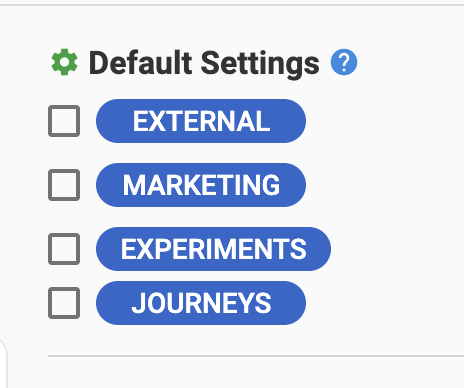
- Under Default settings, select Journeys.
- Select Save.
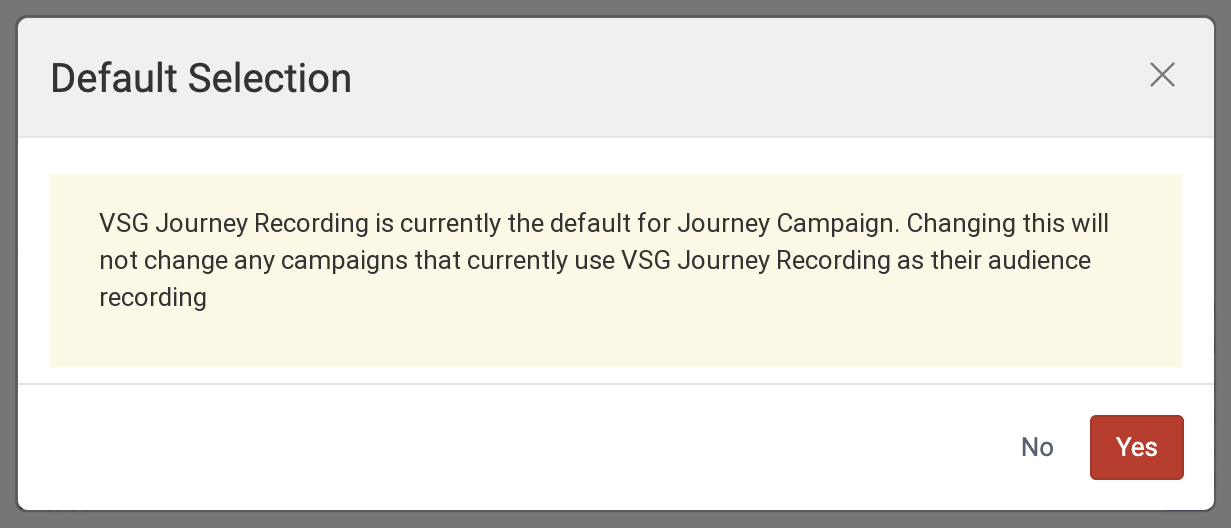
If another audience recording is already the Journeys default, Accelerator asks you to confirm the change. Journeys that already use the earlier default keep it. The new default applies only to journeys created after the change.
For more information about defaults, see Creating a new Audience Recording.
Turn on audience recording for a journey
You turn on audience recording in the journey's entry settings. Recording applies to the whole journey. You can't choose which tiles or branches to record.
- Open the journey and select the Entry tile.
- Turn on Audience recording.
- In the Audience recording dropdown, select the audience recording to write to. Select an audience recording configured for journeys, with
${evaluation.*}macros and no${job.*}macros. For more information, see Macros that don't apply to journeys. - Select Save.
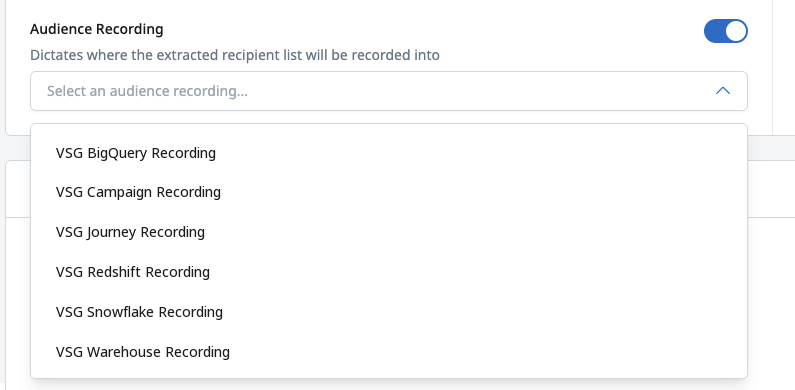
If a Journeys default exists, Accelerator turns on audience recording and selects the Journeys default when you create a journey. You can select a different audience recording or turn recording off. If no Journeys default exists, audience recording is off for new journeys.
If audience recording is on but no audience recording is selected, Accelerator shows a validation error and doesn't save the entry settings.
To stop recording, open the Entry tile, turn off Audience recording, and select Save.
Analyze your journey recording
Because each row records one step, you can query the table to rebuild each user's path through the journey, count how many users reached each tile, or compare how users in different branches behaved afterwards.
- Group rows by evaluation - All rows written in the same evaluation cycle share a
${evaluation.correlationId}value. - Separate repeat entries - Each entry into the journey produces its own entry row and its own set of rows after it. To tell one entry from the next, use the correlation ID and the evaluation time together.
- Keep rows for early exits - Rows for users who left without a tile evaluation have empty node columns. If you join the recording to other tables on the node ID, use a left join so these rows stay in your results.
- Plan for volume - A journey recording grows with every evaluation cycle. For example, 100,000 users passing through an entry tile, a segment split, and six message and time delay tiles write 800,000 rows, and every re-entry adds more. Make sure the table and its warehouse can handle the volume before you turn recording on for a large or long-running journey.
Next steps
- Create or edit the audience recording a journey writes to. For more information, see Creating a new Audience Recording.
- Turn on audience recording when you build a journey. For more information, see Create a scheduled journey.
- Learn which tiles users move through. For more information, see Journey tiles.
- Compare the recording with the journey's built-in metrics. For more information, see Journey analytics.