Admin section operations
Overview
The Admin section of Accelerator contains everything from API keys to User Configuration to System Defaults. When setting up a new Accelerator, or stepping into a manager role in an existing Accelerator system, the Admin section must be understood. The Admin section is grouped into four different categories: Users and Accounts, Data, Campaign, and System.
Users and Accounts
Users
To access Accelerator, a User account must be created. This is the username and password that a User uses to log into the system. Each User within Accelerator should have their own unique credentials.
Admins of Accelerator can use Users in combination with Groups to set permissions.
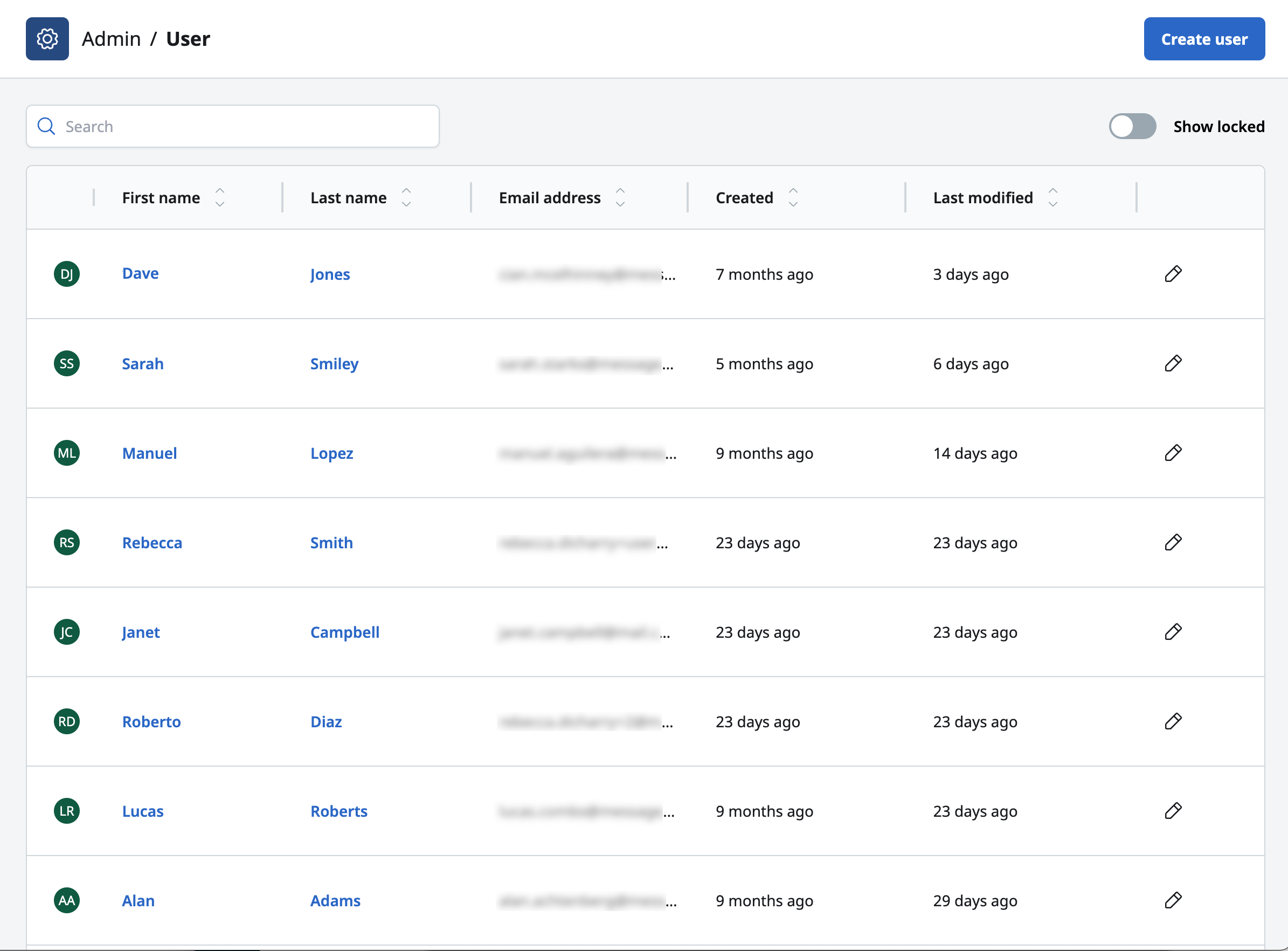
Open the Users menu on the Admin section of Accelerator.
Existing Users are viewed from this screen.
Selecting an existing User displays the details of the User account.
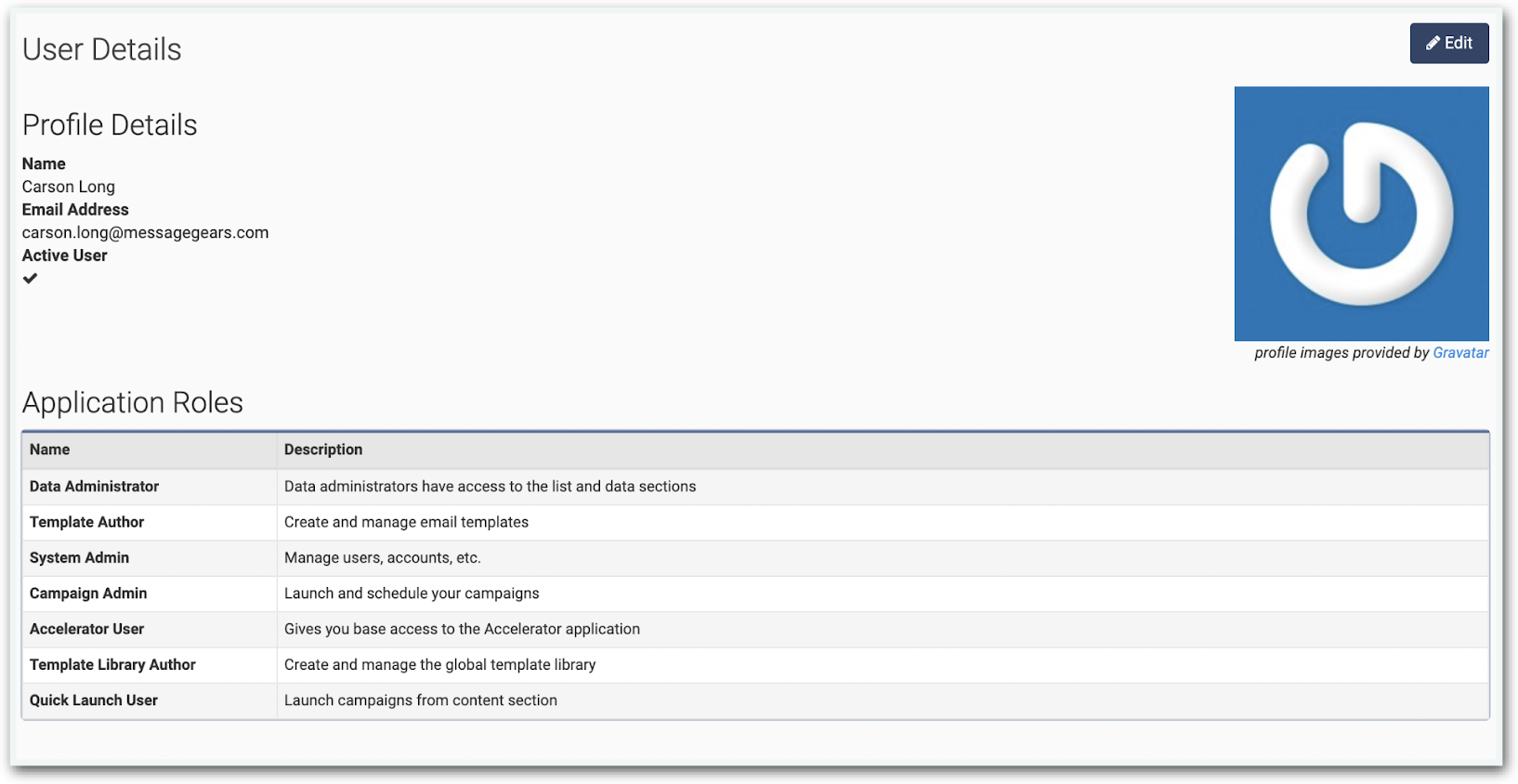
Click the Edit button above the profile picture to modify this User account.
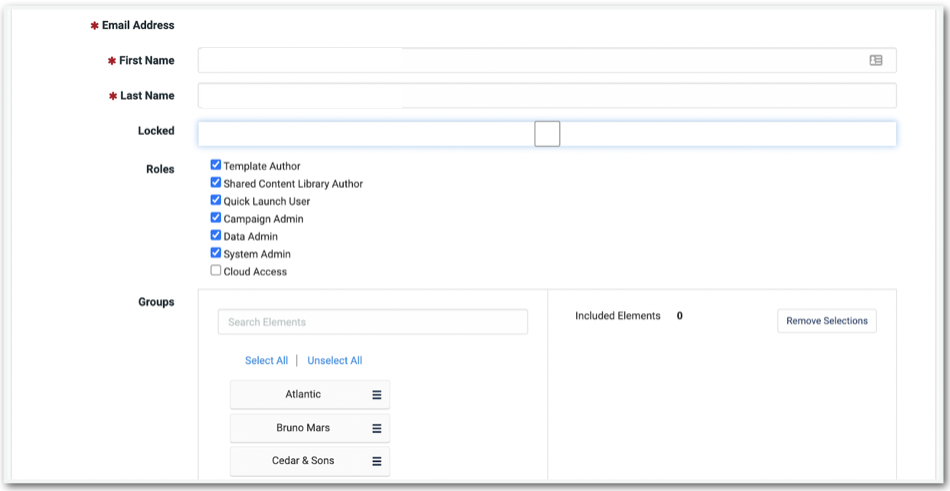
Not every option is editable. The First and Last name of the User can be changed. This is for display purposes only.
The Locked checkbox is a way to Lock or Unlock a User account. If a User is Locked, the account is no longer visible by default through Accelerator. Locked Users cannot log into Accelerator. Any User with permissions to manage Users in the Admin section of Accelerator can lock or unlock a User.
In the standard Users screen, there is a toggle to Show locked users.
Users cannot be deleted from Accelerator. They can only be Locked.
Click the Create user button to create a new User.
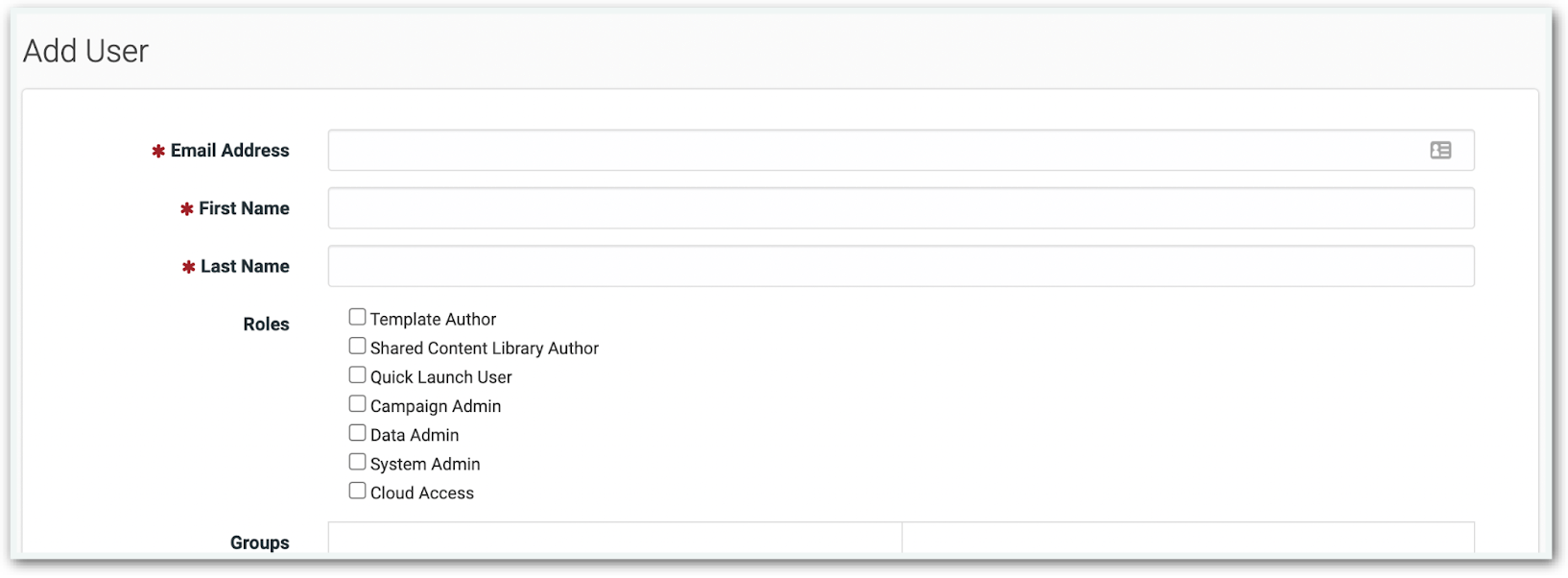
When creating a new User, define an Email Address, First Name, and Last Name. The Email Address must be unique for each User, as it will also be the name used to log in to Accelerator.
The Roles (also called Application Roles) control the permissions that a User has:
| Role Name | Role Description |
|---|---|
| Data Admin | Data administrators have access to the list and data sections |
| Template Author | Create and manage email, push, and sms templates |
| System Admin | Gives User access to the Admin section of Accelerator. |
| Campaign Admin | Launch and schedules campaigns |
| Accelerator User | Allows User to log into Accelerator. A User without the Accelerator User Role is unable to log into the local Accelerator instance. Instead, these Users access the Cloud MessageGears portal. |
| Global snippets Library Author (formerly templates library) | Create and manage the global template library |
| Quick Launch User | Launch campaigns from content section |
We recommend using selective permissions be. Not every User should have the ability to lock other Users. Use Roles effectively to avoid issues with Users interacting with parts of Accelerator they do not need to access.
Application Groups
| Permission Type | Description |
|---|---|
| Read | View the Asset |
| Update | Edit or Move the Asset |
| Delete | Remove the Asset from Accelerator |
| Execute | Content: - Quick Launch - Test Functions - Spam Filter - Content Evaluation - Email Clients - Subject Line Campaigns - Marketing Campaigns - Send Test - Launch Campaign - Schedule Campaigns - Use Spam Filter testing - Multivariate Testing - Transactional Campaigns - Send Test - Promote Campaign - Use Spam Filter testing |
Users are placed in Groups.
When creating content like Templates or Campaigns, look for the Permissions option. For example, when viewing Templates in the File Tree view.
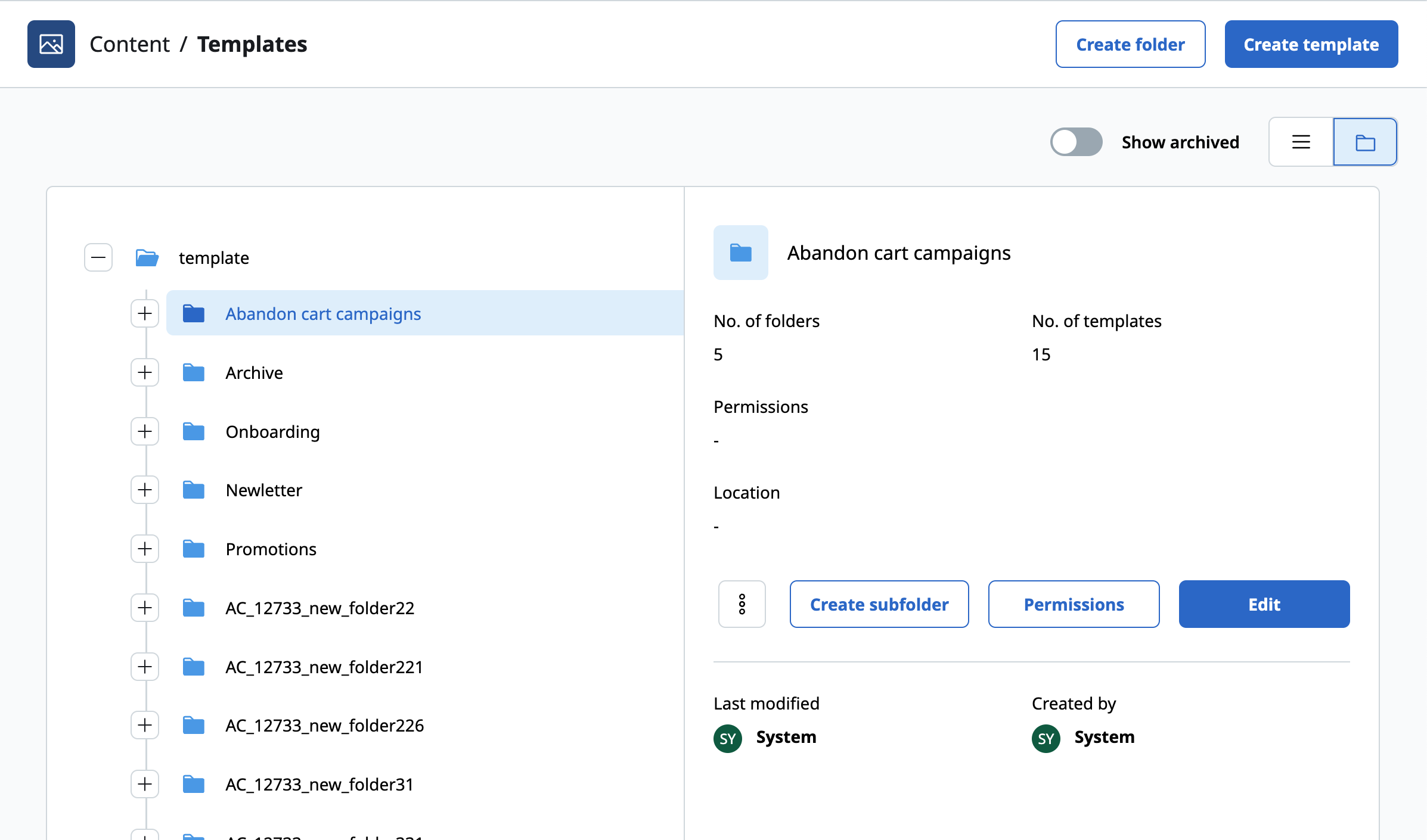
Clicking the Permissions option opens the Permissions window. This allows the User to modify the permissions of the selected item.
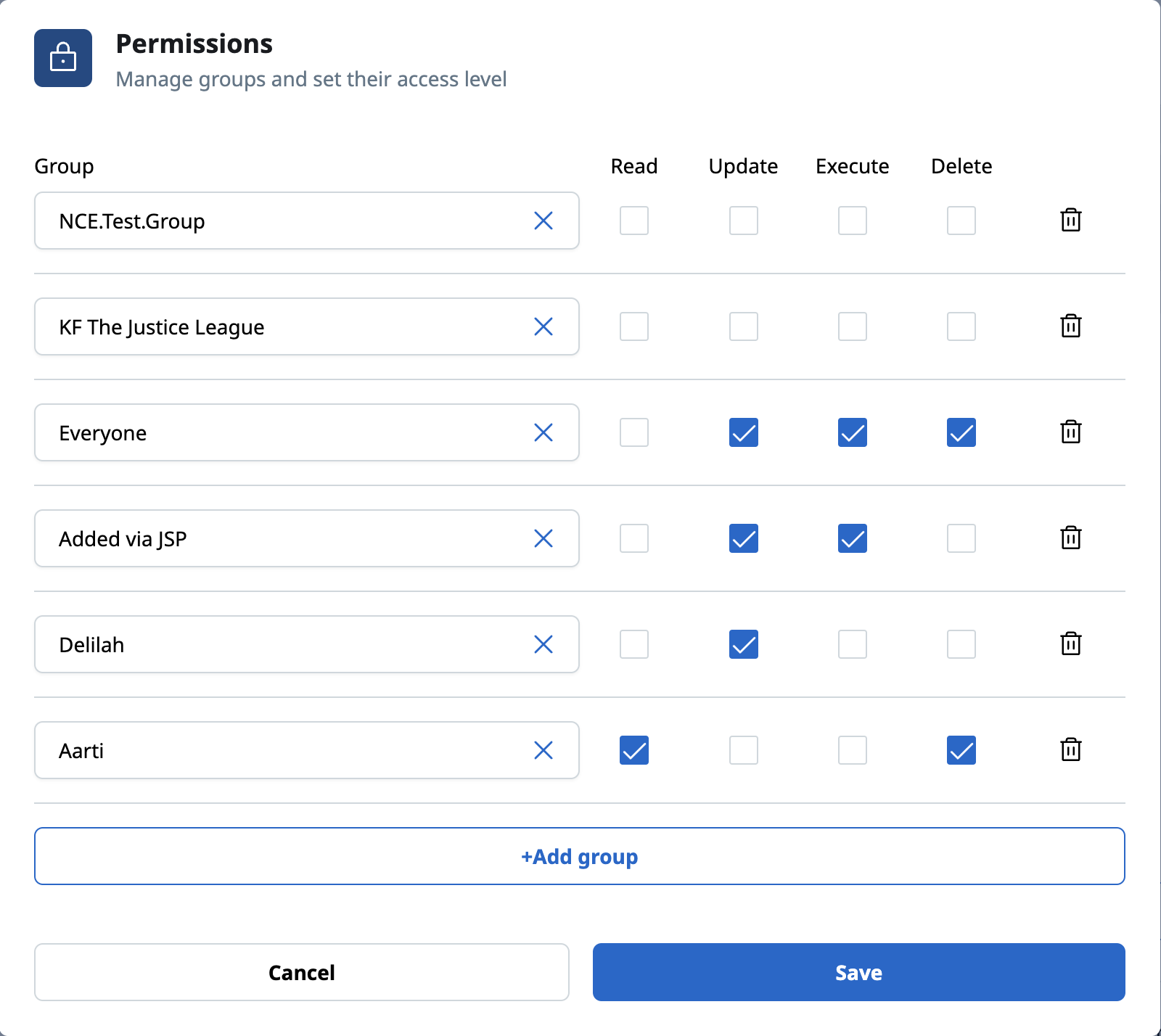
Choose the appropriate permissions for the Groups. Users within the Groups may now have more restricted access.
Users can be part of more than one group. If there are discrepancies between the permissions of a User’s groups, then the highest level of permission will always take precedence. For example, if a User is in two groups and one group gives read-only permissions while the other group gives full permissions, then the User will have full permissions to access that asset.
By default, every newly created User is placed in the Everyone Group. This is the default Group on the system. Any other Groups must be manually created.
Groups
Use the Groups screen to create new Groups for Users and Assets.
To view existing Groups in Accelerator, navigate to Admin > Groups.
A Group is simply a name that can be applied to Users and Assets. Creating a new Group is just applying a name.
The only function that can be done when editing a Group is to change the name.
Use the trash icon to delete a Group.
Deleting a Group cannot be undone. Instead of deleting a Group, remove all Users from the Group.
Accounts
The Accounts screen contains the details of the Accelerator’s Account. The Account contains details like API Key, Tracking Domain, and Account ID. These values are unique to each Accelerator instance.
Accounts are created by the MessageGears support team. For questions about Accounts, reach out to support@messagegears.com
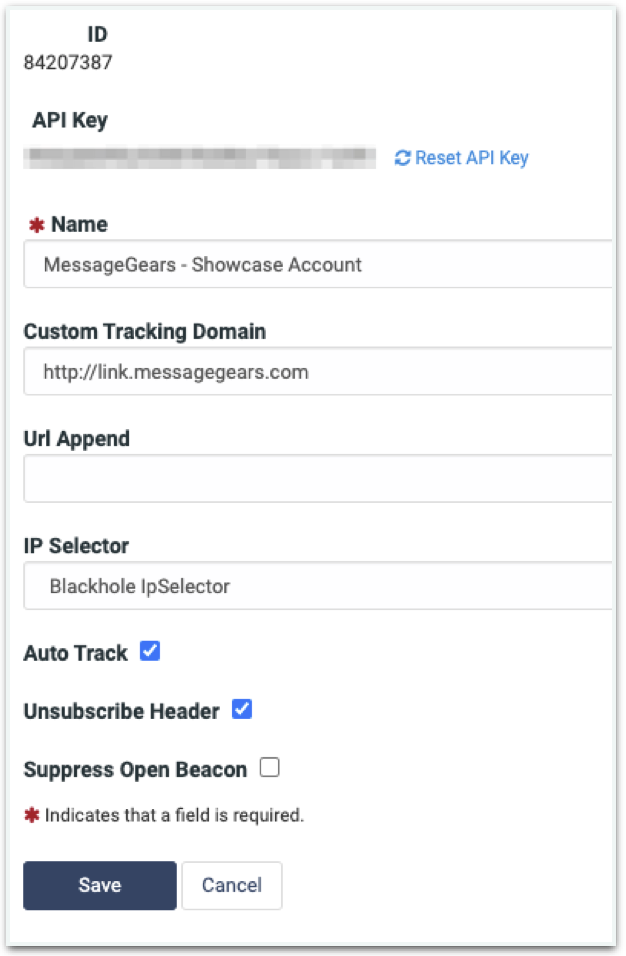
The API Key is not to be shared with any third parties unless approved by MessageGears Support. The Reset API Key option assigns a new API Key to the Accelerator instance and deactivates the previous key.
Resetting an API Key deactivates the previous key. Any external references to the API Key (like Transactional Campaigns) must be changed if the API Key resets.
The Name field is how the Account is referenced throughout Accelerator.
Use the Custom Tracking Domain and URL Append fields to add custom tracking information to contacts made through this Account.
Use the IP Selector to select the method of validating IPs.
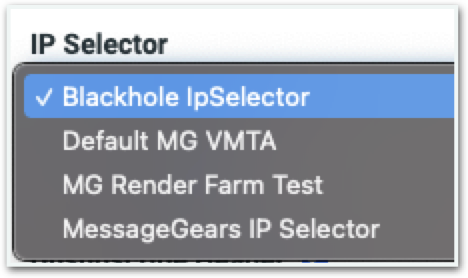
Auto Track automatically tracks recipient actions using the MessageGears default processes.
Unsubscribe Header automatically appends an unsubscribe option at the beginning of each message sent through the Account.
Suppress Open Beacon disables the beacon that is automatically added to each email contact that returns the information for what customers have opened an email contact and prevents tracking. This setting is account-wide; to suppress the open beacon for individual recipients who have declined open-tracking consent, use the reserved TrackingConsent recipient field instead — see Open-tracking consent.
Modifying Accounts should only be done with the help of MessageGears support at support@messagegears.com
Profile lookup builder
Profile lookup must be configured on the builder screen before it can utilized. Users must have the Data Admin or System Admin user role to access this page. From within the Profile lookup builder page, select the appropriate Database connection. This will default to the Accelerator instances default connection, as setup in the database connections, but can be changed as needed.
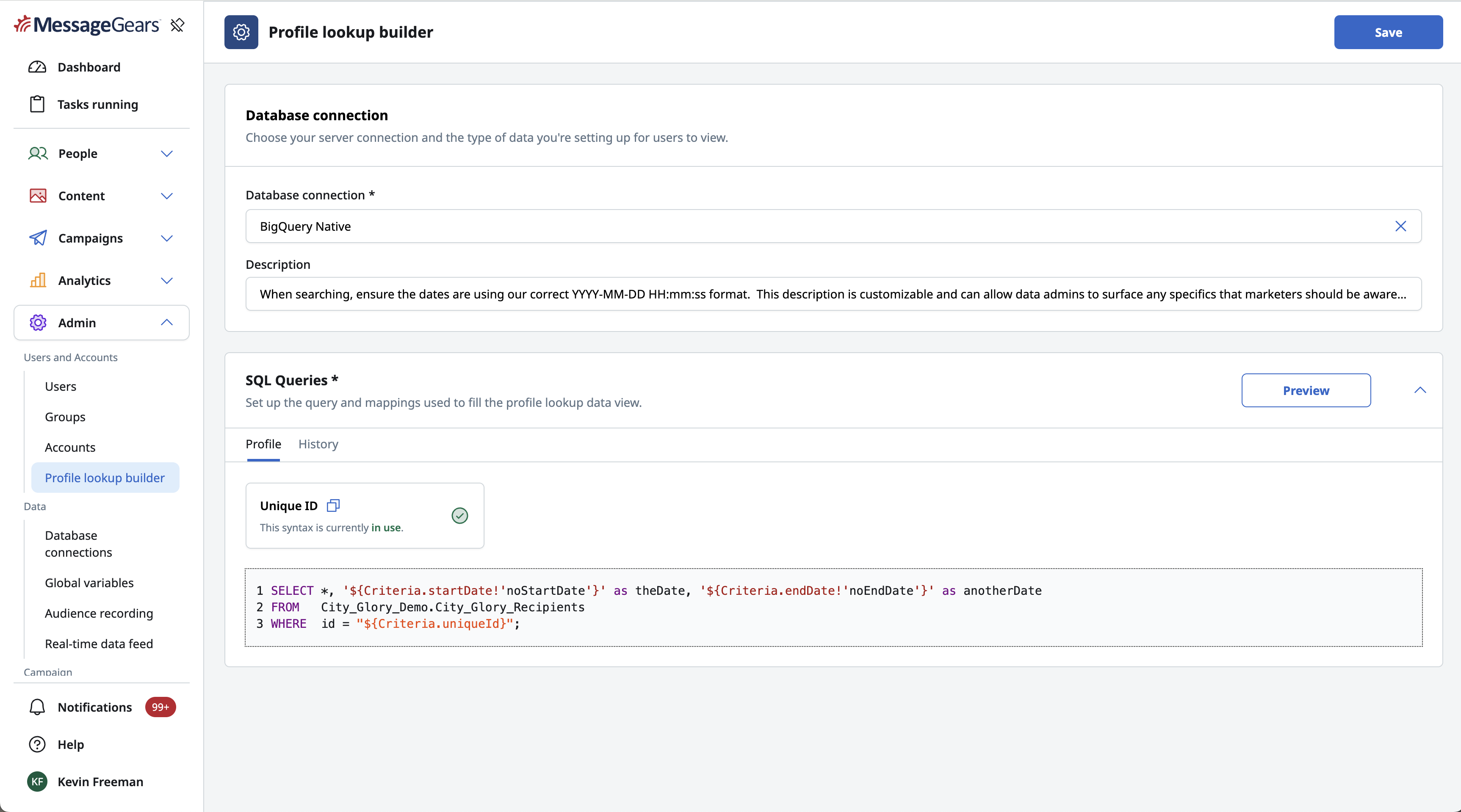
Add a description to help inform marketers using Profile lookup about any specifics or formatting needed while searching. For instance, if date uses format YYYY-MM-DD or HH:mm:ss, surfacing that in description will allow a marketer using this feature to see and be able to copy this formatting. Description is surfaced on both the Profile lookup page, and on the search drawer.
Add the SQL query for Profile. Remember, Profile is expecting a single return, with any included attributes desired. The only required parameter is Unique ID, which needs to be represented as criteria within the query. You can copy the syntax for that criteria by clicking the copy icon next to Profile ID.
Use the Preview button to enter in a Unique ID and test the results of your query. The output will be displayed as a table, but the results and order should match what you’re intending to display on the Profile lookup page when users search for profiles.
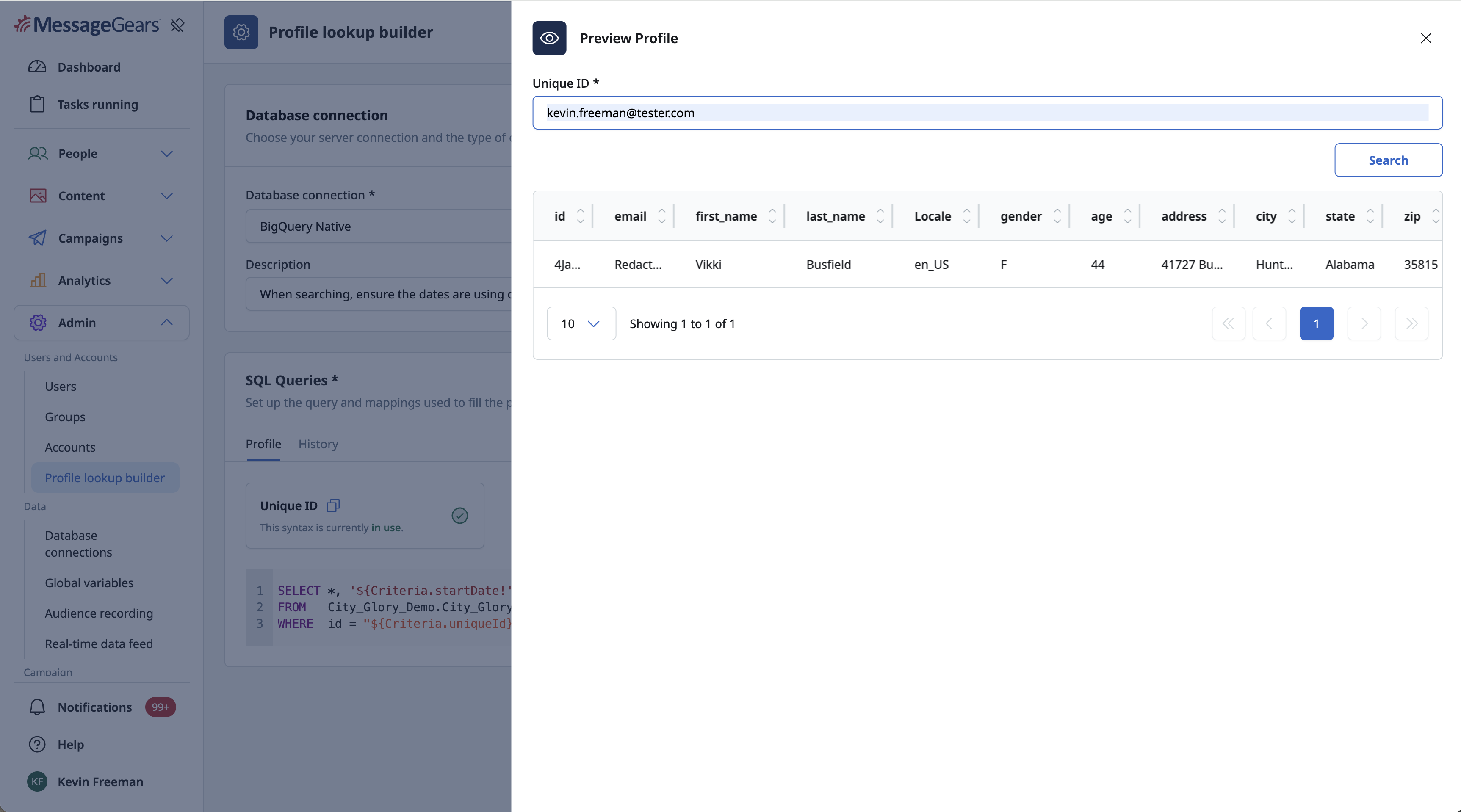
Repeat these steps to craft and test the History query. This should include attributes which will display the info you wish to see associated to the history of the profile you are searching against.
Data
Database Connections
Database Connections must be configured before an Audience can be created. Database Connections are the settings and credentials that allow Accelerator to connect to the database that holds the necessary customer data.
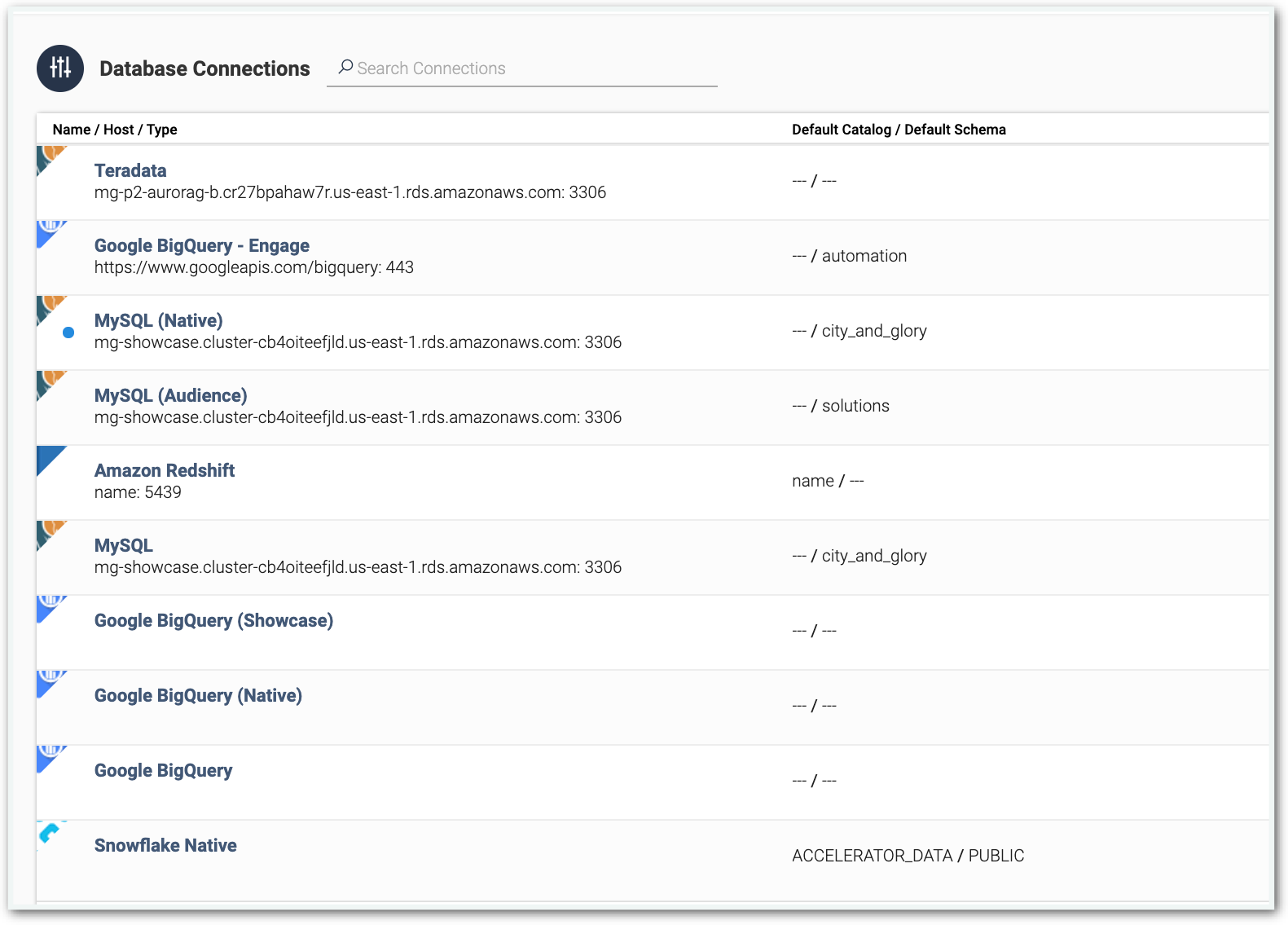
Open Database Connections to view any existing Database Connections within the Accelerator system. Clicking on an existing connection displays the setup of that Database Connection in a side window.
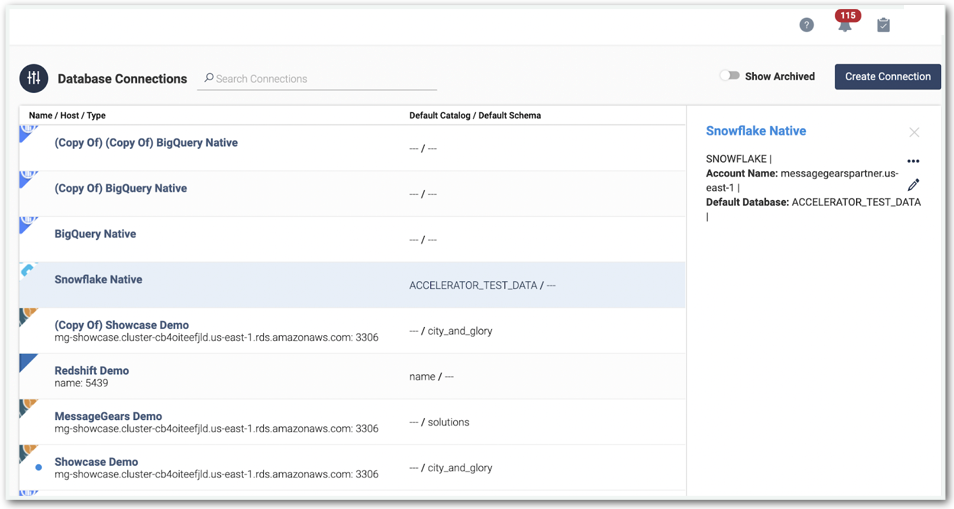
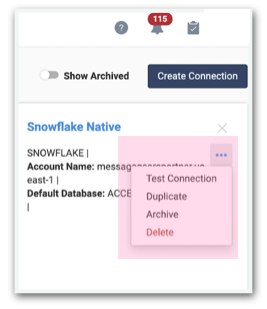
Select the three dots to expand the Actions menu. This contains options to Test, Duplicate, Archive, or Delete a connection.
Select the Pencil icon beneath the Action Menu to edit the configuration of an existing Database Connection.
To create a new Database Connection, click the Create Connection button in the top right of the screen.
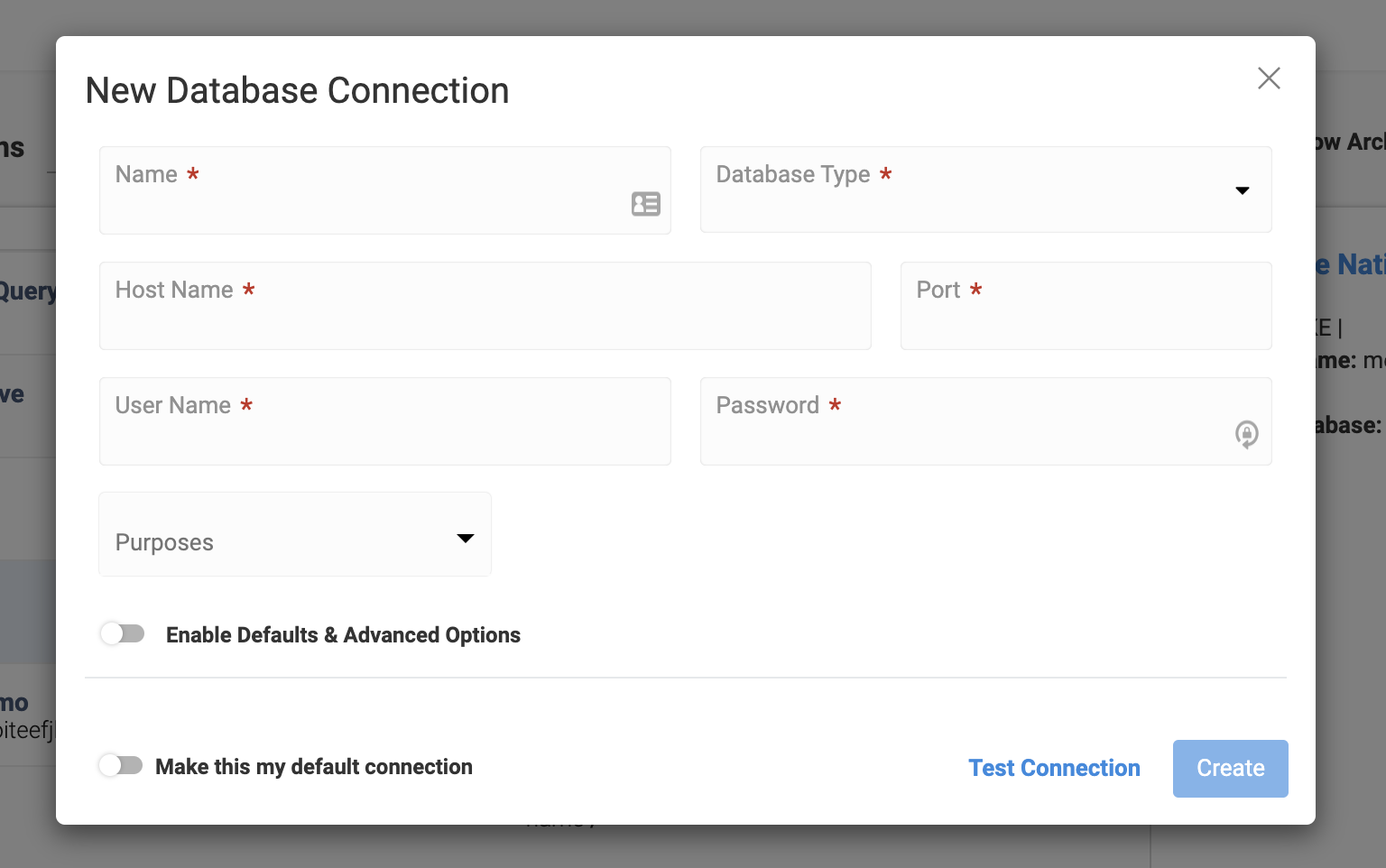
Fill out the following fields:
Name - A descriptive name for the Database Connection. This name will display throughout Accelerator anytime a User can select a Database Connection.
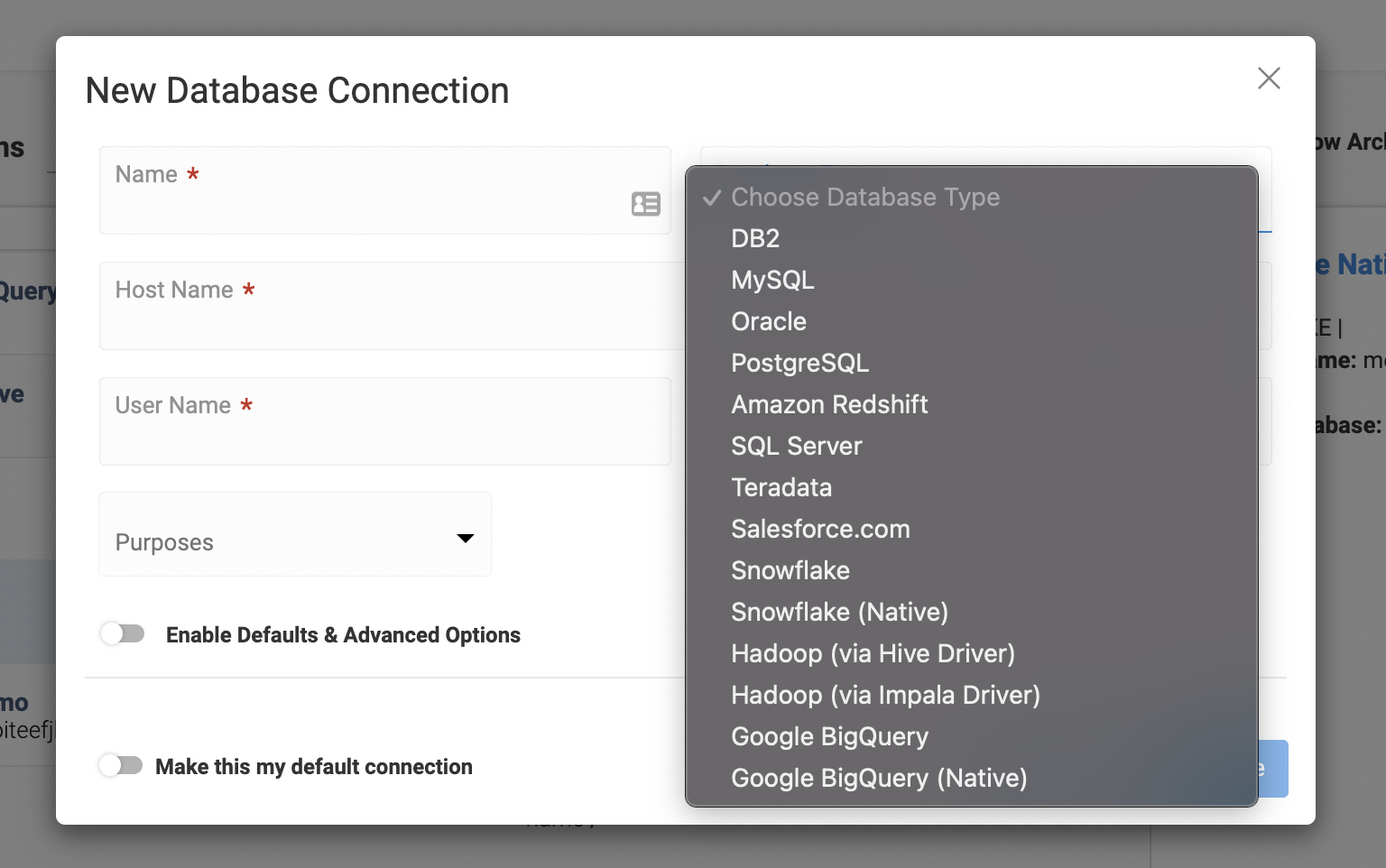
Database Type - Select the type of Database that this connection accesses. Accelerator can connect to any database with a JDBC connector. Selecting a Database Type can display additional configuration options.
Host Name - The host name of the database server.
Port Number - the port number that Accelerator will access the database server.
User Name and Password - The credentials used by Accelerator to access the database.
Purposes - Accessible after selecting a Database Type. The Purposes is a series of checkboxes to control in what situations a Database Connection can be selected. For Example, checking the Audience checkbox allows the Database Connection to be used when creating an Audience.
Advanced Options may be configured by toggling the Enable Defaults & Advanced Options option.
Setting a Database Connection as the default by toggling the Make this my default connection option. Making a connection the default means that it will be automatically selected (when applicable) when creating new items within Accelerator. Users can select different Database Connections from the Default if desired.
After selecting a Database Type, default columns will display.
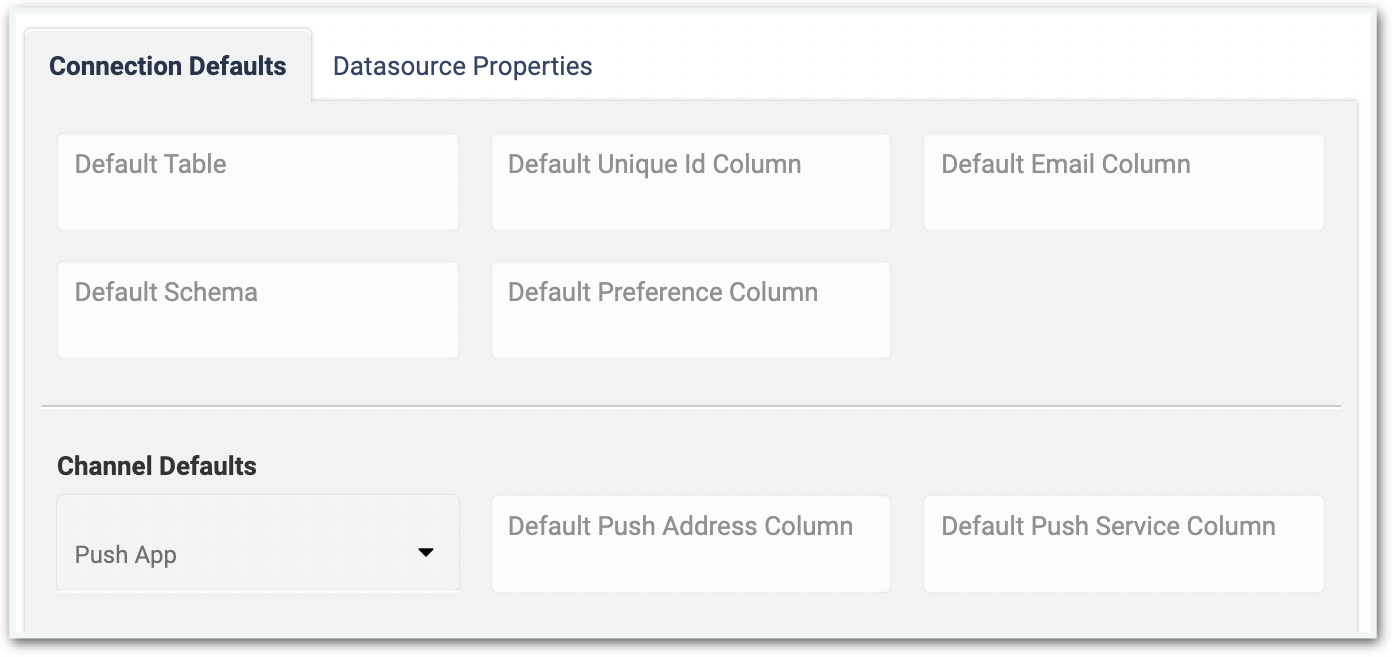
Use these fields to set default values for customer data. This is especially important when using a database connection for Audience use.
The Channel Defaults fields only need to be populated if the Database Connection is used to contact customers through Push Notifications. Populate the columns that hold the necessary Push values.
Global Variables
A data variable is a variable that can be used in a SQL query or in a Blueprint evaluation as a placeholder value. Then, in the campaign settings, this value can be updated with the actual value that the Campaign Admin wants to use. This gives the Campaign Admin the ability to modify the audience query without having to write any SQL.
A Global data variable means that this variable can be used anywhere you can add data variables, so it can be shared across queries. Any updates to the global variable here will update it anywhere that it is being used.
To create a Global variable, click the Add variable button.
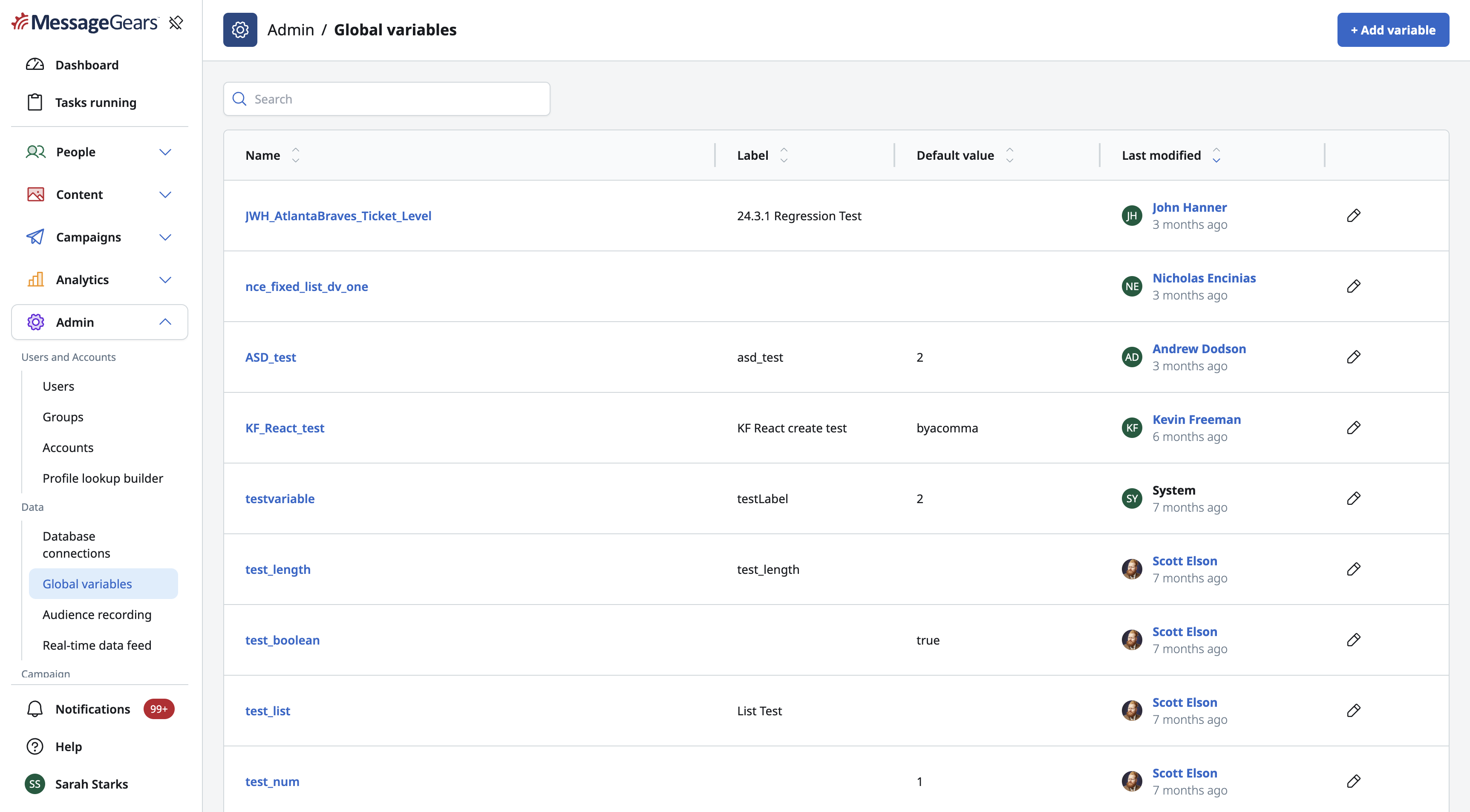
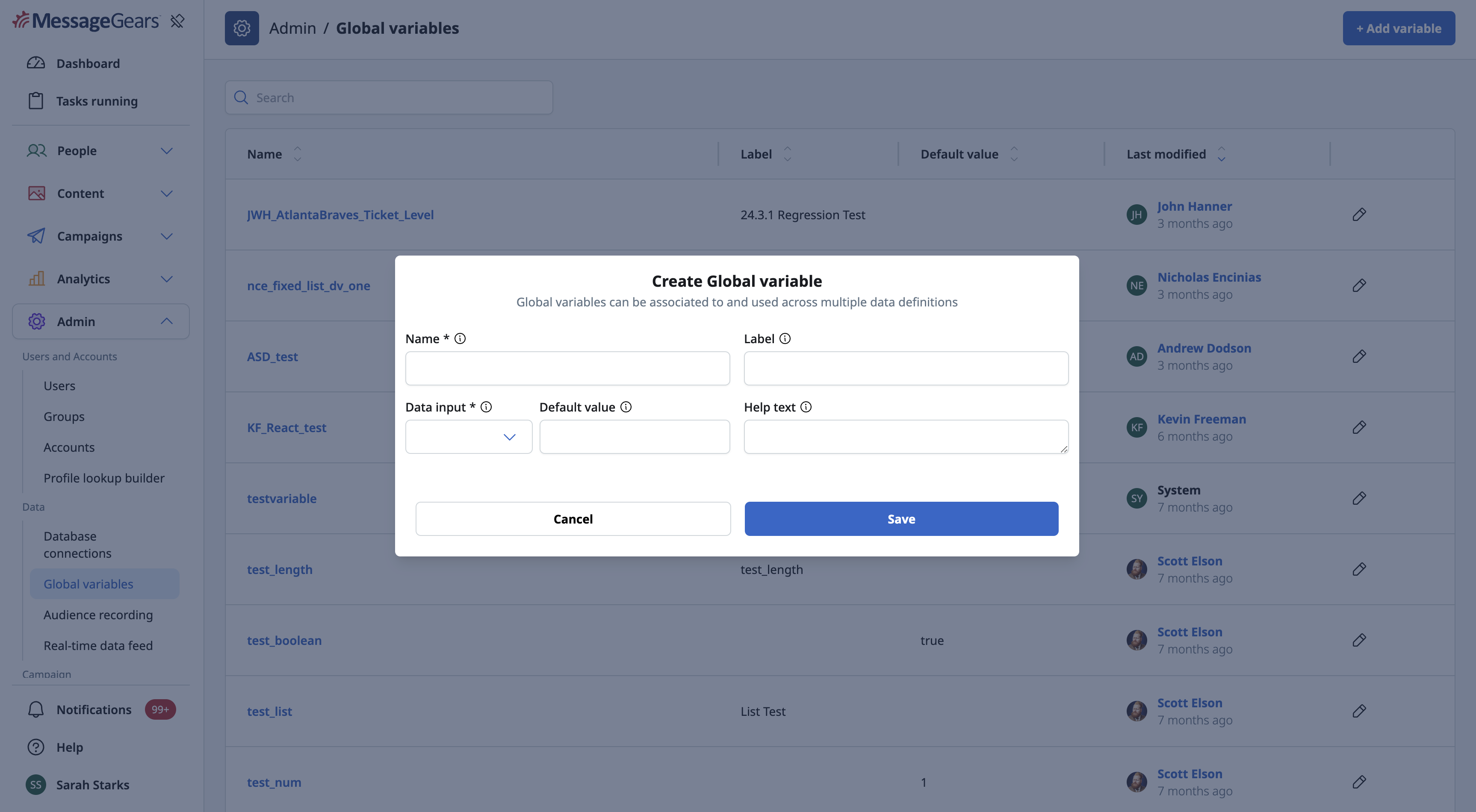
There are four different types of data variables. Some of the settings are generic for every data variable.
The generic settings are:
- Name - How the variable will be referenced in the data definition. Only underscores and alphanumeric characters are allowed.
- Label - The user-friendly text displayed in settings to refer to the variable.
- Data Input - The type of data variable. The options are string, fixed list, number, and boolean.
- Default Value - The value to be used when no alternative is provided.
- Help Text - Optional text to provide clarity about what this data variable should be used for.
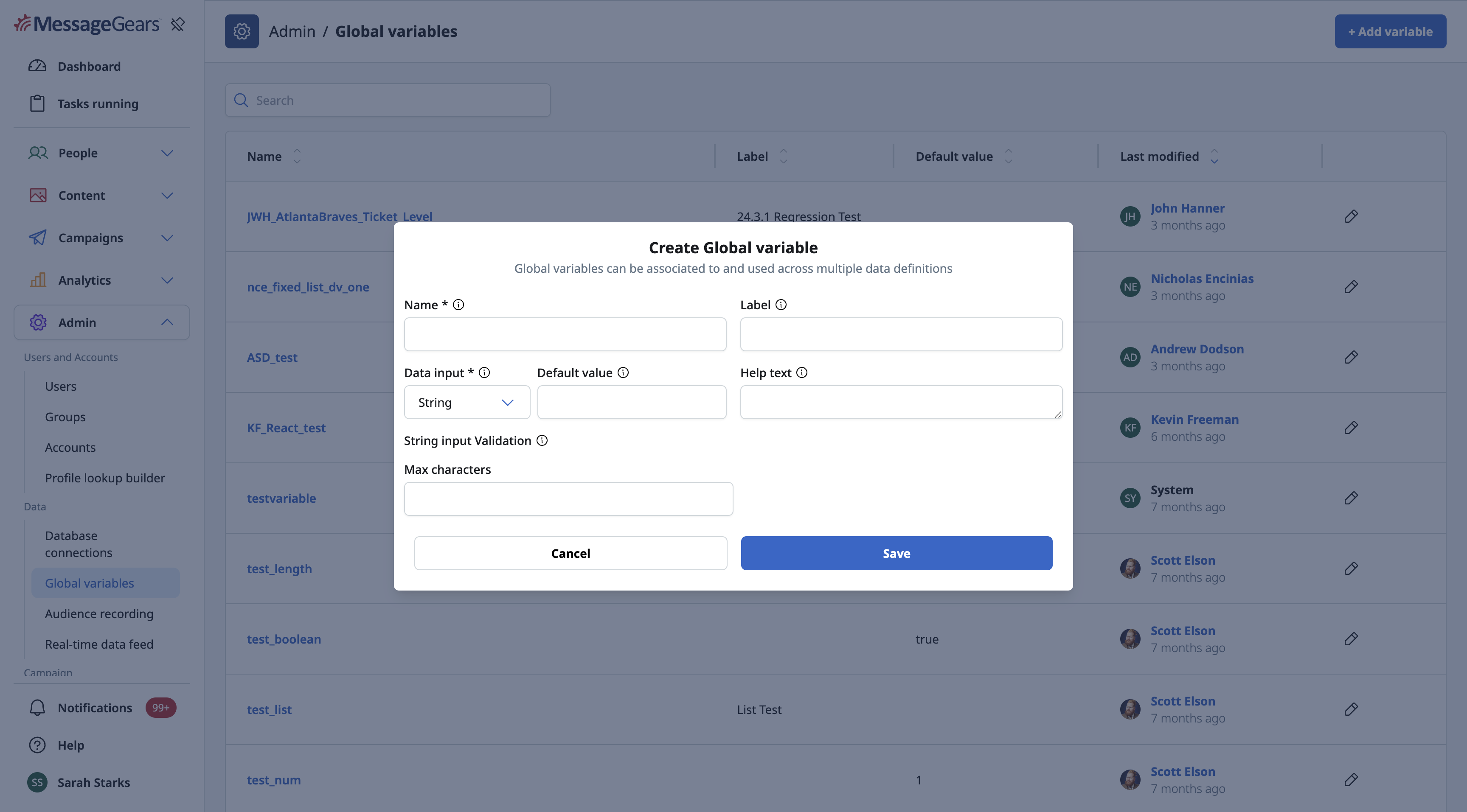
Some of the settings are specific per variable type.
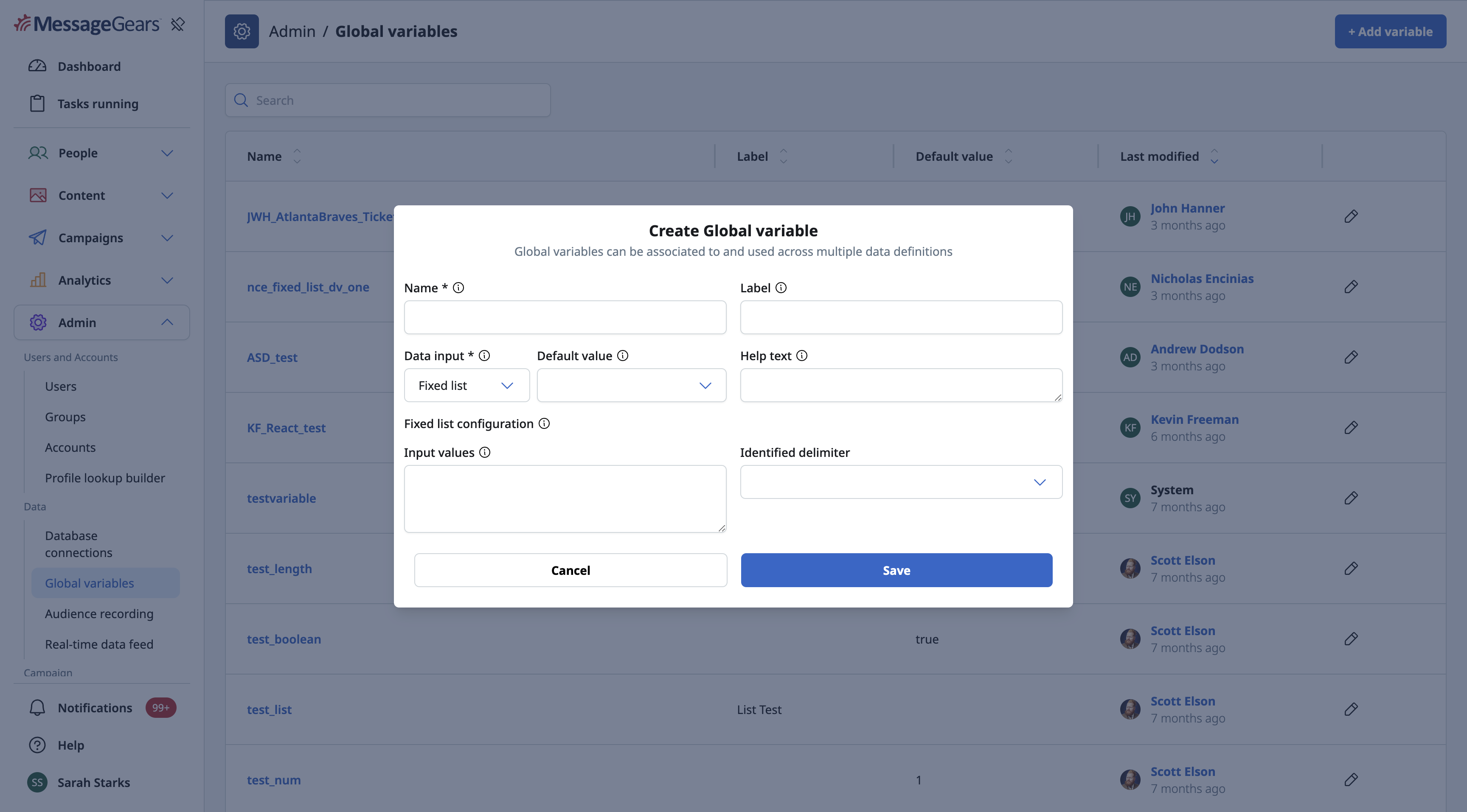
String Variable:
- Max Characters - Limit to the maximum number of characters allowed for the user to input when specifying the value they want to use.
Fixed List Variable:
- Input Values - The values that will be available to the user to select from a dropdown list. These values should be separated by either a comma or a new line delimiter.
- Identified Delimiter - The delimiter being used in the input value list.
Number Variable:
- Minimum Value - a lower limit to restrict the user from inputting a number below this value.
- Maximum Value - an upper limit to restrict the user from inputting a number above this value.
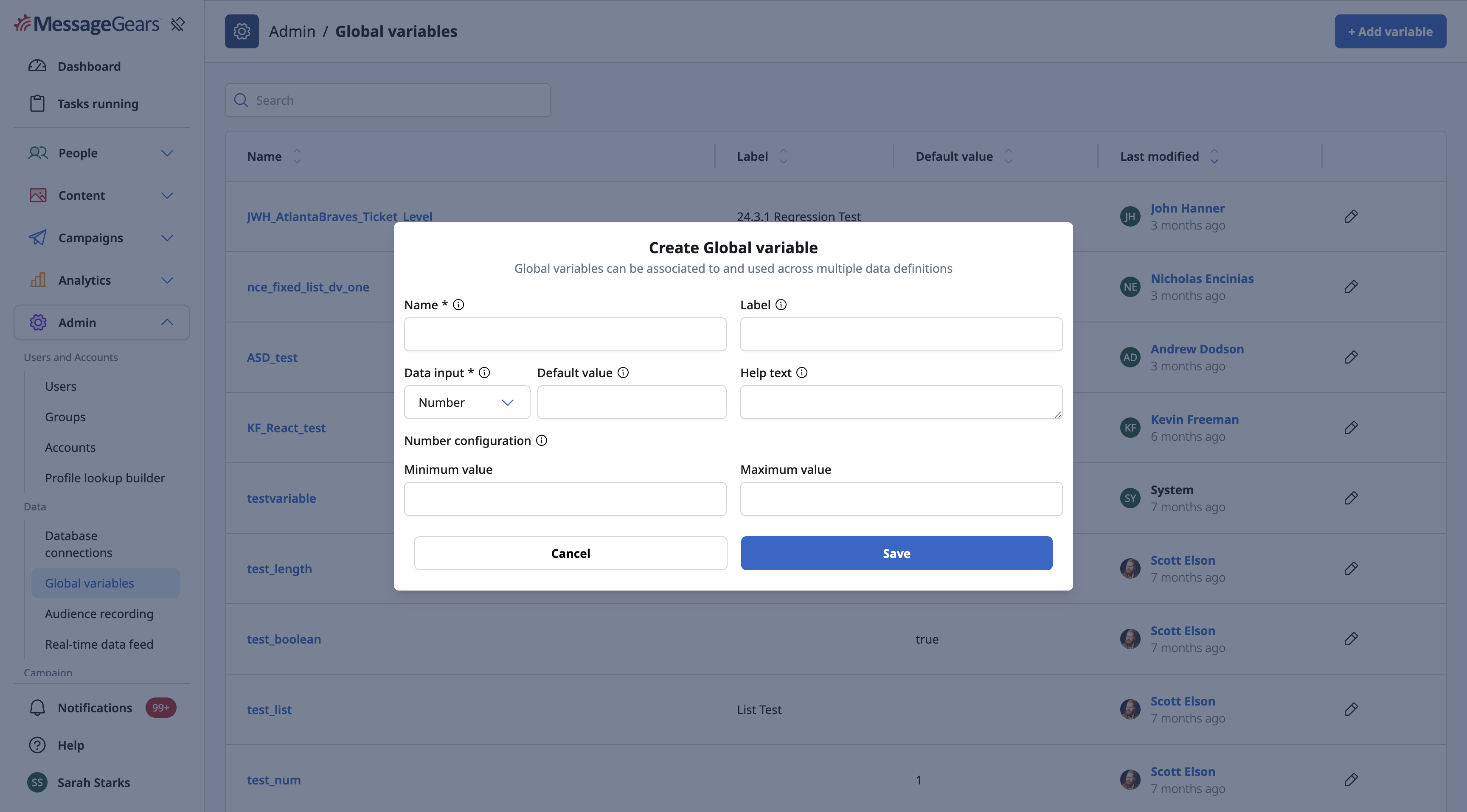
Once you've configured your data variable, click the Save button. The data variable is now available to use on Audiences, Blueprints, and Supplemental Data.
Audience Recording
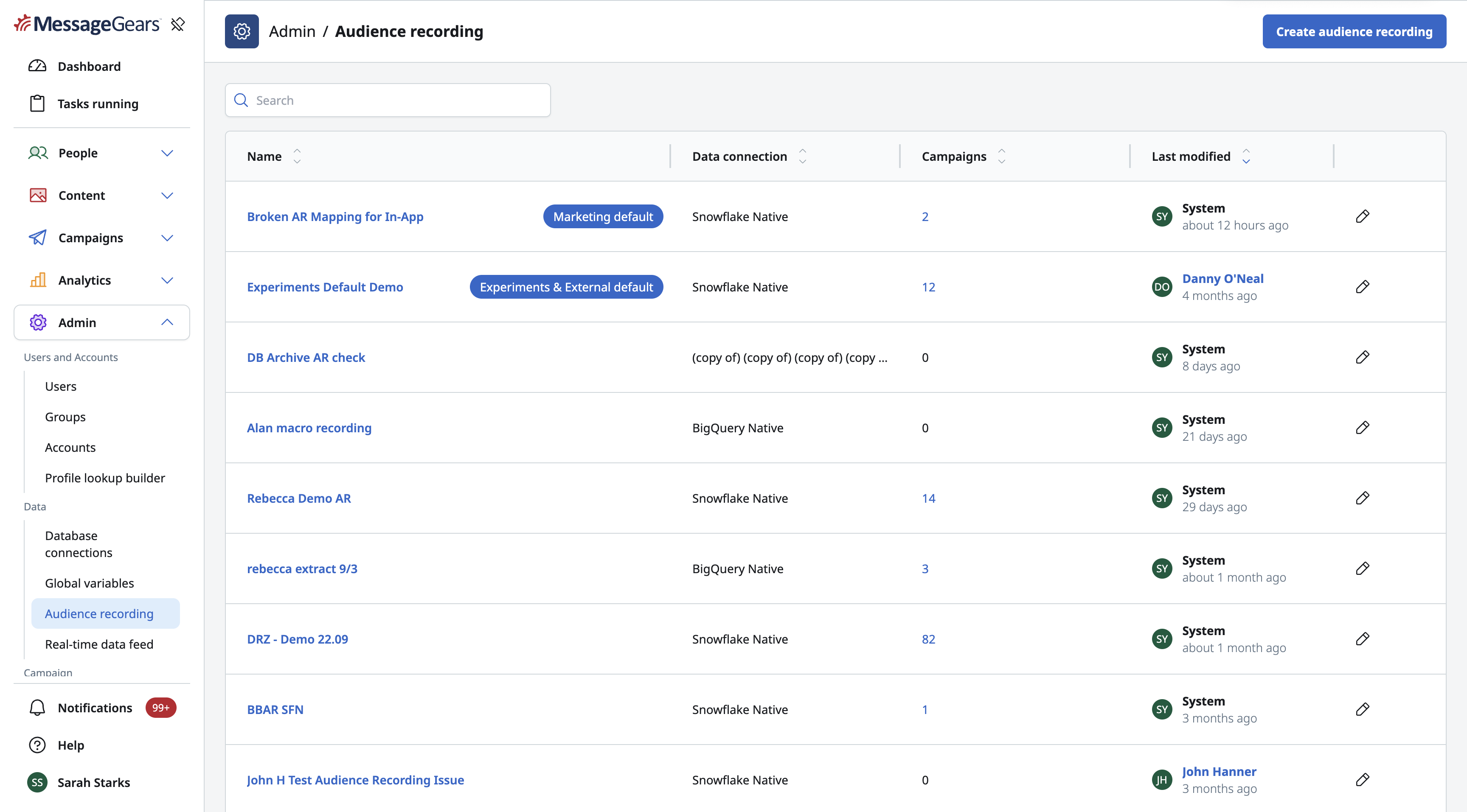
Audience Recordings allow you to record information about your recipients during a campaign launch based on the extracted data.
To create a new Audience Recording, select Create audience recording.
Start by choosing your Database Connection and selecting the Table you want the Audience Recording to be written back to. The table you select will populate the table mapping based on the columns available in that table.
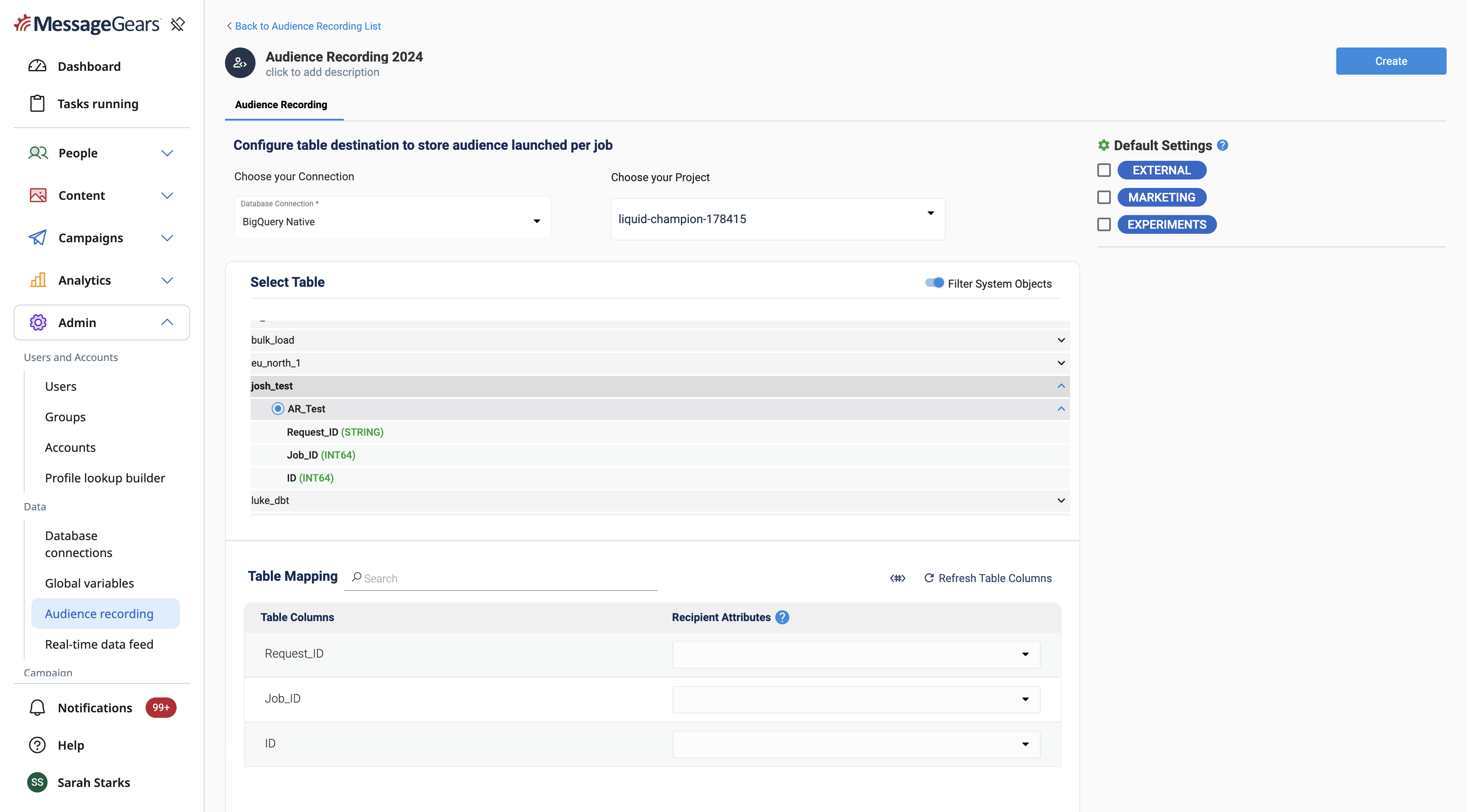
In the Table Mapping section, you can map chosen attributes to the given column in the table. These attributes are rendered either when the data is extracted or when the campaign is launched, depending on the nature of the variable.
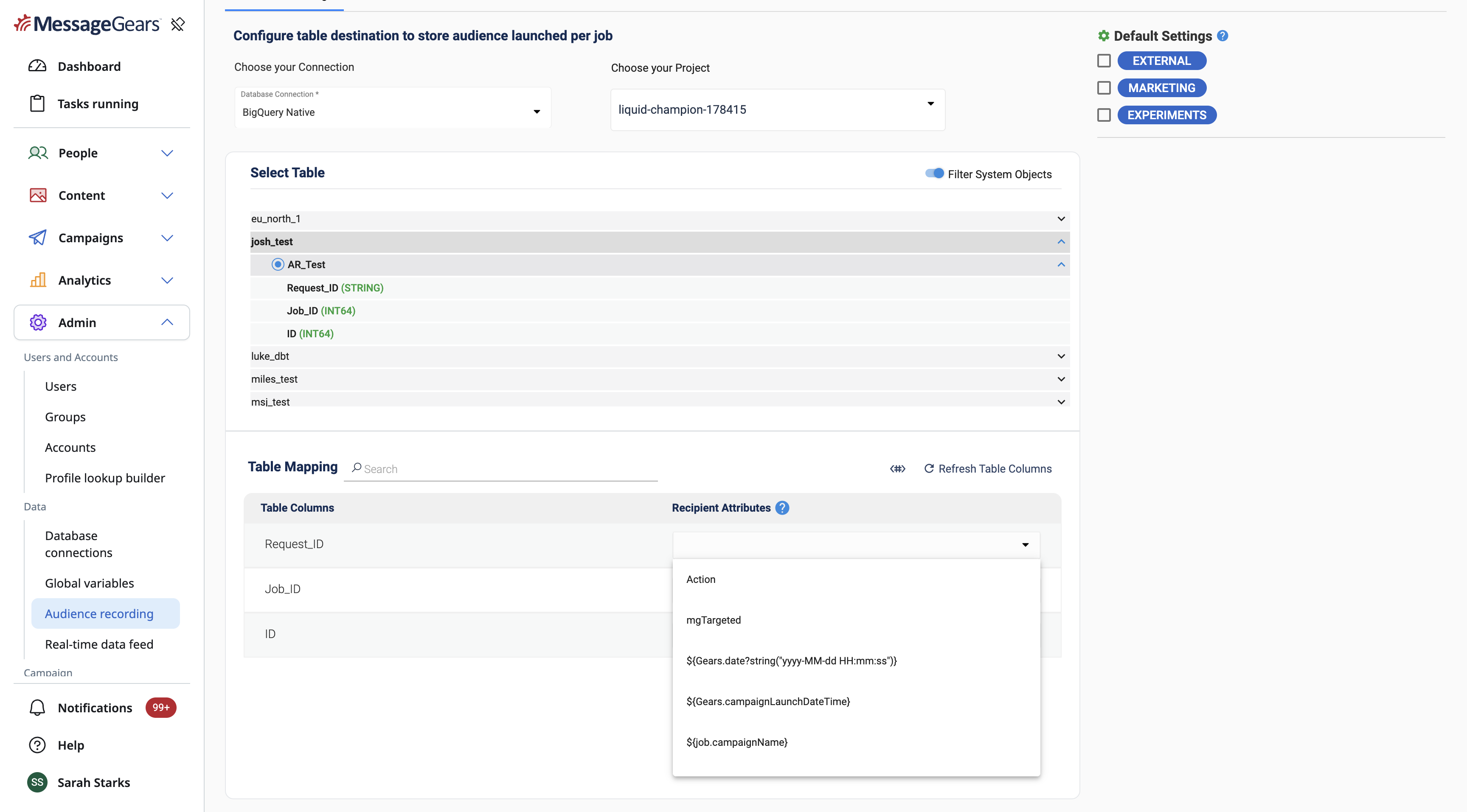
You can set the Audience Recording to be applied to specific campaign types by default. This will mean that going forward, any new campaigns will automatically have this Audience Recording configured to be used for it. The campaign admin will be able to override this if they need to.
When you're done, click Save and your Audience Recording will be ready to use.
Real-Time Data Feed
The Real-Time Data Feed is a function of MessageGears to monitor for certain events. There are many different triggers that can be Enabled or Disabled. When an event triggers, queries can automatically be run.
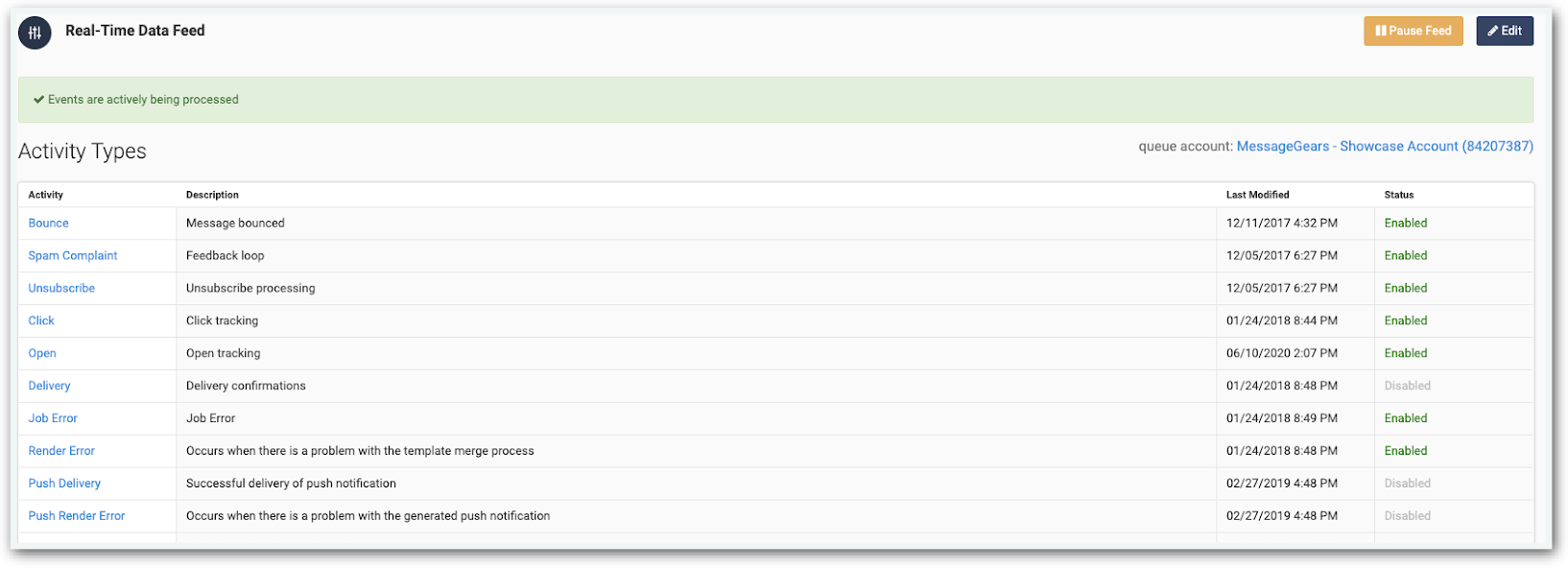
Select an Activity to view any existing queries tied to that activity.
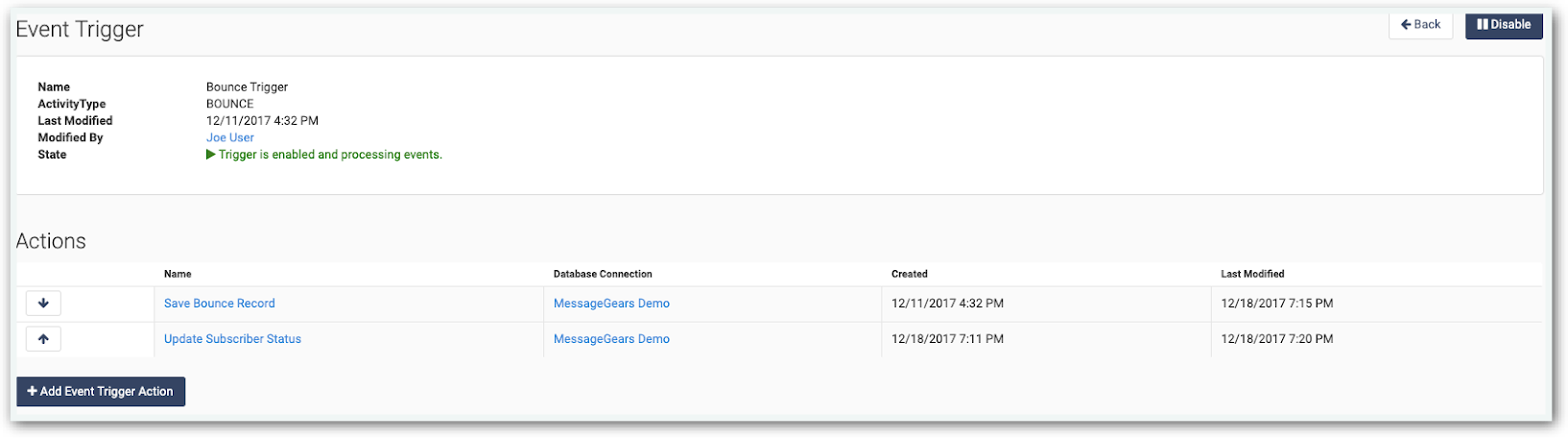
Multiple queries can be run in order when an Activity is triggered. To add a new query, click the Add Event Trigger Action button.
When creating a new query, an Action Name and Database Connection must be defined.
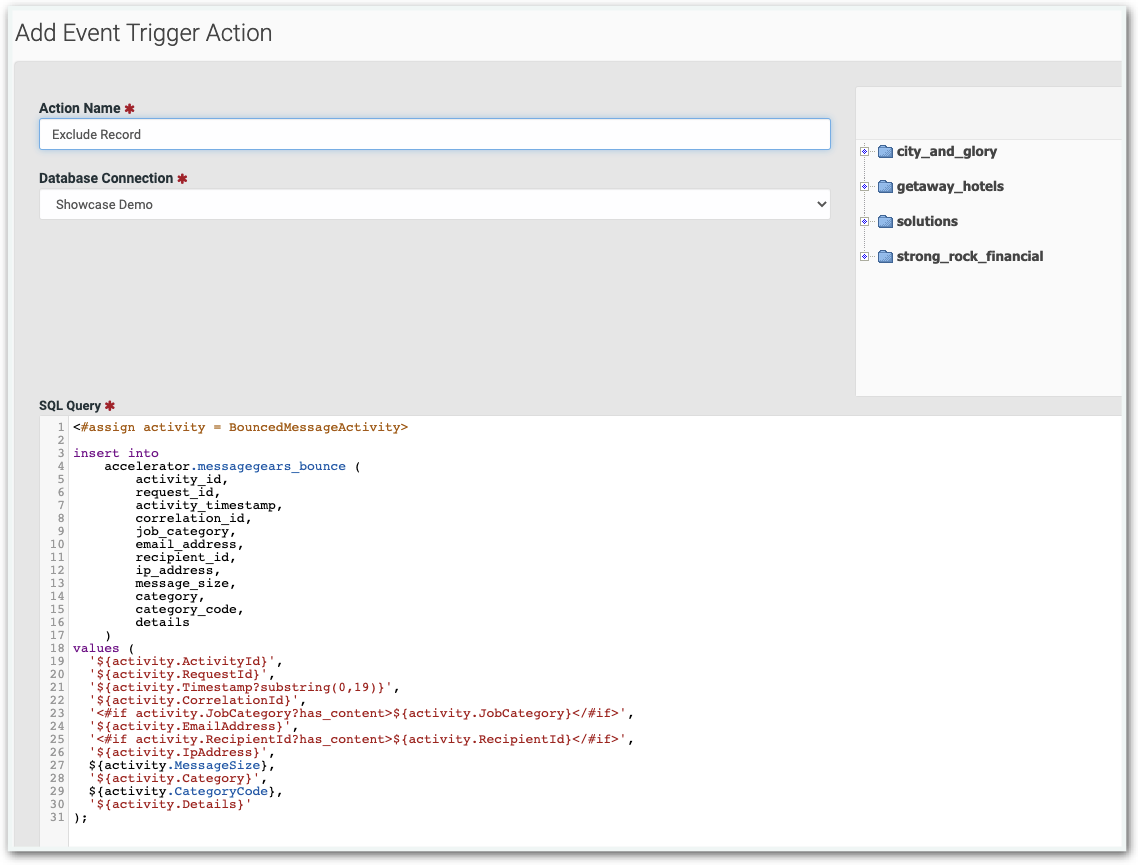
At the bottom of the screen are pre-formatted variables that can be copied and pasted into the query.

Different Event Trigger Actions can run queries against different Database Connections. After configuring the queries to run, ensure that the Actions are running in the correct order. This is more important if queries are dependent on the data processed by previous queries. Use the arrows to reorder Actions.
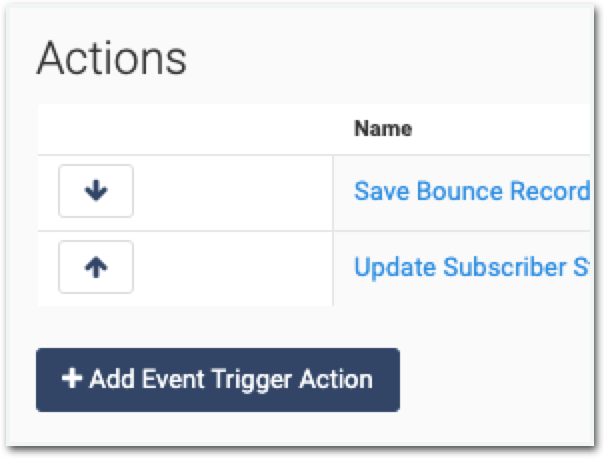
To turn off an Activity, use the Disable button in the top right of the screen.
When viewing all the Real-Time Activities, use the Pause Feed button to halt all Real-Time events.
Campaign
Sending Profiles
Sending Profiles contains default values and settings for sending emails. When creating a Template, a Sending Profile can be selected to automatically populate values like the From Name, From Address, Reply-To Name, and Reply-To Address.
Create a new Profile and populate these values.
Note the # option at the top of the screen.
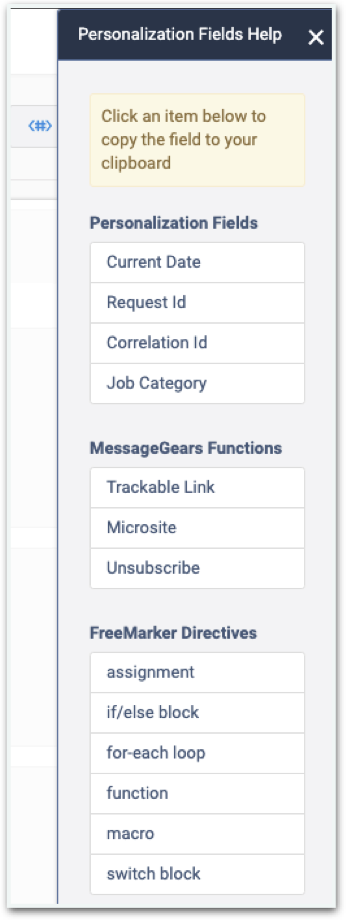
This opens up Personalization Fields that can be copied and pasted into the fields of a Sending Profile.
For more information on FreeMarker, start with Basics of Personalization in MessageGears.
Recipient Data can also be used within the Sending Profile FreeMarker. Recipient Data FreeMarker must be typed manually to include the column names of the Recipient Data that come from the Audience.
Campaign Triggers
Campaign Triggers are Database or API Queries that can be executed before or after a Campaign runs. Campaign Triggers, while used in Campaigns, are configured within the Admin section of Accelerator.
Open Campaign Triggers to see existing Campaign Triggers in Accelerator.
For more information on Campaign Triggers, refer to the Campaign Triggers page.
System
Locks
Items within Accelerator can be Locked. Typically, locking occurs due to a User working on an Audience or Template and exiting Accelerator unexpectedly. When this happens, the asset enters a Locked state which prohibits other Users from editing the item until it is manually unlocked.
When an asset is locked, a message displays at the top of the window.
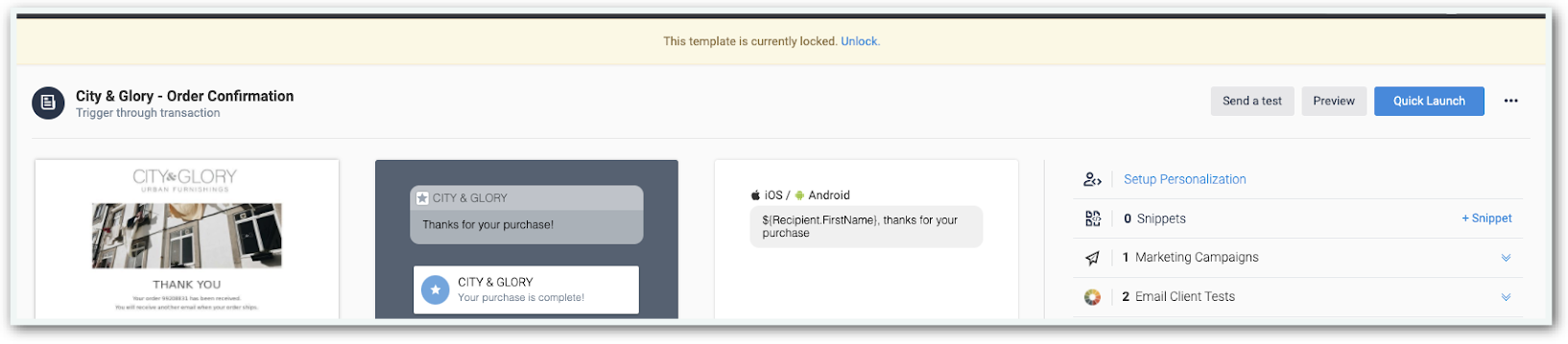
Clicking Unlock within this message will unlock the asset.
Use the Locks screen in the Admin section of Accelerator to view all locked assets and to unlock the assets without opening each item. Select the assets to be unlocked and click the Unlock button in the top right of the screen.
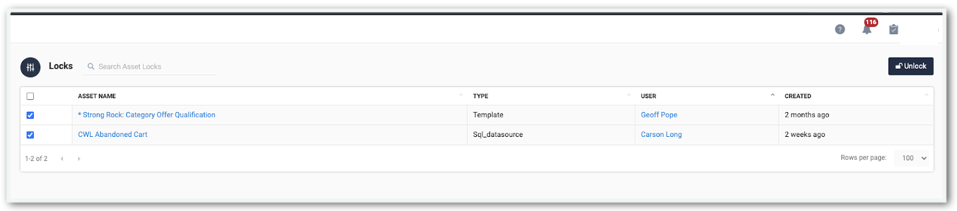
Audit Log
The Audit Log displays all actions taken within Accelerator. The type of actions that a User can take within Accelerator. This is another reason why it is important for each operator within Accelerator to have a unique User.
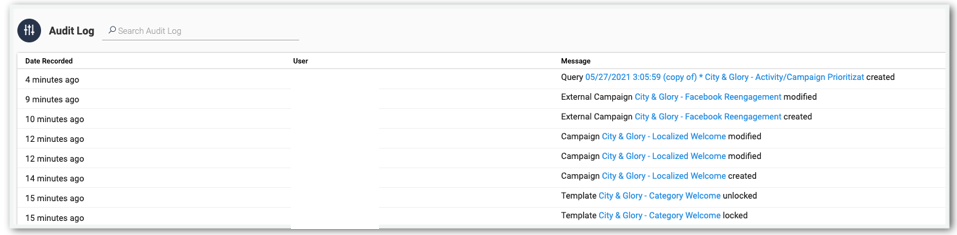
Click on the links within the Message
System Configuration
System Configuration contains a lot of information. Most of the options within System Configuration are simple checkboxes and dropdowns, yet some options, like HTML Builder, may take more work to modify.
System Configuration contains default values that can be modified.
Enabling Template Status
Template statuses allows users to identify templates that are actively being worked on, templates that have been completed and are awaiting approval, and those that are ready to be utilized within a campaign.
To turn on the Template Status feature, navigate to Admin > System Configuration > System Defaults and check the box titled, Enable Template Statuses.
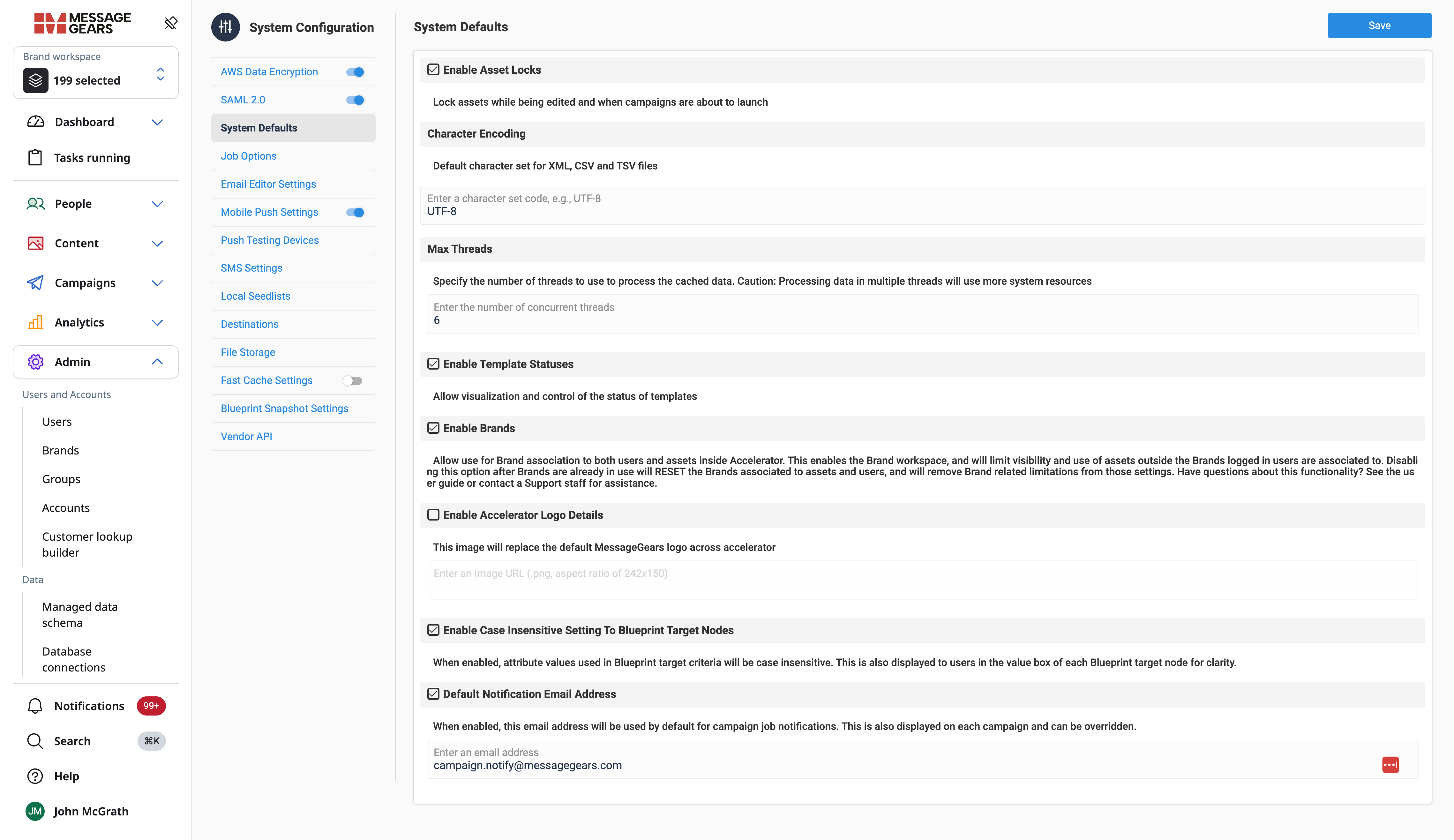 System defaults
System Info
System Info is a screen providing basic information about the Accelerator system. The information here is mostly used for support reasons, but there are fields useful to the Admin Accelerator User as well.
Take note of the Host Name, Version, Accelerator API Key, and Database User.
The values seen in System Info cannot be modified without the help of MessageGears Support.
Logs
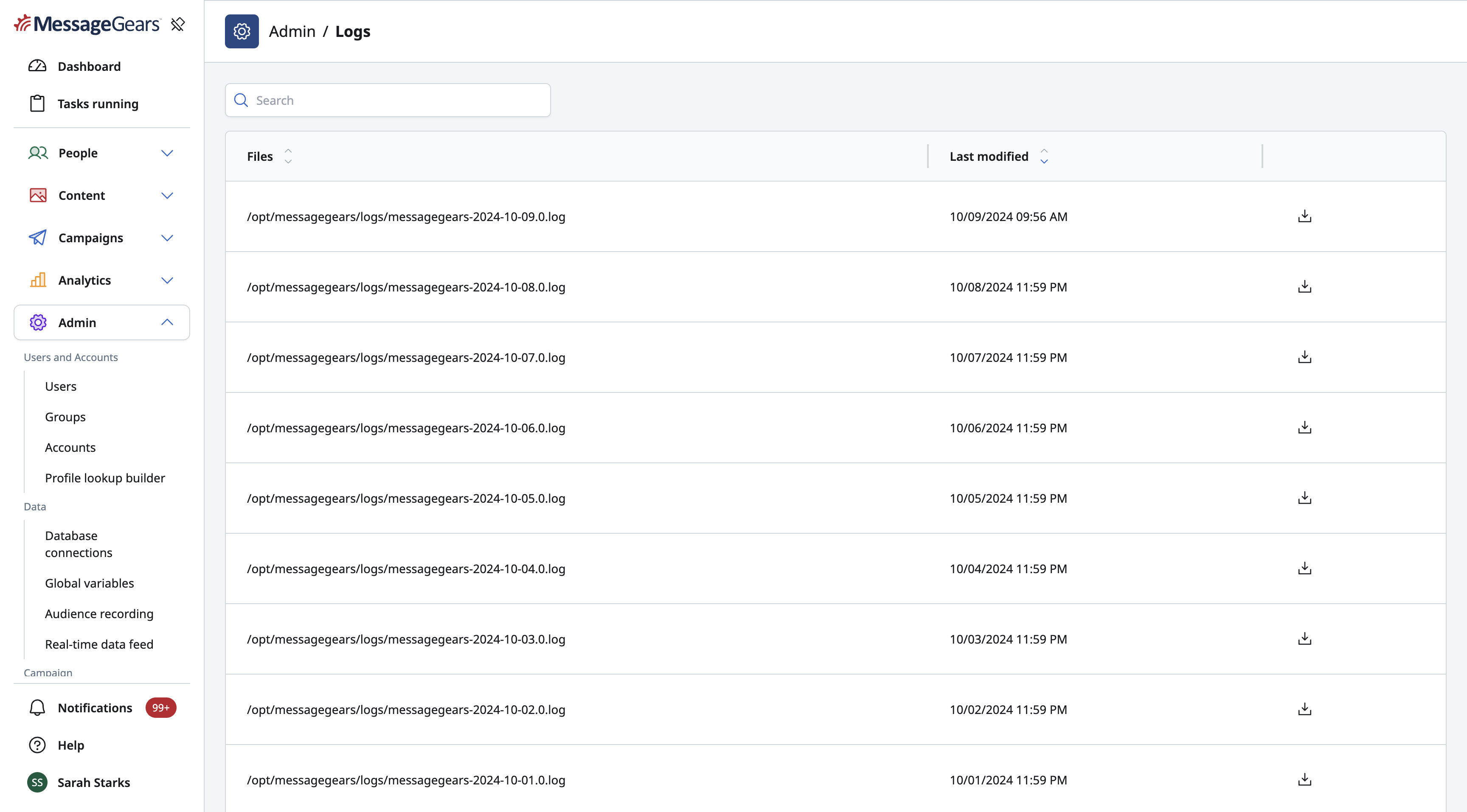
The Logs page contains a list of all log files stored in the default log file path. You can view when the file was last modified and click the download button to download the file.