Working with Brands
Overview
Brands is available starting release 25.4.2.
Brands act as organizational tags that control visibility and access across users and assets. Admins can create and manage Brands, assign them to users, and associate them with assets like campaigns, templates, audiences, accounts, database connections, and folders. A user’s Brand associations determine what they can see in the UI, while the new “Brand workspace” acts as a filter to view only selected Brands without restricting direct navigation to permitted assets. Brands also integrate into asset creation and editing flows, display alongside asset names, and support inheritance within folders. A default “Global Brand” ensures seamless migration and provides a universal option for assets and users.
What are Brands?
A Brand is a tag that can be given to users and assets, and helps control what a user can and cannot see within Accelerator.
- If the user is associated to a Brand
- The user will see assets which are associated to that matching Brand.
- If the user is not associated to a Brand
- The user will not see assets associated to that Brand, even if they have user roles that allow for permissions in that area of Accelerator (except System Admin).
This will surface not only which assets the user can see on the list page, but more importantly, which assets they can select.
- Ex: If a template is associated to Music Brand, and the logged-in user only has access to Finance Brand, the user won’t see the Music Brand Template as an option when adding a Template to the
WhatContent page within a Marketing Campaign.
Brand association will supersede User Role unless the user has System Admin. Even if the user has the Content Author - Admin role, they won’t see templates associated to Brands they don’t have access to.
Creating and managing Brands
The Brands setting requires a System Admin enable it to leverage the functionality. Check out Enabling and disabling Brands for steps to enable.
Only users with the System Admin role can create Brands. The Brands setup page is located under the Admin -> Users and Accounts from the left navigation panel.
Within the Brands page, admin users will see a list of all the Brands available to manage. Each Brand has a name and icon image that are displayed throughout Accelerator.
Create new Brands using the Create button, or edit existing Brands from the list using the edit pencil icon.
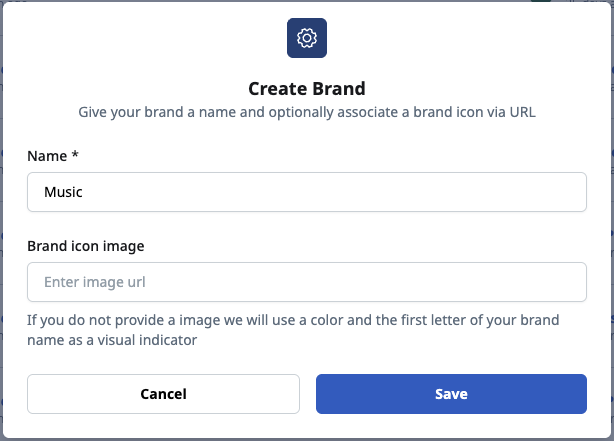
A default Global Brand is always present and cannot be deleted. This default Brand is assigned to all users, and will be the only Brand that can be assigned to assets until new Brands are created. The Global Brand can be renamed to fit your business needs.
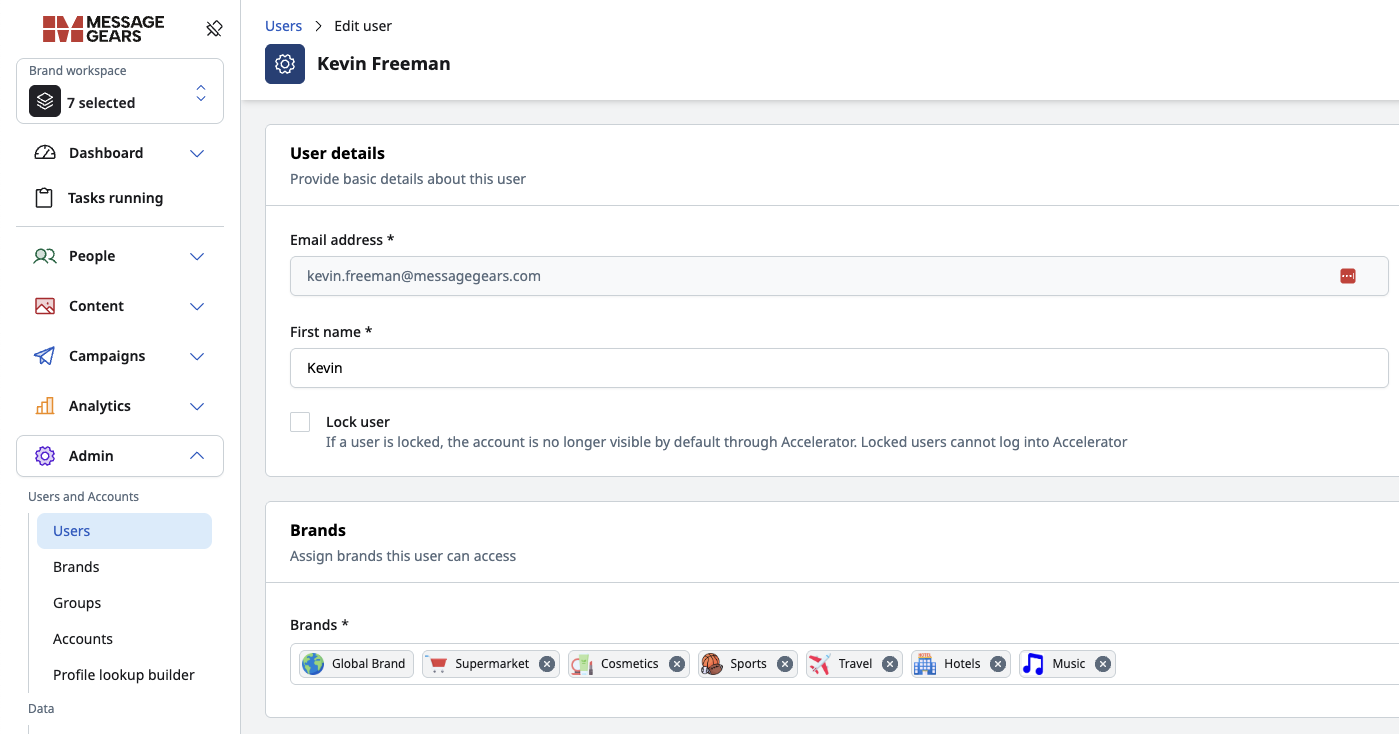
To assign Brands to users, navigate to the Users page. The User Edit page will display a section dedicated to Brand(s) that the user has access to. Add or remove brands as needed.
Assigning Brands to assets
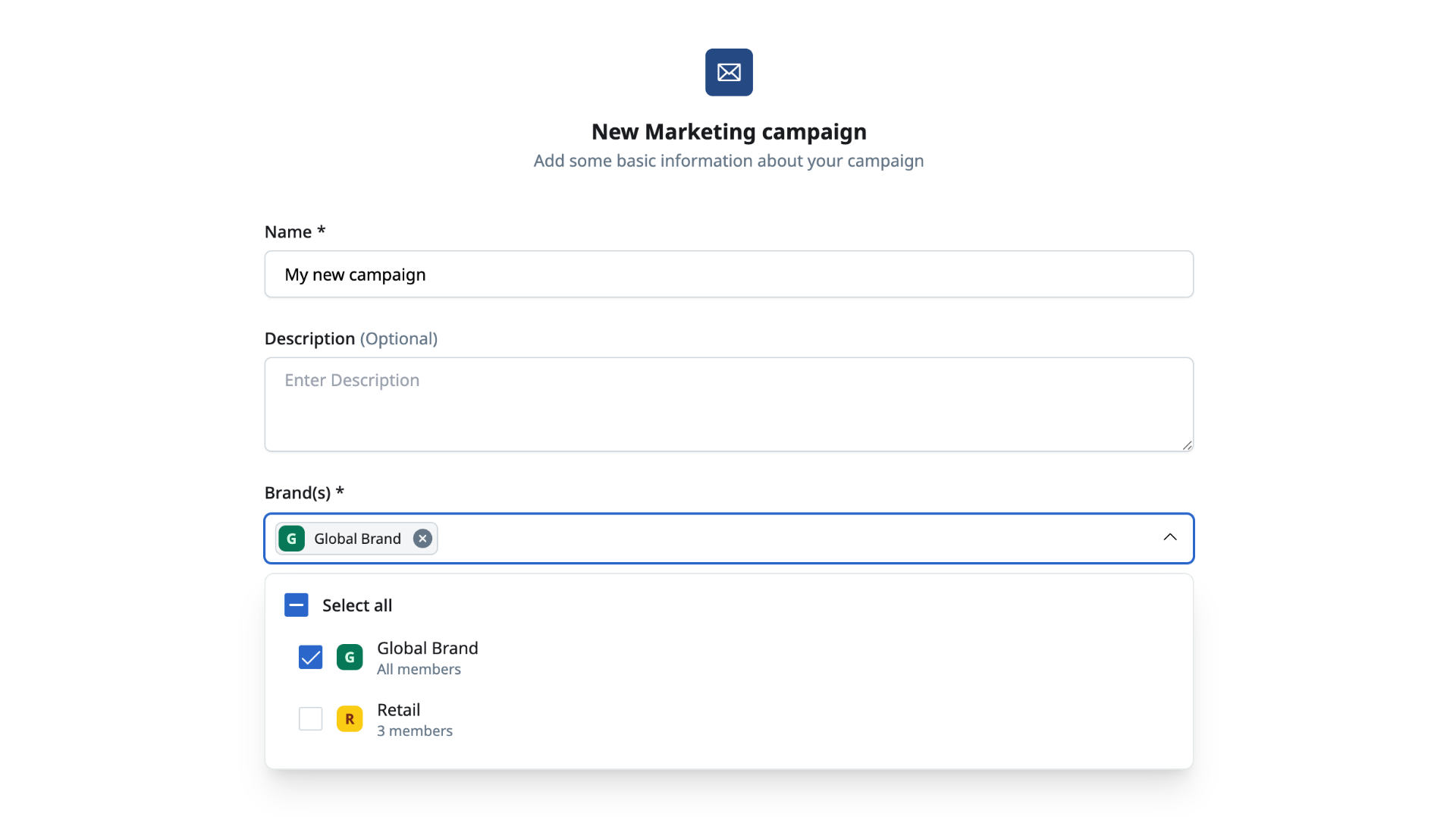
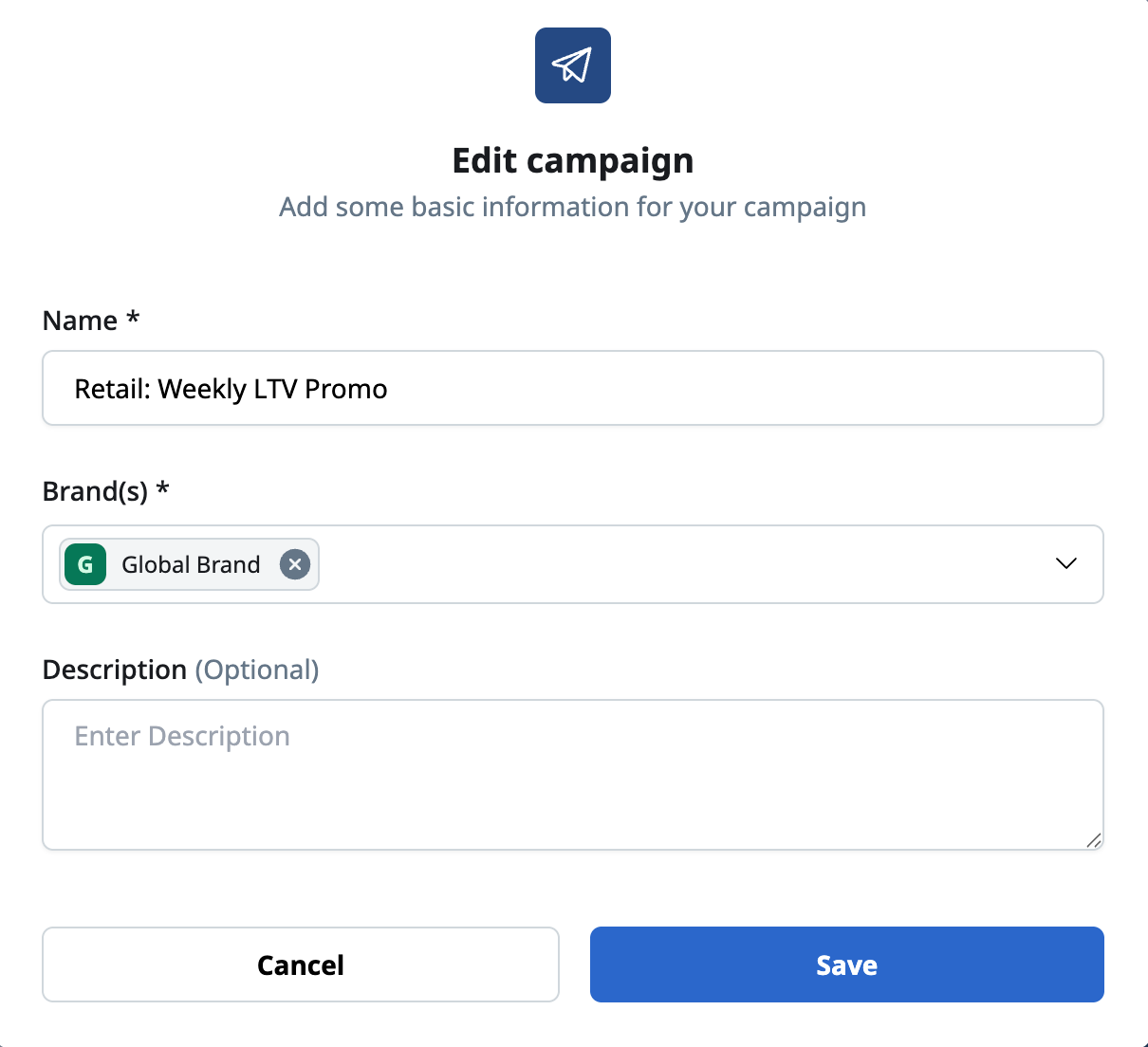
During asset creation, users can add or edit Brand association for that asset. Users will only see the brands they have access to when creating a new asset or editing an existing asset.
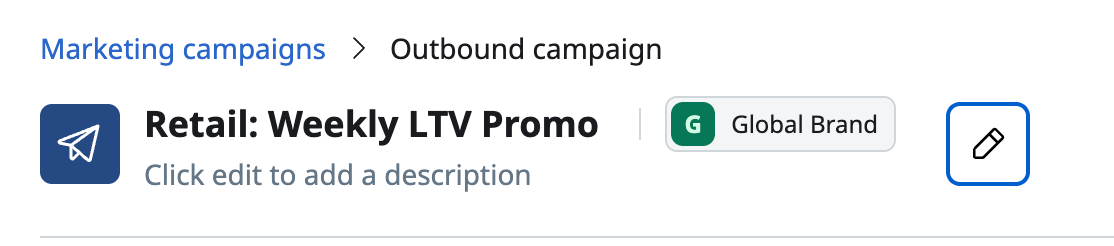
All supported assets can have their Brand(s) association edited at any time by selecting the edit (pencil) icon
Brand workspace
The Brand workspace selector gives users control of the Brand(s) assets they are actively seeing within Accelerator. Brand workspace lists all Brands the logged-in user is assigned to.
Brand workspace will only be present after Brands are enabled by a System Admin in Accelerator.
A user can select or deselect Brands in the workspace to filter their Accelerator experience.
- Brand workspace acts as an
ORstatement; meaning assets that show up on pages will be any assets that are associated to any of the Brands you have selected in the Workspace. - When no Brands are selected, the workspace acts as if all available Brands are selected.
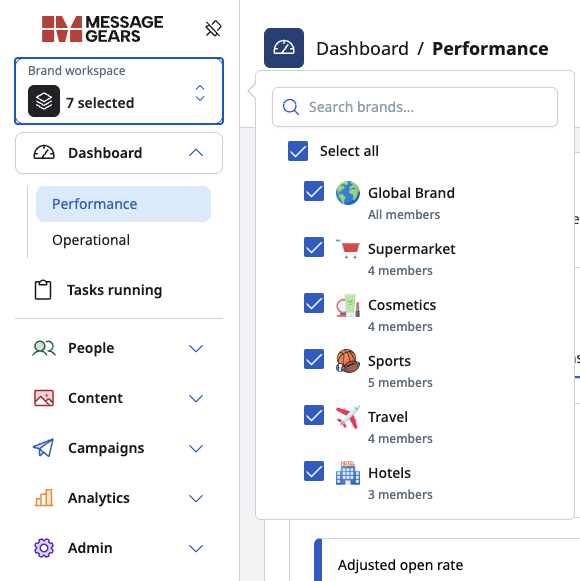
Users will always see the default Global Brand in their workspace since the Global Brand cannot be removed from user association.
The Workspace serves three main purposes
- To automatically filter pages for supported assets to only those associated with selected Brands.
- This provides focus to marketers on the assets within their purview.
- Auto-fill newly created assets with the selected Brands during creation flows.
- Any time a user is creating a new asset that supports Brands, they can choose the Brands to which that new asset is assigned. By default, this auto-fills with the selected Brands from the Workspace, but this can be manually updated should the user need to adjust the auto-filled Brands.
- Filter Accounts on the Dashboard
- Only Accounts associated to Brands the user can access will show as available to filter the Dashboard by. Just as the Account chosen in the filter pairs down the Dashboard metrics and jobs to only be those associated with that Account, the Account list will only display Accounts associated with Brands that a user has access to.
Permissioned users can alter the Brand association on an asset at any time after creation.
Brand workspace currently does not limit the Dashboard metrics (both Performance and Operational).
Enabling and disabling Brands
When Brands are enabled:
- The Brands setup screen will appear under Admin in the left navigation menu for System Admin users
- All users will see the Brand workspace selector in their left nav
- All users will be assigned the default Global Brand
- All existing assets in applicable sections will be assigned the default Global Brand
If the Brands setting is disabled after being in use, it will remove all Brand associations from assets. If your instance has hundreds or thousands of asset Brand assignments, those unique Brand associations will be removed, and all users will have access to all assets that their user roles support.
If the setting is re-enabled after being disabled, it will not return former Brand associations to assets. The setting will retain the former Brand setup list, however.
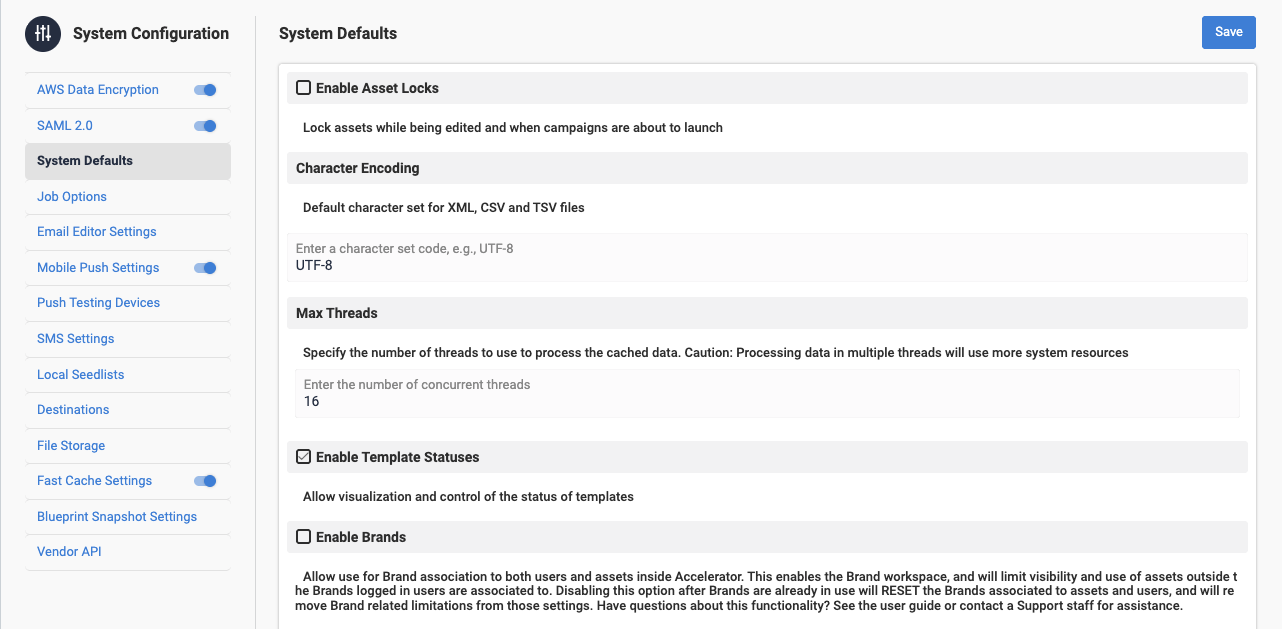
To enable Brands:
- Admin -> System configuration -> System defaults
- Check the
Enable Brandsbox - Click
Savebutton
Supported assets
As of Accelerator 25.4.2, the following assets support Brand association:
- Audiences
- Blueprints
- Templates
- Global snippets
- Marketing campaigns
- Experiment campaigns
- Transactional campaigns
- External campaigns
- Sending Profile
- Account
- Database connections