API key management
Overview
API key management lets you create and manage API keys that grant external systems programmatic access to Accelerator. API keys are used to authenticate requests made to the refreshed Accelerator application APIs — for example, to trigger an External Campaign from an outside tool like Airflow or a custom internal system.
API keys are scoped to specific permissions and Brand associations, giving you fine-grained control over what an external system can do and which Brand's data it can access. A System Admin can view and manage every key for the whole instance. A user with the External campaign author role can create their own key directly from their profile.
API key management is available starting in version 26.1.3 and is designed for our refreshed Accelerator application APIs, which begin with the External Campaign launch API.
Starting in 26.3.2, both Admin users and users with the External campaign author role will create their own key from their profile — see Creating an API key.
Viewing your API keys
As a System Admin
Navigate to Admin > System > API key management to see every API key configured in your Accelerator instance.
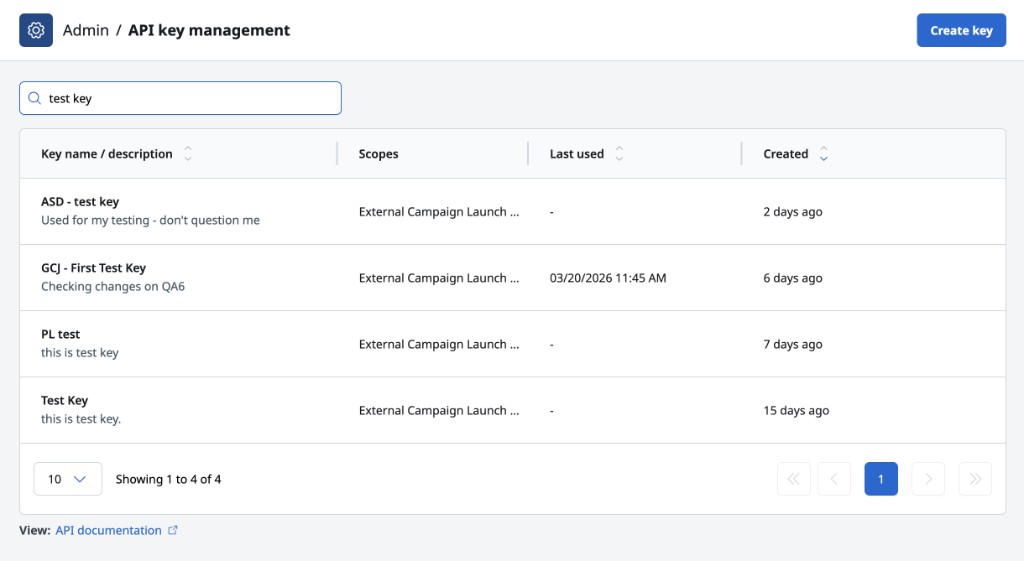
The list displays the following columns for each key:
| Column | Description |
|---|---|
| Key Name / Description | The name of the key and an optional description. |
| Scopes | The permissions granted to this key (e.g., External Campaign Launch via API). |
| Last used | The date the key was last used to make an authenticated request. |
| Created on | When the key was created. |
Use the Search API keys bar to filter the list by key name.
From your profile
Select your name in the navigation, then select Profile. On the My account page, select the API key tab to see the keys you've created.
The API key can only be viewed or copied at the time of creation. Copy and store keys securely in a secrets manager during the creation process, as they cannot be retrieved after. New keys can be created as-needed by a permissioned user.
Creating an API key
Starting in 26.3.2, the creation flow has been updated for users with the appropriate permissions to create API keys through the navigation menu by selecting Your Name > Profile. Keys can no longer be created through the Admin > API Key management menu.
Create an API key from your profile
If your user has the External campaign author role, you can create your own key without involving a System Admin.
- Select your name in the navigation, then select Profile.
- On the My account page, select the API key tab.
- Select Create API key.
- Enter a Key name and an optional Description.
- Under Brand association, select which Brands the key can access.
- Brands can only be set at creation time and cannot be updated. If a brand needs to be added or removed, a new key must be created with the updated brands.
- Select Create key.
The key's role defaults to your own user role — there's no separate permission-scope step to complete, and there's no way to request a different set of permissions on your key. Key creation is only available through your own profile; there is no create action in the admin API key management area. If you need broader access, ask a System Admin to grant you the appropriate role first.
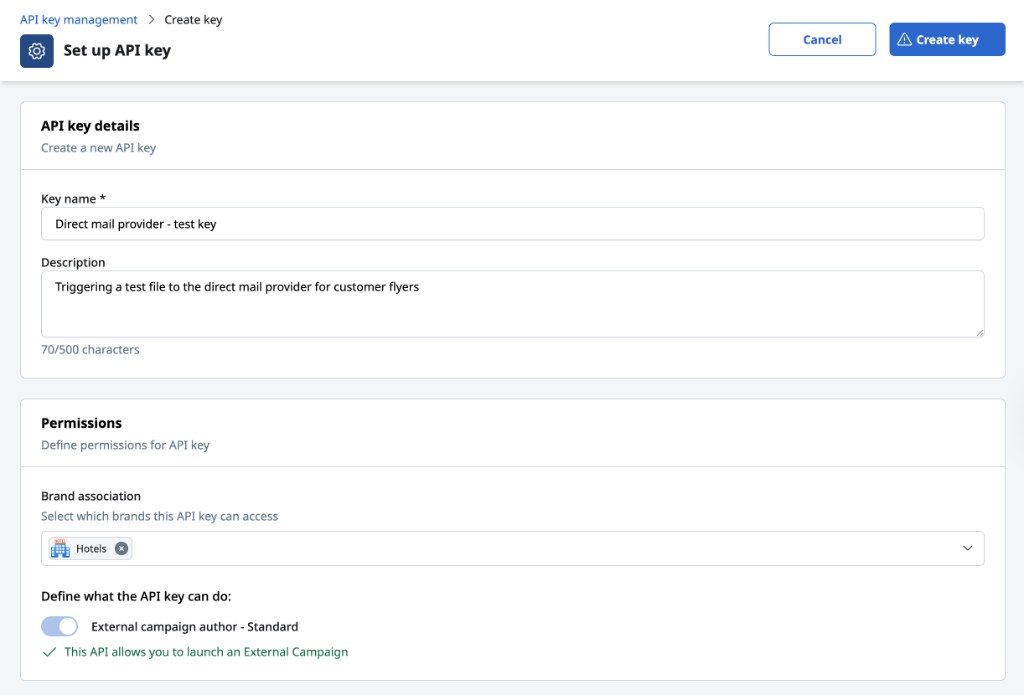
API key Details
| Field | Required | Description |
|---|---|---|
| Key name | Yes | A short, descriptive name for the key. Use a name that reflects the system or integration using it (e.g., Airflow - production or Direct mail - testing). |
| Description | No | An optional explanation of the key's purpose (up to 500 characters). This is displayed in the key list and helps teammates understand what the key is used for. |
Brand association
After filling in the key details, select the Brand association for the key.
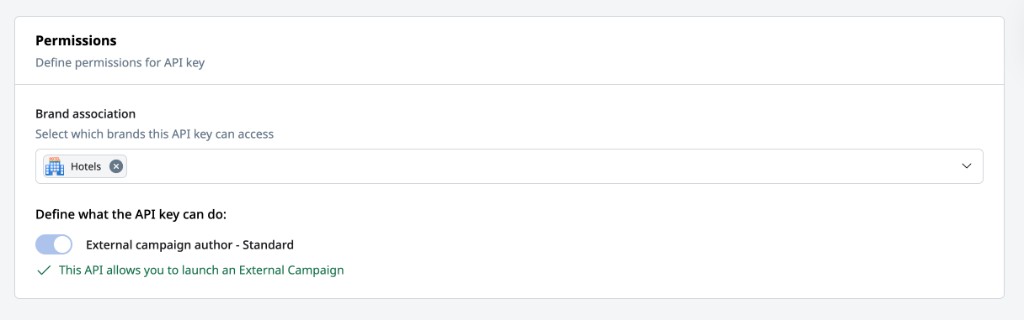
Select which Brands this API key can access. The key will only be able to interact with campaigns and assets associated with the selected Brands.
Brands can only be set at the time of API key creation.
While the Global Brand is selected by default and provides access to all assets not assigned to a specific Brand, it's best to limit access to only Brands requiring use of the API key.
Saving the key
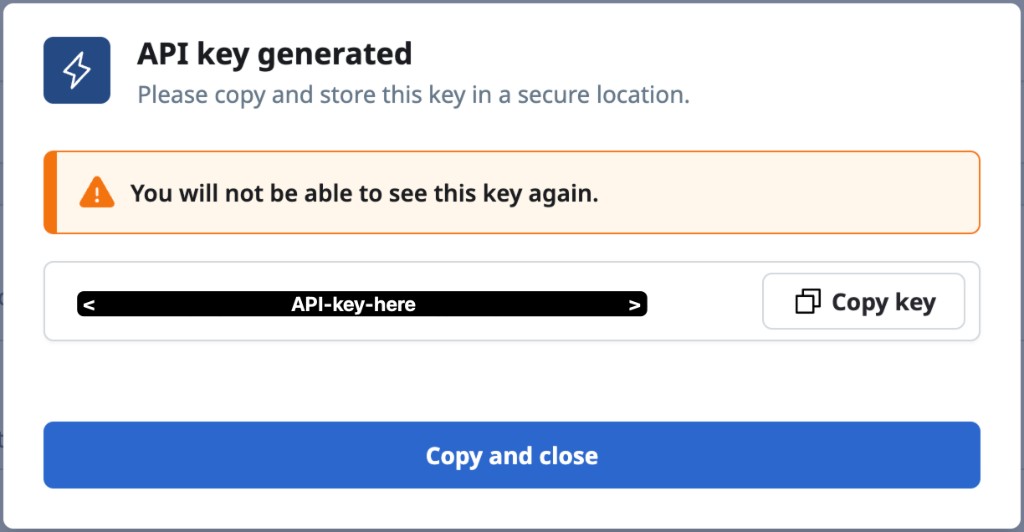
Once all required fields are complete, select Create Key in the top-right corner to save and view the generated key.
The full API key value is displayed only once. Copy and store it securely (e.g., in a secrets manager or environment variable). You will not be able to retrieve the key value again after leaving this page.
Using an API key
The same API key can be presented in different ways depending on which API you're calling — check the endpoint reference for the API you're integrating with to confirm which scheme it expects.
apiKey header
Some APIs — including the one behind external campaign automation — expect the key in a dedicated apiKey header:
apiKey: <your-api-key>
For more information, see External campaign automation prerequisites.
Bearer token
Pass your API key in the Authorization header of API requests using the Bearer token scheme when necessary:
Authorization: Bearer <your-api-key>
Campaign ID
To launch a Campaign (such as an External Campaign) with the key, you'll need the Campaign ID for the specific campaign. The ID can be found as a number in the URL of the campaign asset, such as 123 in the URL example:
https://my-mg-app.io/ng-app/campaign/external/123/overview
Refer to the Launch External Campaign API for complete details on the endpoint. See our full Accelerator API documentation for available endpoints and request formats.
Best practices
- Name keys clearly — use names that identify the integration and environment, such as
Airflow - productionorDirect mail - testing, so their purpose is obvious at a glance. - Add descriptions — use the Description field to document what the key is used for, who owns it, and any relevant contact information.
- Limit Brand scope — assign only the Brands the integration actually needs access to.
- Rotate keys regularly — periodically create new keys and retire old ones to limit the blast radius if a key is ever compromised.
- Store keys securely — never commit API keys to source control. Use a secrets manager or environment variables to inject them at runtime.