Creating SMS and MMS templates
Reach your customers with picture messages as well as text by adding SMS or MMS content to an Accelerator template. MMS (Multimedia Messaging Service) lets you send an image alongside your message body, from the same short code you already use for SMS.
You author SMS and MMS content on the same SMS/MMS content page of a template. The short code you select decides which kind of message the template sends: an MMS-capable short code lets you add an image, and an SMS-only short code sends text only. You then use the template in marketing campaigns, transactional campaigns, and journeys in the same way as any SMS template.
Before you begin
To send MMS, your account needs at least one MMS-capable short code. MessageGears enables MMS on a short code for you; you can't turn it on from Accelerator. To request MMS on one of your short codes, contact your MessageGears account team.
MMS is available for US and Canadian short codes only. Short codes for other countries continue to send SMS.
For more information about short codes and toll-free numbers, see SMS messaging.
Add SMS or MMS content to a template
To add SMS or MMS content to a template:
- In the MessageGears navigation, select Content > Templates, then open the template you want to edit or create a new one.
- On the Template overview page, select the SMS/MMS content option to open the SMS/MMS content page.
- In the Message section, select a short code, then enter your message. For details, see Select a short code and Write your message.
- (Optional) Expand the Keyword & Country code section to review the short code's keywords and country codes.
- Select Save.
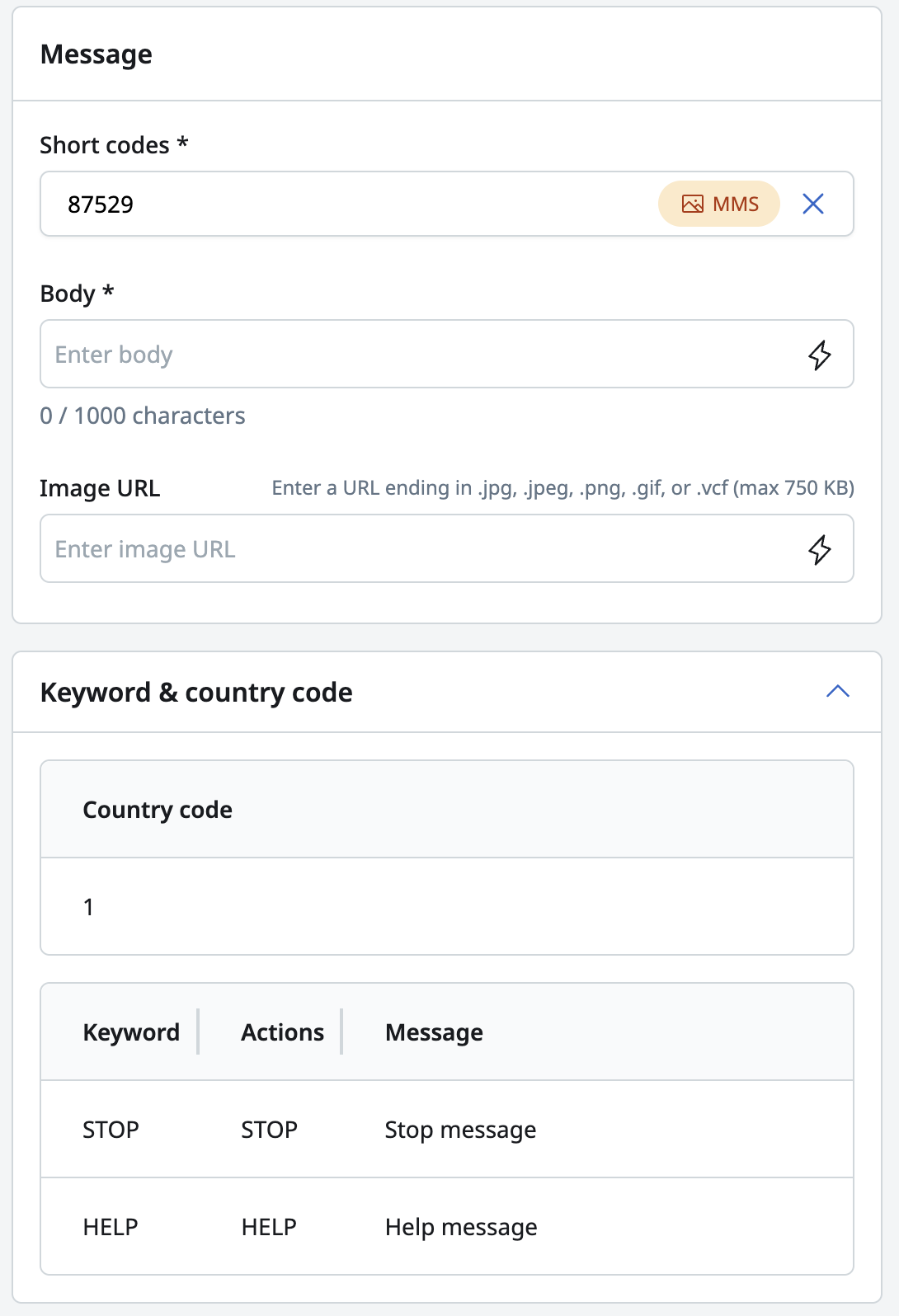
After you save, Accelerator saves the template as an SMS template or an MMS template based on the short code you selected. If you selected an MMS-capable short code, the template displays an MMS badge in the template list.
Select a short code
The Short codes dropdown lists all of your short codes, SMS and MMS, in a single list. When you select a short code, the dropdown shows whether it's MMS-capable, and the helper text under the dropdown changes to describe what that short code supports.
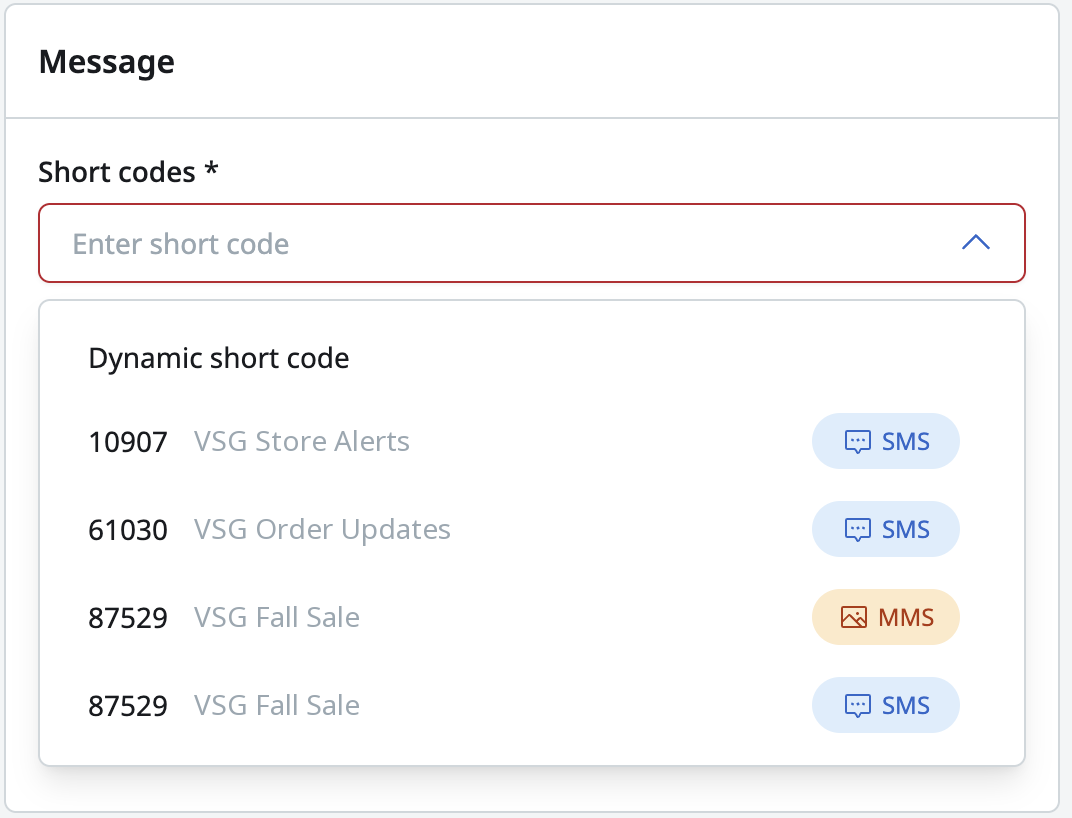
Dynamic short codes
If you set the short code per recipient with personalization, select Dynamic short code in the Short codes dropdown. Then select SMS or MMS to choose which kind of message the template sends, and enter your personalization expression in the Dynamic short code field.
Write your message
The Message section contains the following fields:
| Field | Presence | Description |
|---|---|---|
| Short codes | Required | The short code that sends the message. An MMS-capable short code enables the Image URL field. |
| Body | Required | The text of your message. Use FreeMarker to personalize the body. |
| Image URL | Optional | The absolute URL of the image to send with the message. Available only when the selected short code is MMS-capable. You can personalize the URL so that each recipient receives a different image. |
To personalize your message body or image URL, use FreeMarker. For more information, see Intermediate personalization in MessageGears using FreeMarker.
Switching between SMS and MMS short codes
If you change the short code from an MMS-capable short code to an SMS-only short code, Accelerator clears the Image URL field and the template reverts to SMS-only content. To keep your image, select another MMS-capable short code.
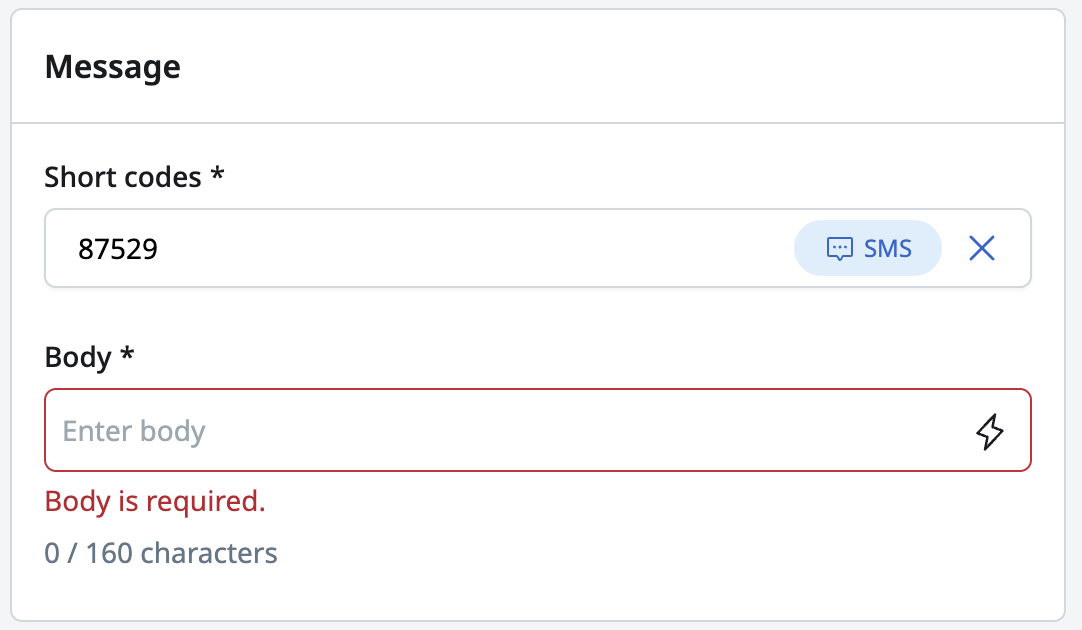
Keyword and country code
The Keyword & Country code section displays the auto-responder keywords and country codes for the selected short code. The section is collapsed by default and works the same way for SMS and MMS templates. To view the details, expand the section.
For more information about keywords, see SMS messaging.
Preview and test
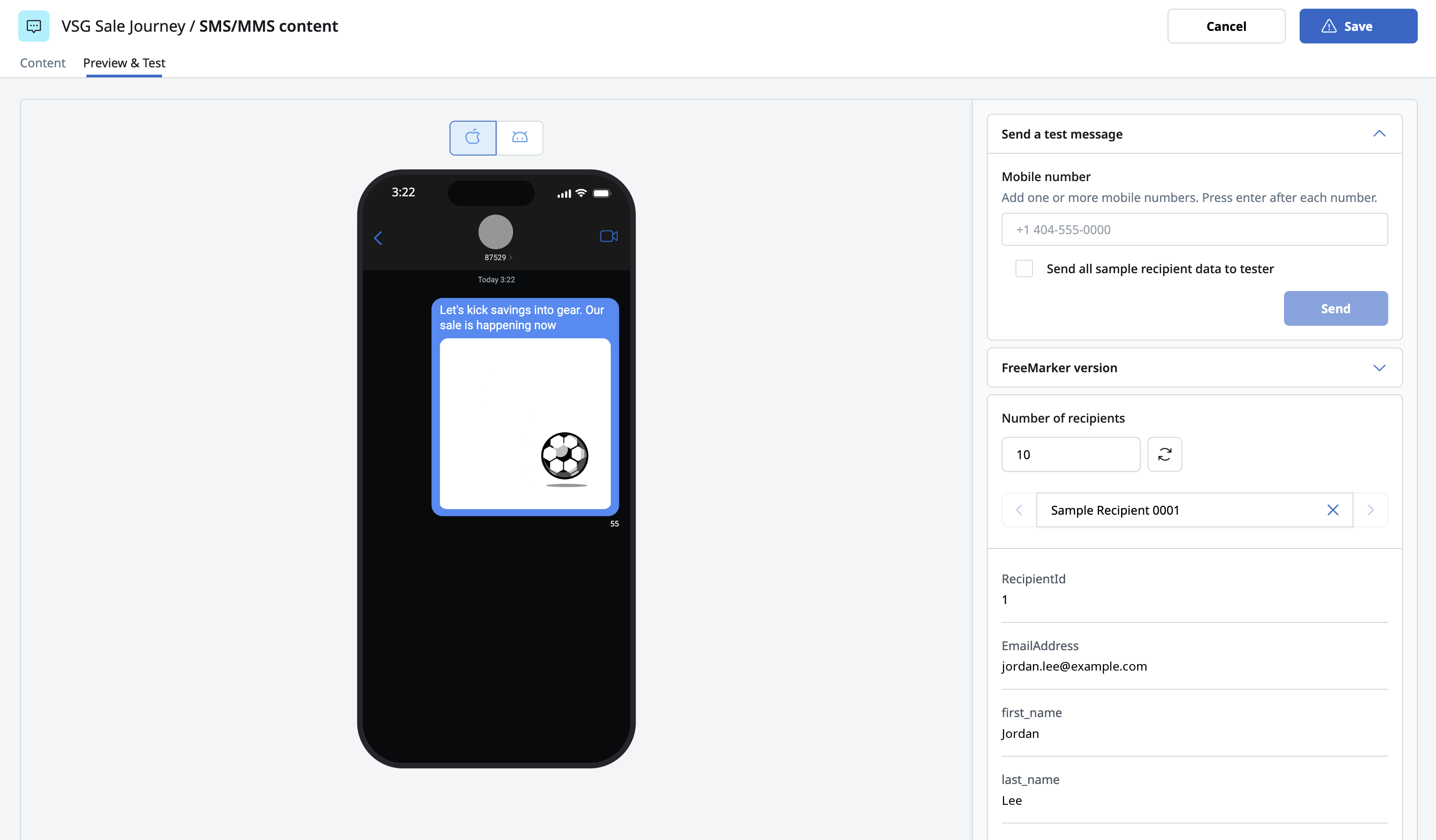
The phone preview on the SMS/MMS content page shows your message as it appears on a recipient's device, including the image for MMS templates. The preview opens in an iOS device frame. To see how the message appears on Android, select Android in the device selector.
If your image URL contains personalization, the preview displays a placeholder image in place of the media. If the image URL can't be reached, the preview also displays a placeholder.
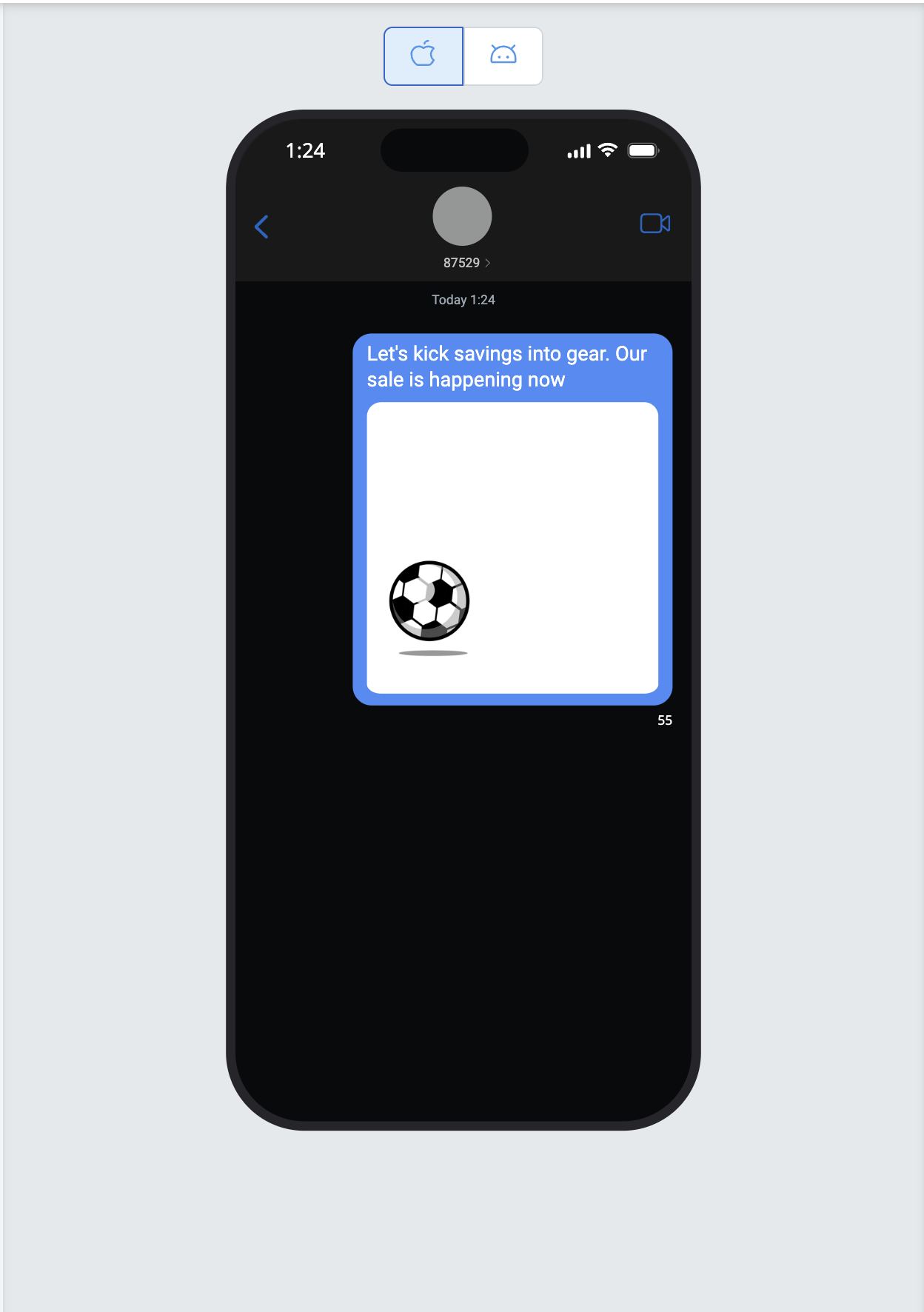
To preview personalized content and send a test message:
- Select Preview & test.
- Select a sample recipient to see that recipient's personalized message body and image.
- To send a test, enter a mobile number and send the test message.
Accelerator sends a real SMS or MMS to the test number from the template's short code, with personalization resolved.
Find MMS templates
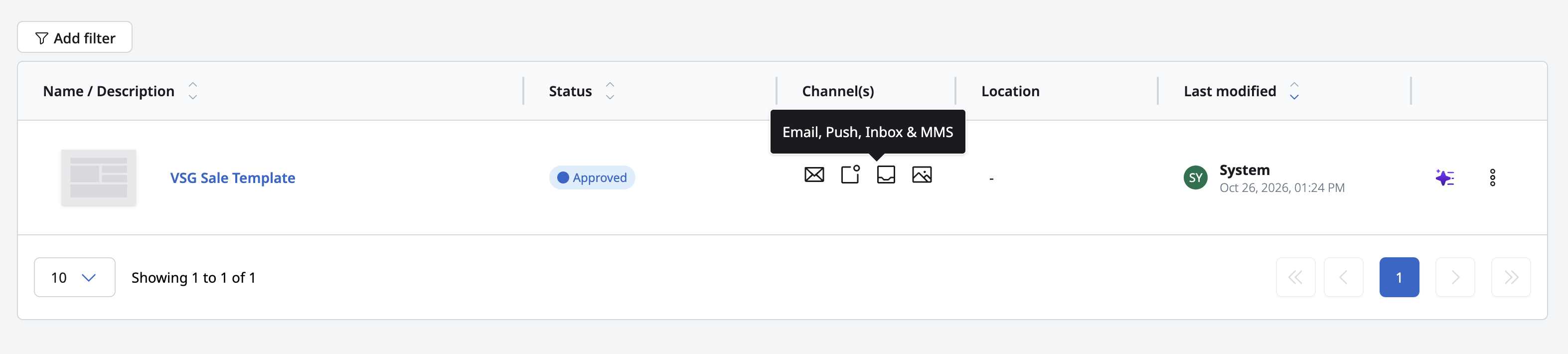
To help you tell MMS templates apart from SMS templates, Accelerator marks them with an MMS badge in the following places:
- The template list on the Templates page
- A template's details panel
- The Recently viewed templates on your dashboard
To show only MMS templates on the Templates page, filter the list by channel and select MMS. SMS and MMS are separate options in the channel filter, so you can also select SMS to show SMS-only templates, or select both.
Send MMS templates
Campaigns and journeys don't have a separate MMS channel. Wherever you previously selected SMS, the channel is now labeled SMS/MMS, and the template you attach decides whether recipients receive an SMS or an MMS.
- Marketing campaigns - Select the SMS/MMS sending channel, then attach an SMS or MMS template. For more information, see Marketing campaigns.
- Transactional campaigns - Attach an MMS template and turn on the SMS/MMS channel. Your existing transactional API calls don't change. For more information, see Transactional campaigns.
- Journeys - Add an SMS/MMS tile and select an SMS or MMS template. For more information, see Journey tiles.
MMS messages use the same recipient phone number field (SmsAddress) and the same opt-in records as SMS. If Accelerator can't deliver an MMS to a recipient, it counts the message as a failed send and doesn't send a plain SMS in its place. MMS sends and failures appear in your existing SMS reporting.
Next steps
- Check that your short code can send MMS. For more information, see SMS messaging.
- Send an MMS template to an audience. For more information, see Marketing campaigns.
- Trigger MMS messages from your own systems through the API. For more information, see Transactional campaigns.
- Add MMS messages to an automated journey. For more information, see Journey tiles.
- Manage the rest of your template's content. For more information, see Creating and managing templates.