External campaigns
You can also compose and launch External Campaigns programmatically — by script, pipeline, or AI agent — without using this UI workflow. For more information, see External campaign automation overview and Automation overview.
Overview
It is very important before following the next steps that you have already created a Blueprint for your External Campaign. You can find more info on creating Blueprints for Campaign Segmentation by clicking on the following link.
Getting Started
To start, navigate to Campaigns > External (formerly Segment > External).
Step 1: Select your Audience
The first thing you need to do is to search for an existing blueprint/audience. You can find this by clicking on the Settings tab and choosing the Audience selection. From there you can click on Select an Audience.
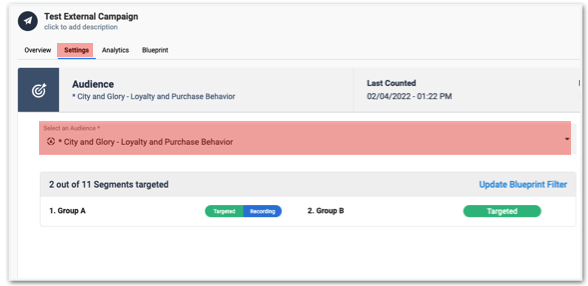
Use a Blueprint snapshot
If the Blueprint you select has snapshots enabled, the campaign automatically uses the snapshot, a stored copy of the Blueprint's audience that has already been evaluated. Every launch then receives the same data set, and the audience is ready to deliver as soon as the campaign launches. To use a live data extraction instead, opt the campaign out of the snapshot. Opting out doesn't change the snapshot itself.
For more information about enabling snapshots, refresh schedules, and how a snapshot's status affects launch, see Blueprint snapshots.
External campaigns created through the API use the Blueprint's live query unless you opt them in to the snapshot. For more information, see How external campaign automation works.
Step 2: Choose your Destination
Next, you are going to want to select the Destination for your Campaign. You can find this by going to the Settings tab and then selecting the Destination dropdown from the Destination tab.
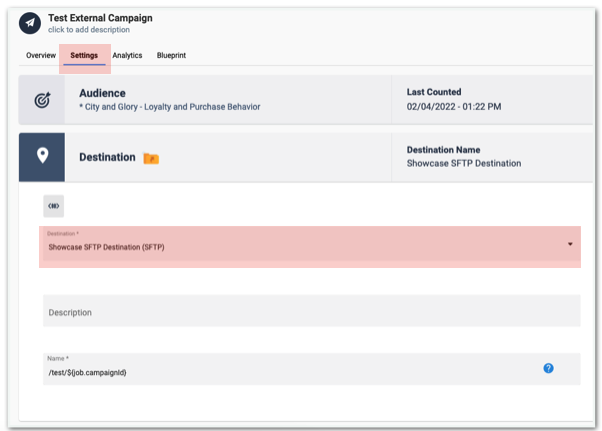
MessageGears supports the following external destination types:
| Destination | Destination Location | Delivery Type | Format |
|---|---|---|---|
| Airship Attributes | Airship Attributes | SFTP | CSV |
| Airship (External) | |||
| Airship Tag | Airship Tags | API | - |
| Audience Recording | |||
| AWS S3 | Amazon S3 | API | - |
| API | - | ||
| GoogleAds | API | - | |
| Google Cloud Storage | Google Cloud Storage | API | - |
| LiveRamp | LiveRamp | SFTP | CSV |
| Microsoft Ads | Microsoft Ads | API | - |
| S3 SFTP | Amazon S3 | SFTP | CSV |
| Salesforce | Sftp | SFTP | CSV |
| Swrve Attributes Destination | Swrve Attribute | API | - |
| Swrve List Destination | Swrve List | API | - |
| TikTok | TikTok Ads | API | - |
If the external destination is an S3 or GCS bucket, the Bucket field on the campaign settings page must only have the bucket name; folder paths with slashes cannot be included here. Instead, include any folder paths in the Name field.
External destinations that do not display in your instance may require initialization by MessageGears. For details on requirements or to request a new external destination, please contact MessageGears Support.
Some destinations require a one-time authorization or setup before they can be used. For destination-specific setup guides, see:
Paid social
- Meta Custom Audience Destination
- Google Ads Destination
- Microsoft Ads Destination
- TikTok Custom Audience Destination
Cloud storage
SFTP delivery
Airship
Swrve
Analytics
For a connection to an SFTP destination using a private key file, please note that the key file should be in RSA format. OpenSSH keys can be converted to RSA format with the following command:
sudo ssh-keygen -p -N "" -m pem -f your_private_key
Step 3: Choose Schedule
After the Destination for the External Campaign has been selected, the next thing you want to do is to Schedule the Campaign for launch. Beyond the scheduled Launch time, you also have the ability to create it as a Recurring Campaign.
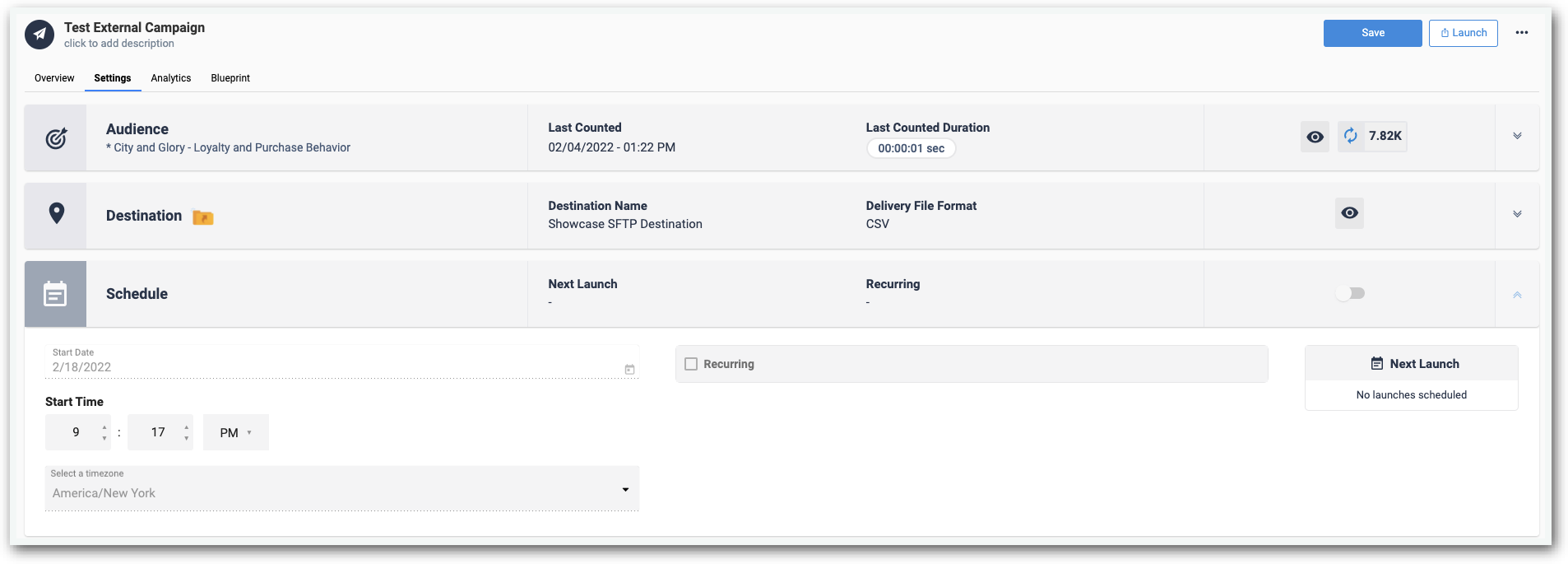
The final step after Scheduling has been completed is to Save the External Campaign. You can find this in the top-right corner of Accelerator.
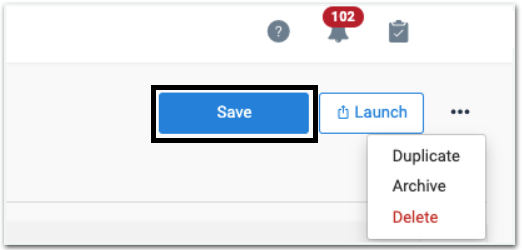
It is possible to immediately send out the External Adhoc by simply clicking Launch.