Embedded experiences in Accelerator
Create, customize, test, and launch Embedded experiences.
Embedded Campaigns allow marketers to create personalized content that can be embedded directly into an app or website. Developers can use this content to power tailored, native experiences while marketers retain full control over targeting, scheduling, and personalization—without needing to coordinate every update with engineering. Use Embedded campaigns to:
- Recommend content - Suggest new shows or products that align with the users' interests and behavior in a carousel format
- Announcements – Inform users about app updates, website maintenance, or expected downtime using a helpful banner
- Promotions – Display a list of product offers and promotions the user qualifies for in an inbox
- Tutorials - Drive awareness around new features, that may not be obvious on your app or website’s homepage
Create an Embedded Experience
Create a Marketing campaign
- In the MessageGears navigation, select Campaigns > Marketing.
- Select Create Marketing campaign.
- Enter the campaign Name, and an optional Description.
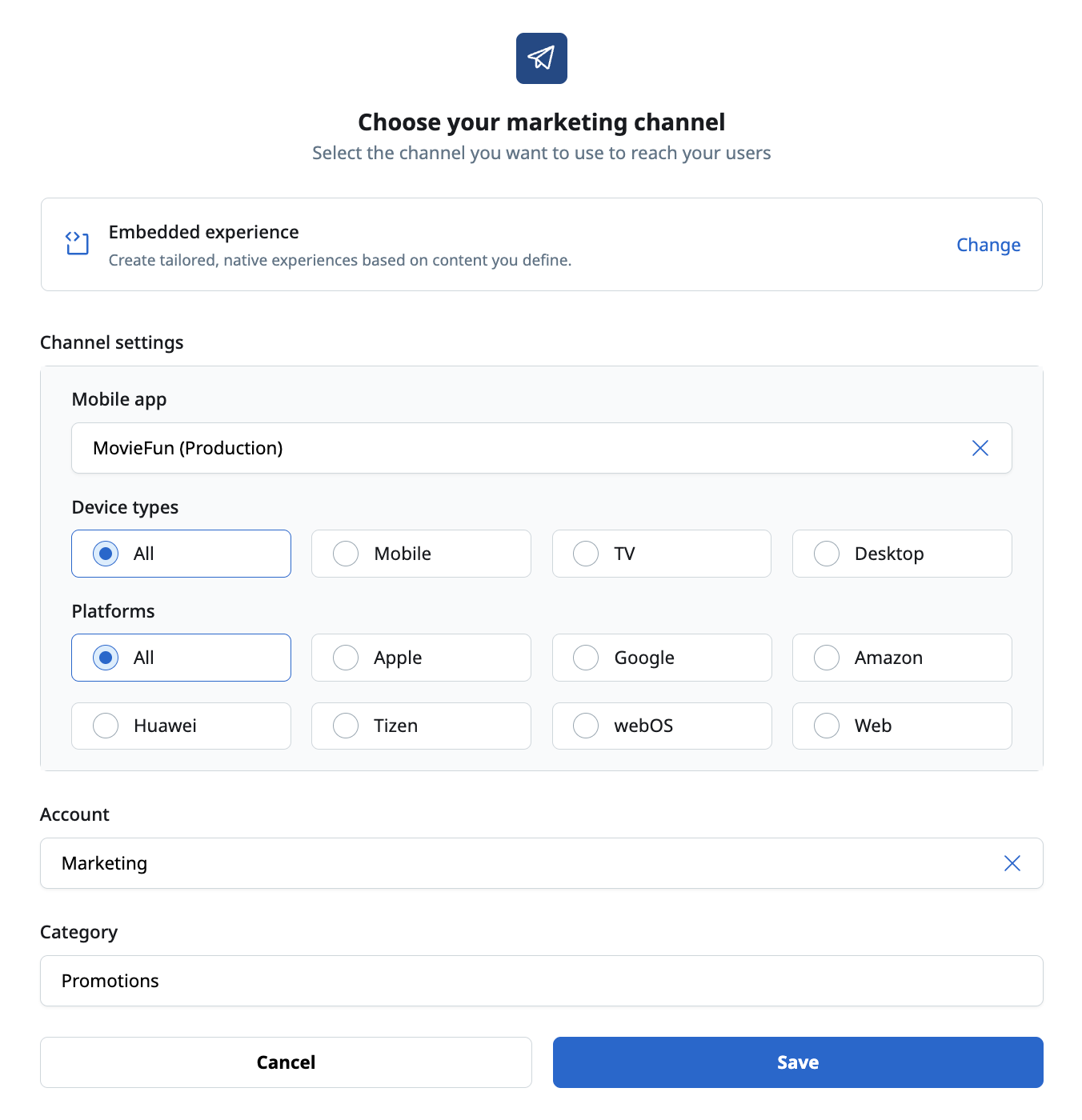
- Select Embedded experience as the channel
- Select the Mobile app.
- Specify the devices and platforms your campaign should target:
- Device Type
- All - desktop, mobile, and TV devices
- Mobile - Mobile devices only
- TV - TVs only
- Desktop - only desktop web browsers
- Platform
- Apple - devices running iOS, iPadOS, and tvOS
- Google - devices running Android (excluding Amazon and Huawei devices)
- Amazon - Amazon devices (for example, Amazon Kindle, Firestick)
- Huawei - Huawei smart phones
- webOS - LG Smart TVs
- Tizen - Samsung Smart TVs
- Web - Web browsers
- Device Type
- Select the relevant Account and add an optional Category.
Campaign overview
The overview page of the campaign allows you to view and manage all aspects of your campaign. The cards on the Overview page - Who, What, and When - guide you through building your campaign. You must complete all sections before you can test and launch your campaign.
What
The What section is where you define the content of your Embedded Experience. Unlike push, email, and SMS messages, Embedded content is not built using a template. Instead, it is created directly in the campaign using JSON or another structured format.
Format Options
Since the purpose of an embedded campaign is to provide the developer with data to update the app, the content of the campaign must consist of JSON or Other.
- JSON: The editor validates the content and displays a warning if the content is not valid JSON. Hover over the warning icon to see error details.
- Other: Use this option for non-JSON payloads. No validation will be performed.
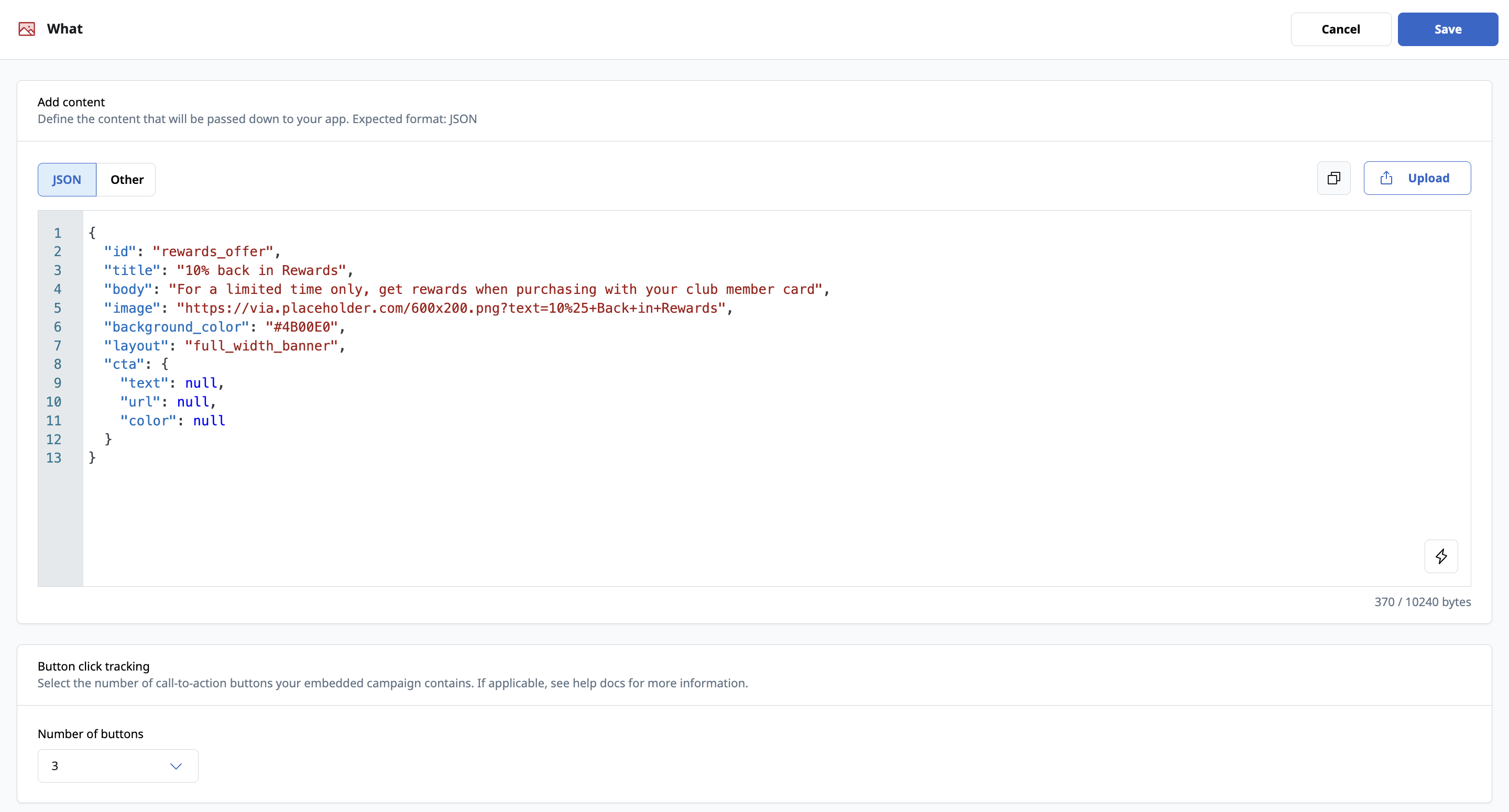
Note: The maximum content size is 10KB (10,240 bytes). Campaigns exceeding this limit will not save.
Button Click Tracking
If your Embedded content includes buttons or interactive elements, you can track user engagement by enabling Button Click Tracking.
Specify the number of tracked call-to-action buttons (1–10). If tracking is not needed, leave this field set to 0. This exposes a list of button names in the SDK, which your developer can use to track interactions.
Personalization
Use the Personalization menu to insert user-specific values into your content. This menu also lets you define fallback values for any dynamic fields.
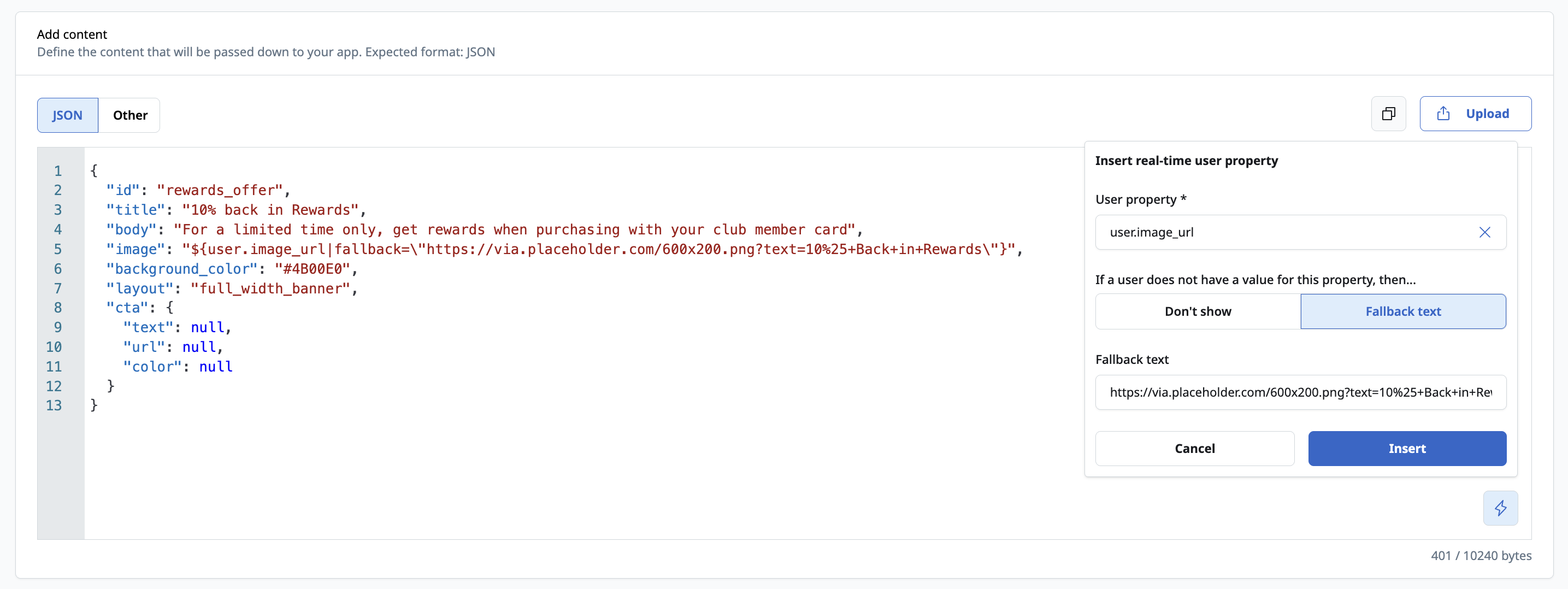
Personalization supports all user properties associated with your selected app. If needed, contact your CSM to configure additional properties.
When
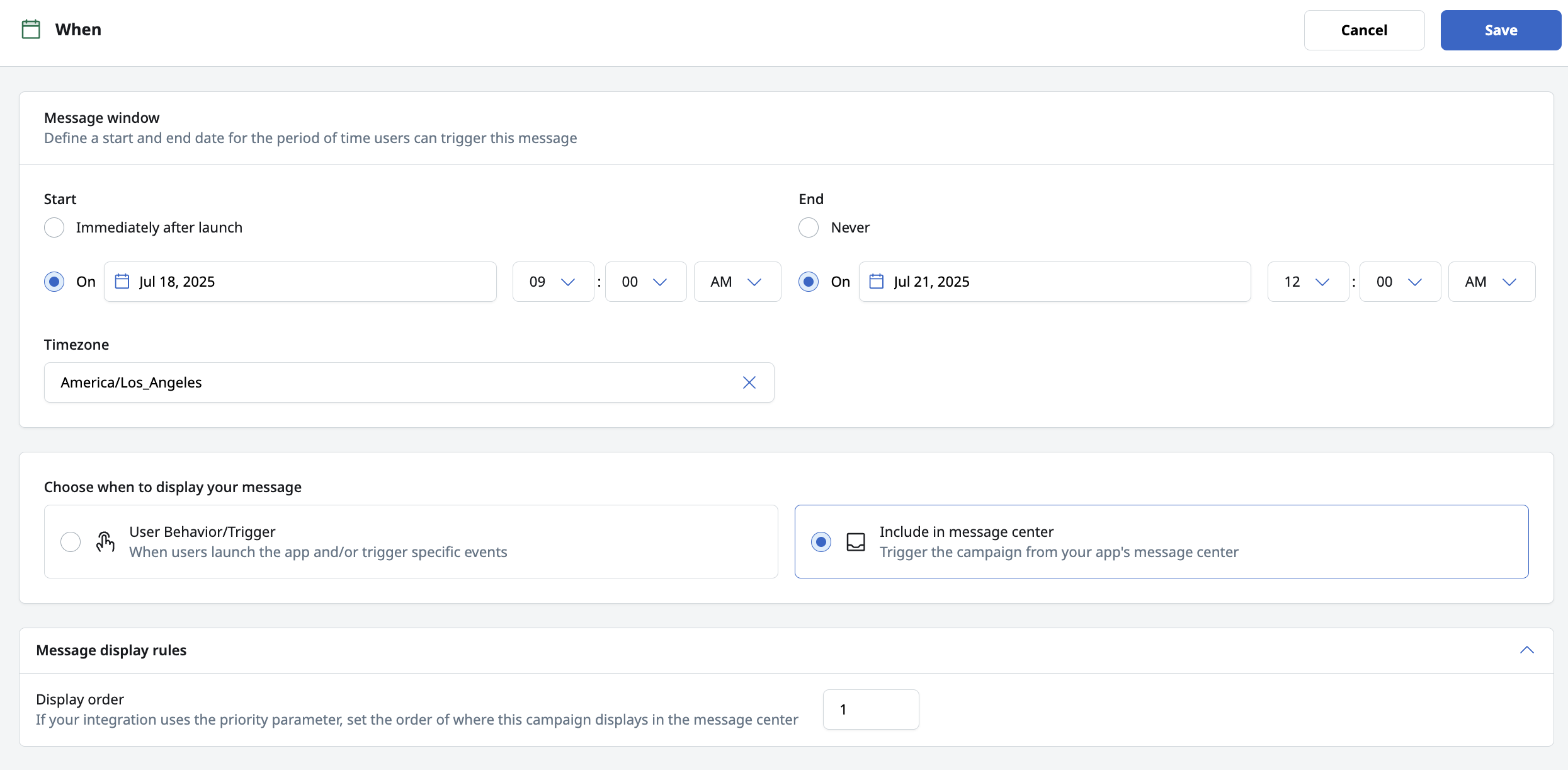
Use the When section to cover the When and Where of your in-app message campaign —setting the campaign start and end dates, if relevant, and then selecting the campaign triggers.
Campaign start and end dates
To activate your campaign immediately or keep it going indefinitely, leave the default campaign start and end values as ASAP and Ongoing. Otherwise, to set a start or end date, select the appropriate calendar and then select your campaign start and/or end date, times, and timezone.
Display triggers
Depending on your app configuration, there are two options for triggering your message:
- User behavior/trigger
- Include in Message center
User behavior triggers
Select this option to display the campaign when targeted users launch the app or trigger specific events.
There are two options for displaying your message based on user behavior:
- When the user launches the app: Select to trigger the campaign when target users start a new app session.
- When the user triggers an event: Select to trigger the campaign when target users trigger specific events. Enter the event name in the search box and then select the desired event from the list.
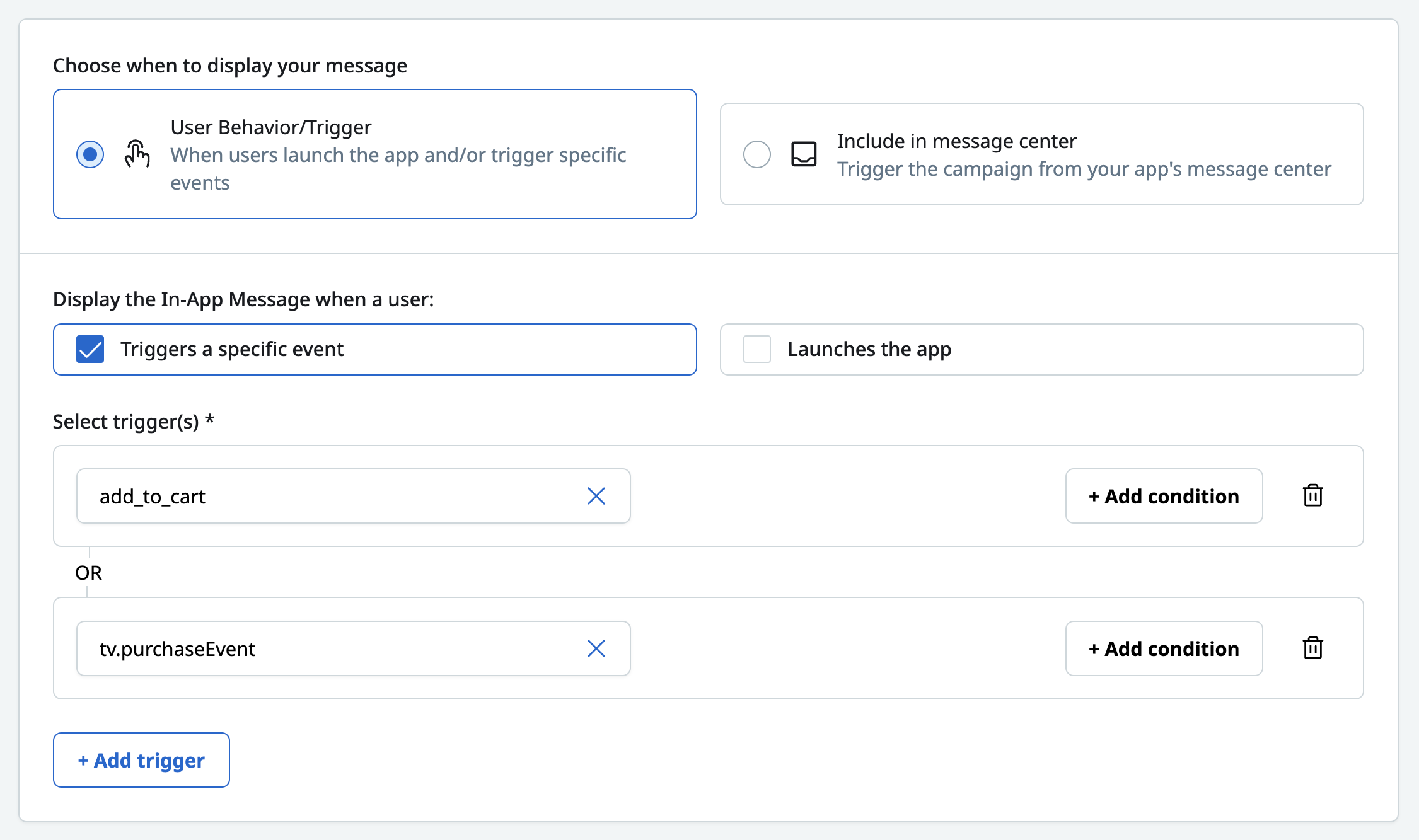
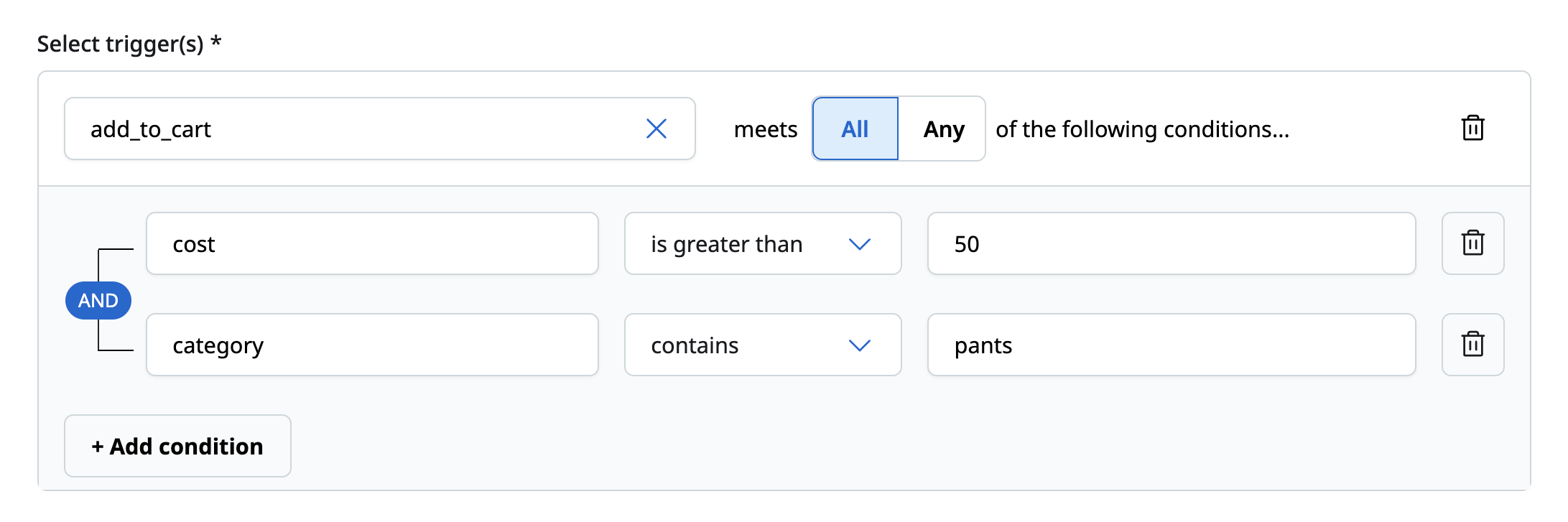
Advanced trigger conditions
Optionally, after you select an event, you can add further conditions to the trigger if the event includes payload values. To include payload conditions, select +Add condition. In the Enter payload parameter box, enter the payload key as configured in your app, and then enter the payload value.
Display Order
If your integration uses the priority parameter, set the order of where the campaign displays in the message center, relative to other embedded messages.
Prerequisites
To send Embedded content to your app or website, your development team must integrate the associated MessageGears SDK(s). For more details, see the relevant platform guide.