Edit a live journey with a draft branch
Draft branches are available in Accelerator version 26.3.3.
Change a live journey without pausing it or disrupting the users already moving through it. A draft branch is an editable copy of a live journey's canvas and settings. When your changes are ready, you promote the draft and it replaces the live version.
A draft branch is not the same as the Draft status. The Draft status means a journey has never been set live. A draft branch is a working copy of a journey that is already live. For more information about statuses, see About journeys.
Before you begin
- The journey must be Live. The draft branch options appear only on live journeys.
- Currently, a journey can have one draft branch at a time.
- You can view and edit a draft branch if you can view and edit its journey. No additional role is required.
Create a draft branch
- Open the live journey.
- Select Create draft branch.

Accelerator copies the live journey's canvas and settings into a new draft branch and opens it in place. A banner at the top of the canvas confirms that you're working in the draft and that your changes don't affect the live journey.
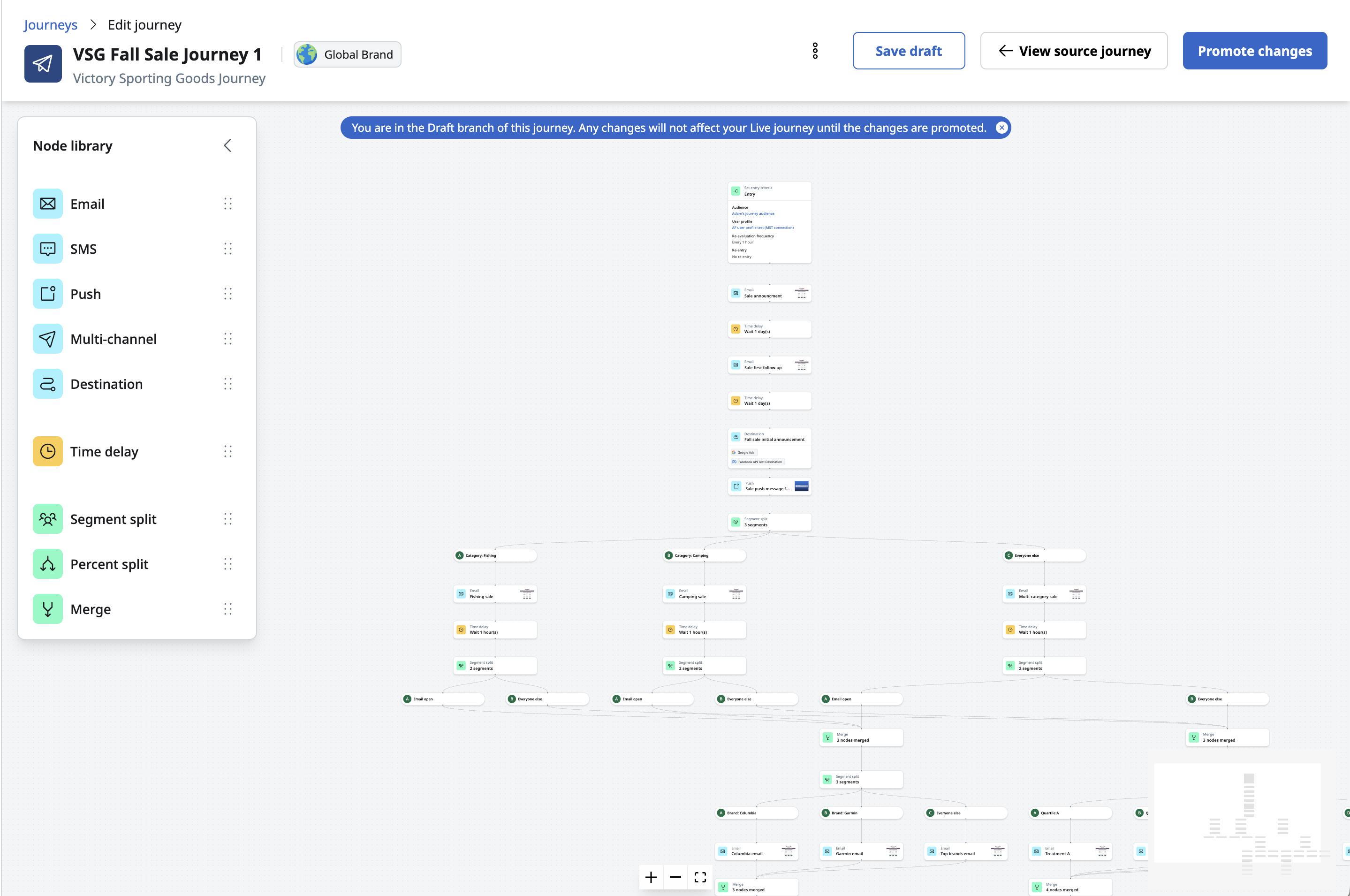
While a draft branch exists, Create draft branch is unavailable on the journey. Select View draft branch to open the existing draft.
Edit the draft
You can edit everything in the draft except the entry tile and the journey settings. Add, remove, and configure tiles the same way you do on a new journey, then select Save draft. The draft is saved separately from the live journey, so you can return to it at any time before you promote it. For more information about configuring tiles, see Journey tiles.

The live journey keeps running on its schedule while you edit. Drafts have no analytics of their own. Metrics and the Campaign analytics tab continue to report on the live journey.
The page header shows the live journey's name and brand. You can't change the name or brand from the draft.
Switch between the draft and the live journey
To open the draft from the live journey, select View draft branch. To go back to the live journey, select View source journey. Accelerator switches the canvas in place, without reloading the page.
If you have unsaved changes when you switch, Accelerator asks you to confirm. To keep your changes, cancel and select Save draft first. If you confirm, the unsaved changes are discarded.
Promote the draft
When your changes are ready, promote the draft to replace the live version. Select Save draft before you promote. You can't promote a draft with unsaved changes.
- In the draft, select Promote changes.
- Review the change summary. Each row lists a tile under Node and the Action applied to it in the draft: Added, Deleted, Moved, or Updated. Each segment split path appears as its own row. The summary lists each changed tile but not the individual settings that changed.
- Select Promote.
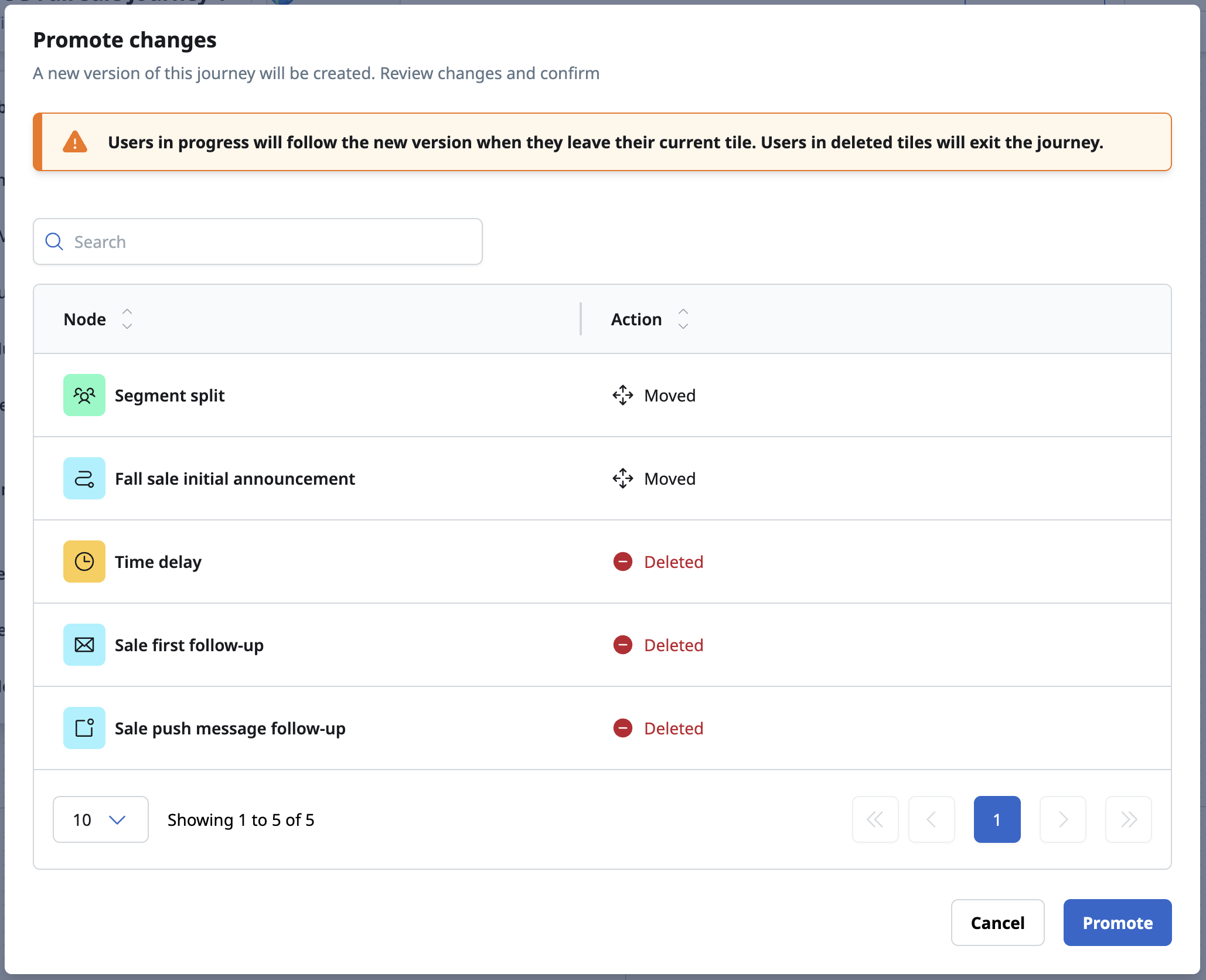
Accelerator replaces the live journey with the draft's canvas, deletes the draft branch, and returns you to the live journey. The journey keeps its existing schedule. Promoting doesn't trigger an evaluation, so your changes take effect at the next scheduled evaluation cycle. After you promote, you can create a new draft branch.
The change summary isn't saved. After you promote, you can't view it again.
Users already in the journey aren't restarted. In a live journey, users wait only in time delay tiles, so what happens to each user depends on their time delay tile:
- The tile is unchanged - The user continues from where they left off and follows the updated journey as they progress.
- The tile was deleted in the draft - The user exits the journey.
- The delay was shortened - If the user has already waited longer than the new duration, the user exits the journey rather than receiving the next message late. This is the same as when you pause a journey, shorten a time delay, and resume it.
A user who is moving between tiles at the moment you promote finishes reaching their next time delay tile, and then follows the updated journey.
Delete a draft branch
To discard a draft without changing the live journey, delete it.
- In the draft, open the actions menu and select Delete draft branch.
- Confirm the deletion.
Accelerator deletes the draft and returns you to the live journey. The live journey and the users in it aren't affected. Create draft branch is available again.
What happens to a draft when the live journey changes
Some actions on the live journey affect its draft branch:
- Pause and edit the live journey - If you pause the live journey, edit it, and save, Accelerator asks you to confirm and then deletes the draft branch. Pausing and resuming the journey without editing it keeps the draft.
- End the journey - When the live journey ends, either manually or on its end date, Accelerator deletes the draft branch.
- Duplicate the journey - Duplicate copies the version you're viewing. If you duplicate from the draft, the copy is a new standalone journey that isn't linked to the original.
For more information about pausing and ending journeys, see Other journey statuses.
Next steps
- Configure the tiles in your draft. For more information, see Journey tiles.
- Monitor the live journey after you promote your changes. For more information, see Journey analytics.
- Review recommendations for designing journeys. For more information, see Journey best practices.