Managing assets
New user roles and Brands are available starting release 25.4.2. designed for streamlined management of user access to assets. For more information, please see
In MessageGears Accelerator, an Asset is any permission-based object where activity can be tracked and audited. Folders, templates, campaigns, and global snippets (formerly shared content) are considered Assets. Each one of those items can have different permissions applied to them, which allows administrators to control which users or groups of users should have different levels of access.
To manage permissions on any asset, access the Tree view of the page:
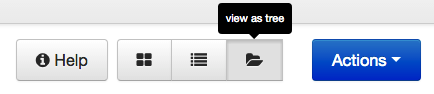
In tree view, you will see a folder tree hierarchy on the left and details about each selected asset on the right.
With an asset selected from the folder tree, you will see a line of buttons like this:

Clicking the Permissions button opens a dialogue box in which you can add or remove Groups-based permissions for that individual asset.
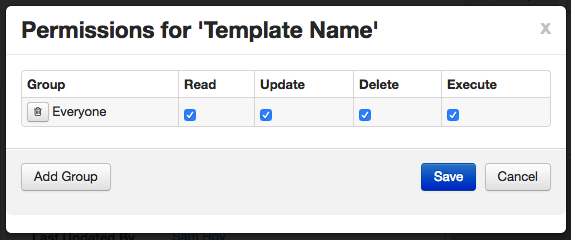
"Everyone" is a group created automatically during Account generation
Permissions can also be placed on the Folder level as well, and in such cases where permission settings are being applied to a folder, checking the “Apply to children” checkbox will apply the new settings to all items within that folder, including sub-folders.
Permission Types quick reference:
| Permission Type | Users within the Group CAN... |
|---|---|
| Read | View the asset |
| Update | Edit or move the asset |
| Delete | Remove the asset from Accelerator |
| Execute | Content: - Quick Launch - Use the following testing functions - Spam Filter - Content Evaluation - Email Clients - Subject Line Campaigns: - Marketing Campaigns - Send Test - Launch campaign - Schedule sends - Use Spam Filter testing - Use Experiments (formerly Multivariate) - Transactional Campaigns - Send Test - Promote campaign - Use Spam Filter testing |