Accelerator 26.1.1 release notes
Initiatives Released
Brand support
Use case
Brands in Accelerator act as organizational tags that control visibility and access across users and assets. Admins can create and manage Brands, assign them to users, and associate them with assets like campaigns, templates, audiences, accounts, database connections, and more. A user’s Brand associations determine what they can see, while the new "Brand workspace” acts as a filter to view only selected Brands without restricting direct navigation to permitted assets. Brands also integrate into asset creation and editing flows, display alongside asset names, and support inheritance within folders. A default “Global Brand” ensures seamless migration and provides a catch-all option for assets and users.
Goals
- Centralize Brand management for System Admins to set up, alter, and add Brands to users
- Leverage Brand-based access controls to allow users to focus just on certain Brands across many of Accelerator’s most important asset types
- Provide a way for users to easily filter Accelerator to the specific Brand(s) they want to see and work in via the Workspace
- Allow for seamless rollout with a catch-all Global Brand for smooth implementation and ease of use
Brand management
System Admins can now create new Brands and manage existing Brands under Admin → Brands. When the feature is enabled, by default, all users and assets will utilize a non-deletable Global Brand. New Brands can be created and given an icon via an image URL to display alongside the Brand throughout the Accelerator experience.
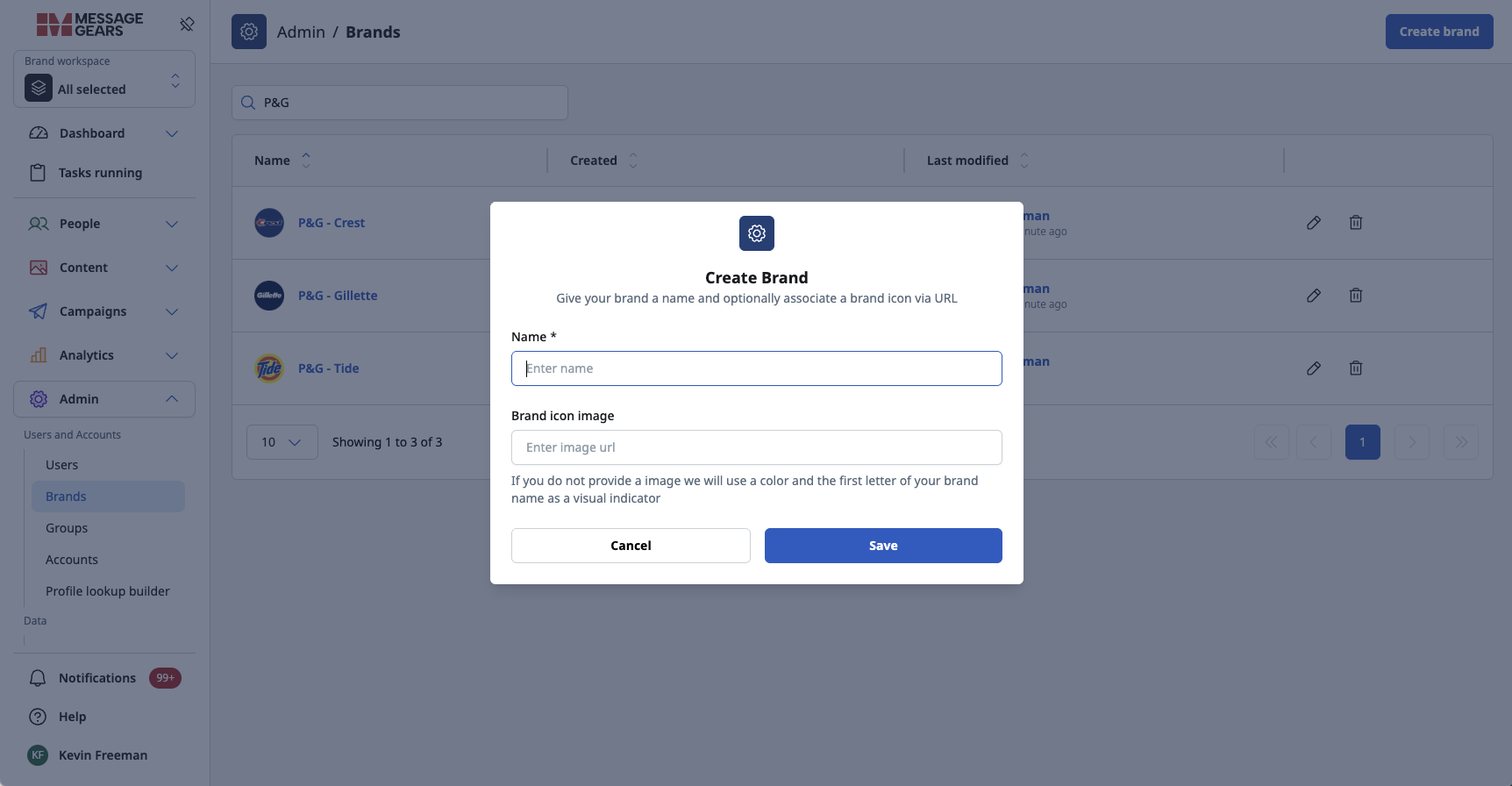
Create and manage Brands in Admin settings
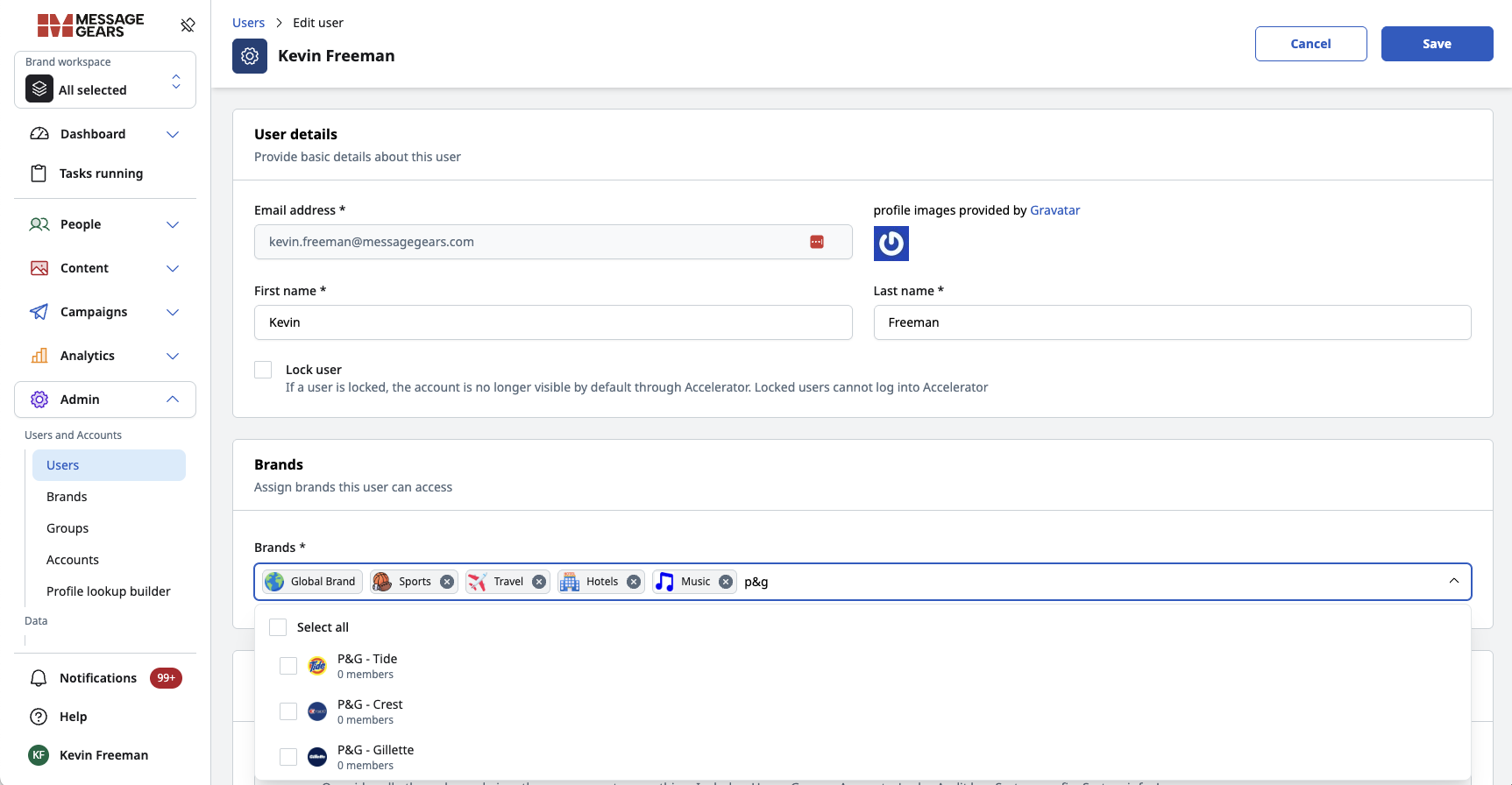
Associate Brands to users on the new User Edit screen
Brand workspace
The Brand workspace selector has been added to give users control of what Brands they are seeing within Accelerator for assets that support Brands. When Brands are enabled for the UI, users will see the new Brand workspace option in the top left corner of the left navigation bar.
This selector will list all Brands that the User is assigned. You can select or deselect Brands in the workspace to filter which assets are in view across the UI. When viewing list pages throughout Accelerator that support Brands (like a template or campaign), only the assets tagged with the Brands selected in your Workspace will show up.
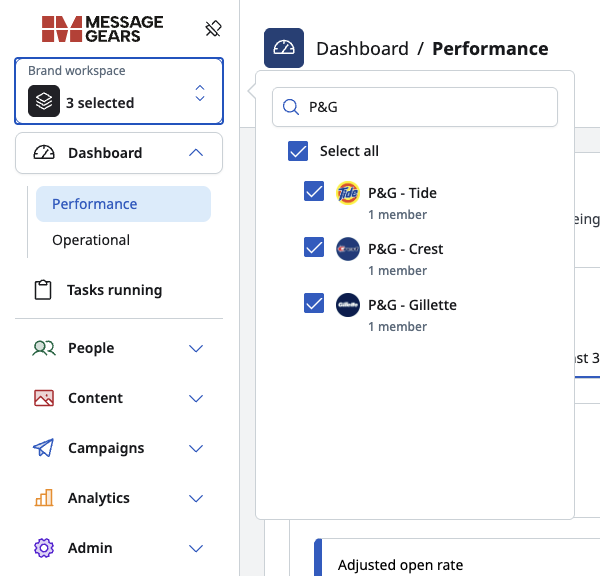
The Brand Workspace allows users to filter Accelerator by Brands
Brand-aware assets
Brands can be associated with key assets like campaigns, templates, audiences, accounts, database connections, and more, and are editable throughout create and edit flows. This restricts asset visibility to users without access to at least one Brand that is associated with the asset. This allows teams to work under the same UI while having different experiences in what they can see and do based on Brand associations.
Upon creating new assets, the Brands selected in the Brand workspace will autofill during the creation process.
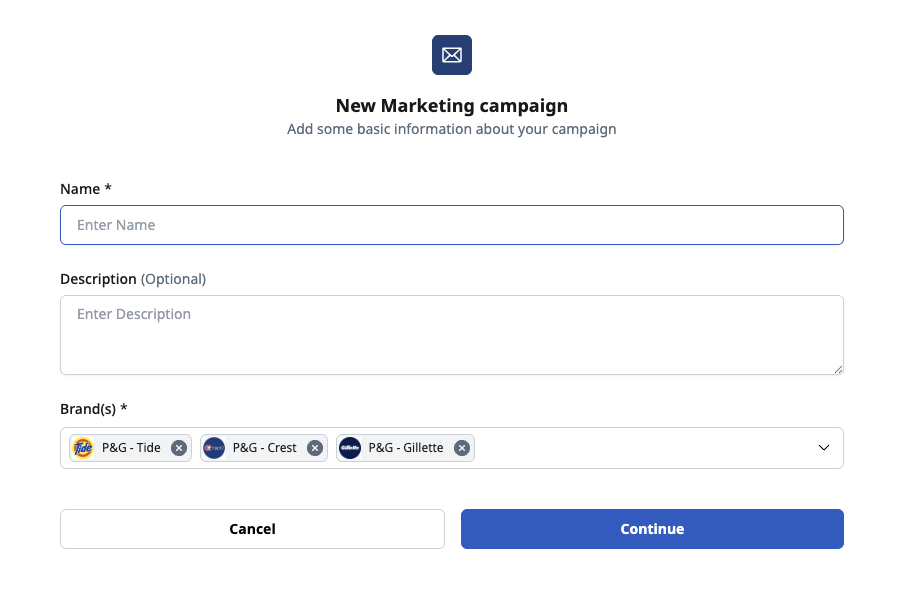
Add Brands when creating assets, or let them autofill via the Workspace
Brands are easily added during the creation process of supported assets, and can be edited from the overview page by any users with edit permissions.
Brand restriction exists for all user roles (except System Admin), allowing teams to utilize individual admin roles, which still retain Brand-based restrictions.
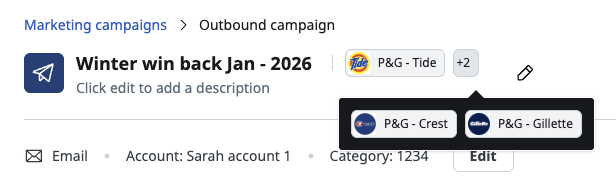
Brand association can be seen/changed at any time if needed
Conversion reporting updates
Use case
Conversion reporting in Accelerator now supports Purchase and Revenue metrics, unlocking deeper insight into how messaging drives business outcomes. Data admins and developers can send purchase events to MessageGears, where revenue is calculated and attributed back to campaigns across channels. This enables teams to measure campaign effectiveness more precisely, connect engagement to downstream revenue, and better understand return on investment.
Goals
- Enable turnkey ingestion of purchase data into MessageGears
- Attribute purchases and revenue to campaigns for clearer performance visibility
- Support export of Conversion data to CSV for offline analysis
Event syncs - purchase events
The Event syncs page now supports a purchase type event, allowing data admins to set up syncs to ingest purchase events from their data warehouse directly into MessageGears to power purchase and revenue reporting. For instructions on setting up Event syncs, see Event setup for Conversion Reporting.
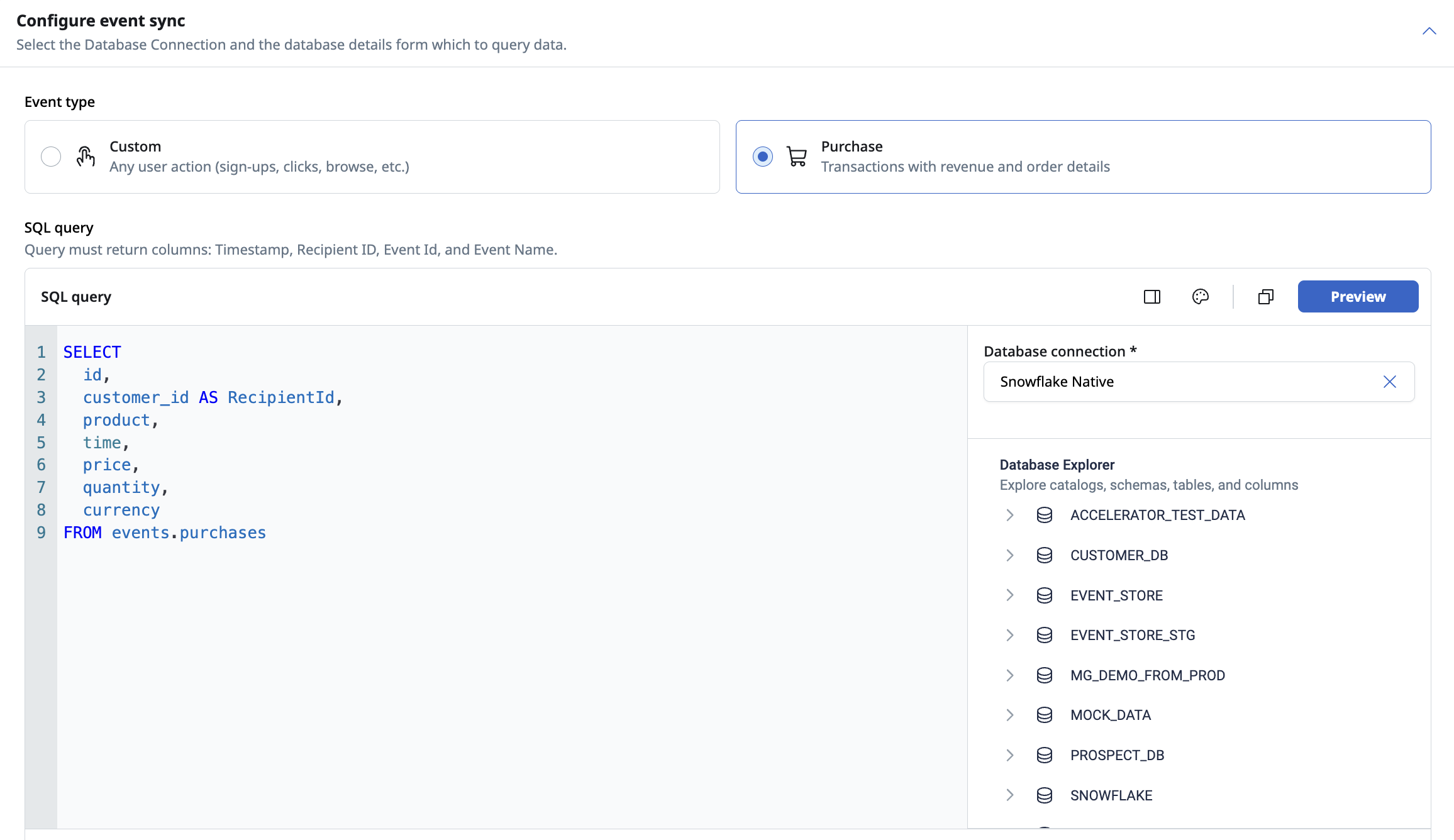
Purchase Event Sync
Conversions dashboard - Monetary metrics
The Conversions dashboard released with Accelerator 25.4.2 now includes Purchase and Revenue data. These new metrics allow marketers and analysts to understand the monetary impact of their messaging and individual campaigns.
To populate the Monetary metrics in the Conversions dashboard, customers must first set up an Event sync for Purchase events.
Monetization metrics
The Conversion report provides a complete view of how your MessageGears-generated messages impact customers' purchase behavior. The new Monetary section provides aggregate counts of campaign-attributed purchase events and the revenue generated from those purchases.
We’ve updated the Performance over time chart with a Revenue option, which populates the graph with campaign attributed Revenue and Average Order Value (Revenue / Purchases). Use this view to understand how your campaigns are collectively driving revenue over time and to make sure monetization is trending in the right direction!
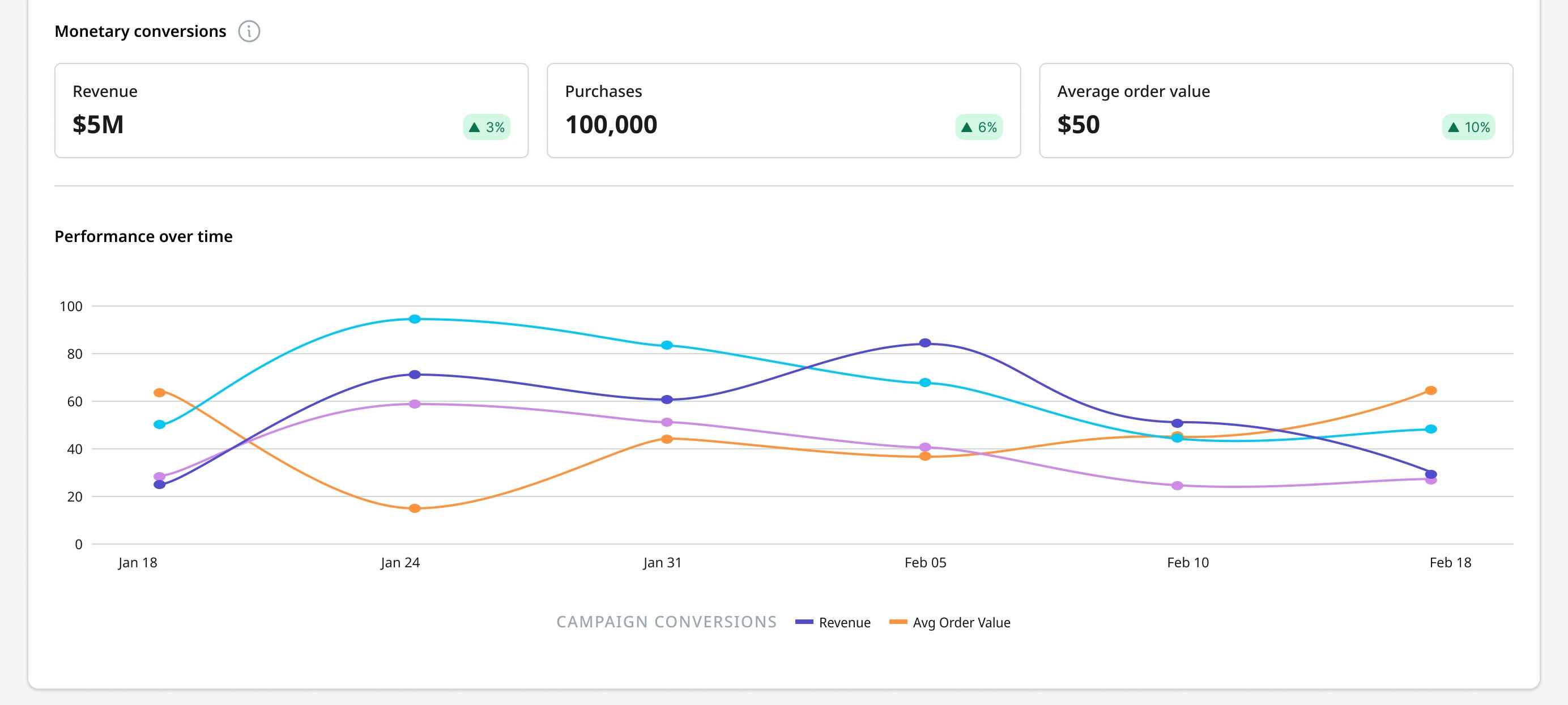
Monetary conversions
Campaign monetization metrics
The Campaign report table now includes Purchase, Revenue, and Average Order columns, so you can understand how individual campaigns are contributing to your bottom line! Select MessageGear’s dedicated Purchase event from the event dropdown to see the new columns.
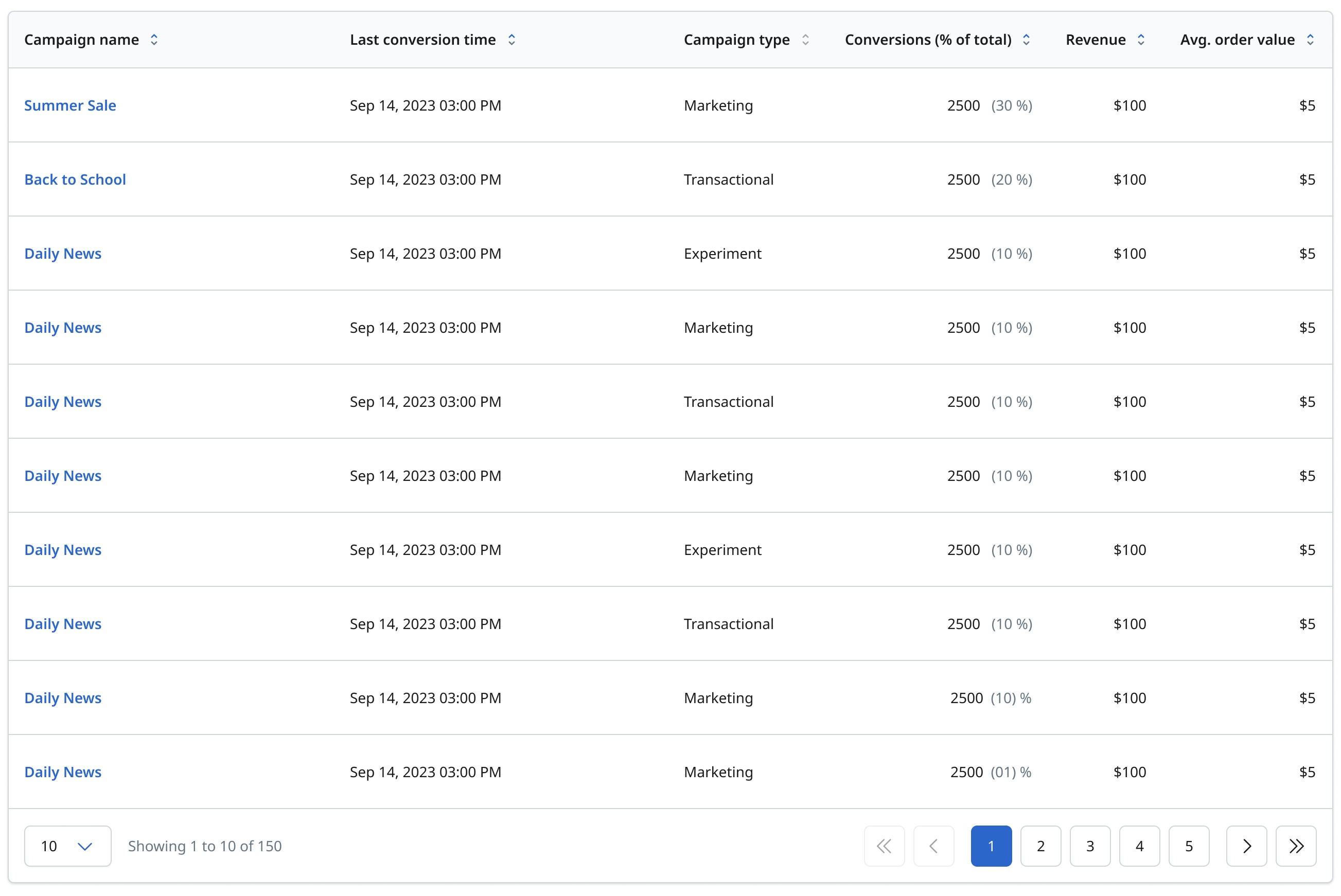
Campaign table - Purchase conversions
Campaign conversion metrics - CSV download
Campaign Conversions now support downloading campaign results to a CSV for sharing and external analysis. The CSV will contain all columns added to the table at the time of download.
Managed events - SDK events
We’ve added an SDK events column to the Managed events list page, allowing data admins to see the number of events recorded by the SDK and used in Conversion calculations.
Required audience attributes
Use case
Campaigns can now have required audience attributes assigned to them, ensuring there are no NULL values for those attributes before launching a campaign. This allows for further customization based on the campaign's needs and eliminates the need to backtrack when large data sets have NULL values that result in errors, which can waste valuable time for teams to search for and resolve. Campaigns that fail to launch with this new setting will have error emails sent to the email contact for that campaign.
Goals
- Allow unique required attributes to be set for each campaign, failing if
NULL - Ensure this new setting is displayed in the Overview for campaigns
- Support this feature on Marketing, Experiment, and External campaign types
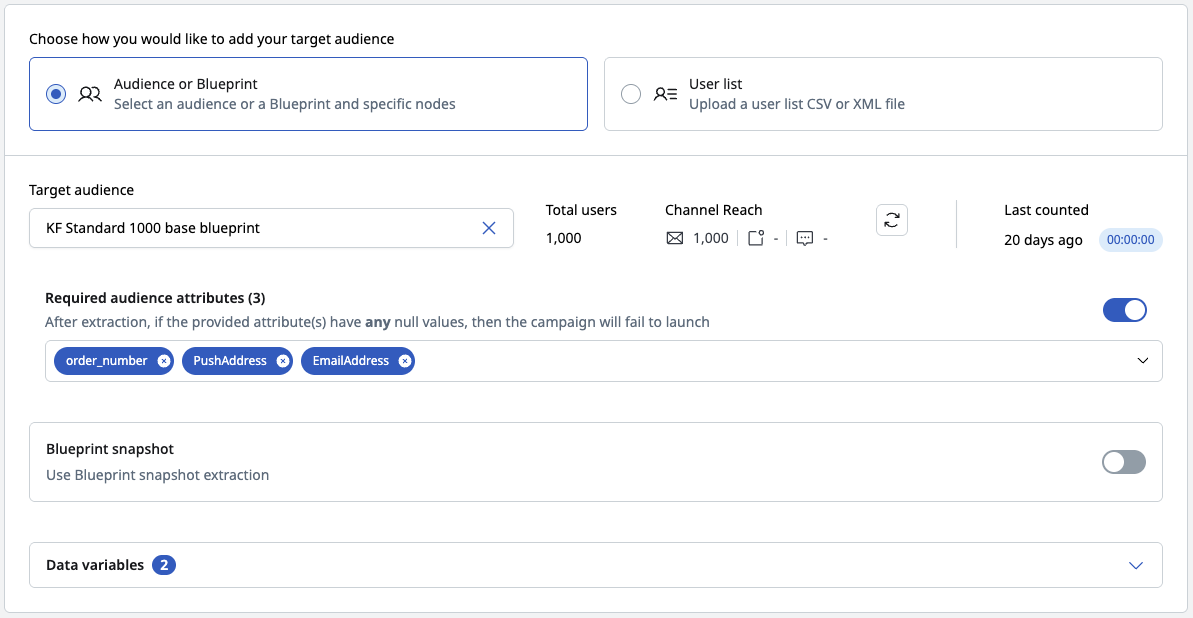
Required audience attributes can now be set in each campaign
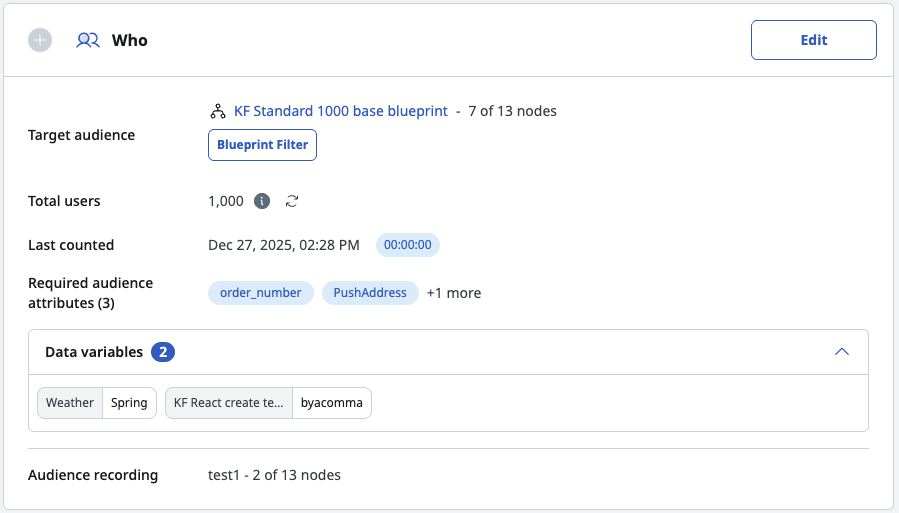
This setting will surface in the overview page for campaigns
General changes
- Added Bynder DAM into the drag-and-drop email editor.
- Added Azure Blob Storage as a File Storage location.
- Added support for audience recording with non-native databases by enabling optional cloud file storage output without automatic warehouse loading.
- Added support for editing and deleting global data variables, removing the previous behavior that locked their type after creation.
- Resolved an issue where standard global snippets failed to load when opened for editing by global content authors.
- Resolved an issue where missing data in list pages and dashboard tables appeared as blank cells instead of displaying a dash.
- Resolved an issue where opening an external job’s settings page triggered an unintended SQL query.
- Added support for displaying more than 100 global snippets during content creation.