Event setup for conversion reporting
Overview
To support accurate and controlled conversion reporting, MessageGears uses a two-step event setup model:
- Managed Events – Define and approve which events are allowed to be ingested and used for conversion reporting
- Event Syncs – Configure how approved events are imported from your data warehouse
Both steps are required. Creating an Event Sync alone does not automatically ingest events—events must first be explicitly enabled in Managed Events.
This design ensures that only intentional, well-understood events are used for reporting and attribution.
- To ensure conversions are attributed correctly from the start, MessageGears strongly recommends configuring your Attribution settings before setting up Managed Events or Event syncs.
- Attribution windows are defined per channel (Email, Push, SMS, In-app, Embedded) and default to 24 hours.
- For customers running Accelerator version 26.1.1 or earlier, these settings must be configured by your Customer Success Manager (CSM).
Step 1: Manage Events
Before any events from an Event Sync can be ingested, they must be whitelisted in Managed Events.
What Are Managed Events?
Managed Events act as an allowlist for conversion reporting. They define:
- Which event names are permitted to be ingested
- How those events are displayed throughout the MessageGears UI
- Whether events are eligible for conversion tracking and attribution
Even if an event appears in your warehouse query, it will not be ingested unless it exists and is enabled in Managed Events. This prevents:
- Accidental ingestion of malformed or experimental events
- Inconsistent naming from polluting reporting
- Unexpected spikes due to misconfigured queries
Creating and Managing Events
Navigate to: System Admin → Data → Managed Events
Managed Events Table
The Managed Events page provides visibility into all known events for your instance.
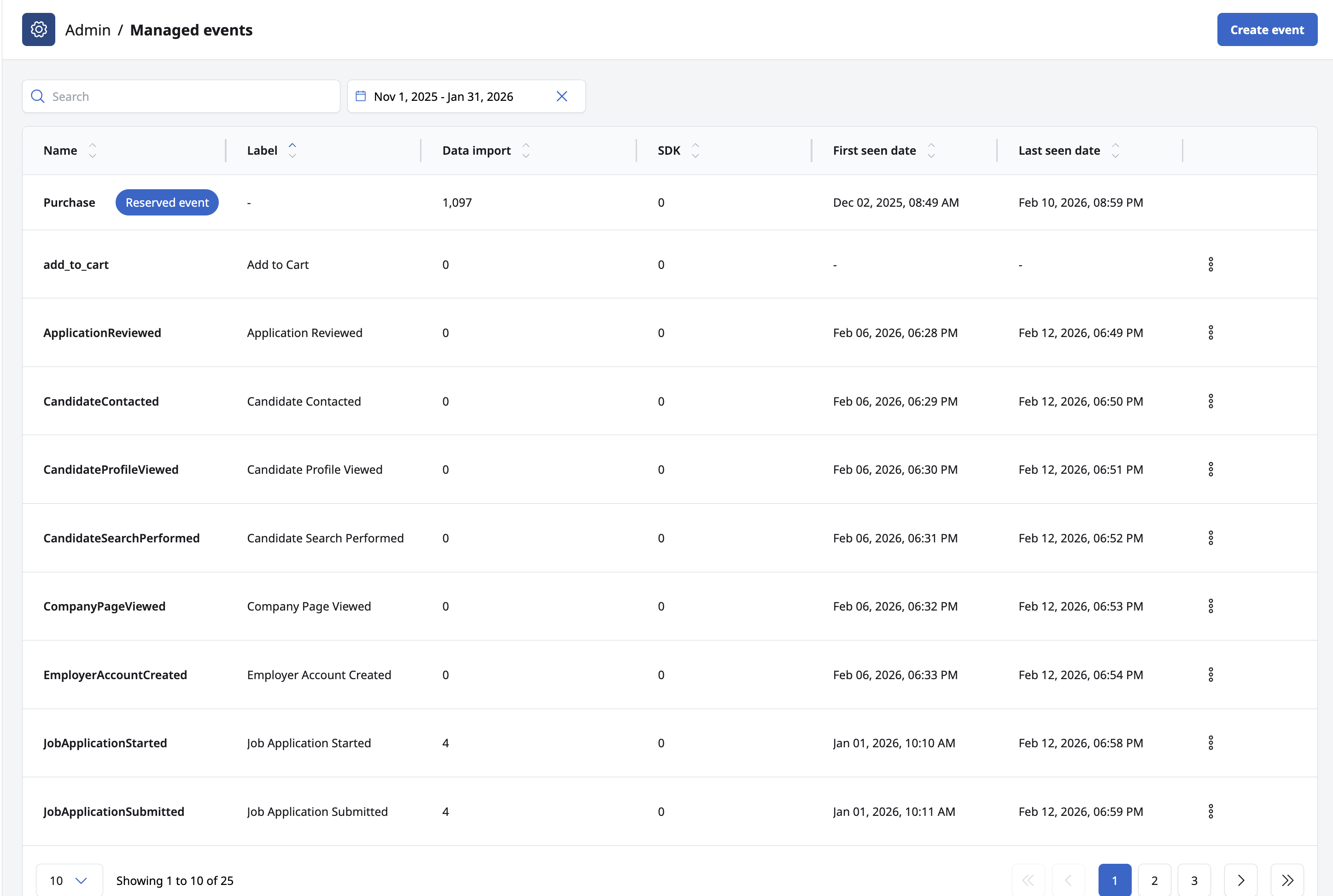 Managed events list page
Available Columns
| Column | Description |
|---|---|
| Name | Literal event name |
| Label | Optional display label |
| First Seen | Timestamp when the event was first received |
| Last Seen | Timestamp of most recent occurrence |
| Enabled for Conversion Tracking | Whether the event can be ingested |
| Data import | Events ingested in the selected timeframe |
Adding an Event
To add a new managed event:
- Click Create Event
- Provide the following fields:
Event Name (Required)
- The exact, literal event name as it appears in your data source
- Used to match events received from APIs, SDKs, or Event Syncs
- Must match case and formatting exactly
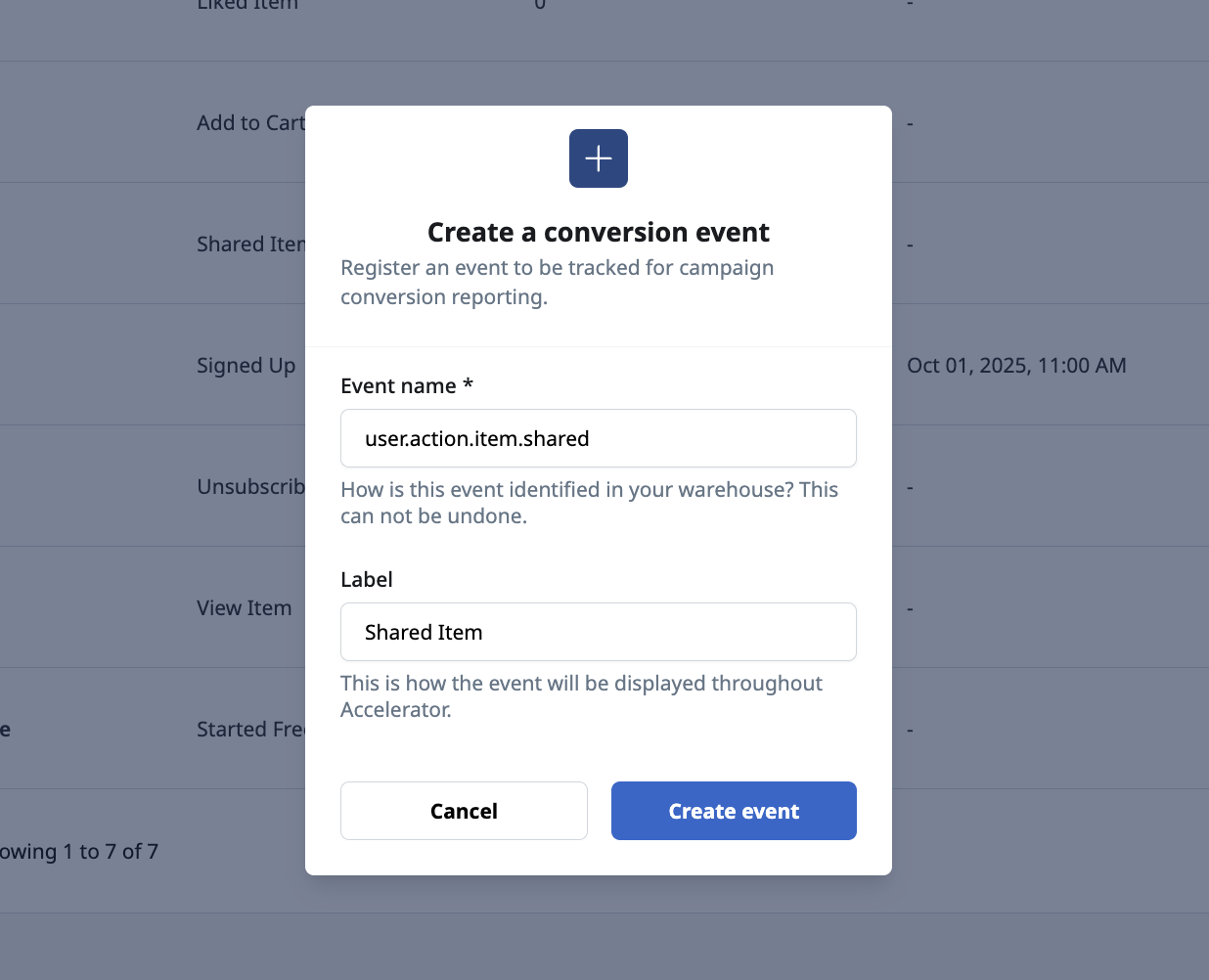 Create event modal
Familiarity with your event taxonomy—or coordination with teams who own event instrumentation—helps ensure the correct events are enabled.
Event Label (Optional)
- A human-readable label used throughout the MessageGears UI
- Appears in Conversion reporting dropdowns and filters
If no label is provided, the event name is displayed.
Example:
| Event Name | Label |
|---|---|
| menu.display.main.cart.add | Added to Cart |
Using Labels to Aggregate Events
Labels can also be used to group multiple event names that represent the same user action.
For example:
| Event Name | Label |
|---|---|
| android.menu.display.main.cart.add | Added to Cart |
| ios.menu.display.main.cart.add | Added to Cart |
In Conversion reports:
- These events are aggregated under the same label
- Counts reflect the combined total across platforms or sources
This is especially useful when:
- The same behavior is tracked differently across SDKs
- Event names are verbose or not user-friendly
Filtering & Timeframe Controls
- Select a start and end date to update:
- First seen date
- Last seen date
- Event counts per source
- Use the search input to filter events by name
- Volume per source is useful for validating parity with warehouse or analytics tools
Deleting Events
Deleting an event:
- Removes it from all Conversion dropdowns
- Prevents further ingestion of that event
- Does not delete historical conversion data
Step 2: Create an Event Sync
Once events are managed and enabled, you can configure how they are imported from your data warehouse.
What Is an Event Sync?
Event Syncs allow you to import user events from your data warehouse into MessageGears Cloud and use them for conversion tracking and campaign attribution. By syncing events on a schedule, you can measure how customer actions—such as purchases, cart additions, or page views—relate back to messages sent from MessageGears.
Each sync:
- Connects to a single database connection
- Executes a customer-defined SQL query
- Imports new events only since the last successful run
- Maps query results to MessageGears’ required event fields
- Runs on demand or on a recurring schedule
You can create multiple Event Syncs, allowing you to:
- Ingest events from multiple data connections
- Separate different event domains (e.g., Purchases vs. Engagement events)
- Sync a single event type or multiple event types in one query
Event Syncs are flexible and warehouse-native: you control the SQL, the data source, and the cadence at which events are ingested.
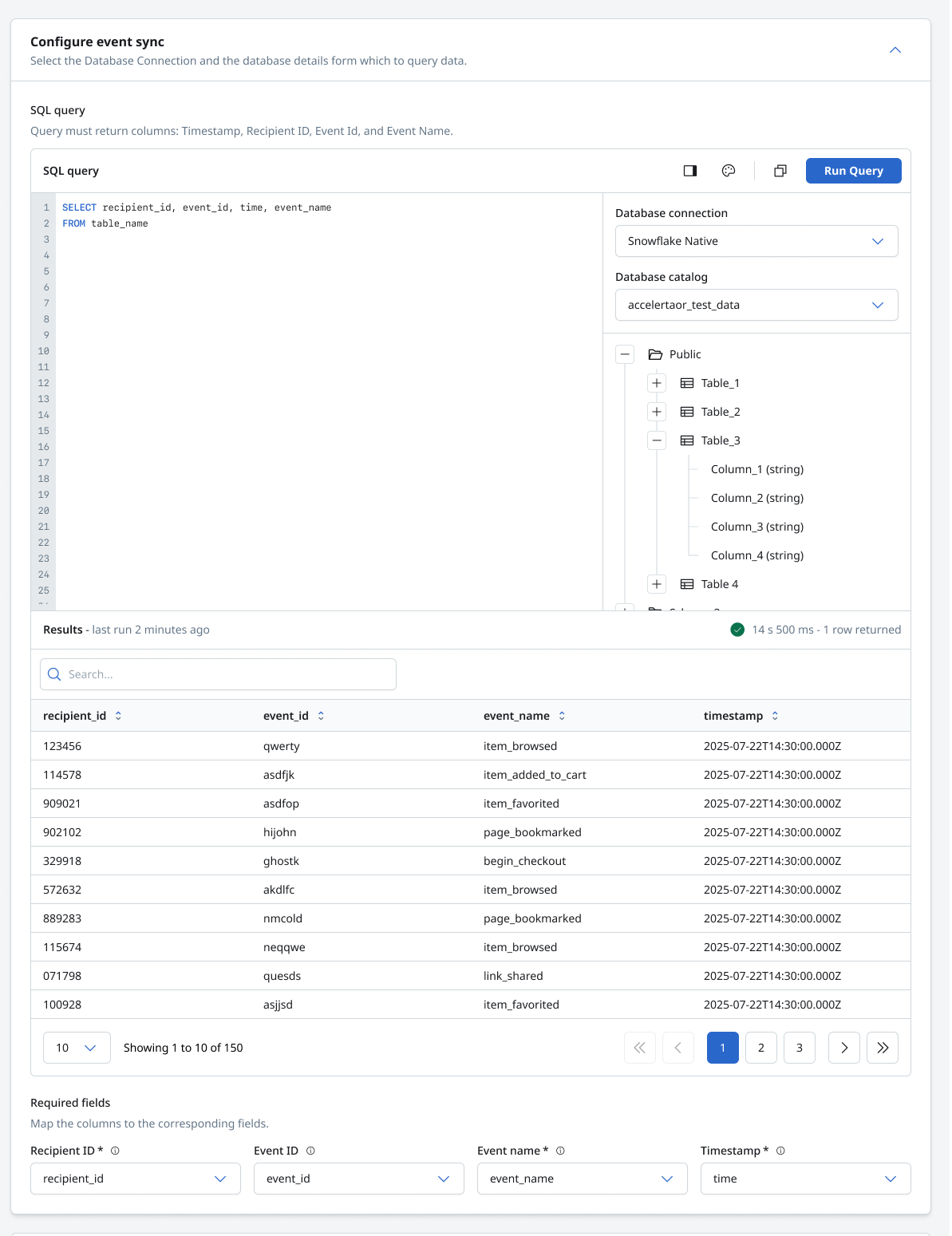 Event sync configuration
Where to Find Event Syncs
Navigate to: System Admin → Data → Event Syncs
From the Event Syncs list page, you can:
- View all configured syncs
- Check status (Active / Inactive)
- See last run time and duration
- Edit a sync
Creating an Event Sync
Step 1: Create a New Sync
- Navigate System Admin → Data → Event Syncs
- Click Create Event Sync
Step 2: Select Your Data Source
- Select an event type
- Custom - used for all non-purchase events
- Purchase - used to sync purchase type events
- Select a Database Connection (required)
- Select a Catalog (required)
- Catalog selection is disabled until a connection is chosen
- Catalog selection is not applicable for BigQuery connections
- Once selected, available schemas and tables will appear for reference
Step 3: Write the SQL Query
Write a SQL query that returns event data from your warehouse.
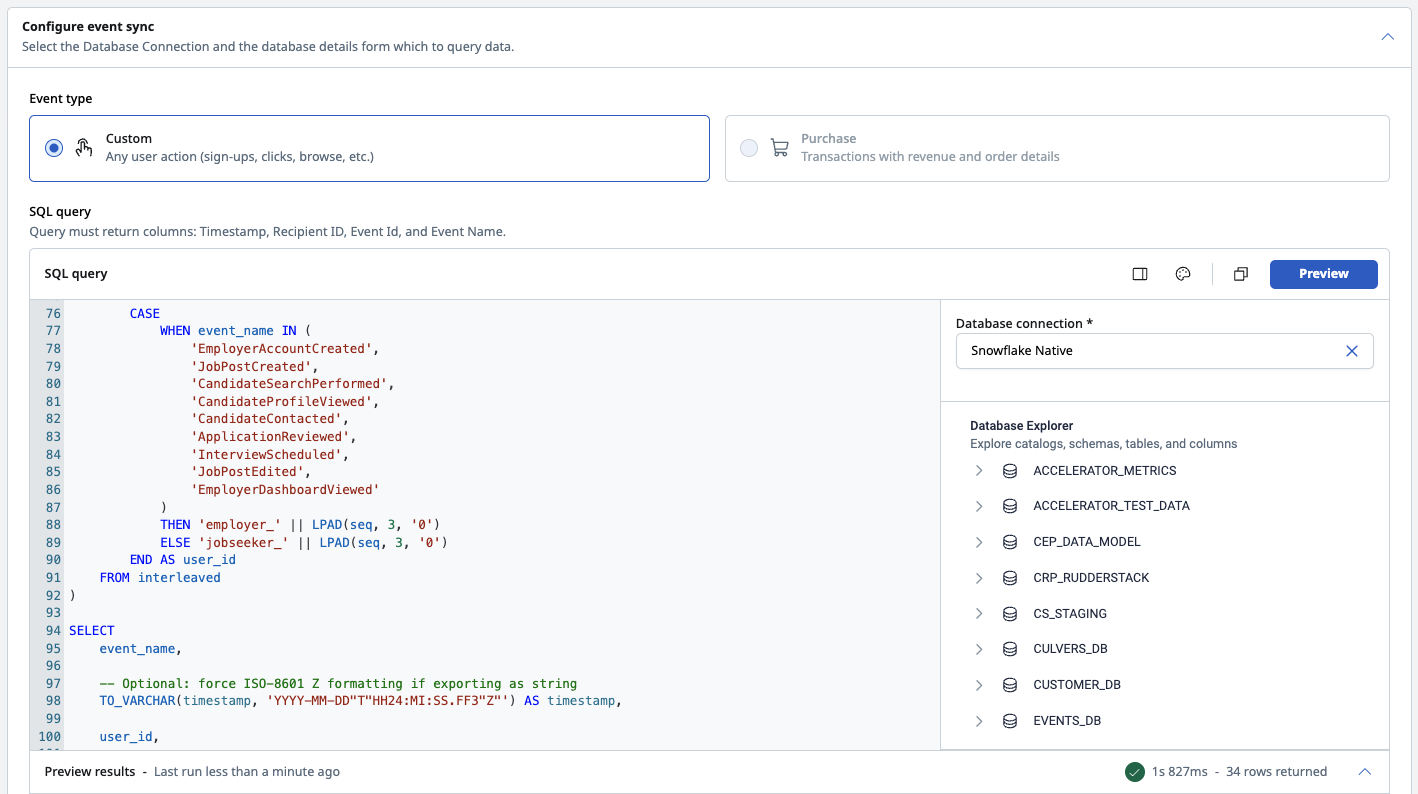 Example custom event sync query
Required Columns
Depending on the sync's event type - Custom or Purchase - the query must return values representing the following fields:
| Field | Description | Event Type |
|---|---|---|
| Event Name | Name of the event (e.g., item_added_to_cart) | Custom |
| Timestamp | When the event occurred. The timestamp value returned by your query must be a valid ISO 8601–formatted datetime. * The timestamp must represent the time the event occurred * Values must be in UTC * ISO 8601 examples: - 2025-07-22T14:30:00Z - 2025-07-22T14:30:00.000Z - 2025-07-22T14:30:00+00:00 Rows with invalid or non-ISO-8601 timestamp values will be skipped during ingestion Tip: If your warehouse stores timestamps in a native timestamp type, ensure your SQL query casts or formats the value to ISO 8601 before returning it. | Custom and Purchase |
| Recipient ID | User identifier used by MessageGears | Custom and Purchase |
| Event ID (optional) | Unique event identifier for deduplication | Custom and Purchase |
| Cost | The price of a single unit of the product. Revenue is calculated as Quantity × Cost. | Purchase |
| Product ID | The unique identifier of the purchased product. | Purchase |
| Quantity (optional) | The number of units purchased for this Product ID. Defaults to 1 if not provided. | Purchase |
| Currency (optional) | The ISO 4217 currency code used for the product cost (e.g., USD, EUR, CHF). Defaults to USD if not provided. | Purchase |
- The column names in your query do not need to match these exactly—you will map them later.
- Any additional columns returned by the query are treated as event properties and can be used in reporting and attribution.
Step 4: Preview Query Results
- Click Run Query to preview results
- MessageGears will:
- Execute the query
- Display a sample of rows
- Detect and list available columns for mapping
⠀This step is required before you can configure field mappings.
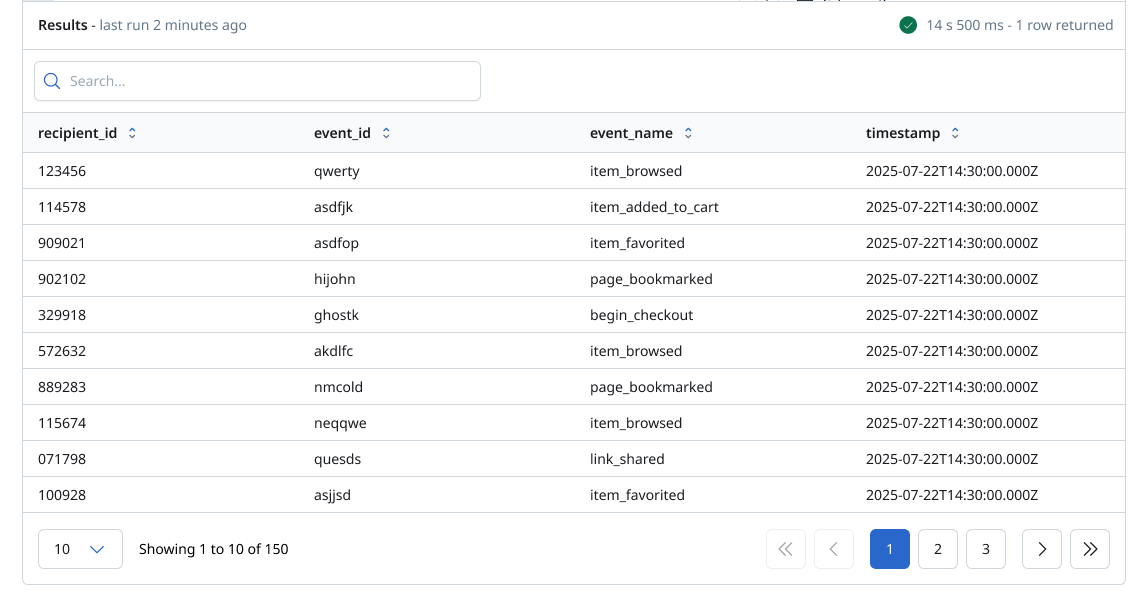 Preview of query results
Step 5: Map Required Fields
Use the Required Fields section to map query columns to MessageGears fields:
| MessageGears Field | Description |
|---|---|
| Recipient ID | Maps to the user identifier |
| Event Name | Name of the event |
| Timestamp | Event occurrence time |
| Event ID | Optional deduplication key |
| Cost | Represents cost of individual item. |
| Product ID | Maps to the product identifier. |
| Quantity | Number of product IDs purchased (defaults to 1) |
| Currency | ISO 4217 currency code of the product cost (defaults to USD) |
 Map columns to required fields
- Rows with null values in any required field are skipped
- If event_id is provided, MessageGears uses it to prevent duplicate ingestion
Event Filtering & Incremental Imports
Event Syncs are incremental by design.
- Only events with a timestamp later than the last successful sync are imported
- On the first run, no historical data is imported
- If a sync fails, the last successful timestamp is not updated
This ensures reliable, idempotent imports and avoids duplicate conversion data.
Scheduling the Sync
Unscheduled
- No automatic runs
- Sync can be triggered manually using Sync Now
Recurring
Configure a recurring schedule by specifying:
- Start date
- Frequency unit: Minutes, Hours, or Days
- Interval value
- Minutes: minimum 15
- View the next 10 scheduled runs before saving
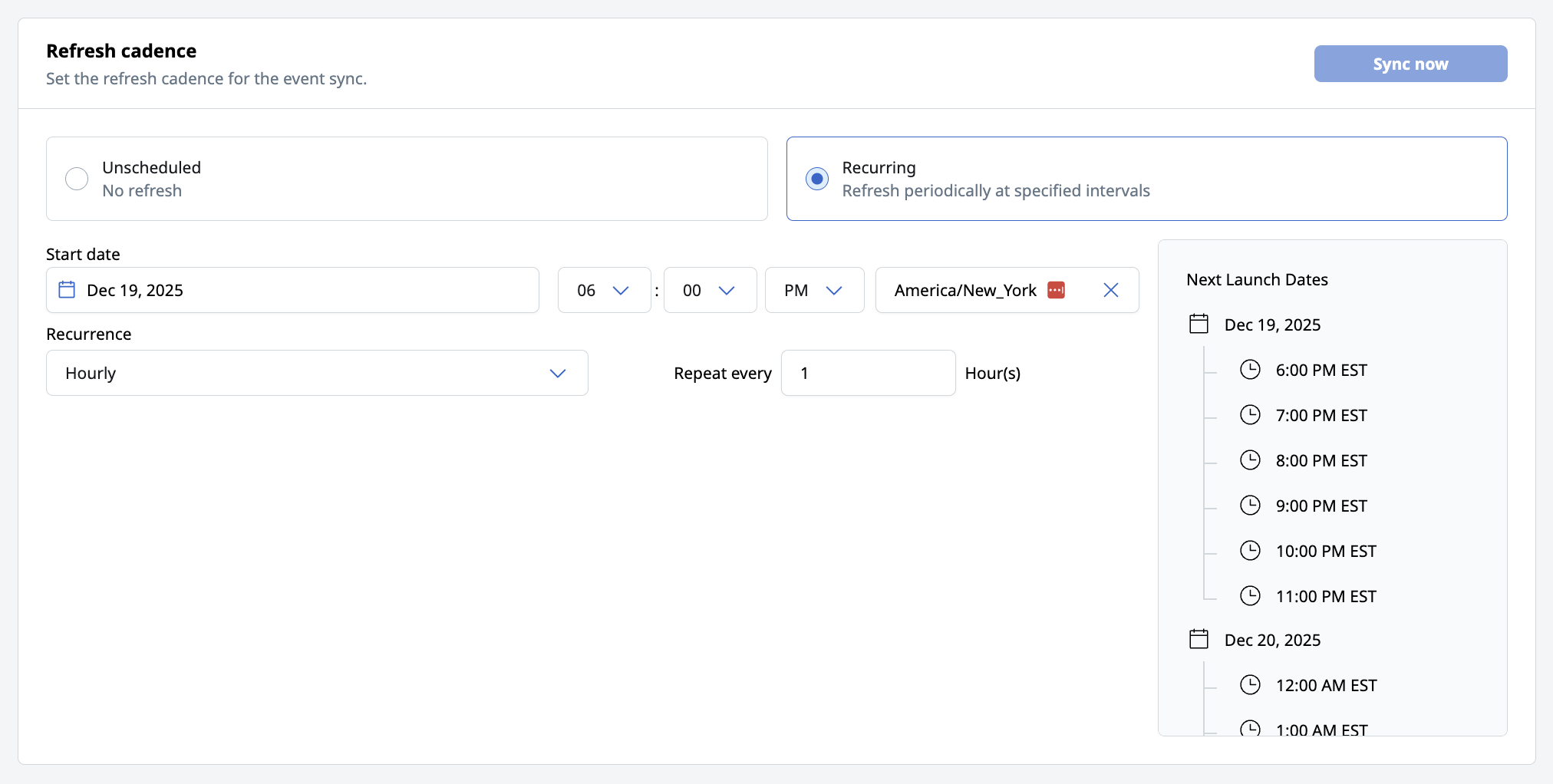 Event sync recurring schedule definition
Saving a recurring schedule automatically activates the sync.
Notifications & Monitoring
Notifications
You can optionally provide an email address to receive notifications when the sync fails.
 Get notified if an event sync fails
Event sync history
The History tab on the Event sync detail page provides a complete log of your recent event syncs, allowing you to review when each sync ran and whether it completed successfully.
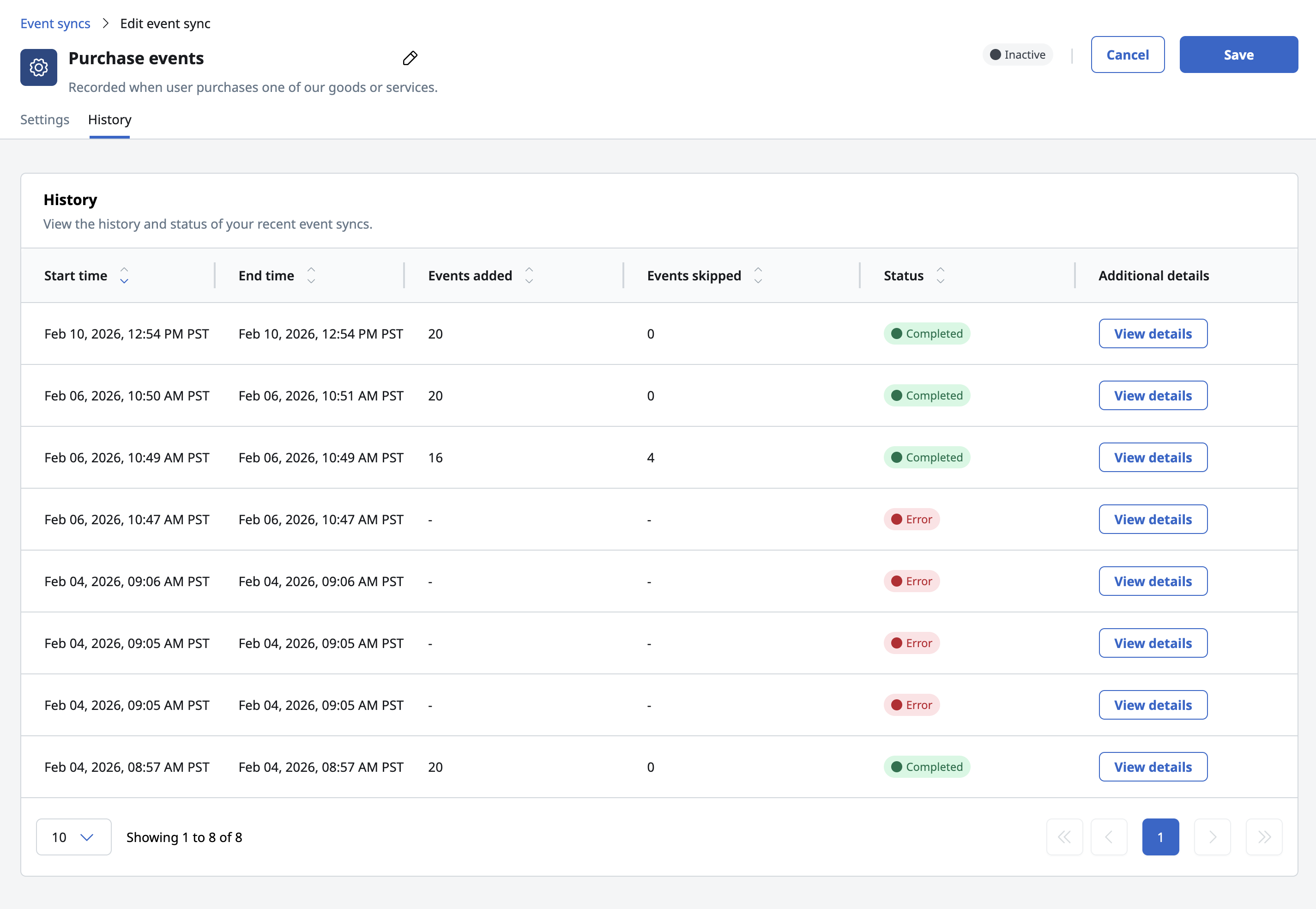 Event sync history
Each row in the history table includes:
- Start time and end time of the sync
- Events added (number of events successfully imported)
- Events skipped (events excluded because required fields were missing)
- Status (Completed or Error)
If a sync fails, you can click View details to open a panel showing:
- The exact query that was executed during that sync
- The error message returned by the warehouse or endpoint
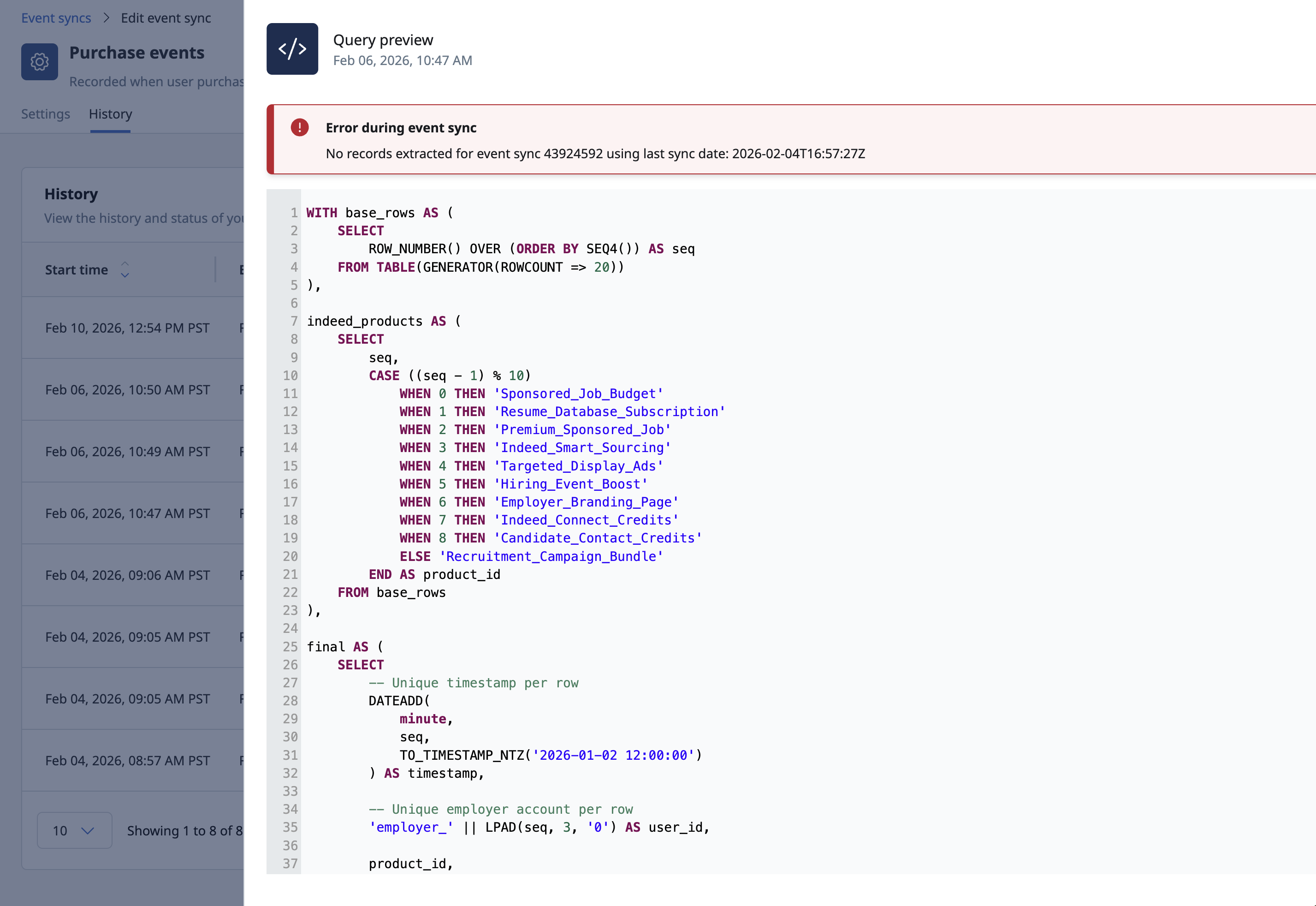 Event sync preview