Connecting Bynder in MessageGears
Bynder digital asset management comes pre-configured in the MessageGears cross-channel content building experience. All you need to bring with you is your existing Bynder account. There’s no additional cost, and setup is quick and easy.
Setting up the integration
Step 1: Login to Bynder
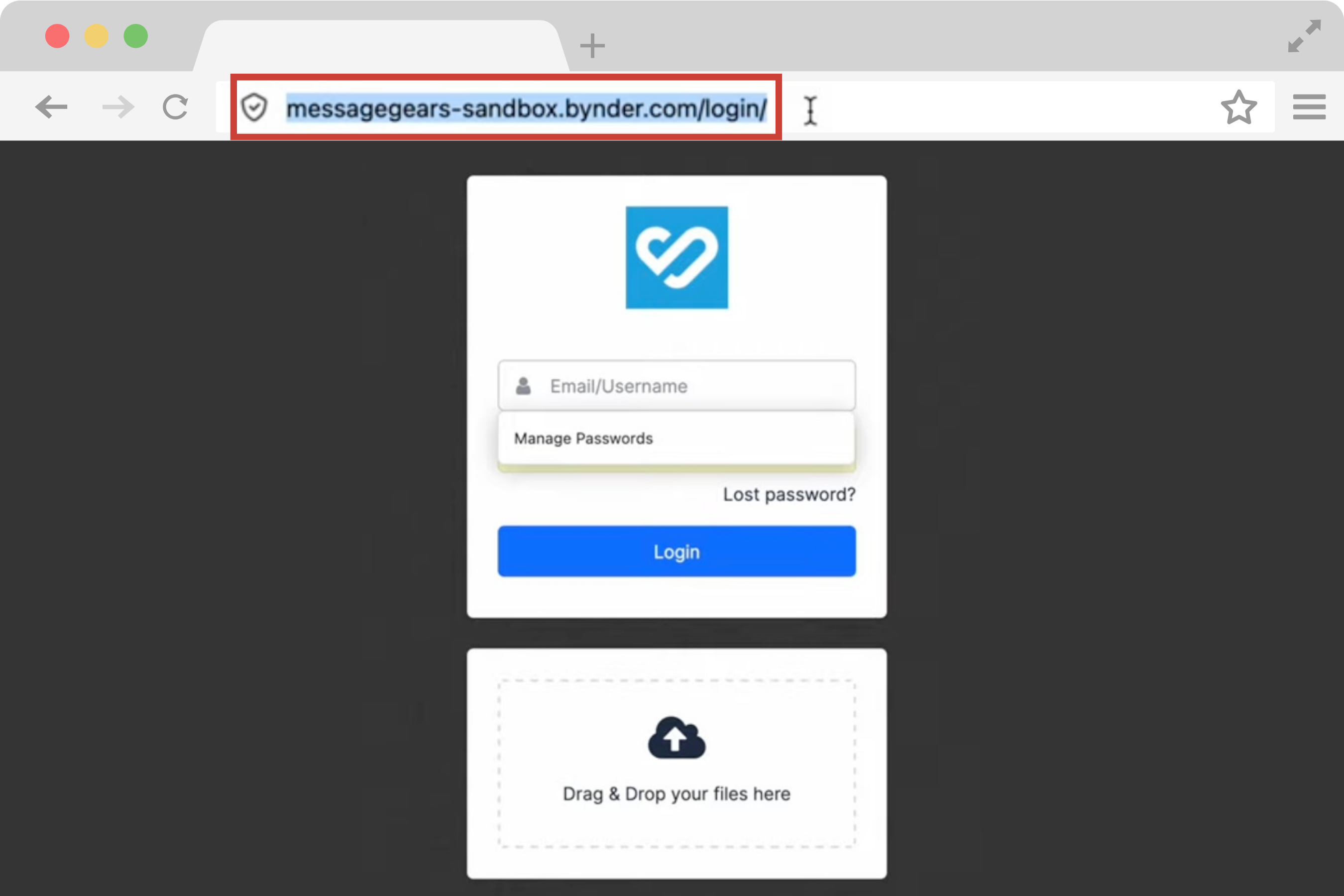
Open your browser and navigate to your Bynder login screen and copy the URL.
Step 2: Drag Bynder tile into template canvas
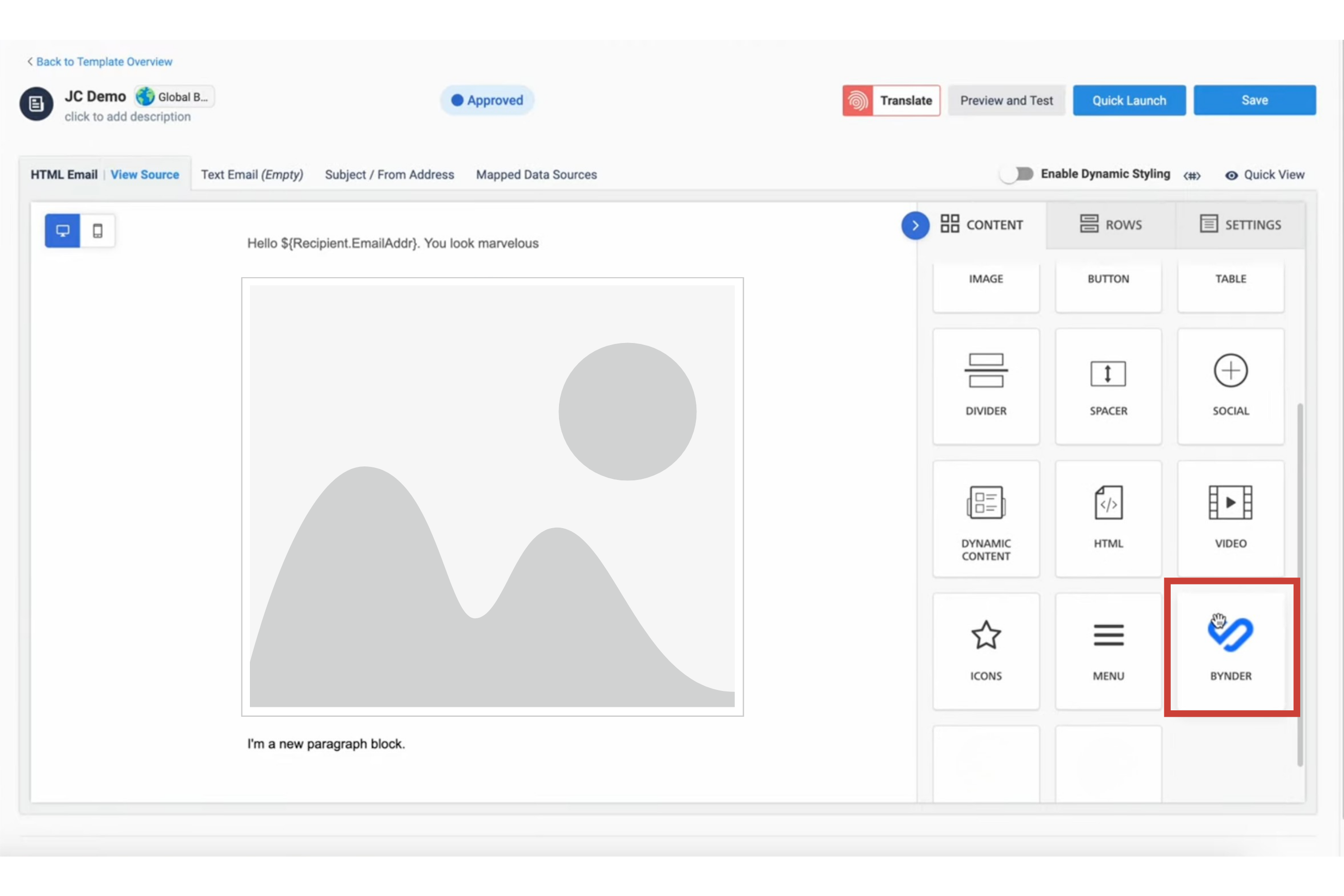
Switch to the MessageGears content builder and drag the Bynder widget from the side panel into a content block.
Step 3: Paste URL from step 1
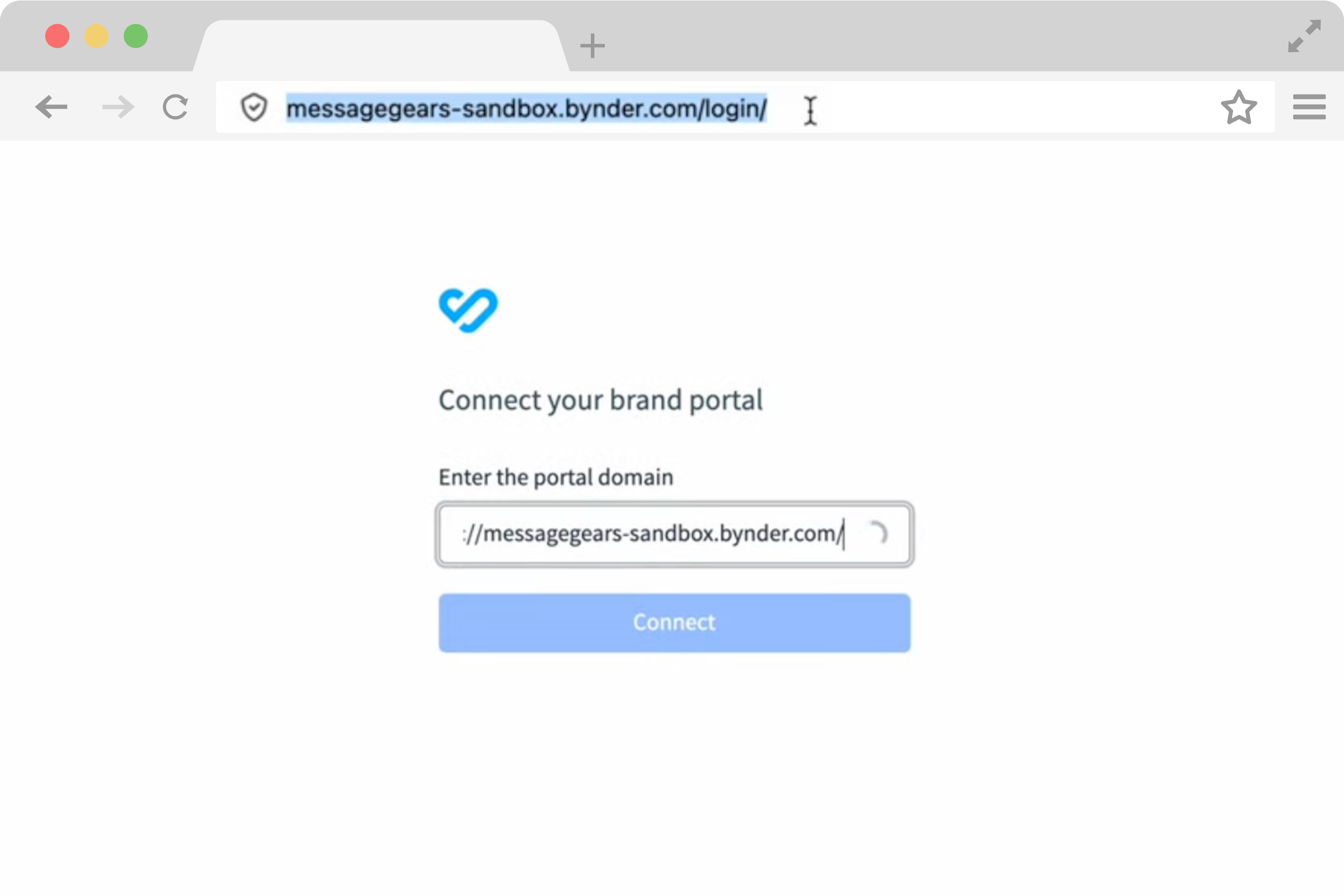
A window will open with a place for the Bynder URL that you copied earlier. Paste that URL here.
Step 4: Enter Bynder creditials
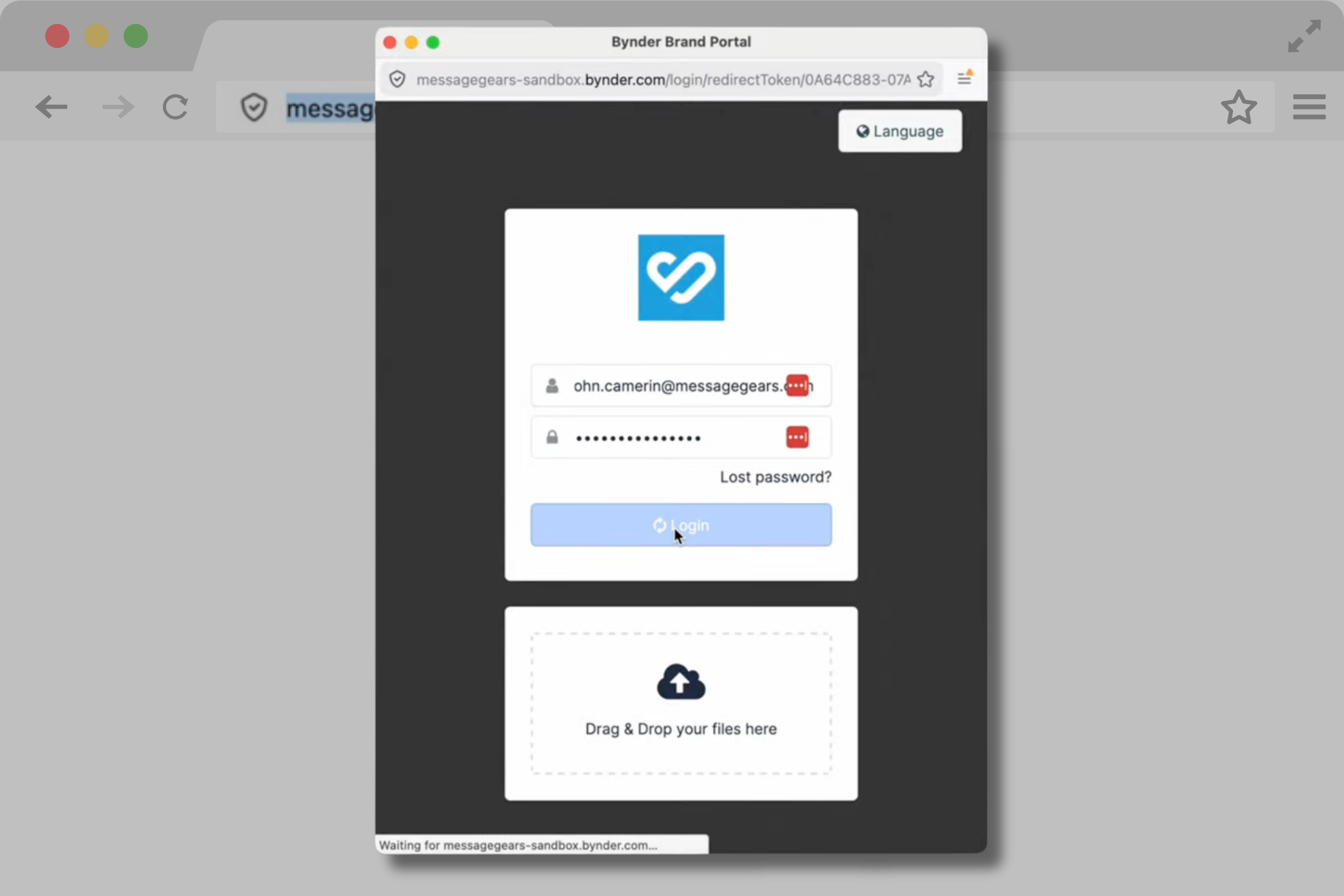
Bynder will validate the URL, and the content window will show the Bynder login. Use your Bynder login credentials here, and click the login button.
You will now have access to all your Bynder image libraries inside the MessageGears content building experience.
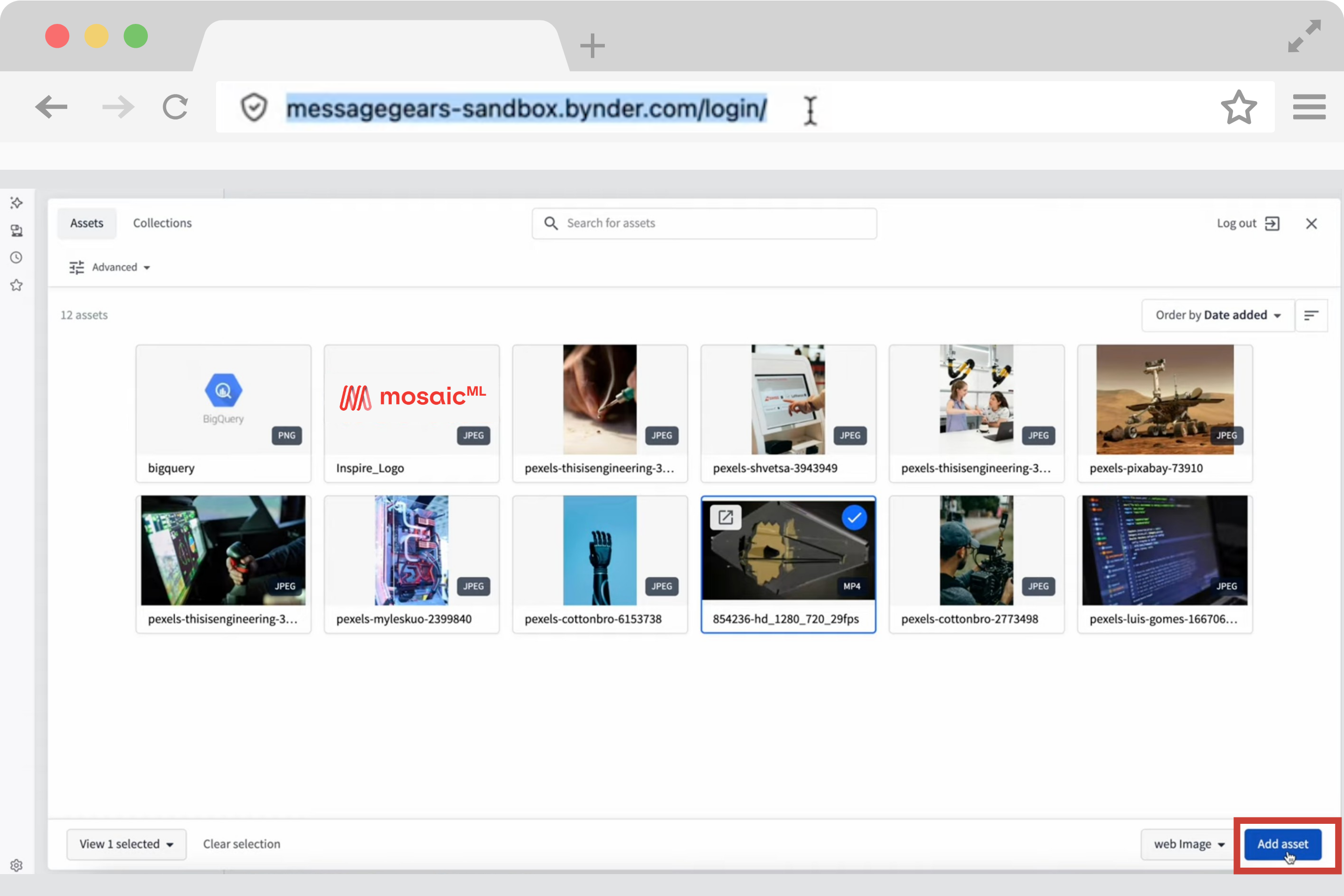
MessageGears + Bynder
Once you’ve authenticated and logged into Bynder from MessageGears, you can instantly search and filter to start finding assets based on permissions. (Note: Image access is based on your permissions in the Bynder platform and is not reflective of MessageGears permissions.)
Including and using Bynder images has no impact on existing content that you have set up.
Joint MessageGears and Bynder customers can use this integration immediately. There’s no vendor setup or contact with us required.