Accelerator 26.1.2 release notes
Initiatives released
Global search
Use case
We are introducing Global Search, a new feature designed to improve how you navigate and find assets across the platform. It provides a single, centralized searching experience across the platform. With the introduction of Global Search, you will be able to search across different sections from one centralized place and also perform quick actions directly from the search bar using simple slash / commands. This provides a more seamless and efficient navigation experience. Global search helps you quickly discover assets, access documentation and raise requests without manually navigating through multiple modules.
Goals
- Provide a centralized searching experience across all key asset types.
- Enable easier asset discovery across the platform.
- Reduce time spent in navigating between different sections.
- Support quick access to documentation through slash commands (for example:
/help supplemental dataredirects you to documentation related to supplemental data). - Build a scalable foundation for future search capabilities.
Accessing global search
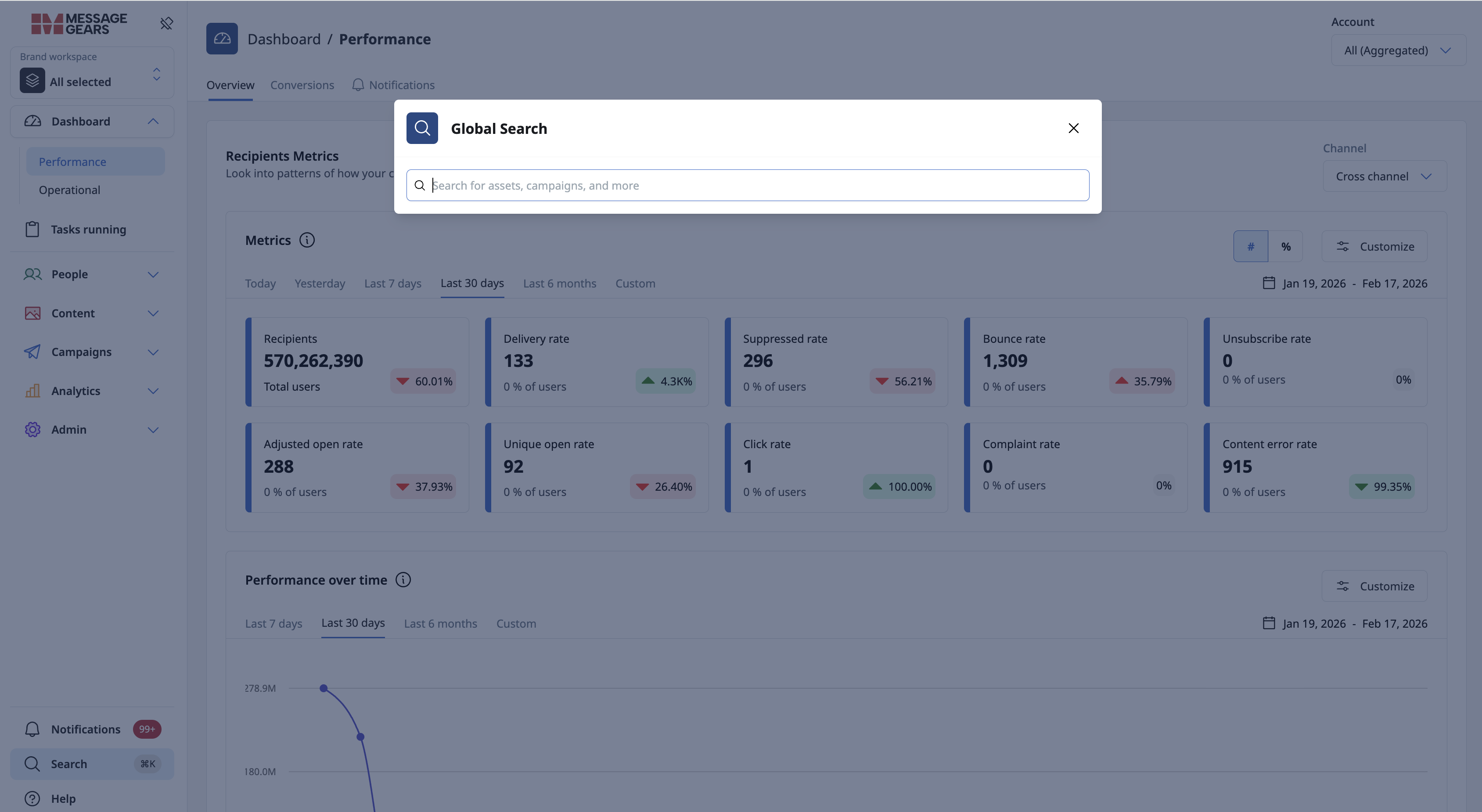
Global search can be launched by using keyboard shortcuts Command+k for Mac users and Ctrl+k for Windows users. It can also be accessed from the left side panel.
Searching across assets
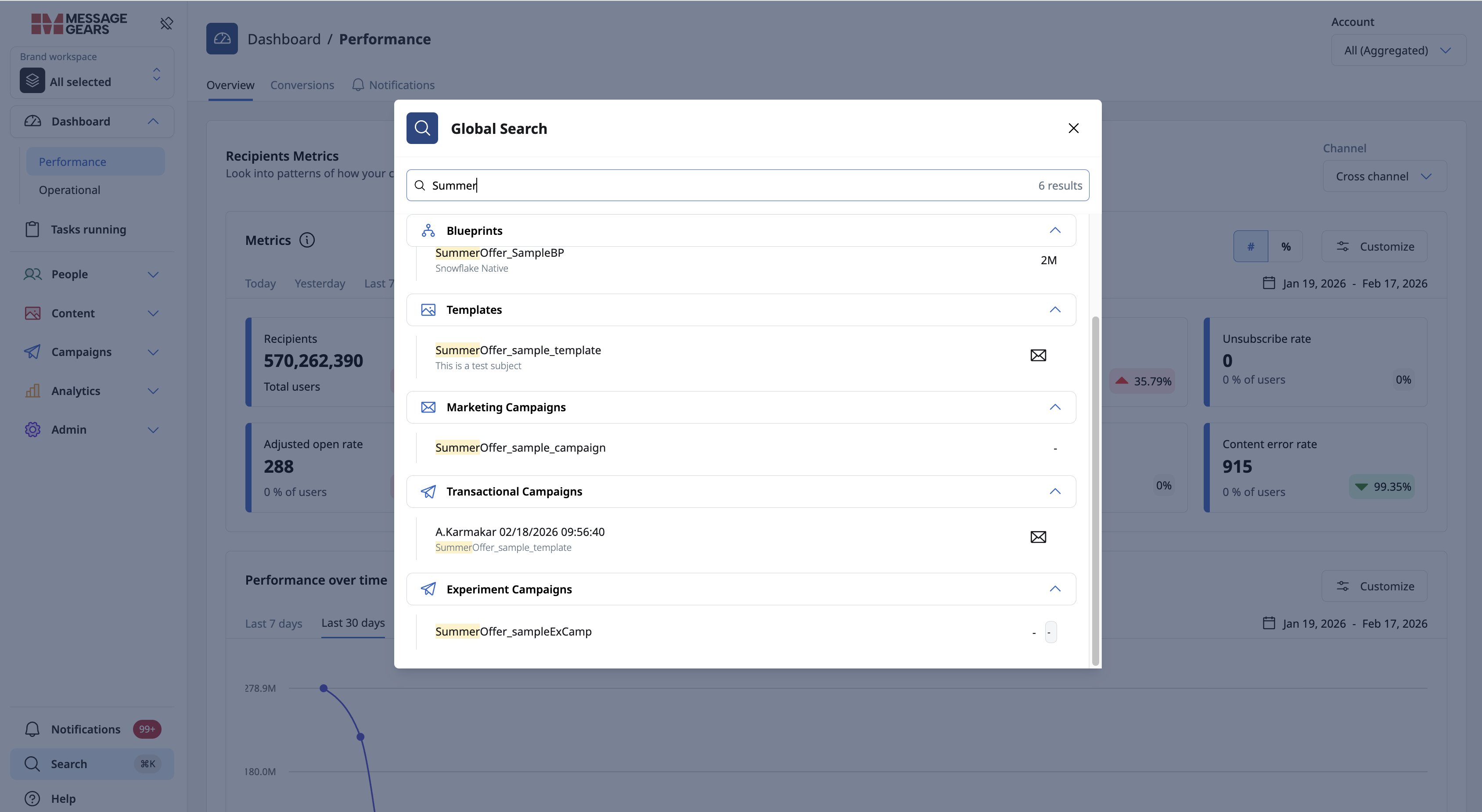
When you search using a specific keyword (for instance, “Summer”), Global search displays all related results across asset types, including Blueprints, Templates, Marketing Campaigns, Transactional Campaigns, and Experiment Campaigns. For each result, additional details such as channel information and audience count are displayed on the right-hand side.
Global search actions
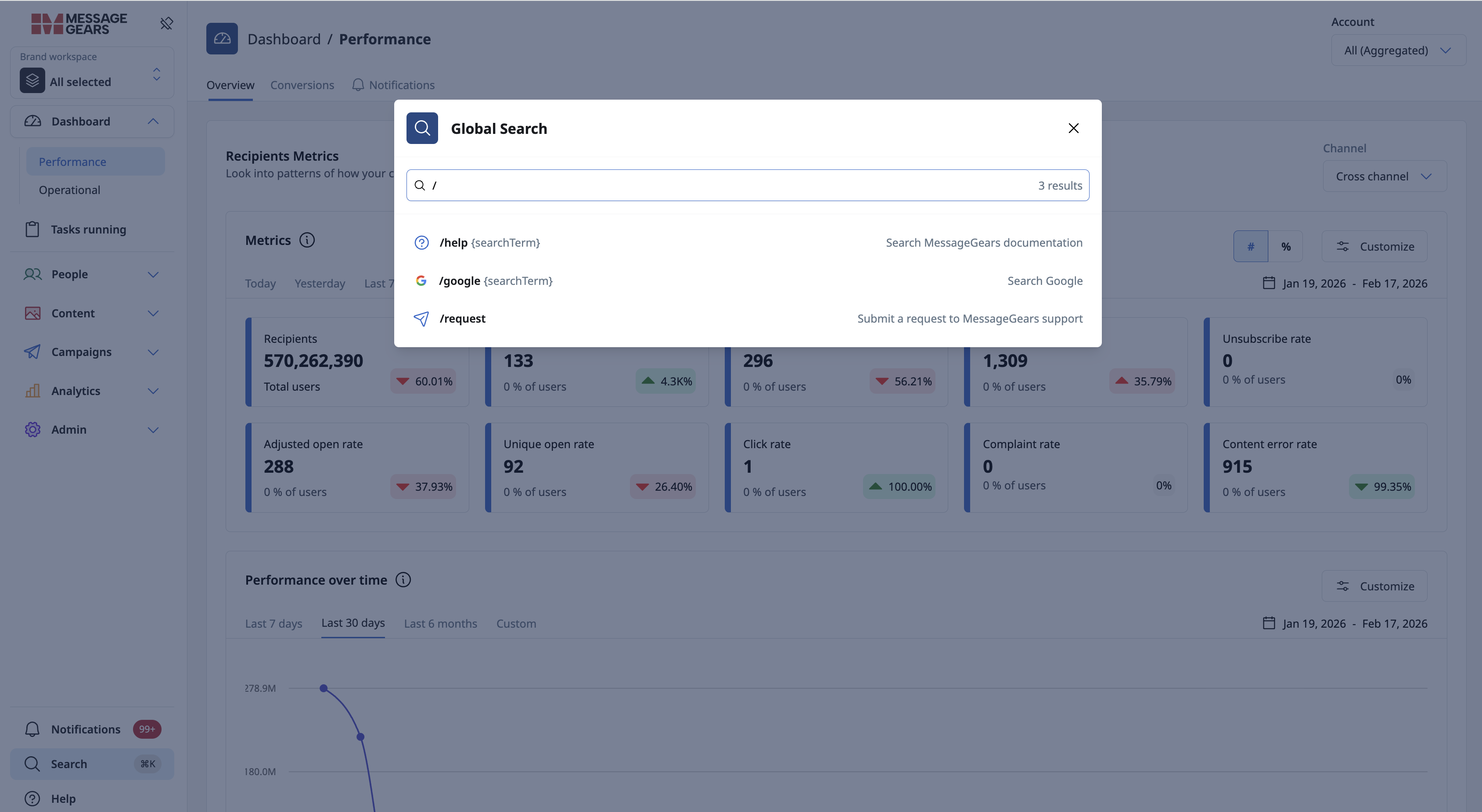
Global Search also includes an actions section that can be triggered using / command. By typing /help followed by a search term, you will be redirected to the relevant documentation for that topic. Typing /request allows you to raise or submit a request directly to the MessageGears support team.
Blueprint chain view
Use case
A brand new way to see your Blueprint Chains, Blueprint Chain View adds a visible, interactive canvas to your Blueprint Chains. This new view is available on any Blueprint included in a chain, and maps out every Blueprint included, along with each of their respective segmentation canvases, so you can see how all your audience segments are flowing together in a single screen.
Goals
- Enable new view to map all Blueprints within a chain together on one screen
- Surface and highlight the data streams being used by each Blueprint with a single click
- Support navigation to any Blueprint within the chain from the chain view
Chained canvas view
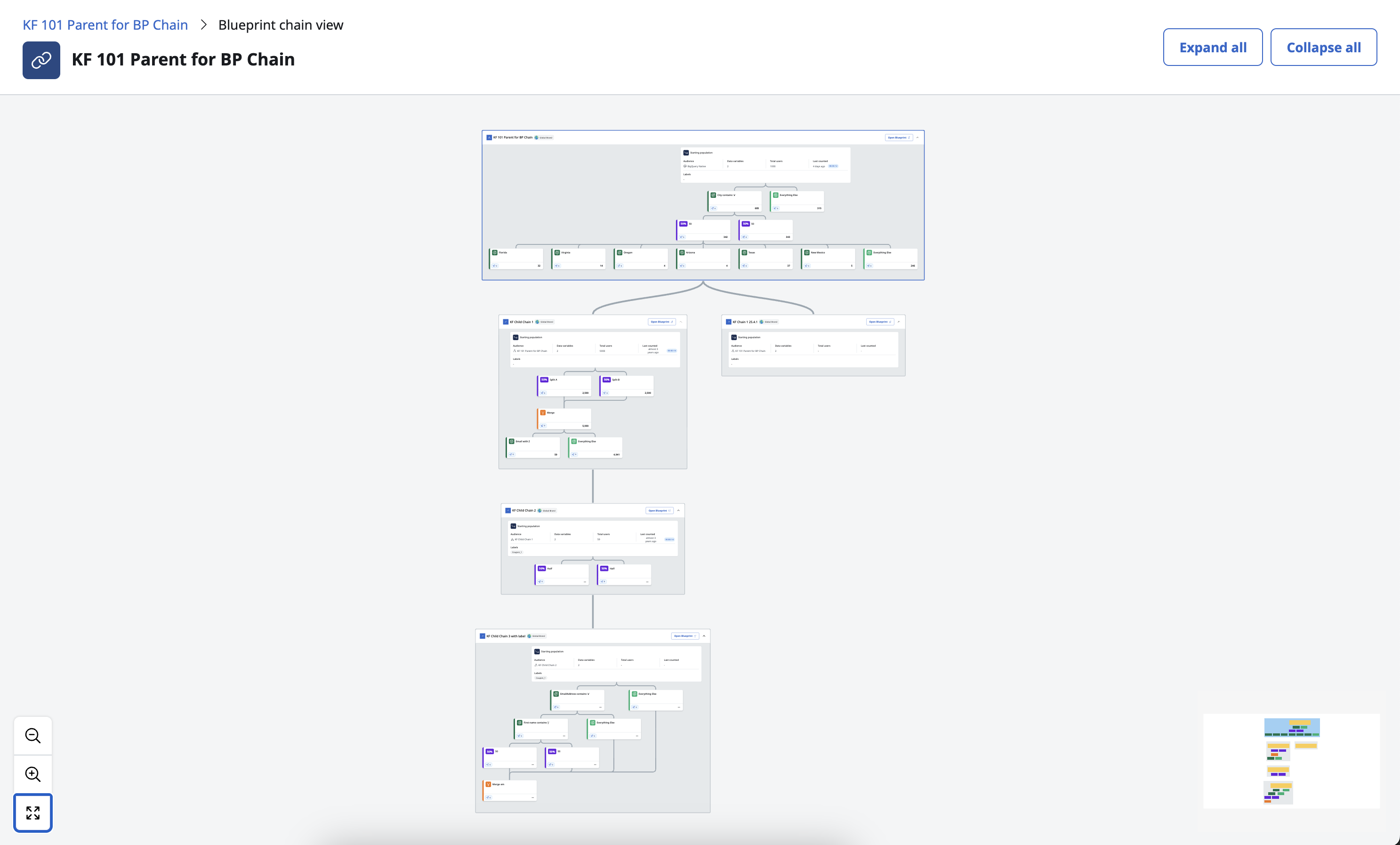
All Blueprints that are a part of a chain will now have this view available via the Blueprint Chain View button above the Blueprint canvas. On the Chain View, each Blueprint in the chain is represented with its corresponding canvas, including all of its segmentation nodes. This will also include the node types, names, and labels for each node, as well as the number of associated campaigns, and activations those campaigns are using.
Chained data flow
Users will be able to see data flow particular to any specific Blueprint in the chain on this new view. Selecting a Blueprint will highlight appropriate nodes in its parent, and any additional parents up the chain, to illustrate how data is flowing down from the original Blueprint. The canvas also highlights the path that data is taking if there are multiple branches at any level, allowing this view to properly visualize exactly how segments are used along the chain. Users can select the Open Blueprint button on any Blueprint shown, at any time, to see specifics of that Blueprint’s segmentation setup.
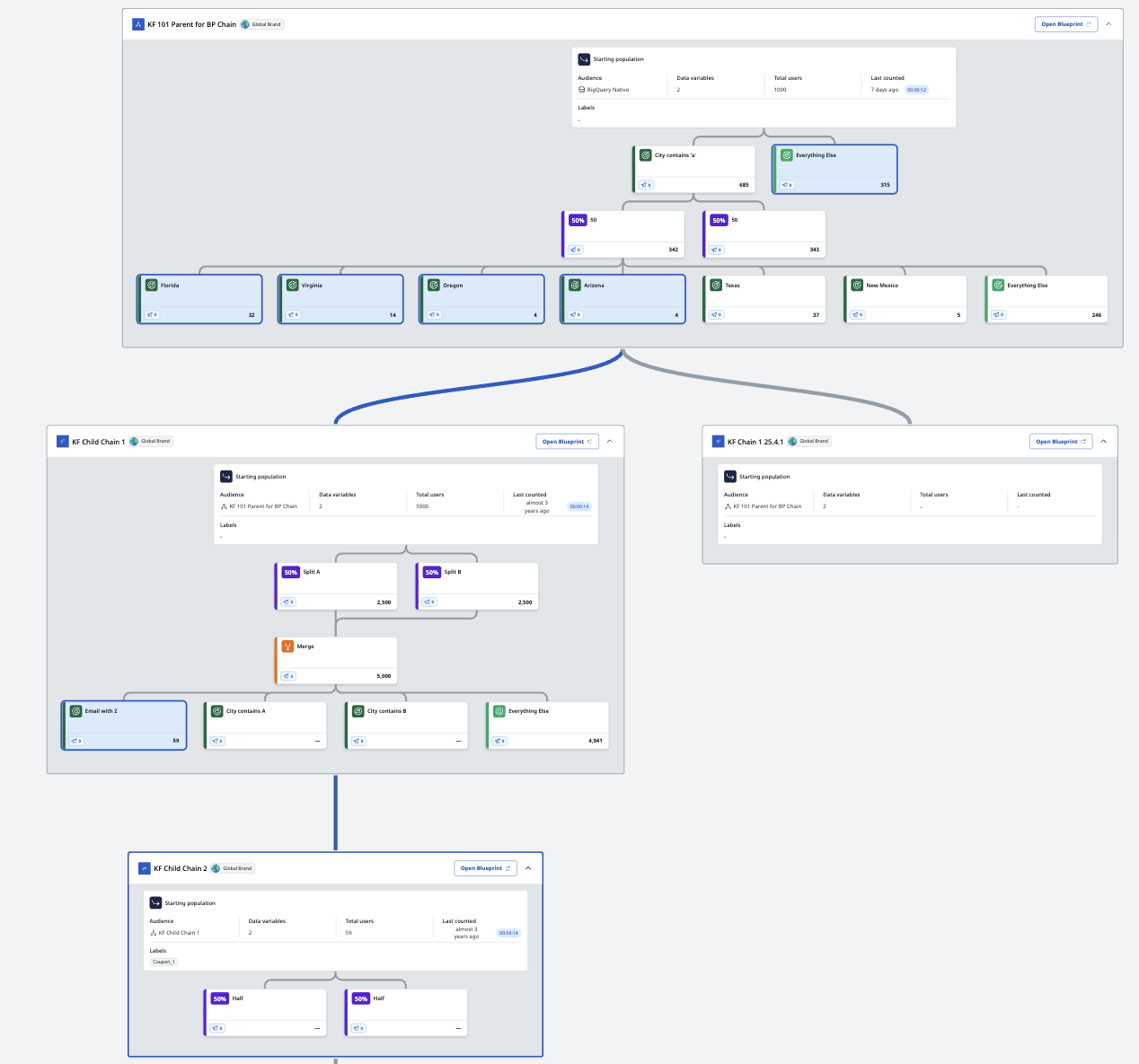 Data flows are highlighted per selected Blueprint
Conversion attribution windows
Use case
Customers can now configure channel-specific attribution windows for Conversion reporting directly in the UI. Attribution windows determine how long after a message click event MessageGears will attribute a subsequent conversion (e.g., purchase) to the campaign. Conversions occurring outside the defined window are treated as organic.
Goals
- Enable customers to manage attribution windows without requiring assistance from a CSM
- Provide transparent visibility into attribution window updates over time.
Attribution settings page
System and data admins will now see an Attribution settings page in the left side nav under System > Data. On the page, admins can define the attribution windows for each channel type (email, push, sms, in-app message, and embedded campaigns), selecting any duration between 1 hour and 30 days (default: 24 hours).
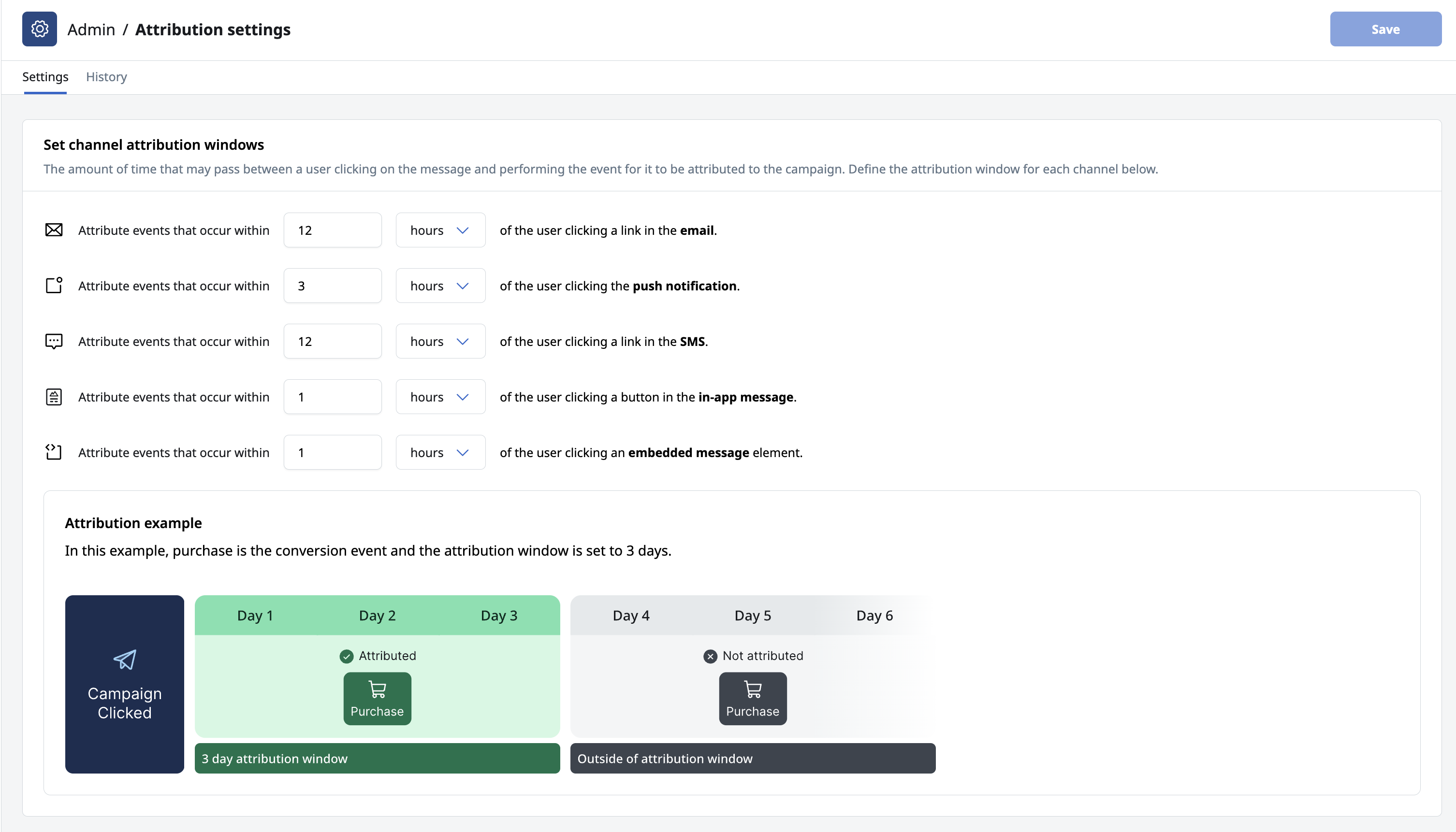 Attribution window settings
Attribution change history
The Attribution settings page contains a History tab, where admins can access an attribution history table that logs all changes, including channel-specific windows, timestamps of updates, and the user who made the modification.
Attribution window changes apply only to future Conversion metric calculations. MessageGears recommends configuring attribution windows before enabling Event Syncs or tracking events via the SDK, so all conversion metric calculations use the same window. If you notice significant shifts in Conversion trends, review the attribution history table to see whether attribution windows were adjusted during that period.
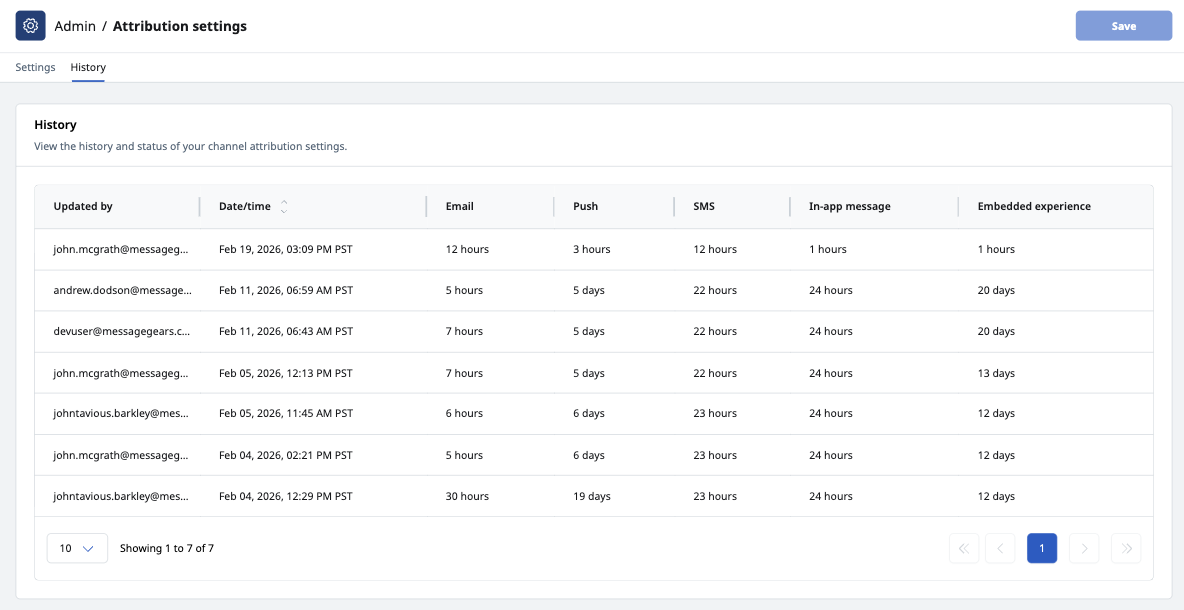 Attribution settings history
General changes
Enhancements
- Redesigned the Help modal
- Added Blueprint Target node case sensitivity setting
- Added “SDK” column to Managed Events page to show SDK sourced event counts
- Added Event sync history table and error logs to Event syncs page
- Added the ability to set a default campaign notification email address in the UI
- Added External Jobs to the file cleanup service
- Added time zone displays to line graphs on the Job Analytics screen
- Increased header space for Marketing Campaign names that are live in the UI
- Better handling of campaign failure when AR doesn't exist
- Auto trim trailing white spaces on entry fields in the UI
Fixes
- Fixed an issue where analytics pages default to email-only view instead of cross-channel view
- Fixed an issue where account analytics for email view go in the wrong direction for opens & clicks
- Fixed an issue where column constraint error wasn’t properly displaying for Blueprints
- Fixed an issue where FastCache no longer refreshes when ‘Refresh Blueprint Snapshot’ is clicked
- Fixed an issue where
Mysqldumpfunctionality no longer displays DB passwords with special characters - Fixed an issue where jobs were not being cleaned up via DataCleanupService if a job isn’t in the file store