Template Statuses
Overview
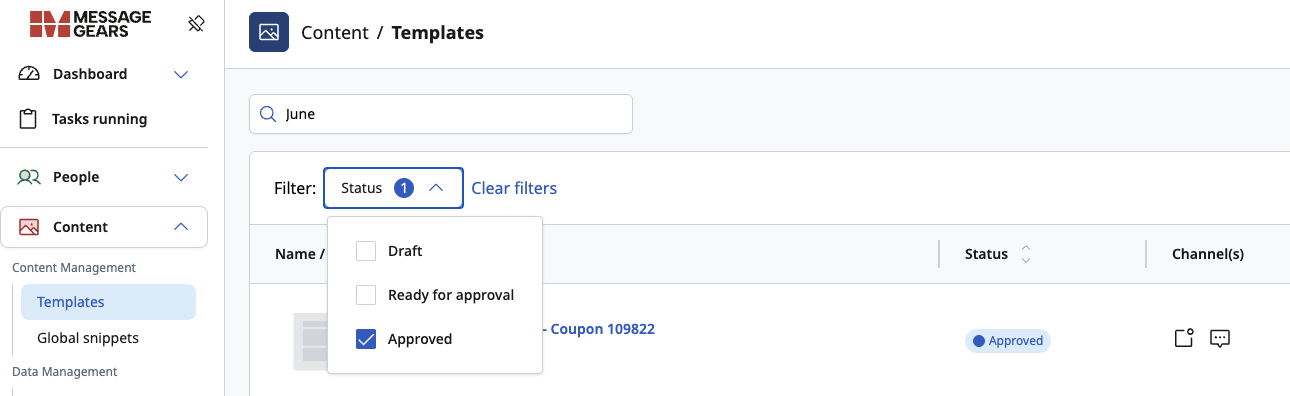
Template statuses are made visible by an icon on the template list page that allows users to identify templates that are actively being worked on, templates that have been completed and are awaiting approval, and those that are ready to be utilized within a campaign. The purpose of these statuses is to help the user easily identify templates that are ready for testing, while eliminating the chance that an unapproved template is added to a campaign.
Statuses
Each template has its own unique status value, and can only have one value at a time. The status values are:
- Draft - Template is currently being drafted
- Ready for approval - A draft is complete, and awaiting review or approval
- Approved - The template is approved and ready to be added to a campaign
Only templates with the status of “Approved” will be available to add in a campaign.
Turning on the Template Status Feature
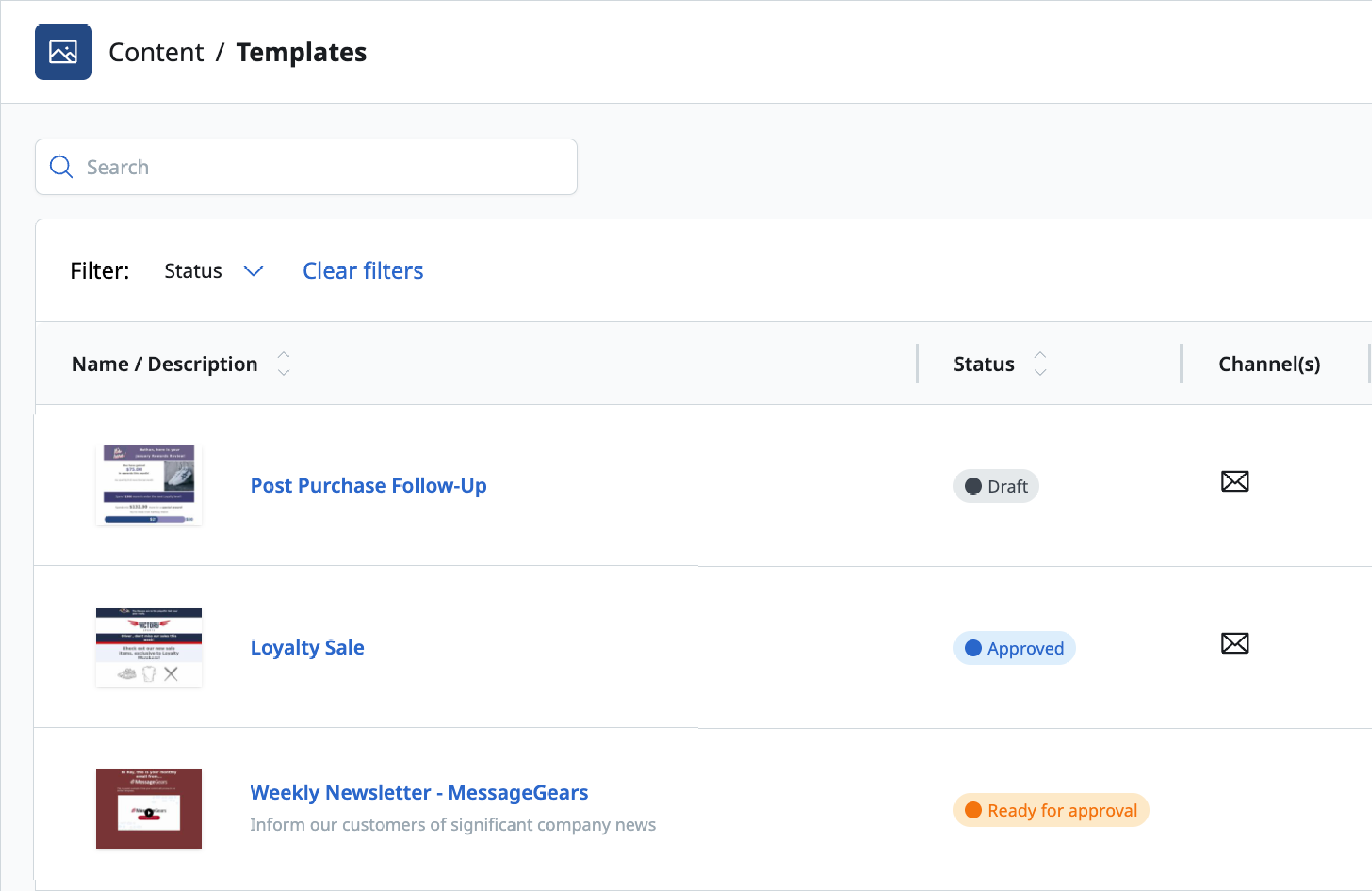
To turn on the Template Status feature, navigate to Admin > System Configuration > System Defaults and check the box titled, ‘Enable Template Statuses.’
You must have Administrative permissions to enable Template Statuses. If you do not, you'll need to reach out to your administrator to have them enable this feature.
When Template Status is activated, all existing templates will be given the “Approved” status, so as not to interfere with any existing campaigns. Any new templates created after the feature has been enabled, will default to the "Draft" status.
When the feature is turned off, all of the templates will lose their status, and Accelerator will continue to function as it did before the Template Status feature was turned on.
Turning the feature back on, will reset all Templates back to an “Approved” status.
Selecting a Template Status
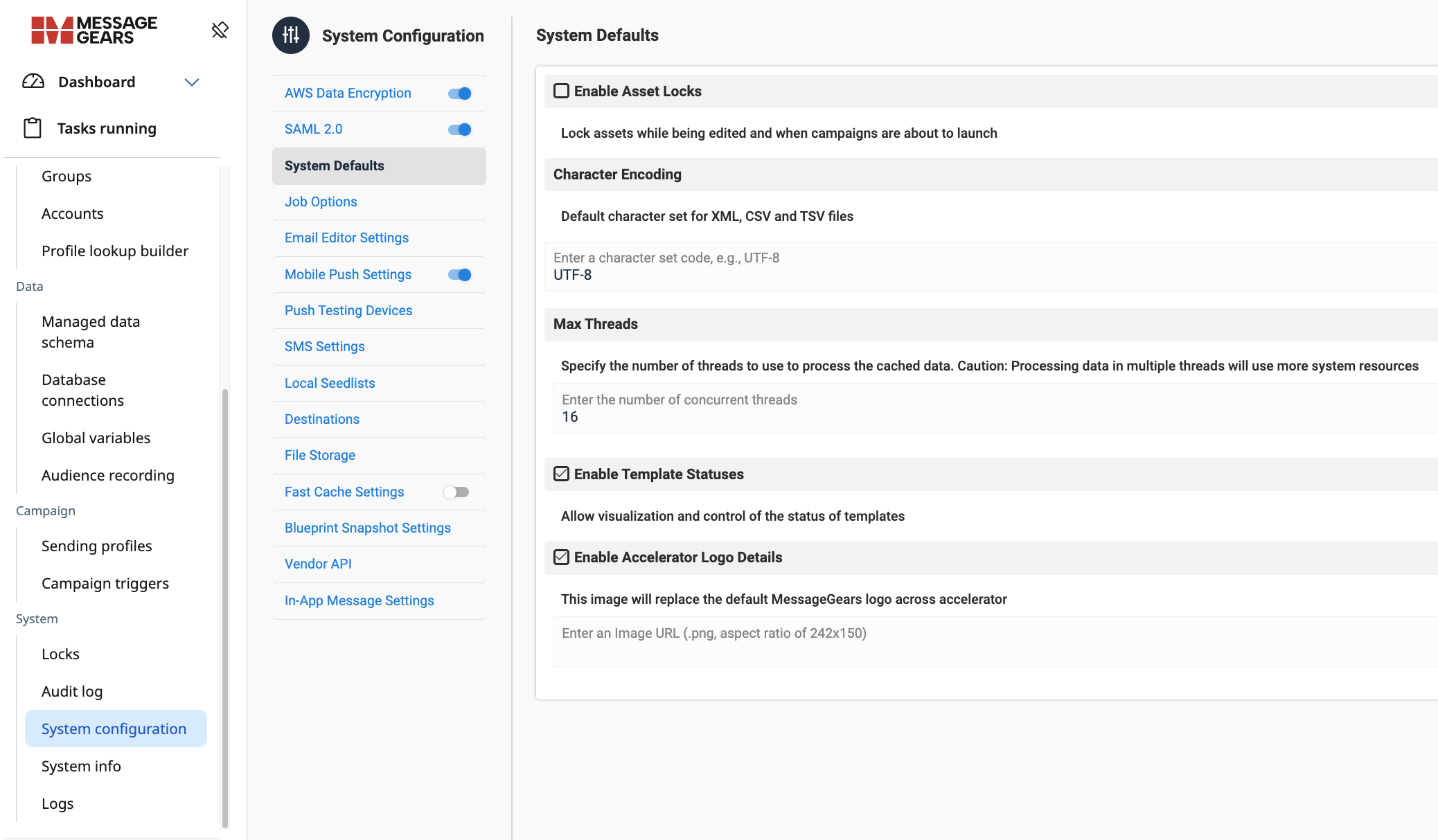
Selecting or updating the status of a template can be done from the status drop dropdown menu on the Template Overview page. The user can select from the three template status values. When a status is selected, a confirmation message will appear to confirm the change.
Sorting and Filtering Templates by Status
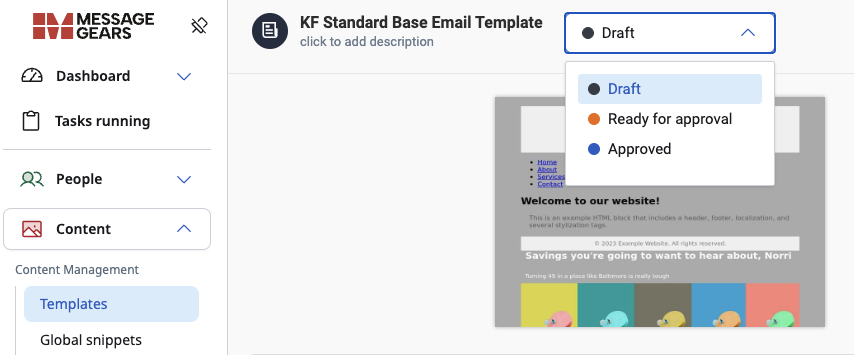
When the Template Status feature is enabled, a “Status” column will appear on the Templates List page. This column will display the current status for all templates, and also gives the user the ability to sort the templates by status. Along with the column, a filter above the list of templates. This filter allows the user to choose which statuses are displayed in the Template list.