Accelerator 25.4.2 release notes
Initiatives Released
User Role Overhaul
Use Case
Organizations managing complex team structures need clearer, more intuitive control over user access. The previous permissions functionality relied heavily on granular, difficult-to-manage settings that didn’t align with user expectations. This release introduces a new, role-driven permissions framework that simplifies access management, clarifies responsibilities, and makes Accelerator easier to use for multi-team environments.
Goals
- Provide role-based access to align with common job functions and reduce reliance on granular permissions
- Introduce clear Read Only, Standard, and Admin access modes within each role
- Improve usability by removing the need to grant Admin privileges for key workflows
- Maintain backward compatibility with uninterrupted support of legacy roles during migration
Capabilities
User Role Expansion & Re-Definition
The new permissions system introduces a suite of expanded user roles that align access better with modern marketing teams like Data Engineer, Segment Builder, Content Author, Campaign Author, Reporting Analyst, and more. Each role supports Read Only, Standard, and Admin levels, enabling organizations to give users exactly the access they need without balancing permissions on each asset. These roles define page-level access and the allowed actions (view, edit, execute, delete) within each area of the application. We’ve redesigned our User Setup page to better convey what each role gives access to, and what is restricted.
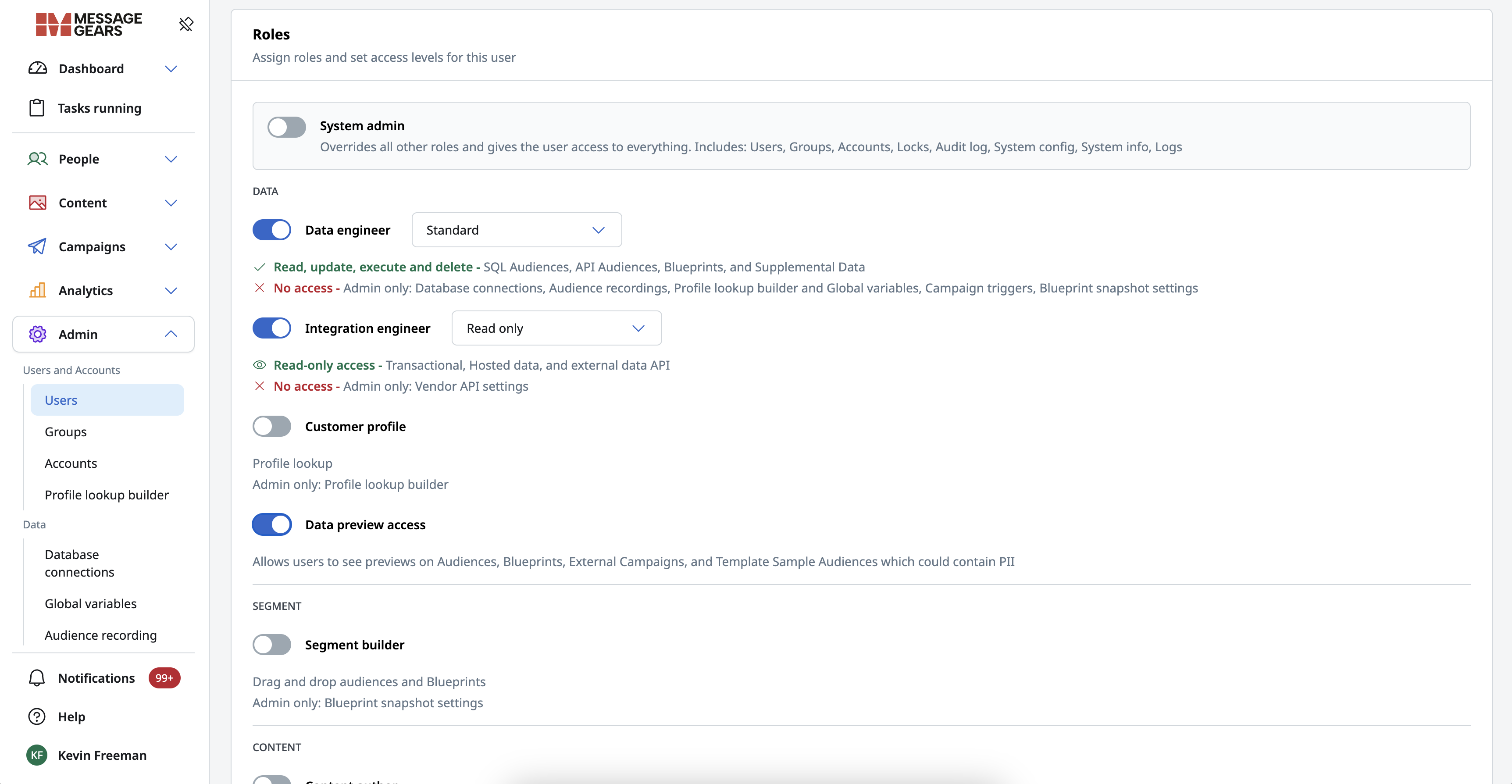
Redesigned and more informative user roles selection
Read Only permission tier
Users assigned Read Only variants of a role can access relevant pages, but cannot create, save, edit, or execute actions. Pages visually display disabled actions rather than removing them entirely, providing clarity on available functionality. Read Only behavior has been added to pages which previously had no permissions model, such as Hosted data, External data API, and Supplemental data, ensuring consistent access control.
Standard permission tier
Users assigned Standard variants of a role can access relevant pages, as well as create, save, edit, or execute within those assets.
Admin permission tier
Users assigned Admin variants of a role can access relevant pages, perform all actions on them, and have access to certain Setup pages that are relevant to the role’s areas. For example, the Campaign author Admin tier will allow a user access to the Sending Profile setup page. Note that not all roles have relevant Admin- or setup-related pages, and thus do not offer an Admin tier of the user role.
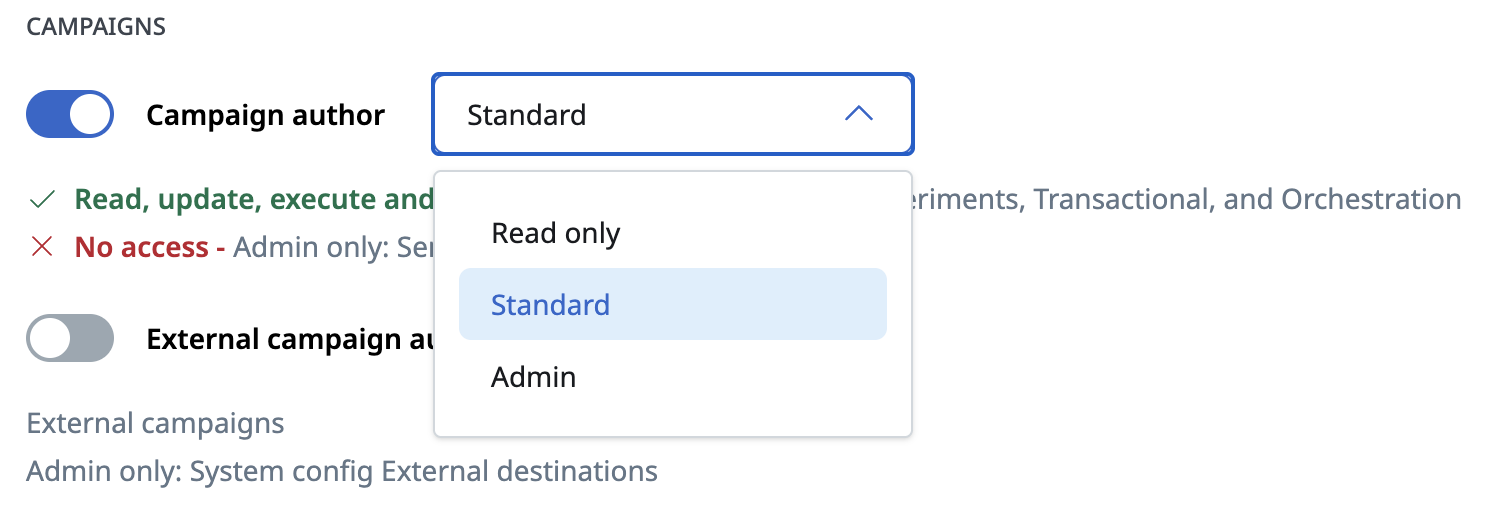
Each role now offers a permission tier for Read only and Standard. Some roles will offer Admin tiers to make setup screens available
Parallel Support for Legacy Roles
Not ready to switch to the new role structure? No problem. Legacy user roles remain available to support a smooth transition until you’re ready. Legacy or new user roles can be provided on a user to user basis, so you can be flexible for what works for your teams. A user cannot hold both legacy and new roles simultaneously; the UI will guide them to switch between the two. For users who remain on legacy roles, they’ll continue to use the existing permission structure, while new roles use the expanded Read Only → Standard → Admin model.
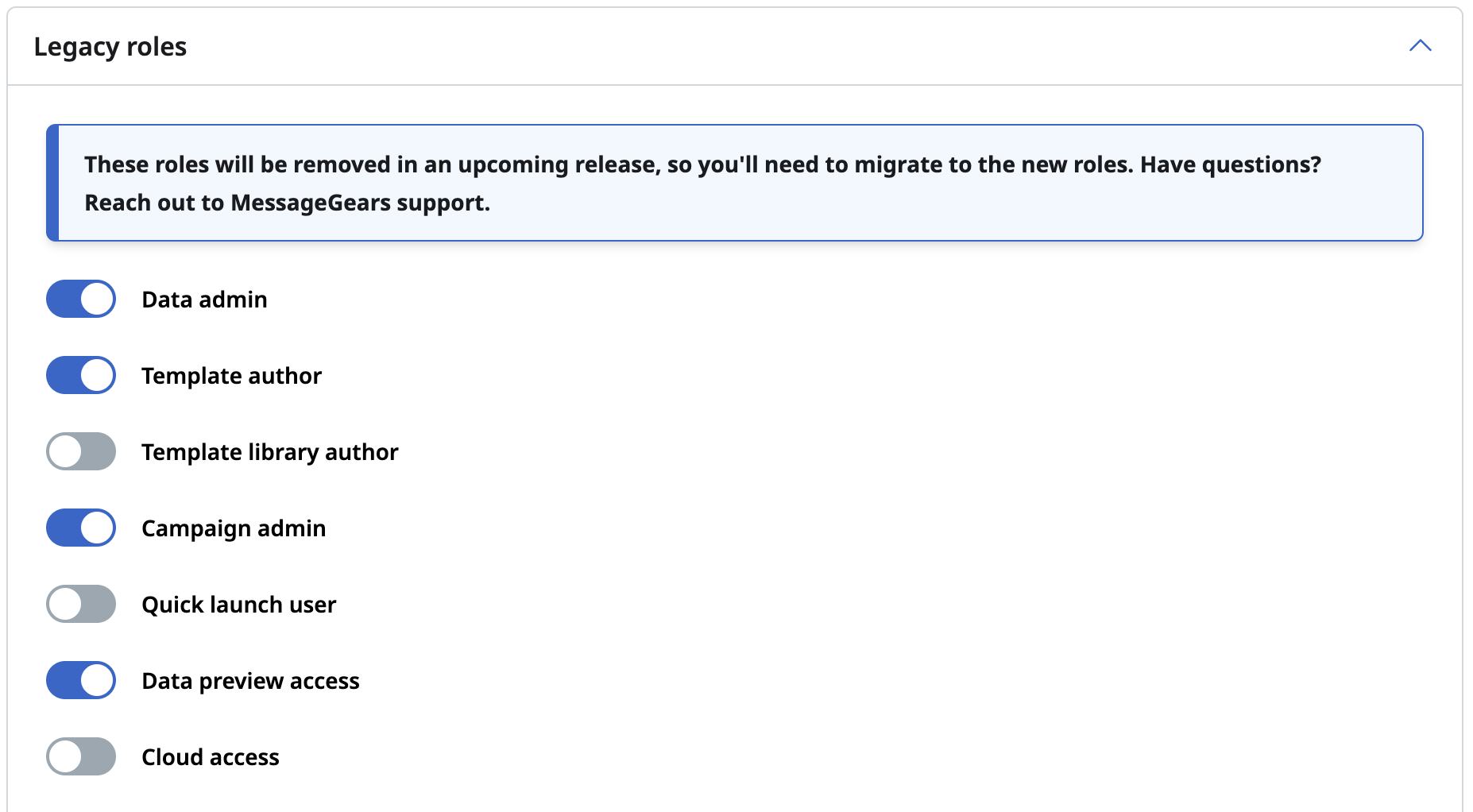
Previous user roles, now called Legacy, can still be used if desired
Conversion Reporting
Use Case
Marketers need a clear way to understand the real impact of their campaigns. This release introduces configurable conversion tracking and attribution, giving teams definitive metrics tied to their business goals. With unified cross-channel tracking and flexible attribution windows, marketers can see which messages lead to meaningful actions and optimize their efforts with confidence.
Goals
- Enable marketers to define conversions that align directly with their campaign goals and business outcomes
- Provide clear, accurate attribution that highlights which messages drive meaningful user actions
- Improve decision-making by delivering unified cross-channel conversion insights in a single view
- Support flexible attribution windows without disrupting existing reporting or workflows
Capabilities
Event Management
The new Event Management page gives teams full control over the event types displayed in Accelerator's Conversion reports. Only events added to the list are processed by MessageGears, ensuring any irrelevant or erroneous events ingested as part of a sync don't drown out the relevant ones. When creating an event, you have the option to provide a custom event label. When provided, the event label is shown across all Conversion reports in place of the original event name (e.g. “Add to Cart” vs. “event.menu.cart.add”), guaranteeing familiarity across all Conversion reports. The Event management page also indicates how many times a particular event has been triggered for a given timeframe, allowing data admins to validate the event volume against other analytics platforms for accuracy.
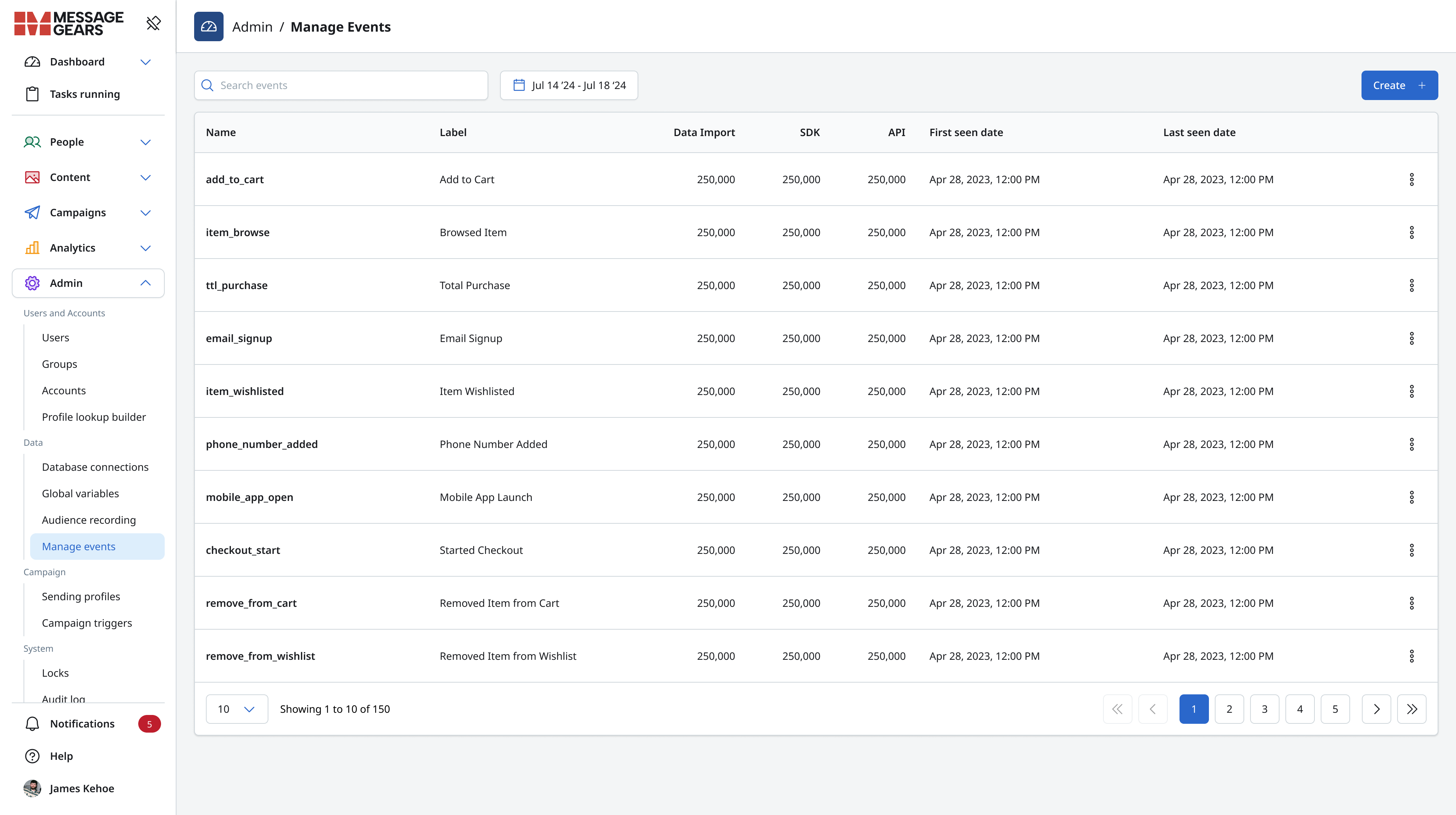
Event Management Page
Event Syncs
The new Event Syncs page provides data teams with an easy way to sync the events they want to track as Conversions directly from their data warehouses. Syncs are highly flexible - allowing you to set up a single sync for all your event types (e.g. search, browse, addToCart) or a unique sync per event or set of events, depending on how you've organized your data. Additionally, each sync supports a unique data connection, ensuring companies with conversion data hosted across multiple warehouses and/or databases don't have to compromise on conversion reports.
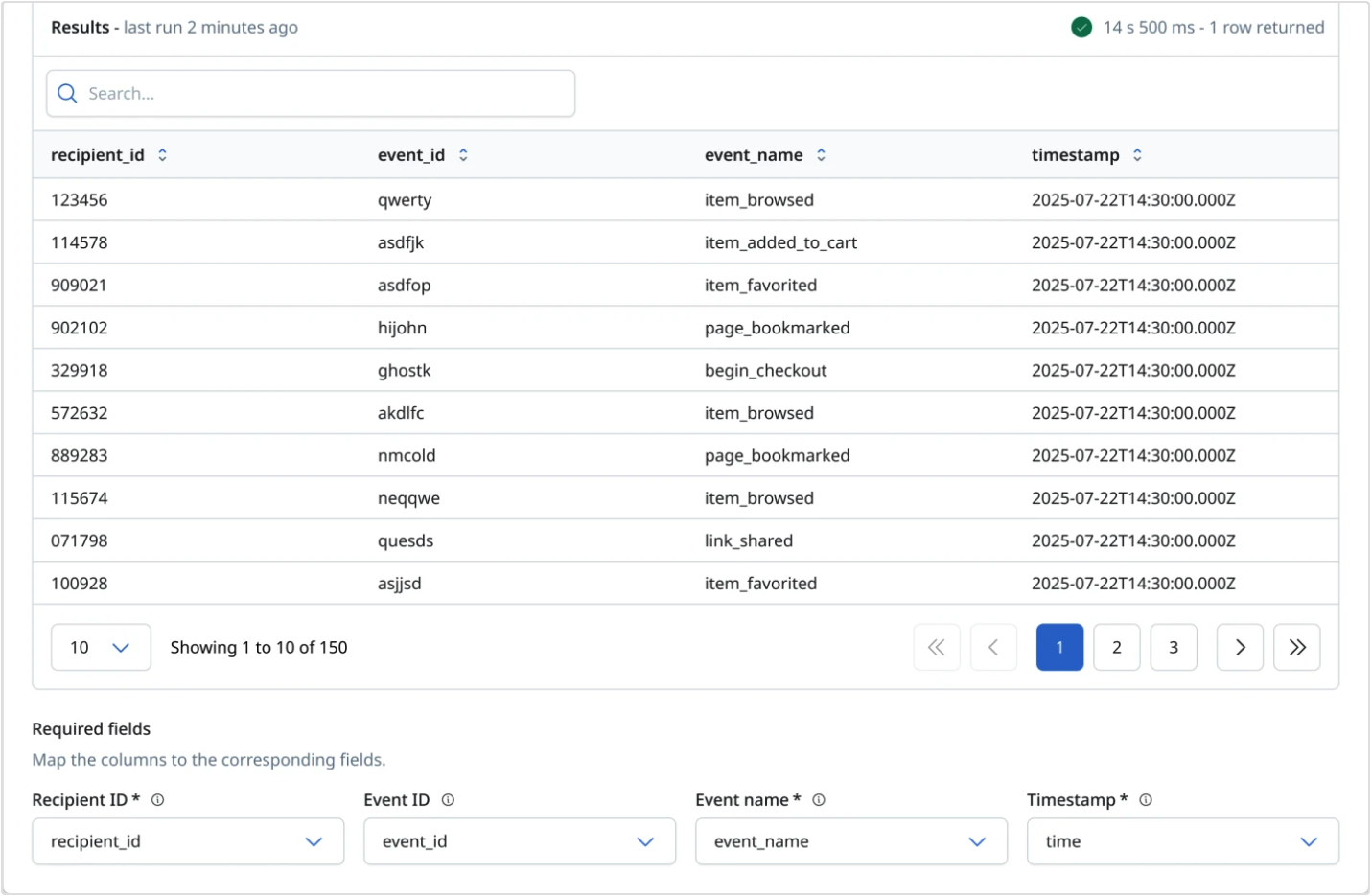
Event Sync Detail Page
Conversions dashboard
Want to understand the return you’re seeing on all your campaigns? The new Conversions dashboard gives visibility into how messaging impacts user behavior, both at a global messaging level and at an individual campaign level.
Conversion metrics
The Conversion report provides a holistic view of how your MessageGears-generated messages impact user behavior. The metric cards provide aggregate counts of campaign attributed conversion events, so you can see which user behaviors your messages have the most effect on. Report viewers can customize which Conversion events are displayed based on the behaviors that matter to them. Additionally, teams can filter the report by channel, timeframe, and account, providing visibility into what channels and accounts are having the most impact, and whether that impact is increasing or declining over time.
- Account - filters conversions attribute to campaigns with the selected account
- Channel - updates the metrics to reflect conversions attributed to that channel (e.g. conversion made after clicking on email)
- Timeframe - only conversions that occurred during that timeframe
Note, you do not need to change your campaign setup process to leverage Conversion reporting! Once the events are created in the Event Management and are syncing from your warehouse, MessageGears immediately starts attributing conversion events to campaigns and calculating conversion metrics.
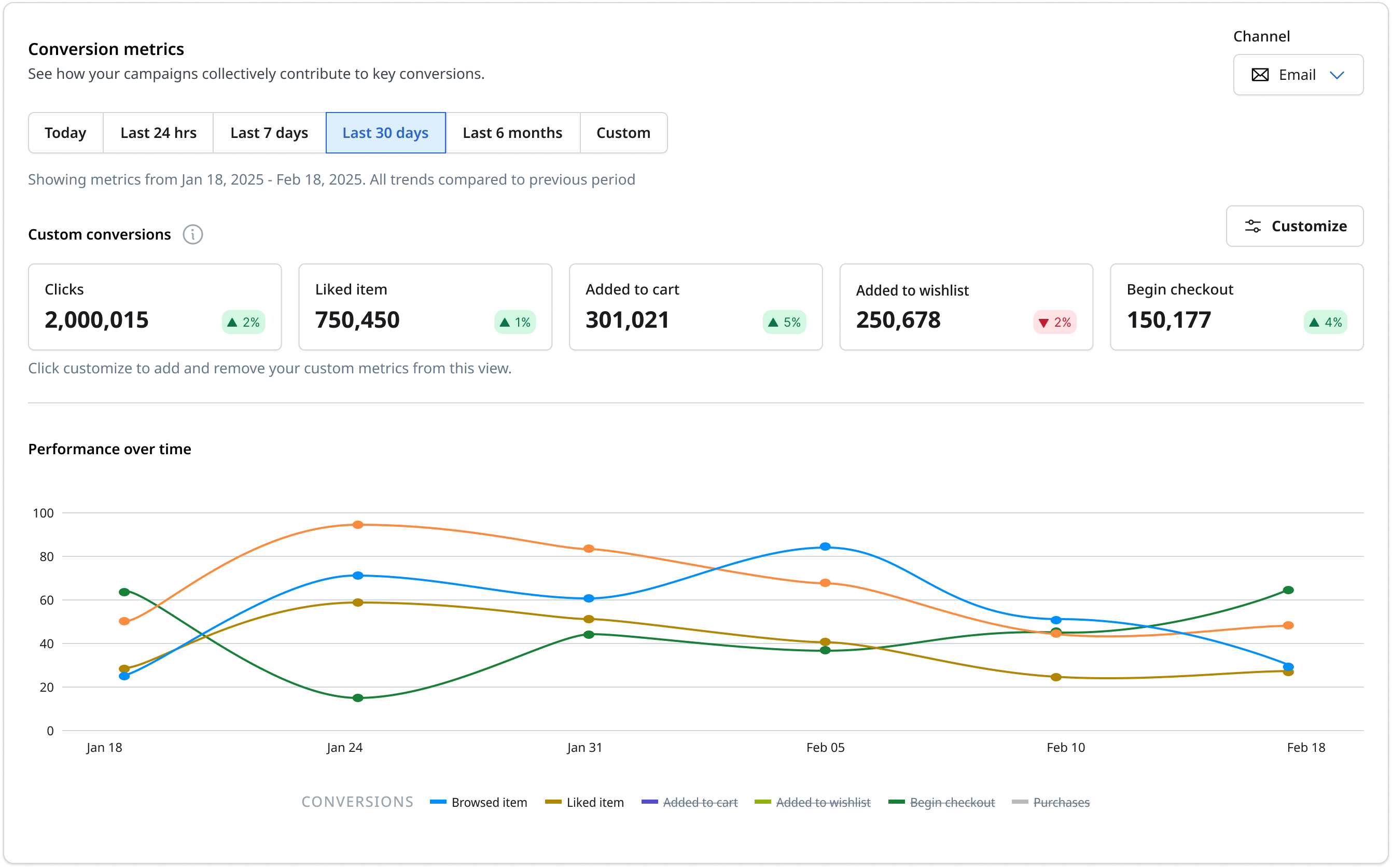
Custom Conversion metrics (Across all campaigns)
Attribution windows: Attribution windows default to 24 hours but are customizable by channel. To modify your attribution conversions, contact support@messagegears.com or reach out to your Customer Success Manager.
Attribution model: MessageGears attributes conversions to campaigns based on a “last clicked” attribution model.
Campaign conversion metrics
The campaign report allows teams to quickly identify which campaigns are most effective at driving conversions and which campaigns have opportunities for improvement. The report provides two key metrics:
- Conversions: The number of conversions attributed to the campaign
- Percent (%) of total conversions: The percent of conversions attributed to this campaign vs. all campaigns
Similar to the Conversion report, viewers can filter by account, channel, and timeframe:
- Account - filters campaigns to those with the selected account
- Channel - updates the metrics to reflect conversions attributed to that channel (e.g. conversion made after clicking on email)
- Timeframe - filters only conversions that occurred during that timeframe
General Changes
- SingleStore data warehouse connection now supported
- Dynamic Data Variables can now have a schedule associated to auto update values as needed
- Resolved issue where after adding a Blueprint to an External Campaign, users could not engage with the Blueprint Filter screen to select segments prior to saving
- Resolved null display for rendered content and heat map after briefly displaying content
- Resolved test setup disruption when selecting London Time in the scheduler for Experiments
- Corrected styling for blueprint labels on the Column customization table for External Campaigns
- Corrected Template Group Permissions to restrict selection in Campaign Settings for non-privileged users
- Resolved 500 error when duplicating a campaign trigger step