Accelerator 25.4.1 release notes
Initiatives Released
Nested Data Filters
Blueprints now support filtering on nested data types (objects and arrays) directly from customer data warehouses. Previously, segmentation was limited to flat columns such as strings, numbers, or dates, which restricted targeting to top-level attributes and often required data engineering to flatten or duplicate data.
With Nested Data Filters, teams can target users based on structured attributes such as recent purchases, order details, saved searches, or favorite items. This enables marketers to act on arrays of objects—for example, building audiences from lists of items browsed or campaigns clicked—unlocking powerful use cases like product retargeting, behavioral segmentation, and campaign re-engagement.
Goals
- Enable Enable targeting on nested data without requiring flattening or engineering workarounds
- Provide intuitive operators for filtering on arrays and objects
Define structured columns
Audience builders can now configure columns that contain nested data types during column mapping, ensuring the Blueprint segment builder can expose the right fields and operators.
When configuring the column mapping for a SQL or Drag-and-Drop audience:
- Select Data Type
- In the column mapping UI, choose one of the new types: Object, Array (Subtype), or Array (Object)
- If Object is selected
- The Data Variable field is hidden (Objects don’t support direct substitution).
- Use +Add Key to define the object’s keys. For each key, specify:
- Name: the key name (e.g., author, category, price).
- Data Type: string, number, boolean, or date.
- Keys of type string may also include a data variable.
- Up to 20 keys can be added per object column.
- Any partially defined keys are ignored upon save.
- If Array is selected
- Choose the Subtype (string, number, boolean, or date).
- If subtype is string, a data variable can also be configured.
- If subtype is object, Use +Add Key to define the keys within the objects stored in the array. For each key, specify:
- Name: the key name (e.g., bedrooms, bathrooms, garage).
- Data Type: string, number, boolean, or date.
- If subtype is string, a data variable can also be configured.
- Validation & Limits
- Nested structures are supported up to two levels deep. Any keys beyond two levels are automatically stringified.
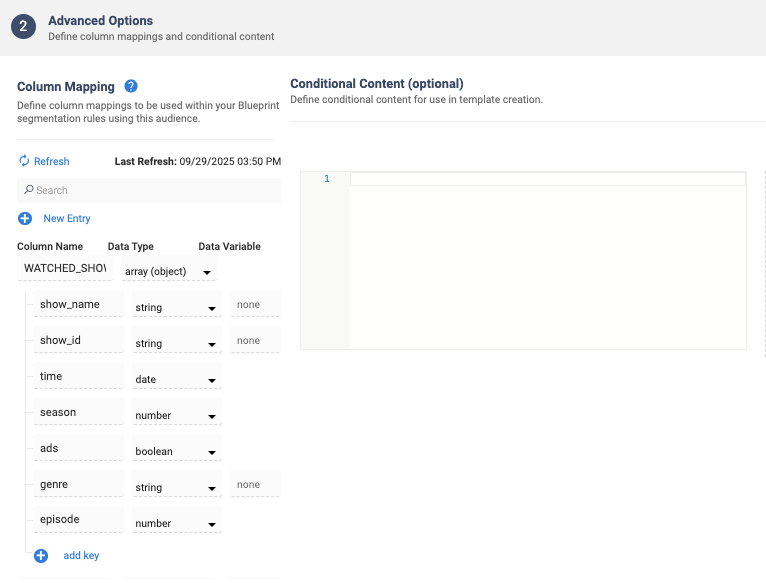
Nested Filtering in Segments
When a structured column is selected in the segment builder, the UI expands to show its nested fields. The Blueprint segment builder supports filtering on the three new nested data types: Object, Array (Subtype), and Array (Object).
Object
- When selecting an Object column, the builder displays the list of keys defined by the data admin (for example, author, category, price).
- Once a key is chosen, you can apply the same operators you use with flat columns (equals, does not equal, greater than, less than, contains, between, is empty, etc.).
- Example: Create a condition for category = Fiction or price > 20.
Use these operators to filter properties inside a single object, with options based on the property’s data type—for example, product details like price, color, or release date.
| Data Type | Supported Operators | Example |
|---|---|---|
| Numerical | Less than, Less than or equal to, Greater than, Greater than or equal to, Is between, Is not between, Equal to, Not equal to, Is null, Is not null | A product’s price is greater than $50 |
| String | Begins with, Doesn’t begin with, Contains, Doesn’t contain, Ends with, Doesn’t end with, Is empty, Is not empty, Equal to, Not equal to, Is null, Is not null | A product’s color contains Red |
| Date | Before, Before or On, After, After or On, Is between, Is not between, Equal to, Not equal to, Is null, Is not null | An order’s purchase date is after Jan 1, 2024 |
| Boolean | True or False | An item’s in_stock flag is True |
Array (scalar)
- When selecting an Array column, the builder lets you filter based on the array’s values (e.g., a list of styles, locations, or brands).
- Supported operators include includes, does not include, is empty, and is not empty.
- Example: Target users whose saved home styles include Ranch or Craftsman.
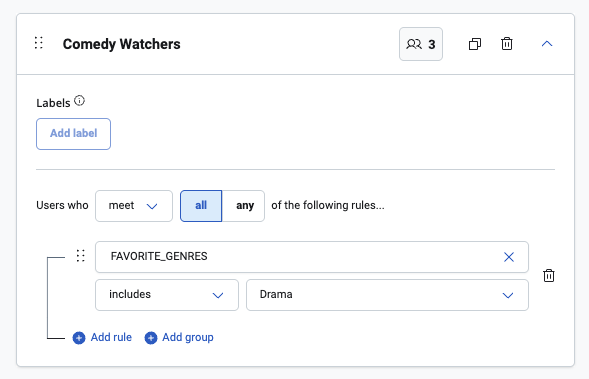
Use these operators to filter lists of simple values, such as preferred brands, product categories, or loyalty tiers.
| Operator | What it does | Example result |
|---|---|---|
| Includes | TRUE if the list contains the specified value | A customer’s list of favorite brands includes Nike |
| Does not include | TRUE if the list does not contain the specified value | A customer’s loyalty tiers do not include Gold |
| Is empty | TRUE if the list has no items | A customer has not saved any preferred categories |
| Is not empty | TRUE if the list has one or more items | A customer has at least one preferred brand |
Array (Object)
- When selecting an Array of Objects, the builder displays the keys available within each object (for example, bedrooms, bathrooms, garage inside a saved search).
- You can then build conditions on those keys, combining them with All (AND) or Any (OR) logic.
- Example: Target users who saved a search with 3 or more bedrooms AND a garage, or those who saved any search with 2 bathrooms.
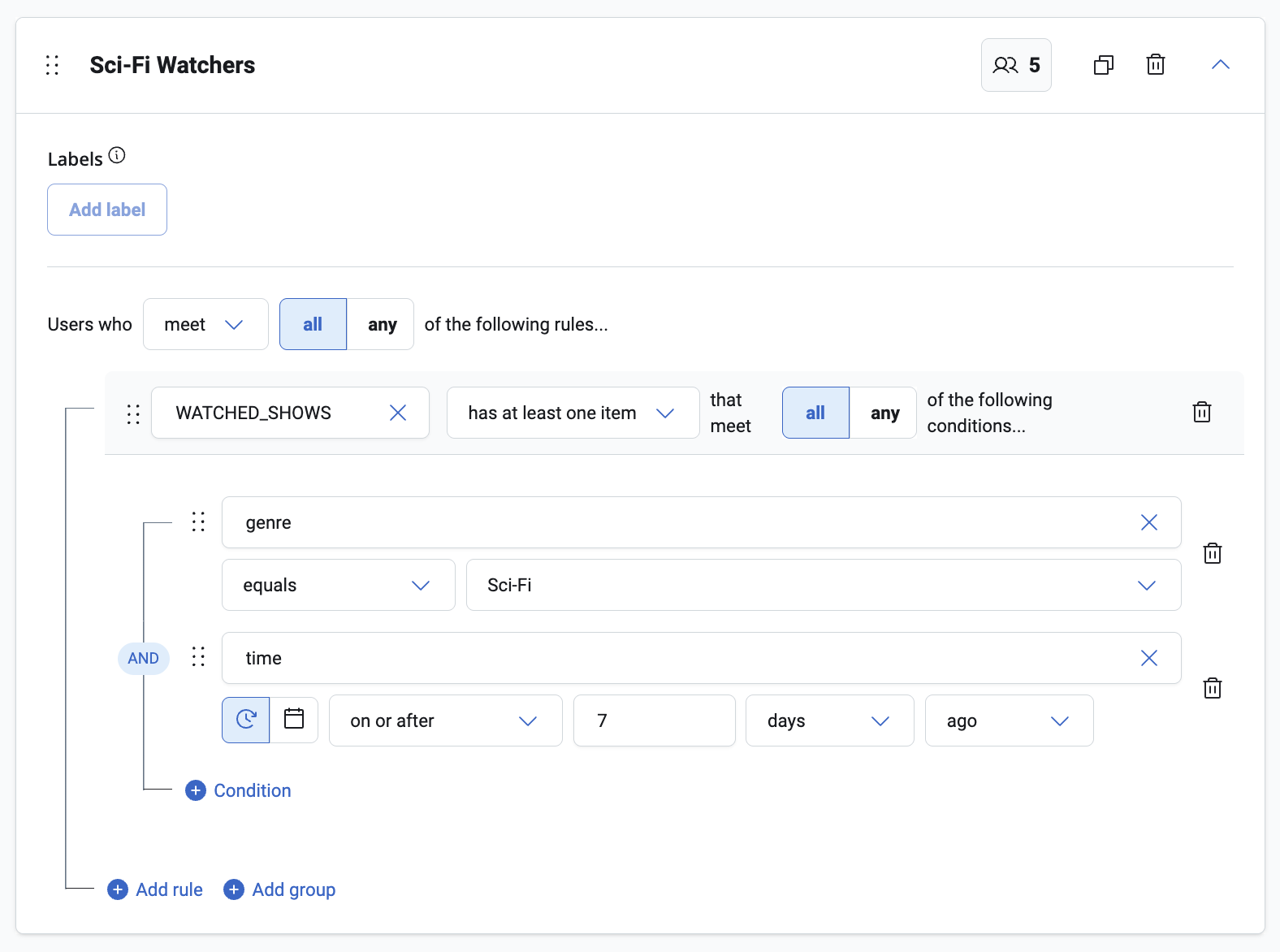
Use these operators to filter lists of objects, such as items in an order, products in a shopping cart, or campaigns a customer has engaged with.
| Operator | What it does | Example result |
|---|---|---|
| Has item where... | TRUE if any object in the list matches the condition(s) | An order has an item where quantity > 10 |
| Does not have item where... | TRUE if none of the objects in the list match the condition(s) | A cart has no item where category = Shoes |
At every level, marketers can add multiple conditions, combine them with All/Any logic, and preview the results to confirm the audience size.
Dynamic Data Variables
Marketers often rely on static, one-off lists that quickly become outdated as data changes. With Dynamic Global Data variables, lists automatically refresh based on queries to the latest source of truth—removing manual update steps, reducing errors, and ensuring campaigns always reflect the most current customer and product data.
Goals
- Convert static lists into continuously refreshed resources, aligning with MessageGears’ promise of direct, real-time access to brand data.
- Empower customers to build dynamic lists for use cases such as new loyalty levels, spend tier updates, declining SKU performance, or machine-learning-driven targeting.
- Reduce operational overhead and errors by automating list refreshes instead of requiring manual updates.
- Provide transparency through previews, audit logs, and error handling so users can confidently rely on refreshed lists
Create Data Variables with Dynamic Lists
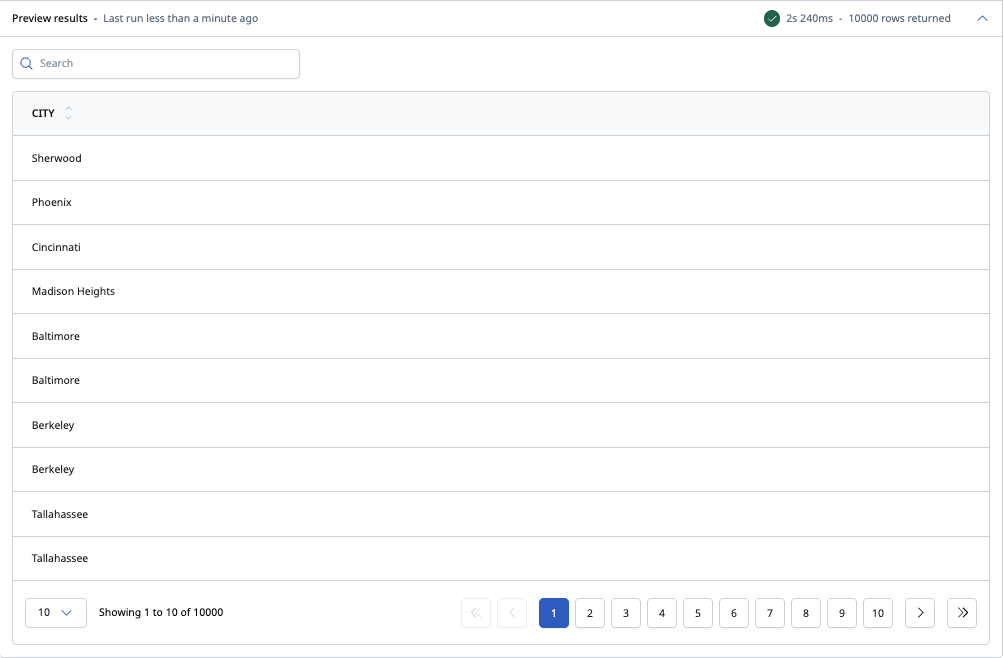
Dynamic Lists are introduced as a new “Dynamic List” Global Variable type, enabling users to define a query, preview results, and set refresh schedules. Users can configure variable details such as name, label, and default value, with validation ensuring results return a single column and within configurable row limits.
Each Dynamic List can be refreshed manually as needed. If a refresh fails, the last successful list remains available, with error notifications sent to designated recipients. Success notifications can also be enabled.
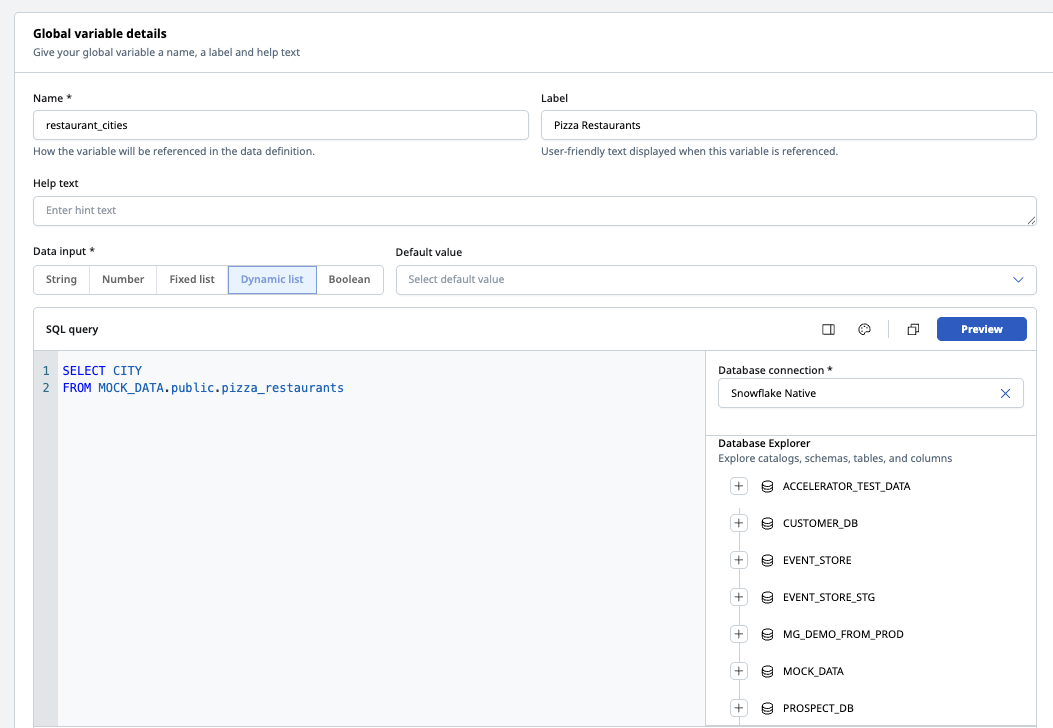
From the UI, users can:
- Configure the DB connection and query editor for each list
- Preview query results before saving, with validation for errors like too many rows, multiple columns, or empty results
- View the current state of a variable, including its available values
- Access an audit log showing refresh history, statuses, and failure reasons
- Update lists manually by rerunning the query and saving
Child Blueprint Data Variable Overrides
Advanced users want more control over data variable values from various levels in a Blueprint chain. Marketers can now control the default data variable value at any level in a Blueprint to use it for previewing, campaign overrides, or Blueprint Snapshot building.
Goals
- Allow users to set default data variable values at any level in a Blueprint chain
- Use the new value for execution in previewing and Blueprint Snapshot building
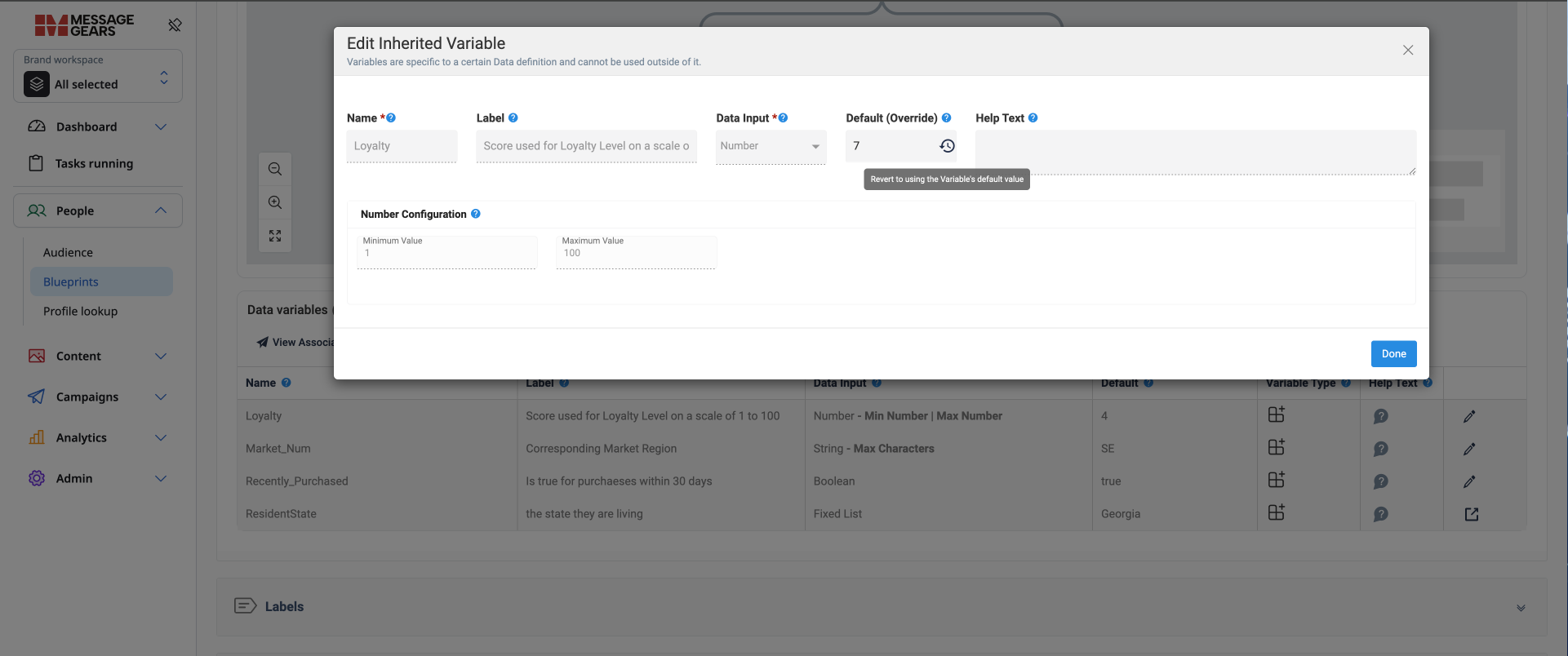
Set Default Data Variable value at any level in a Blueprint Chain Users can set the default data variable value at any level in a Blueprint Chain. This value will be used when previewing that child blueprint and will override whatever is set on the parent Blueprint. This enables Blueprints to have different defaults for Campaign execution, and to use different Data Variable values.
From the UI, users can:
- Set a new data variable value at any level in the Blueprint Chain
- Revert to using the parent’s value as the default
Google Drive as an External Campaign Destination
Customers can now define an audience in MessageGears Accelerator and upload the resulting file directly to a Google Drive folder, expanding flexibility in how campaign data is delivered and shared.
Goals
- Provide seamless integration with Google Drive as a new destination option for External campaigns
- Enable teams to securely upload campaign audience files to designated Drive folders using Service Account authentication
- Offer the same configurability (format, compression, naming) as existing file-based destinations
Set up Destination with Google Drive as the Vendor type
Ask your MessageGears Customer Success Manager to create a destination with Google Drive as the external vendor. Note that authentication is handled through a Google Service Account, so customers must provide a An Account Service key. For instructions on generating and downloading the service key, see Create and delete service account keys.
Add Google Cloud Destination to External Campaign
When setting up an External Campaign, customer can select the Google Drive destination, and update the following fields:
- File format - CSV (default), TSV, and JSONL
- Description - optional field for context
- Folder ID - found in the Folder URL in the browser (for example, the Folder ID for
https://drive.google.com/drive/u/0/folders/1hGobGXc85_lqnknL64oFpCk1aCqIj295is 1hGobGXc85_lqnknL64oFpCk1aCqIj295) - File name - includes FreeMarker support
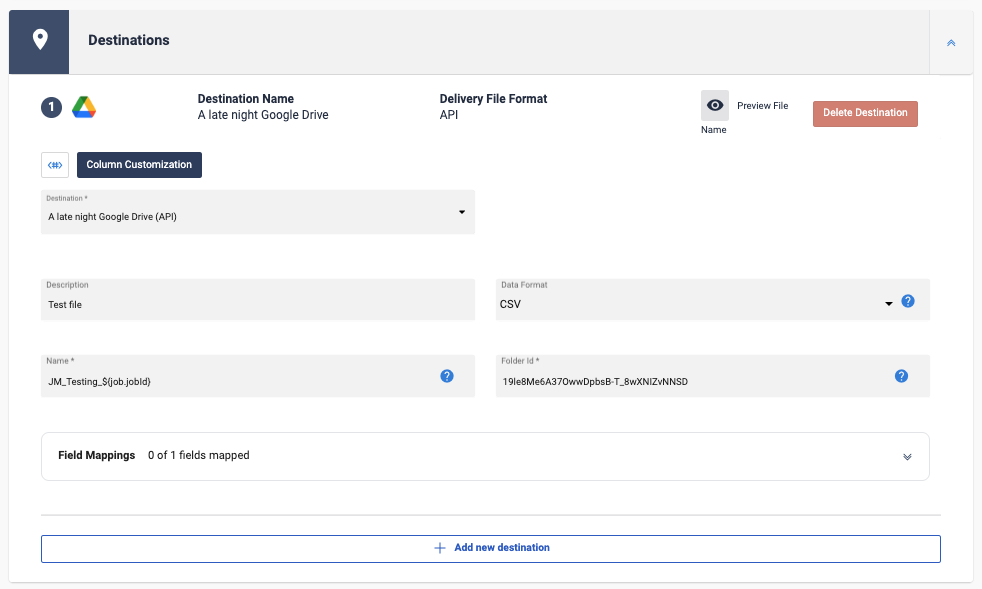
On campaign launch, the generated audience file is automatically uploaded to the configured Google Drive folder via Google’s Upload API.
If a file with the same name already exists in the folder, it will be replaced with the new upload.
General changes
- The Recent Jobs table now supports an optional CSV download - one which only displays the values seen in the table, and one which displays additional column options not seen in the table
- The Job Analytics screen now displays a toast indicating retry if the S3 bucket cannot be reached
- Folder view now remembers your last expanded and recently used folders for easier navigation
- Broken template thumbnails now display a placeholder image instead of showing a broken link
- Users must now enter a custom value for recurrence to prevent accidental campaigns with very short repeat intervals
- CSV downloads from the scheduled jobs table now respect applied filters
- Added last modified date to external campaign column customization accordions to keep users informed of recent changes
- Fixed an issue where MVT launches could fail due to broken database connections, ensuring campaigns run without manual relaunch
- Fixed an issue where Audiences using Athena had their count, preview, or columns calls fail if the query ends in a semicolon
- Fixed an issue where Job analytics cross channel did not include SMS recipient counts
- Fixed an issue where external campaign column customization didn’t persist after changing pages
- Updated Blueprint Snapshot task list to use correct terminology, replacing outdated “Shared Data” label
- Fixed an issue where buttons with a null href in dynamic content caused errors and failed to render in BEE templates
- Fixed an issue preventing fixed list column mappings from saving in blueprints converted from synced SQL audiences