Generate and manage AI asset summaries
AI asset summaries is available in Accelerator version 26.2.1 and later.
Enable AI asset summaries
AI asset summaries is disabled by default.
- In the Accelerator navigation, select Admin.
- Select System configuration > System defaults.
- Locate AI Asset Summaries and enable the toggle.

Generate a summary from an asset detail page
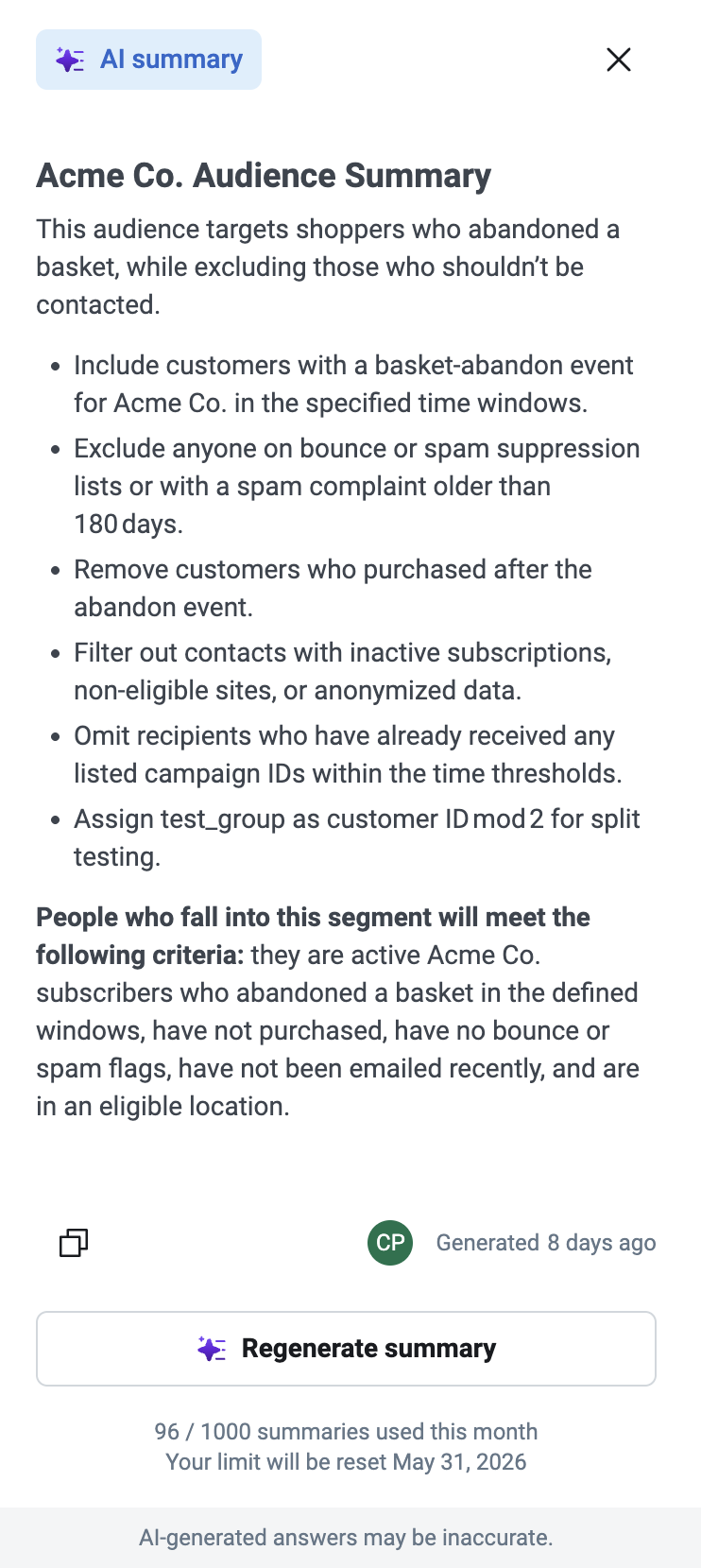
When you open an asset, Accelerator begins generating the summary automatically in the background. The AI icon on the Summary button fills in once the summary is ready.
- Open the asset (audience, Blueprint, template, or snippet).
- In the top-right area of the page, select Summary.
- The summary drawer opens, showing the TLDR and detail bullets.

Generate a summary from the asset list view
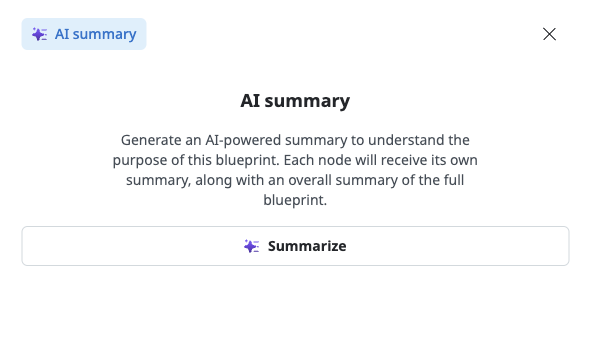
Summaries are not generated automatically from list views. You must initiate generation manually.
- Navigate to the relevant asset list (for example, Audiences or Blueprints).
- Locate the asset and open its summary drawer.
- Select Summarize.
- Accelerator checks whether the asset meets the minimum requirements. If it does not, an explanatory message appears describing what is missing.
- If the asset qualifies, the summary generates and appears in the drawer.
Regenerate a summary
When you save changes to an asset, a caution indicator appears in the summary drawer. This indicates the summary was generated from an earlier version of the asset and may no longer be accurate. Summaries are not updated automatically — you must refresh manually.
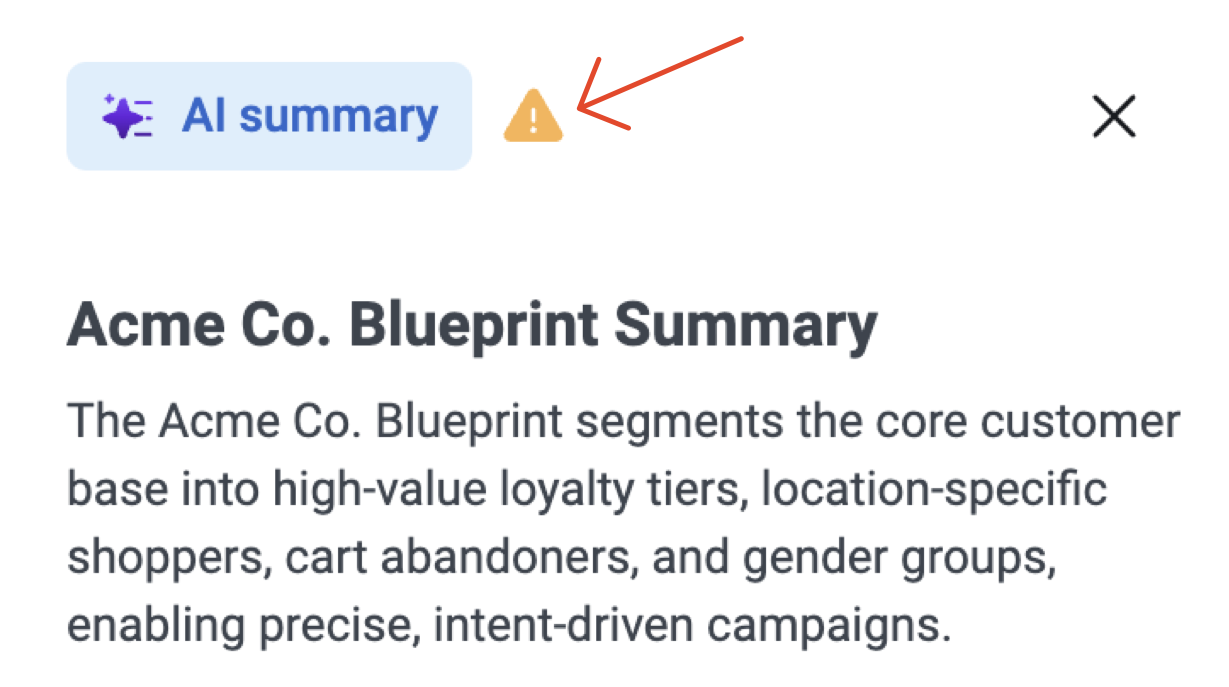
Complete all changes to an asset before refreshing its summary. Each refresh counts against your instance quota, so refreshing mid-edit uses quota on an incomplete result.
For Blueprints, refreshing the Blueprint summary also refreshes all node summaries. Individual node refreshes are not supported.
- Open the summary drawer from the asset detail page or list view.
- Select Regenerate.
- The summary regenerates. The drawer updates with the new content and a timestamp showing when the refresh occurred.
Copy a summary
- Open the summary drawer.
- Select Copy.
- The summary text is copied to your clipboard.
Monitor your summary quota
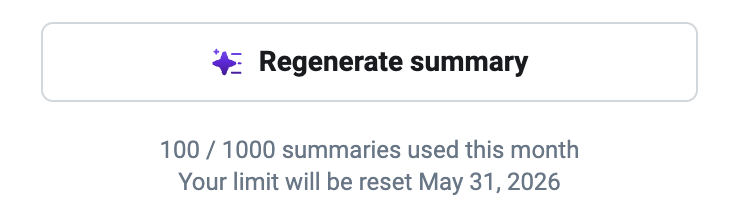
Each Accelerator instance has a shared quota of 1,000 summary generations per calendar month, used across all users, asset types, and assets. Generating and refreshing each count against the quota.
A countdown of remaining summaries is visible in the summary drawer. Monitor this to ensure your team has sufficient quota available.
Disable AI asset summaries
To prevent new summaries from being generated, go to Admin > System configuration > System defaults and disable the AI Asset Summaries toggle. You cannot delete individual summaries. Existing summaries remain in the system and will reappear if the feature is re-enabled.