Targeting your audience by push notification events
Target your users based on their exposure to and interactions with Swrve push notification campaigns using Swrve's Campaign retargeting filters. Now available for scheduled, push via API, quick push, and geo-triggered push campaigns!
Swrve’s campaign activity filters help you enhance your target audiences by factoring in how users respond to your historical campaigns. You might already target your users based on their interactions with an in-app message campaign— for example, users who saw but did not click a Black Friday in-app message promotion. Use push notification filters to define similar criteria based on push campaigns, but with even more granularity. For example, target users who engaged with your Abandon Cart push notification in the last seven days, but did not complete a purchase.
This article explains how to build audiences using push notification activities and explains how the filters for various push activity types work. It also provides several examples to help you learn how to use granular push campaign data to create highly relevant, targeted audiences for all your campaigns.
Prerequisites
Push influence and delivered events
Swrve automatically tracks some push events by default, such as Sent and Engaged. However, push Influenced and Delivered events have certain SDK-version dependencies or require extra integration steps. To use delivered or influenced events to target your audience, your development team must complete the following:
-
Update your app to the latest Swrve SDK - The Swrve SDK automatically tracks push delivery events as of the following SDK versions:
iOS only: Add service extension and app group - To track push notification delivery and influenced events, iOS uses a notification service app extension and app group . For more information, see the see the iOS integration guide.
Geo campaign retargeting
There are no additional implementation requirements for retargeting users on geo campaigns. Once you integrate Swrve’s Geo SDK and launch your first geo campaign, the option to retarget users on geo campaigns is available in the audience builder, under User Behavior Filters, on the Campaigns tab.
Examples of campaign retargeting
The User Behavior Filters section of the audience builder now includes a separate tab for Campaigns. Presently, it provides options for targeting users based on their interactions with push notification campaigns only, whether any push campaign or a specific campaign. In-app message campaign retargeting is still available as part of the User Profiles Filters, Campaigns tab.
Combine the campaign targeting filters with user profile filters and event payload criteria to build your audiences, such as outlined in the following examples. For detailed information on how to build such audiences, see the specific articles for each type of campaign.
One time campaigns
- Target your audience based on their engagement with one or more of your holiday sale push notifications to promote related items.
- Target users with a relevant offer based on the custom button they clicked in a previous push notification.
- Exclude users who have received but not engaged with a specific type of deal multiple times recently, and target them with a different offer.
- Retarget the same audience from last week’s limited time offer campaign, but exclude those who were already sent the push notification.
For more information on retargeting one time campaigns, see How do I target my audience using one time push campaigns?
Lifecycle campaigns
- Target new users who were not delivered a Starter Pack notification on Day 1 and inform them a week later.
- Target users who engaged with a notification highlighting a specific feature during onboarding, but have still not used the feature.
For more information on retargeting lifecycle campaigns, see How do I target my audience using recurring and push via API campaigns?
Geo-triggered campaigns
- Target users who engaged with a notification for a specific restaurant in the last month to promote a newly opened restaurant in the same neighborhood.
- Target users who have not seen any geo notifications in the last month, and send them a one-time notification about a several new restaurants that have opened in their city.
For more information on retargeting geo campaigns, see How do I target my audience using geo-triggered campaigns?
Throttling
- Use the Any push notification option and Delivered or Sent actions to limit the number of push notifications a user receives in a given time frame. For example, add a filter to only include users who have been sent fewer than three push notifications in the last week.
- Limit campaigns with a high delivery frequency to users who are highly engaged by push notifications. You might also include users who tend to be heavily influenced by push notifications, even if they’re not directly engaging. For example, users who have engaged with or been influenced by at least five push notifications in the last month.
For more information on using campaign filters to control the frequency of campaign exposure, see How do I target my users based on exposure to any push campaign?
Campaign behavior filters
To successfully target your audience using campaign criteria, it’s important to understand how the filters and options available work together to form your target audience. To access push campaign filters, in the Target Audience step or Audience block of the campaign workflow, select Custom Audience, and then under User Behavior Filters, select Campaigns.
Push campaign filters include the following elements:
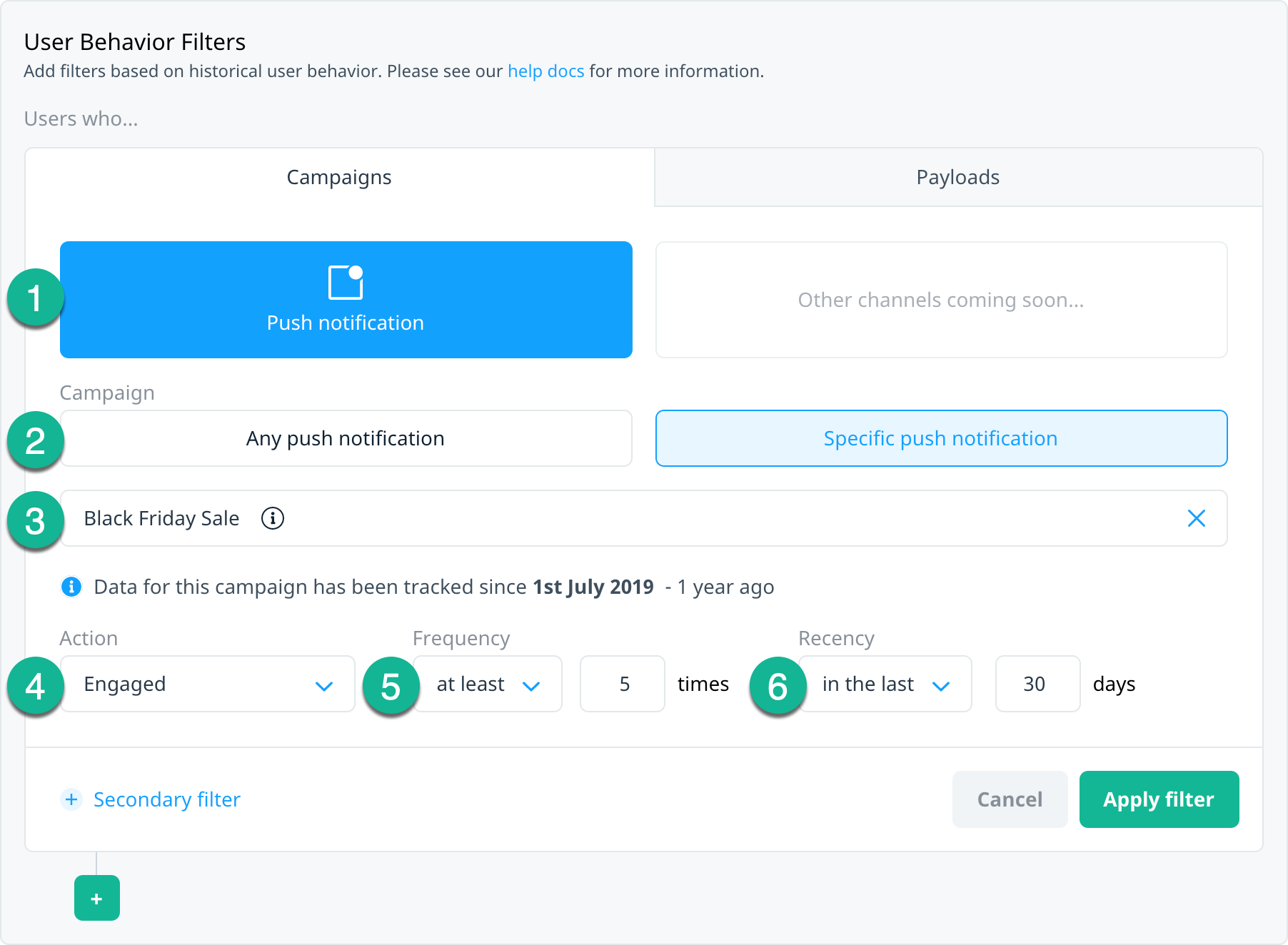
| Element | Description |
|---|---|
| 1 | Campaign channel - This is the top-level campaign type you want to use to target your audience. To target users based on their exposure to or interaction with a push notification, select Push Notification. |
| 2 | Campaign selection - Select whether you want to target users based on an interaction with a specific campaign's notification(s) or any notification. |
| 3 | Campaign list - If you select Specific push notification, displays a list of campaigns available to retarget on. Only campaigns in Active, Finished, or Inactive state are available for targeting. |
| 4 | Action - The push notification action you want to target users based on. For example, Engaged. |
| 5 | Frequency - The number of times the user triggered the selected action. For example, the user engaged with the push notification at least five times. Note: One time campaigns do not have the option to specify frequency. |
| 6 | Recency - The time frame over which to measure the frequency of the action. For example, in the last 30 days. Note: One time campaigns only display the recency operator when the selected Action is Engaged or Clicked button. |
The following sections describe the actions and operators that are available once you select a campaign.
Single actions
| Name | Description |
|---|---|
| Sent | Swrve sent the push notification to at least one of the user's devices. |
| Not sent | Swrve didn't send the push notification to any of the user's devices. |
| Delivered | The push notification was delivered to at least one of the user's devices. |
| Not delivered | The push notification was not delivered to any of the user's devices. |
| Engaged | User engaged with the push notification on at least one of their devices. |
| Not engaged | User didn't engage with the push notification on any of their devices. |
| Influenced | User didn't engage directly with the push notification but opened the app within 12 hours of receiving the campaign. |
| Not influenced | User didn't engage directly with the push notification nor open the app within 12 hours of receiving the campaign. |
| Clicked button | User clicked one of the push notification's custom buttons on at least one of their devices. (Note: Targeting on specific button clicks is not supported for Push via API campaigns.) |
| Did not click button | User didn't click a push notification's custom buttons. |
| Impression | The geo notification was delivered to at least one of the user's devices. |
| No impression | The geo notification wasn't delivered to any of the user's devices. |
Selecting one of the negative actions (Not sent, Not delivered, Not engaged, Not influenced, Did not click button) does not limit the audience to users targeted by the selected campaign. For example, if you selected a Black Friday campaign and the Not engaged action, all users who didn't engaged with the Black Friday campaign—including those who didn't receive the campaign—are targeted.
Combined actions
| Name | Description |
|---|---|
| Sent but not delivered | Swrve sent the user a push notification, but it wasn't delivered to any of their devices (Note: This might occur if a device is turned off or doesn't have a data connection.) |
| Sent but not engaged | Swrve sent the user a push notification, but the user didn't engage with the notification on any of their devices. |
| Sent but not influenced | Swrve sent the user a push notification, but the user wasn't influenced by the notification on any of their devices. |
| Sent but not engaged or influenced | Swrve sent the user a push notification, but the user didn't engage and wasn't influenced by the notification on any of their devices. |
| Sent but no button click | Swrve sent the user a push notification, but the user didn't click the notification's custom buttons on any of their devices. |
| Delivered but not engaged | The push notification was delivered to at least one of the user's devices, but the user didn't engage with the notification on any of their devices. |
| Delivered but not influenced | The push notification was delivered to at least one of the user's devices, but the user wasn't influenced by the notification(s) on any of their devices. |
| Delivered but not engaged or influenced | The push notification was delivered to at least one of the user's devices, but the user didn't engage and wasn't influenced by the notification on any of their devices. |
| Delivered but no button click | The push notification was delivered to at least one of the user's devices, but the user didn't click any of the notification's custom buttons on any of their devices. |
| Impression but not engaged | The geo notification was delivered to at least one of the user's devices, but the user didn't engage with the notification on any of their devices. |
| Impression but no button click | The geo notification was delivered to at least one of the user's devices, but the user didn't click any of the notification's custom buttons on any of their devices. |
The frequency value specified for combined actions only applies to the positive activity in the action. The negative activity is always assumed to be zero (0) in the target audience query. For example, if you create the filter, Delivered but not engaged at least 5 times, only users who were delivered the push notification at least five times and engaged with the push notification zero times are targeted.
Action frequency
The action frequency operators are applied with the other filter constraints (that is, the time frame and campaign).
| Operator | Description |
|---|---|
| exactly | Matches users who triggered the action exactly X times. Note: This is the only operator that supports zero (0) values. |
| at most | Matches users who triggered the action at most X times, where X>0. |
| at least | Matches users who triggered the action at least X times, where X>0. |
| between | Matches users who triggered the action between X and Y times, where X>0. The range is inclusive. |
| not between | Matches users who triggered the action not between X and Y times, where X>0. That is, less than X and more than Y. The range is exclusive. |
Action recency
The action recency operators determine the time frame over which to measure the event frequency and associated campaign actions.
| Operator | Description |
|---|---|
| anytime | Matches the action count and values for anytime in the last year. |
| in the last | Matches the action count and values in the last X days. |
| more than | Matches the action count and values more than X days ago. |
| between (days ago) | Matches the action count and values between X and Y days ago (inclusive). |
| between (dates) | Matches the action count and values between two specific dates, specified in UTC. Note: Dates prior to the start date of the selected campaign are not available. |
Setting the recency to Anytime does not limit the filter's timeframe to the date when Swrve started tracking push notification events for your app. This only has implications when you select the Any Push Notification option followed by a negative action — Not sent, Not delivered, Not engaged, Not influenced, Did not click button.
For this reason, we suggest always specifying a timeframe within the date or days ago value shown in the info message, especially when selecting a negative action. (For more information, see Push event tracking and recency considerations below.)
Filter combinations
This section shows you how to use primary and secondary filters to create target audience criteria based on user behavior associated with push notification campaigns.
By default, the primary operator is OR and the secondary operator is AND. When the primary operator is:
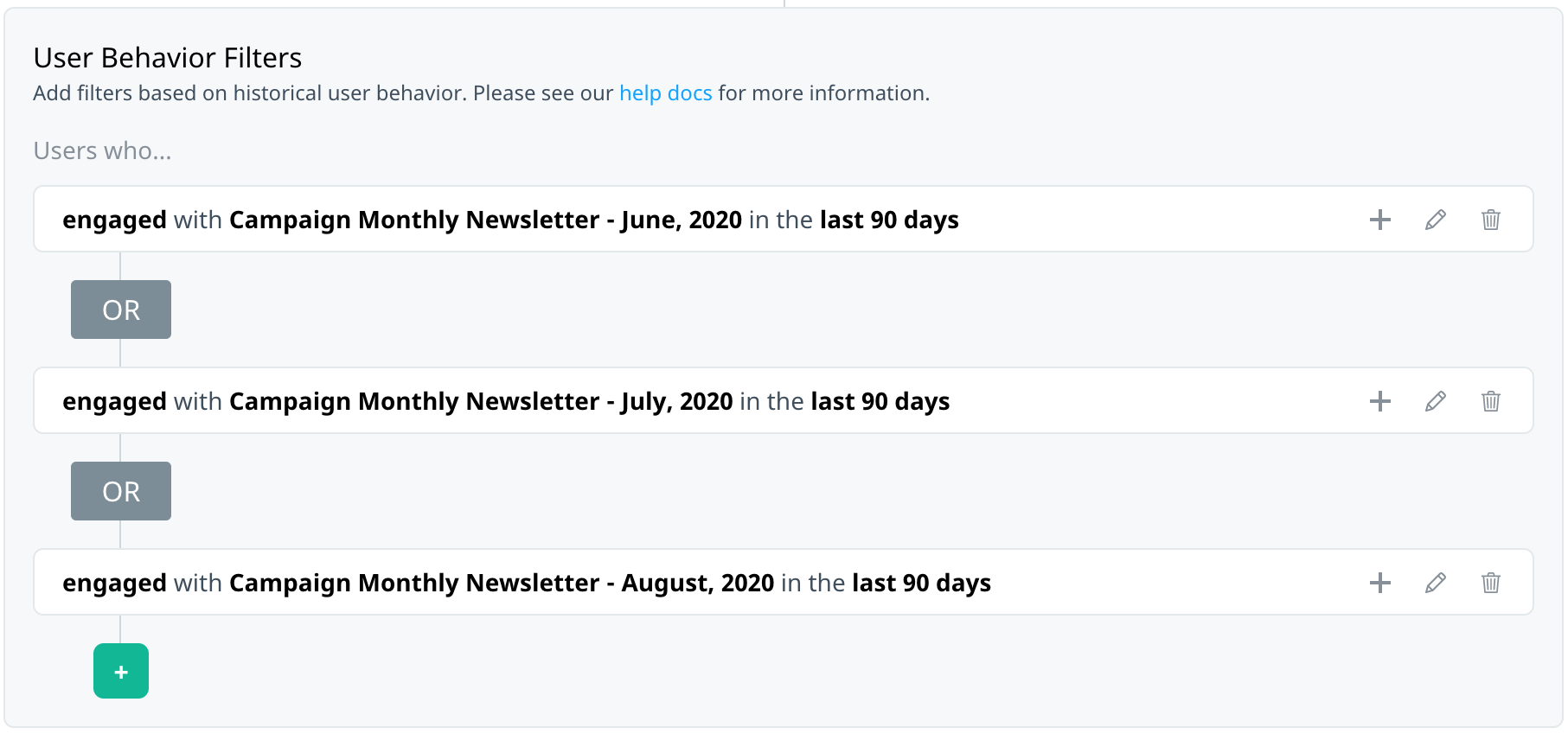
- OR – targeted users can match any of the selected filter groups. Within each group, you can specify additional AND filters.
- AND – targeted users must match all of the selected filter groups. Within each group, you can specify additional OR filters.
Switching the primary filter or secondary filter automatically changes the operators to the opposite configuration (that is, from AND to OR, and, from OR to AND).
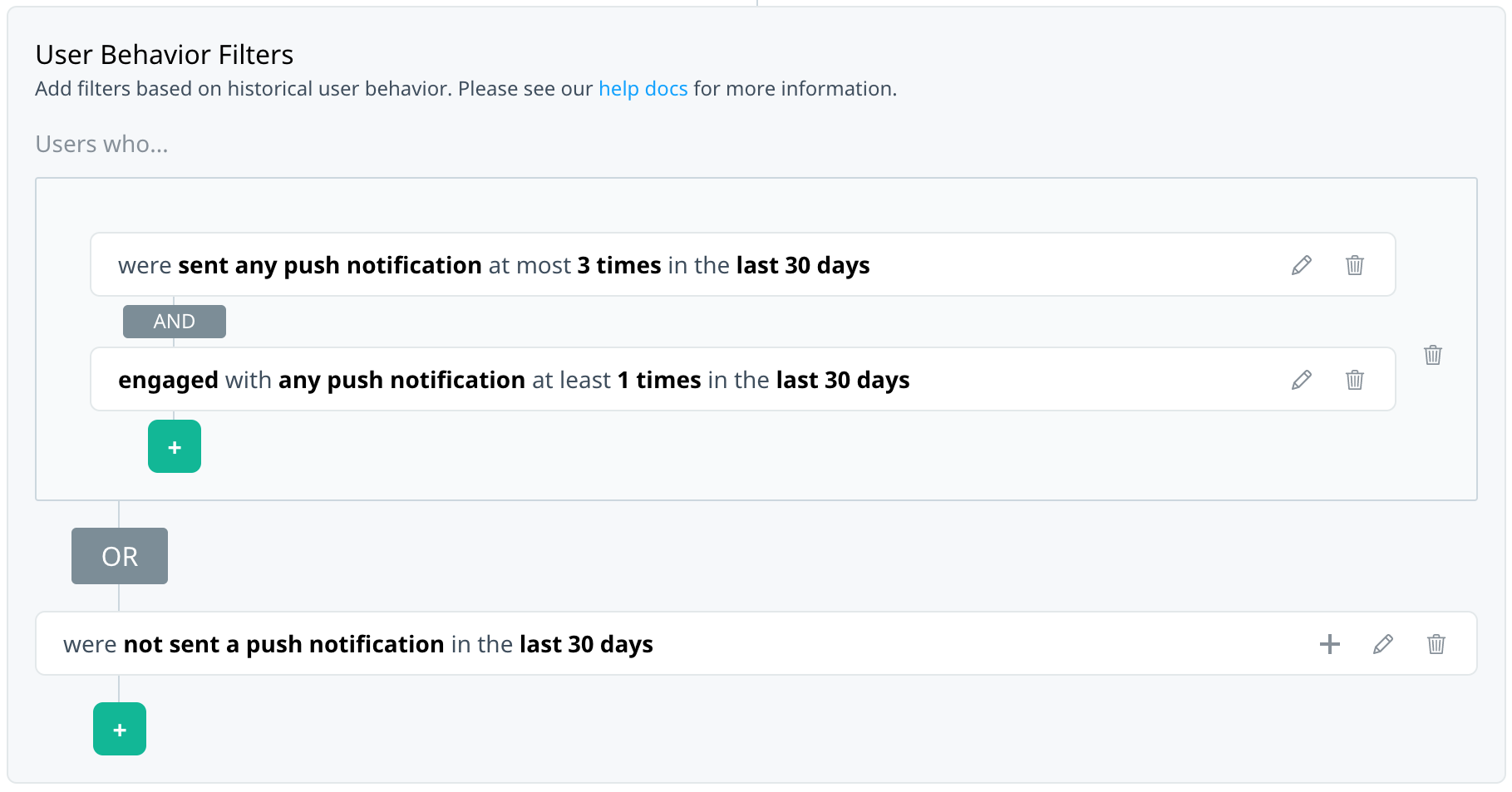
Primary filters
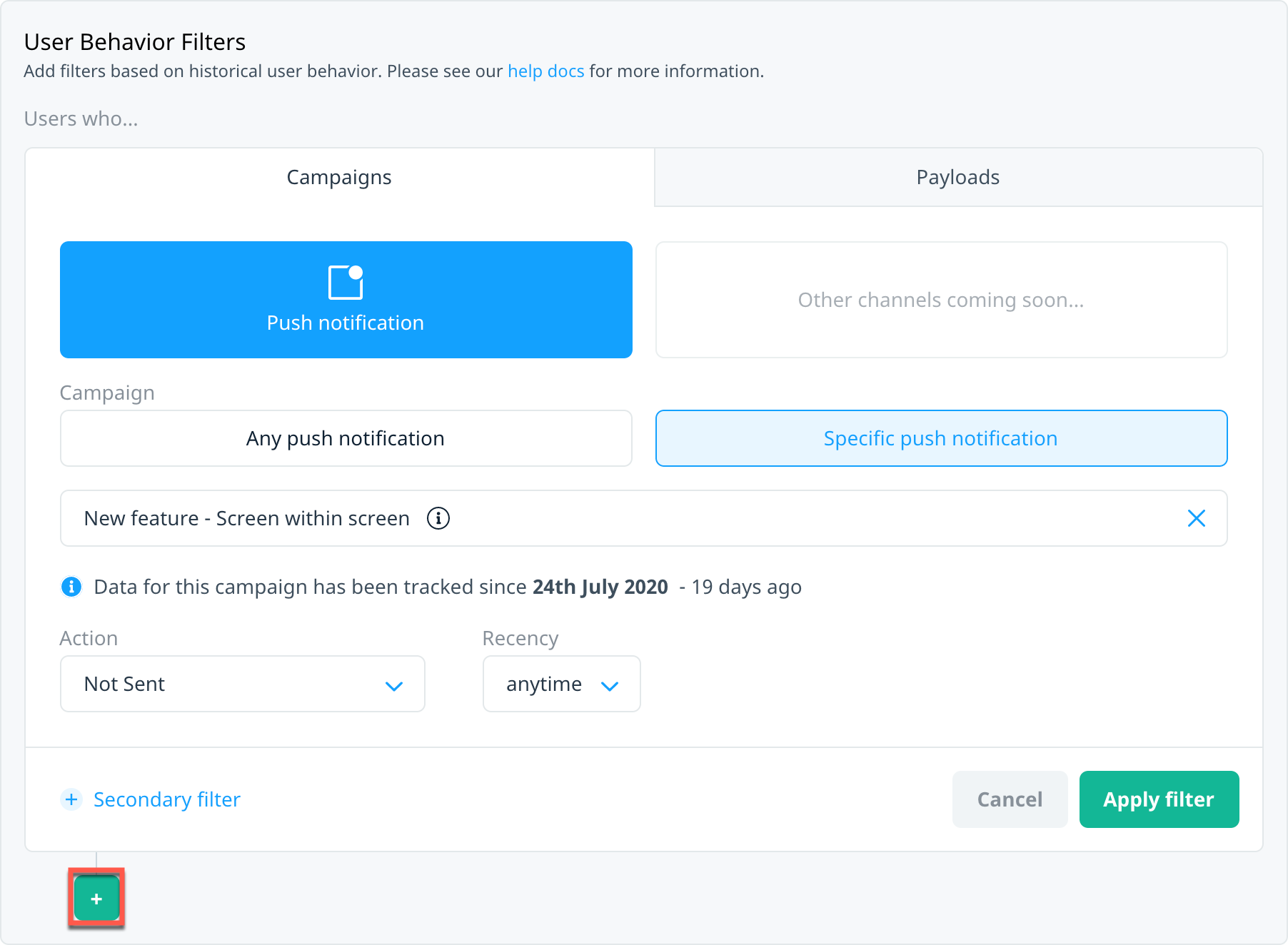
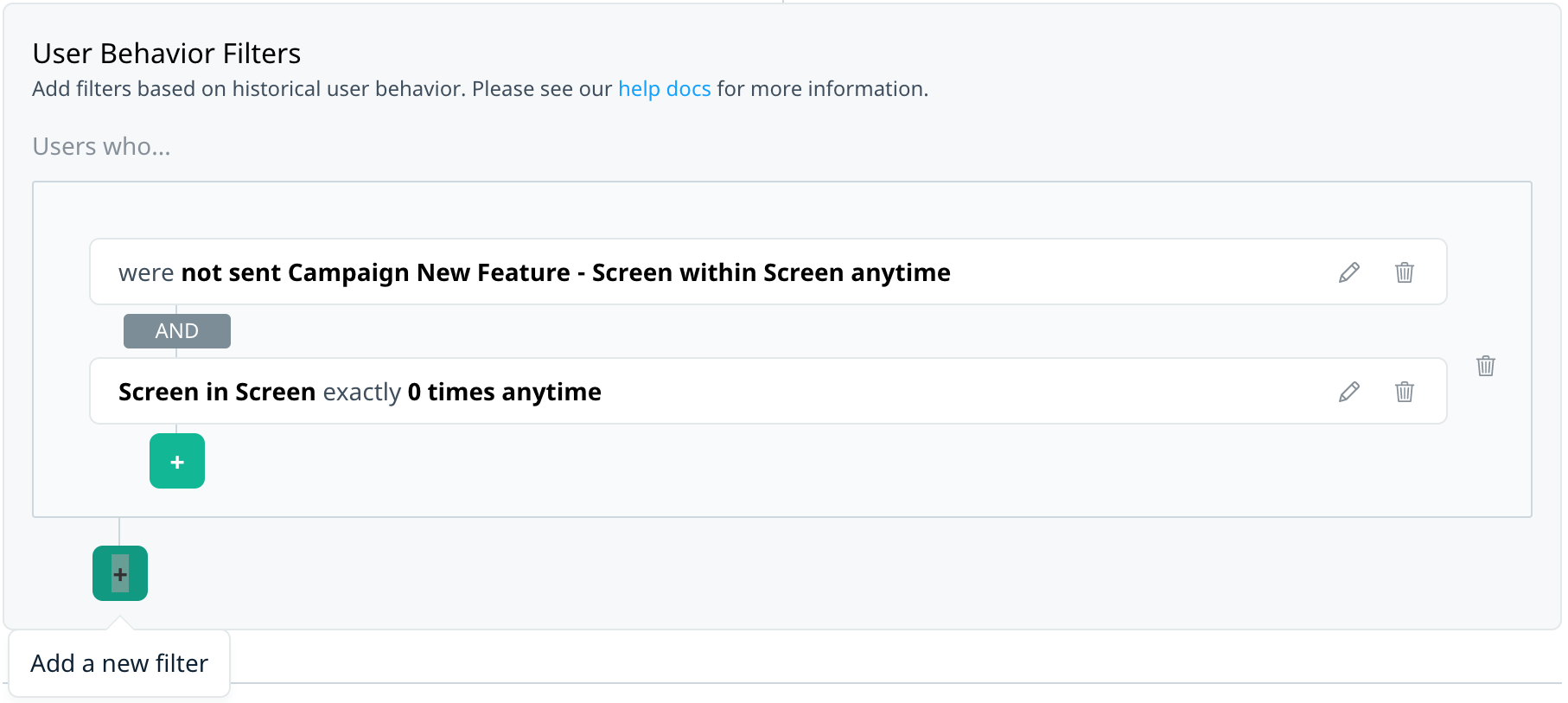
To create a new filter group, outside the filter group select Add a new filter , which adds a primary operator to your filter definition.
When the first filter in the group is in edit state
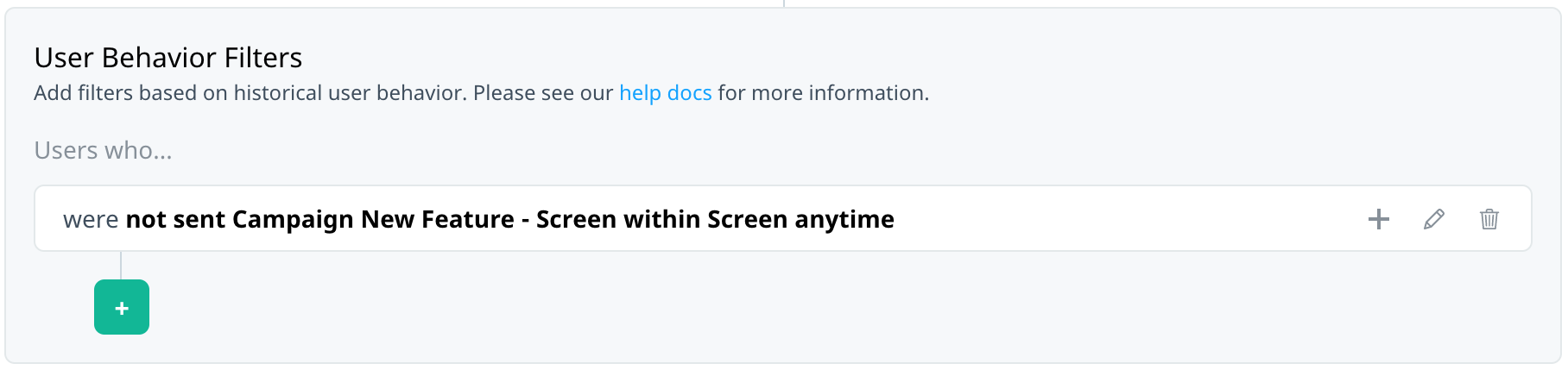
When you've applied a single filter
When you've added multiple filters within a group
Secondary filters
To create more complex filters, use a secondary filter to apply additional constraints within a filter group. The option for adding a secondary filter changes depending on whether or not the group already has a filter.
First secondary filter
To add a second filter within a group while editing a filter, select + Secondary filter.

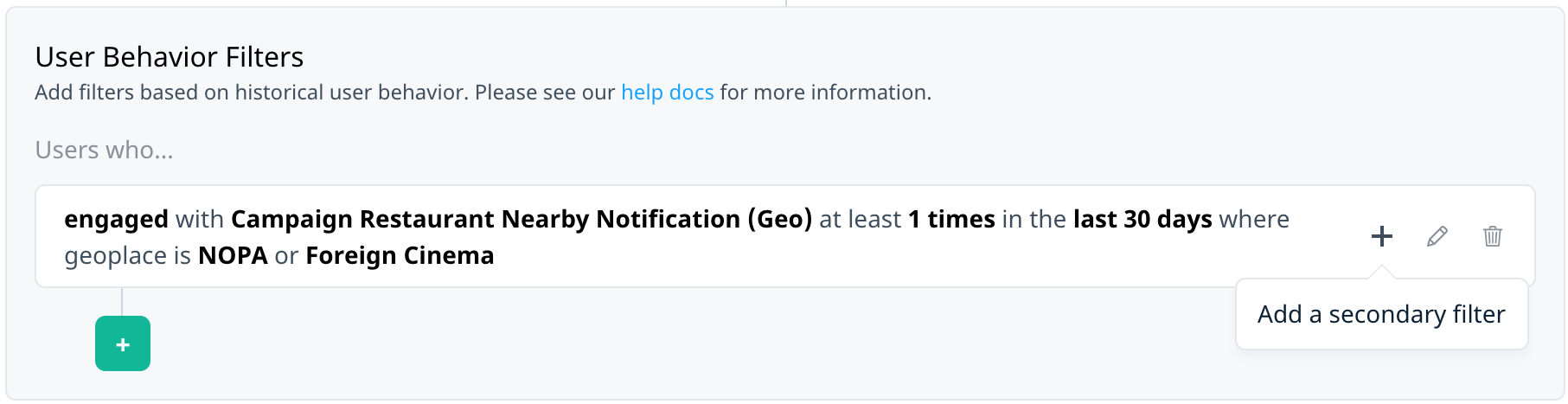
To add a second filter within a group after applying the first filter in the group, select Add a secondary filter on the summary bar.
Subsequent secondary filters
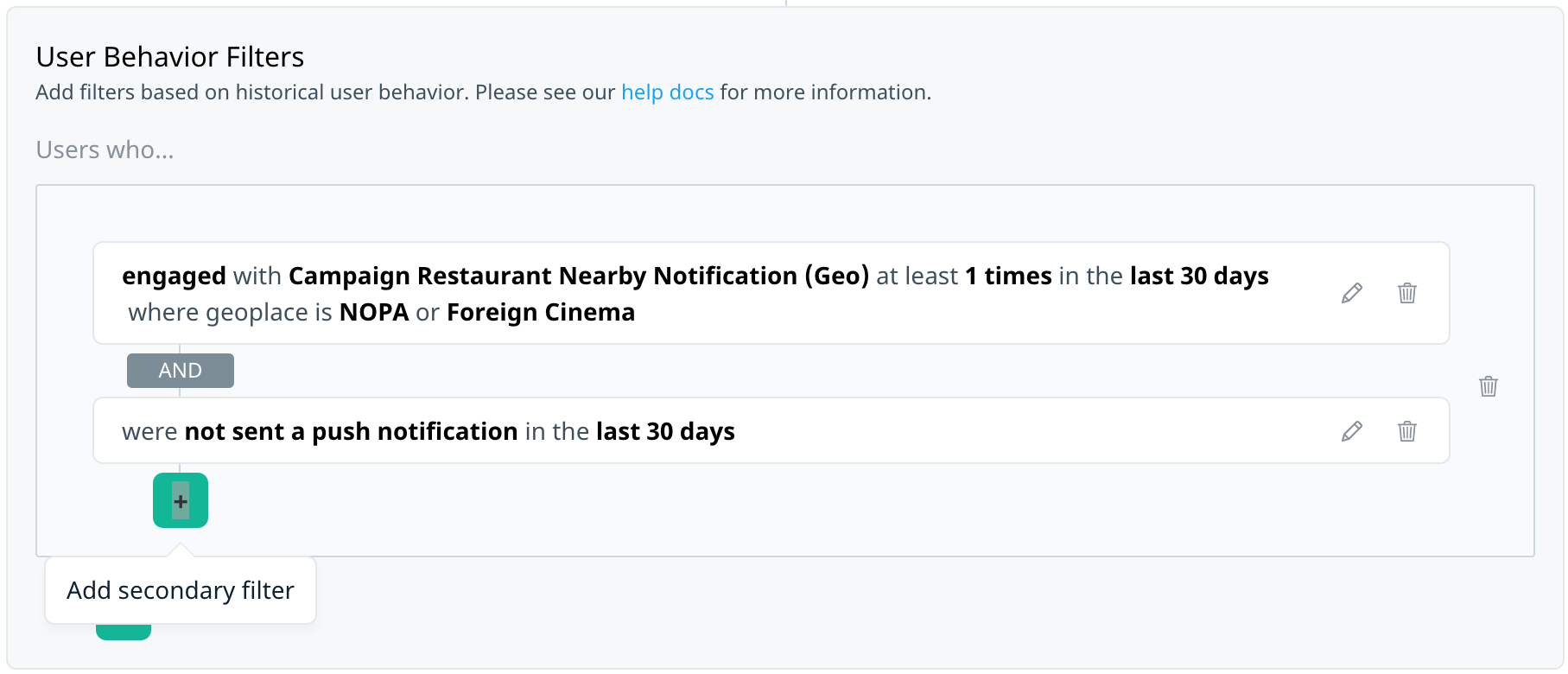
Once a group has multiple filters, to create additional secondary filters, select Add secondary filter in the filter group
Match all actions
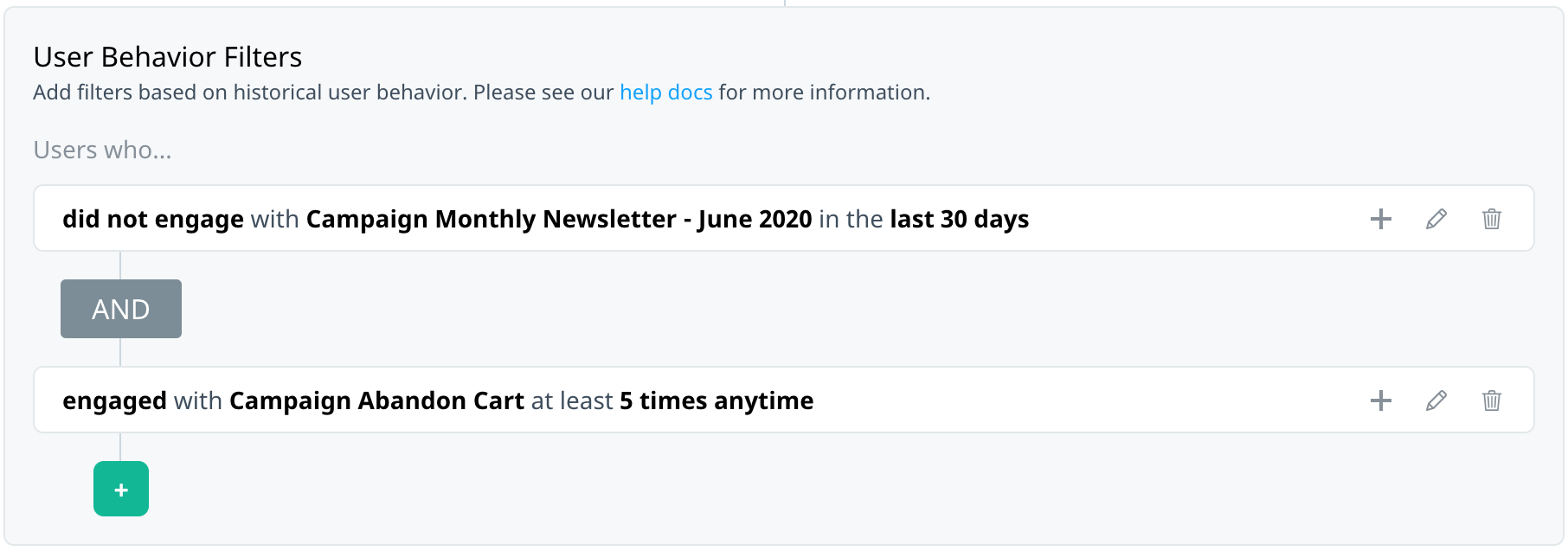
Use the AND filter to target users who match multiple actions, each with their own set of criteria. For example, target users who have never engaged with a newsletter notification, but have engaged with the Abandon Cart campaign several times.
Match any action
Use the OR filter to target users who match one of several actions, either on the same campaign or different campaigns. For example, you might want to target users who engaged with any of your last three newsletter notifications.
Action conditions
You might want to target users who interacted with specific variants or elements of your campaign, such as A/B test variants, custom buttons, or geoplaces, when applicable.
Specify variant
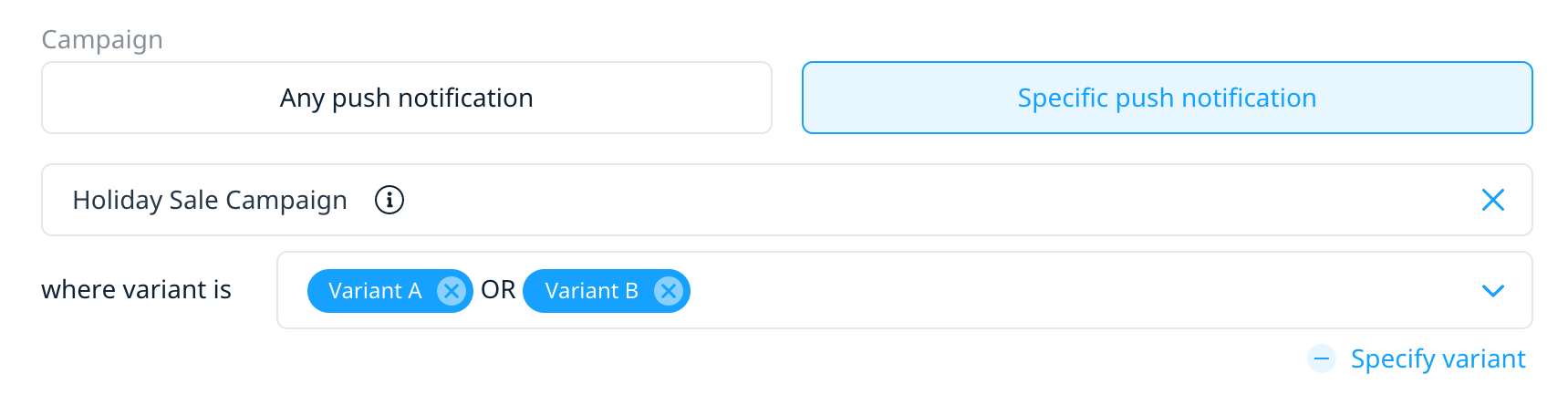
If you have selected a specific push notification campaign that includes A/B test variants, you have the option to specify campaign variant(s) as part of your filter criteria. For example, you might only want to target users who engaged with Variant A or Variant D of the selected campaign.
To specify a variant, under the campaign list, select + Specify variant.

The Select variant list displays all variants linked to the campaign. To include specific variants, select X on a variant label to remove them from the list until it includes only the variants you want to target.
Specify geoplaces
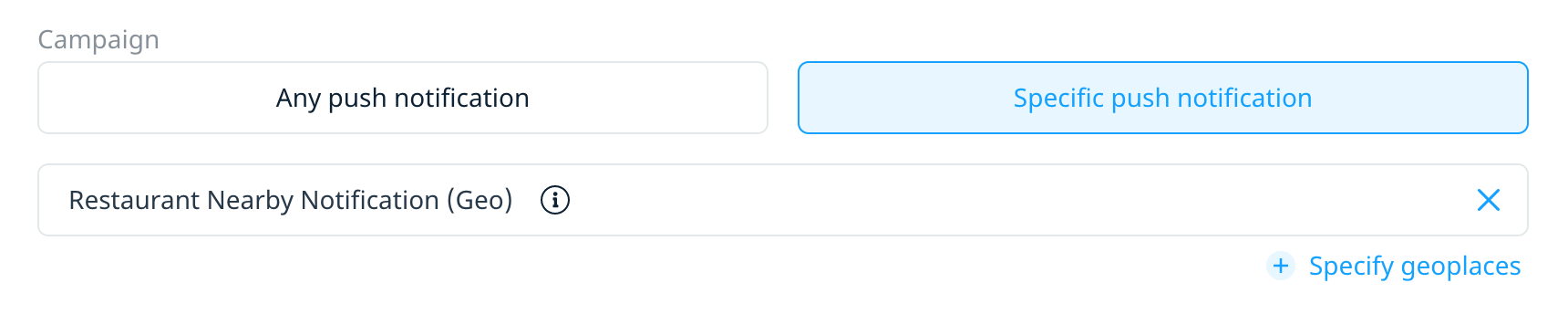
If you select a geo-triggered campaign from the Campaigns list, you have the option to specify geoplaces as part of your criteria. To specify a geoplace, under the campaign list, select + Specify geoplaces:
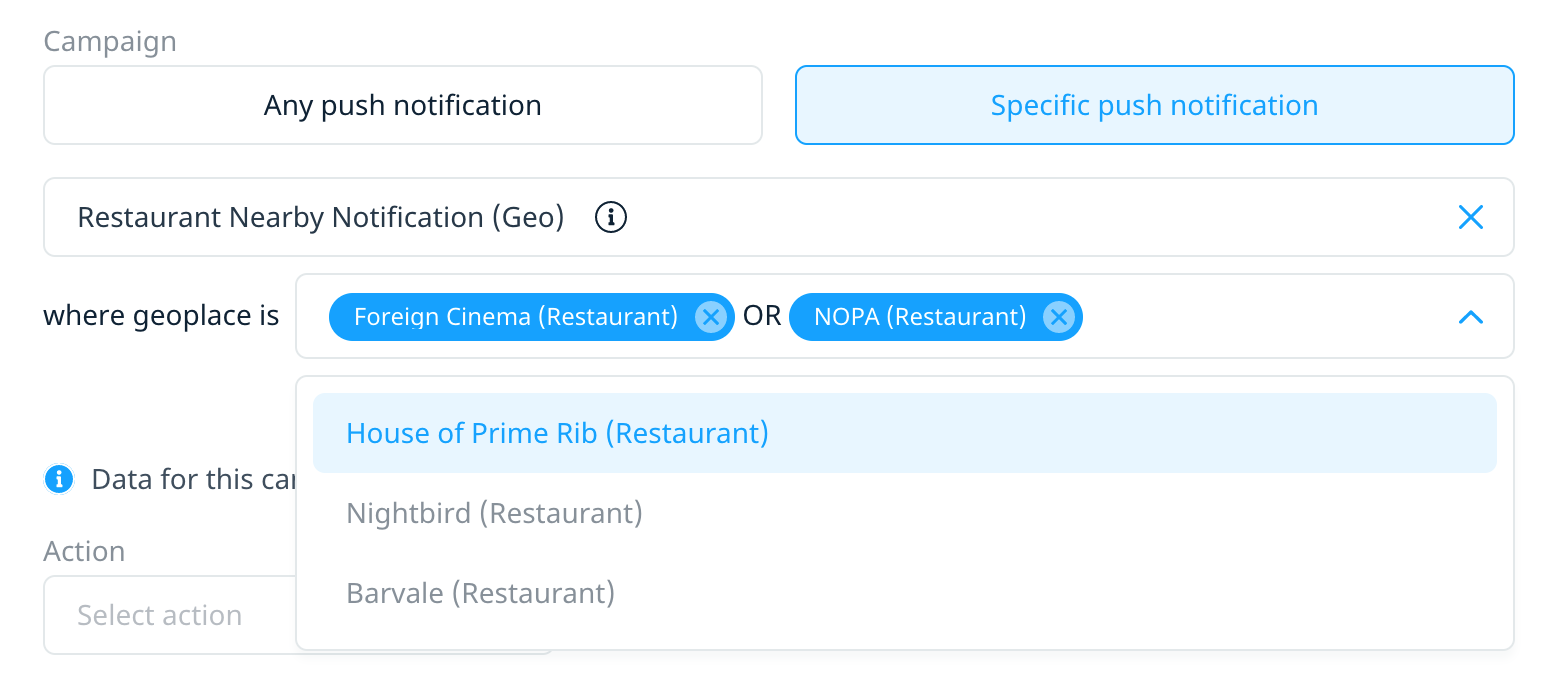
The Select geoplace list includes all geoplaces associated with the campaign. Select the geoplace(s) you want to specify from the list. Multiple geoplaces are separated by OR operators, meaning that triggering the action on any of selected geoplaces qualifies the user for the campaign.
Specify clicked buttons
If a user selects a custom button in a rich notification, they trigger a Clicked button event. iOS and Android push notifications can contain up to three custom buttons.
When you select Clicked button as your campaign action filter, you have the option to include specific buttons as part of your filter criteria, if relevant. In the Select button list, select the button(s) you want to include in the filter criteria.
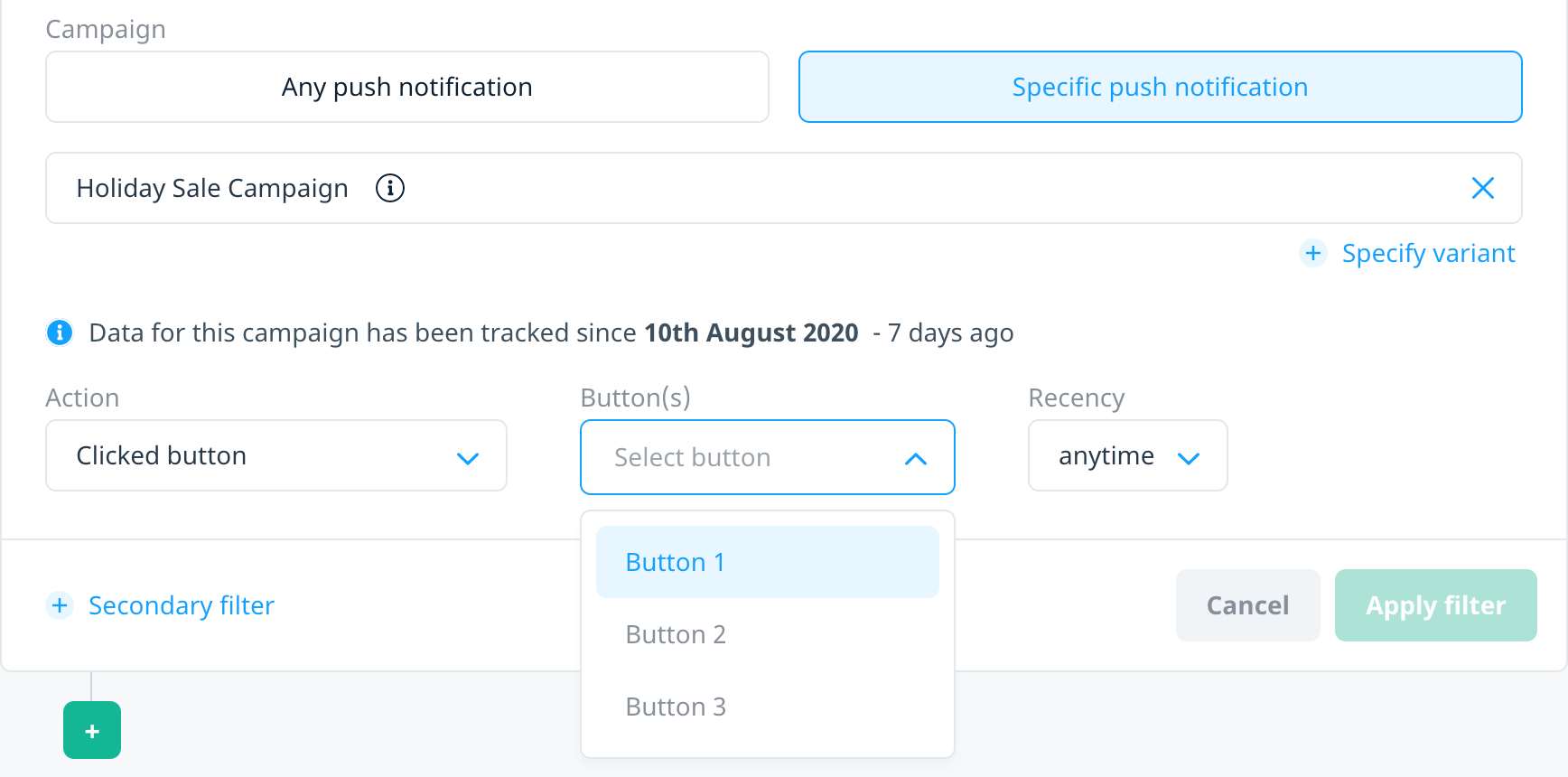
Multiple buttons are separated by OR operators, meaning that interacting with any of the specified buttons qualifies the user for the campaign.
Targeting based on push notification exposure and interactions
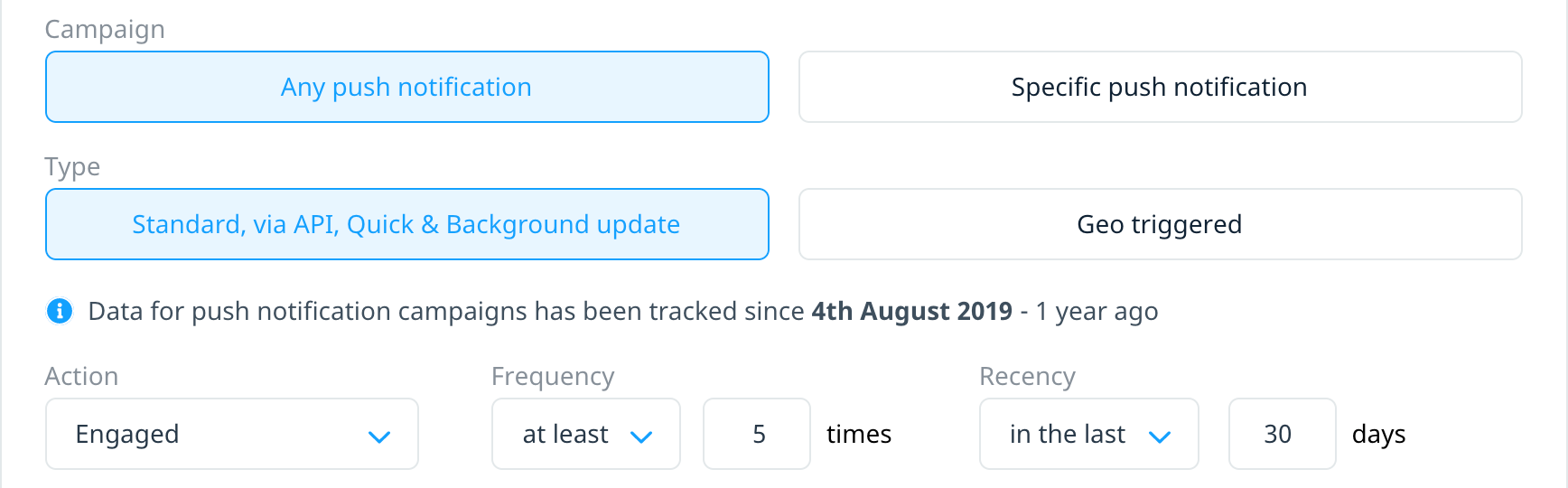
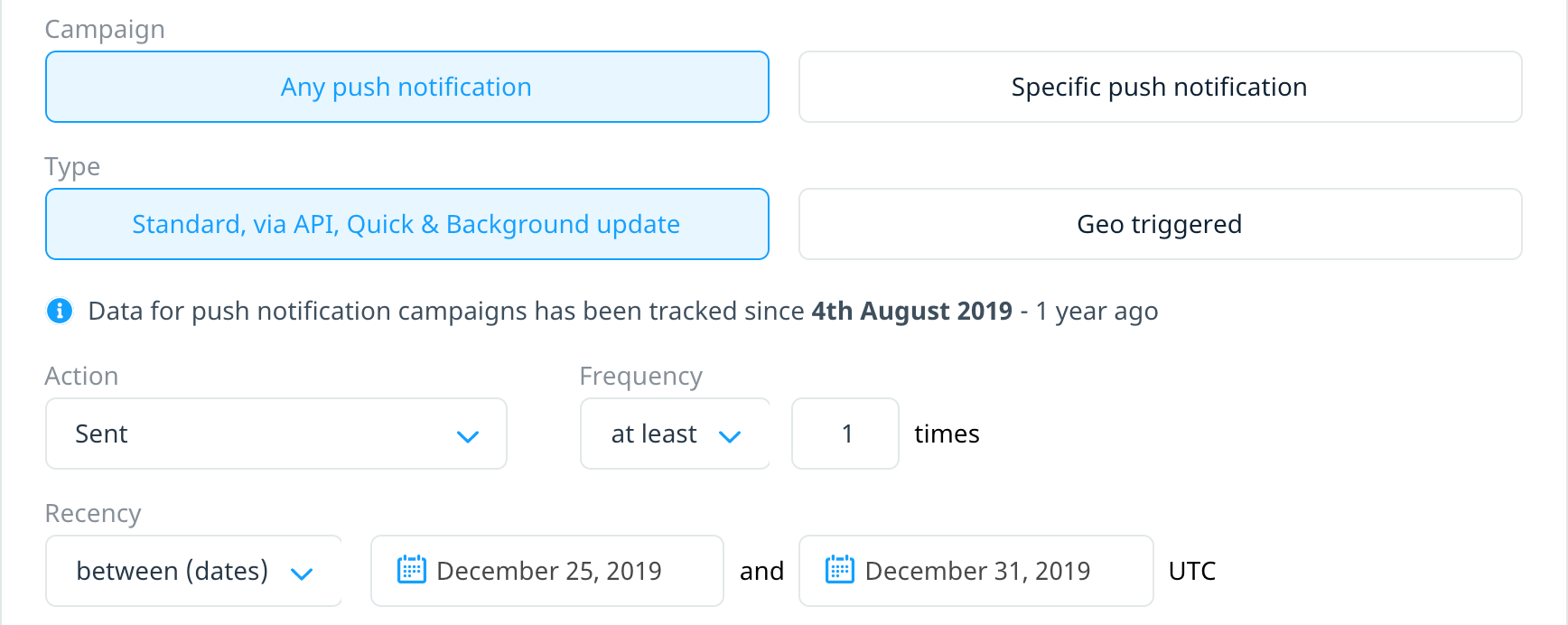
You might want to target your users based on how frequently or recently a user has been exposed to or interacted with push notifications, regardless of the source campaign.
Targeting campaign interaction
Target users who engaged with at least five notifications in the last month:
Target users who received at least one push notification during the week of Christmas to New Years:
Targeting absence of campaign interaction
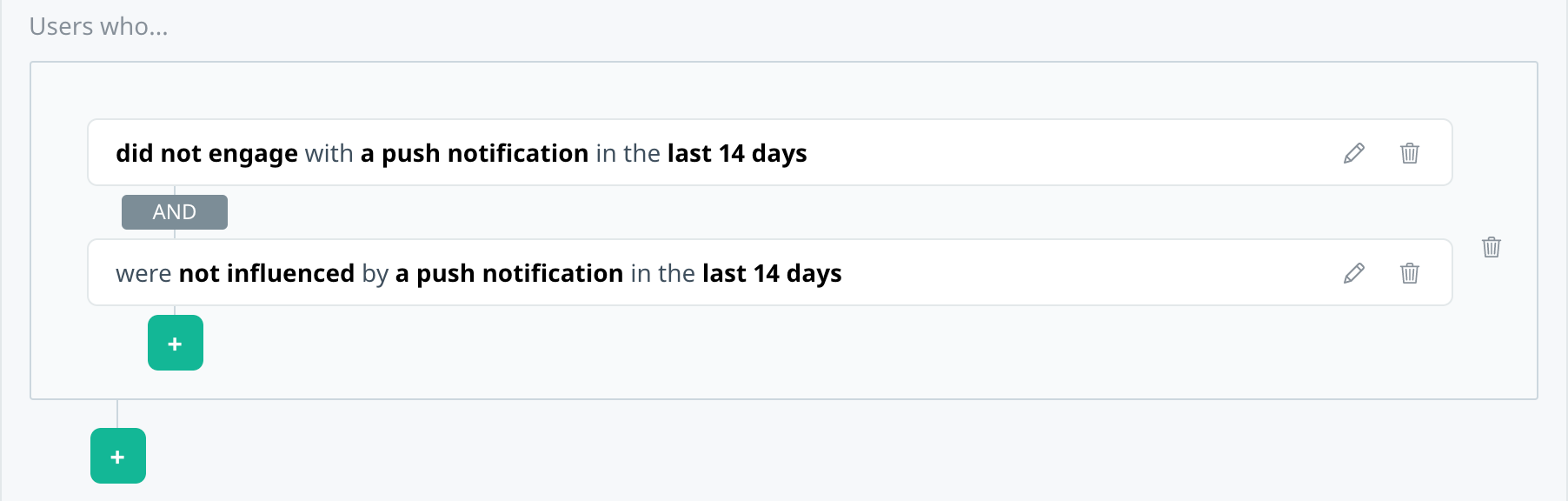
You might want to target your users based on their lack of exposure to or interaction with push notifications, regardless of the source campaign.
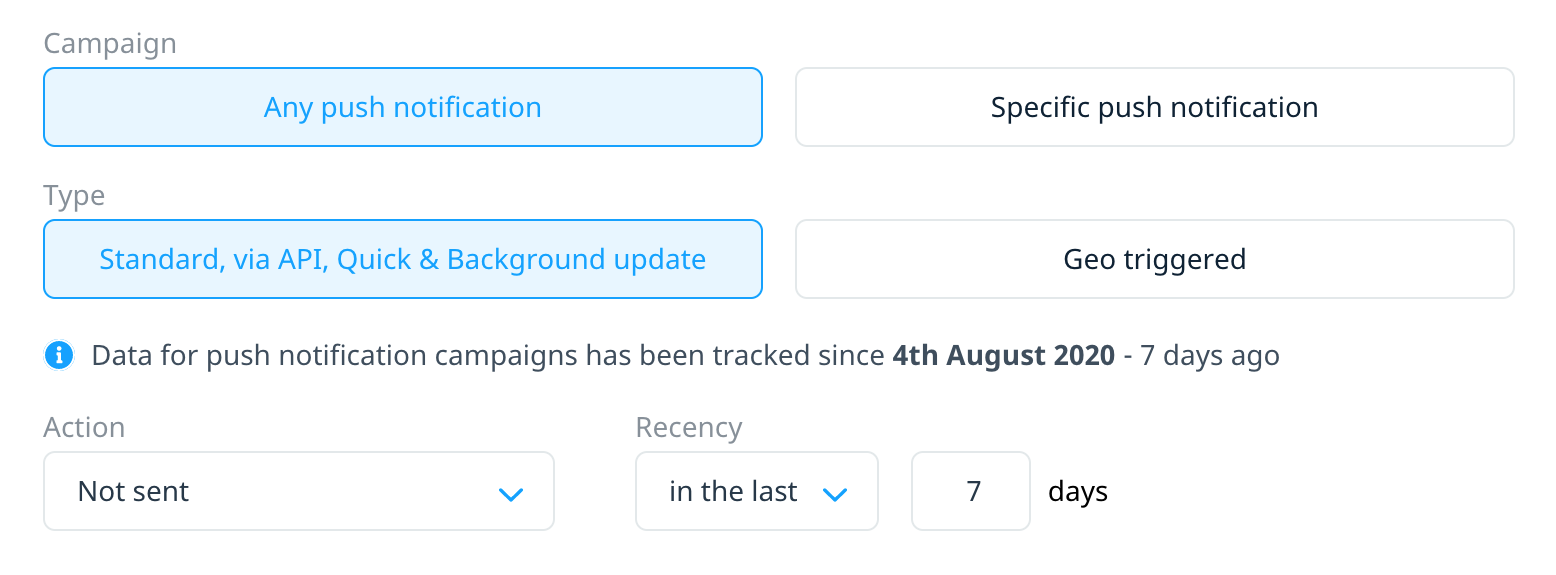
For example, target users who did not engage and were not influenced by any push notifications in the last two weeks. Use a secondary AND filter to target multiple actions within a group:
Alternatively, target users who were not sent any push notifications in the last week:
Saving audience filters
After you've added the required user behavior campaign filters, to save the audience to your campaign, select Apply filters. A summary of the filter is displayed. Edit or add to the filter as needed.
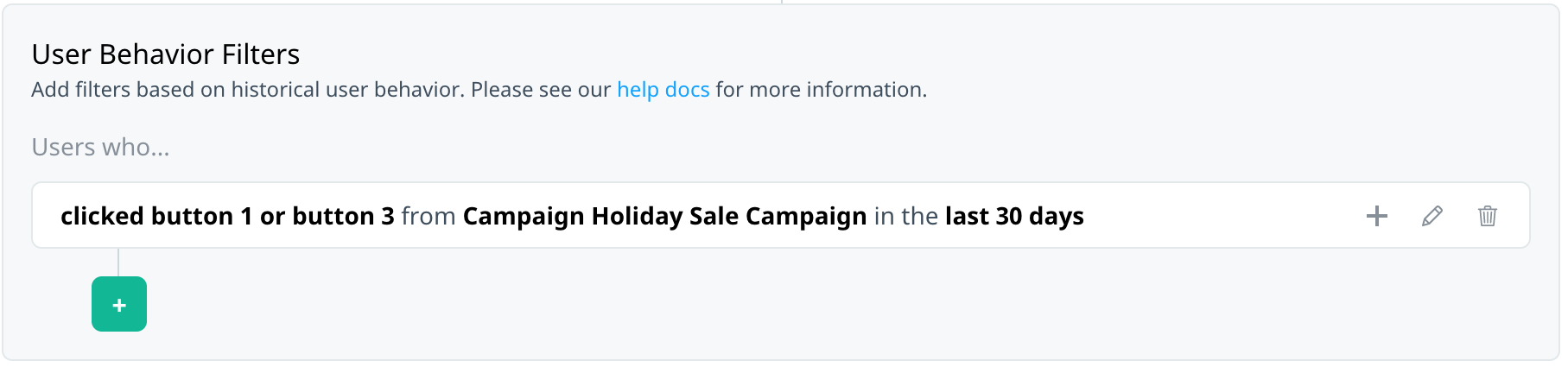
The following actions are available on the filter summary:
- Select add to add another filter.
- Select edit to make changes to the existing filter.
- Select delete to remove the existing filter.
Push event tracking and recency considerations
Push notification events
Filters based on push notification actions rely on the presence of Swrve's push notification events to accurately target users. This dependency impacts the recency criteria you define when your set up your target audience filters.
Recency value considerations
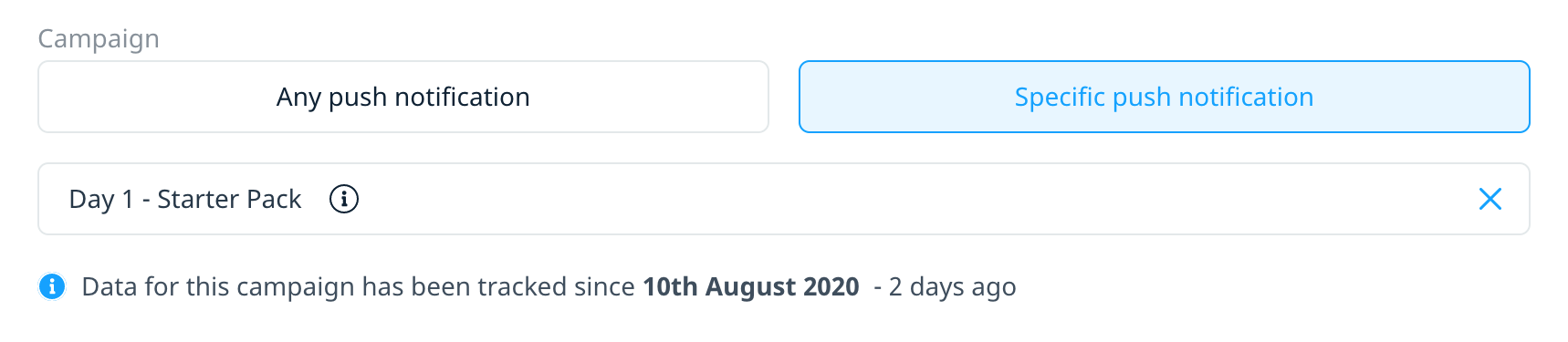
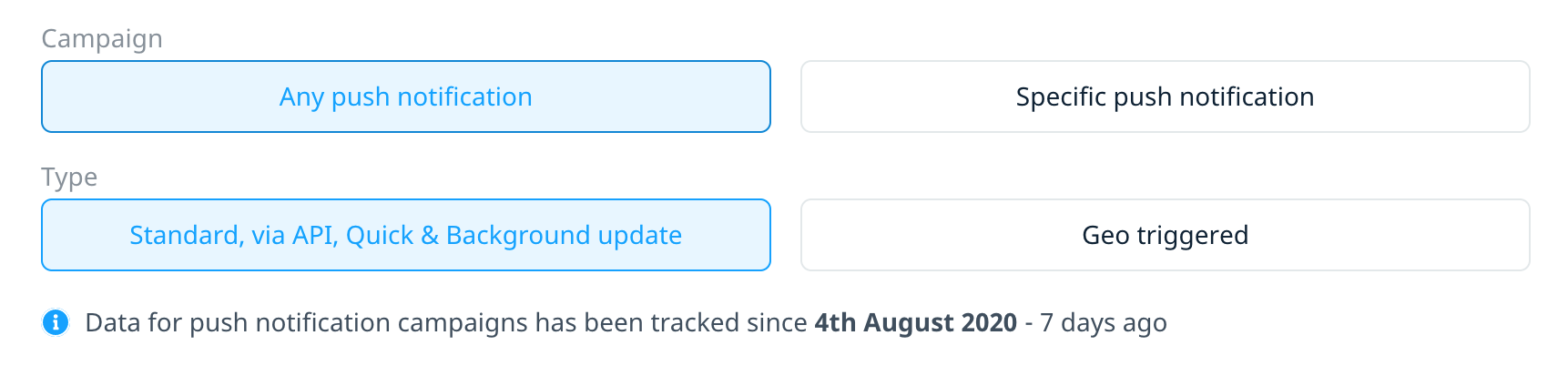
To help you define your filter's recency criteria correctly, the audience builder displays an information message that references the date from which Swrve has tracked campaign data, and how many days ago that date is as of today.
If you select a specific push notification campaign, the date corresponds to the start date of the campaign:
If you select Any push notification, the date corresponds to how long Swrve has been tracking push notification events for your app:
 Always refer to the date or number of days ago value when determining the recency filter range, especially if you select a negative action (Not sent, Not delivered, Not engaged, Not influenced, Did not click button). In these instances, the number of days ago recency should never exceed this value. Furthermore, when using negative actions, you should always specify a days ago value instead of selecting the Anytime option.
Next steps
Learn how to use the different push campaign filters to target your audiences across all campaign channels. For more information, see the following campaign retargeting How to guides: