Managing your campaigns
Manage all of your Swrve campaigns, across all channels, in our unified Campaign center.
Swrve's Campaign center provides a centralized, customizable view of all your campaigns. Filter your campaign view by state, channel, content, and schedule, and quickly view important details and metrics for individual campaigns without leaving the page. Create campaigns directly from the Campaign center using a streamlined workflow.
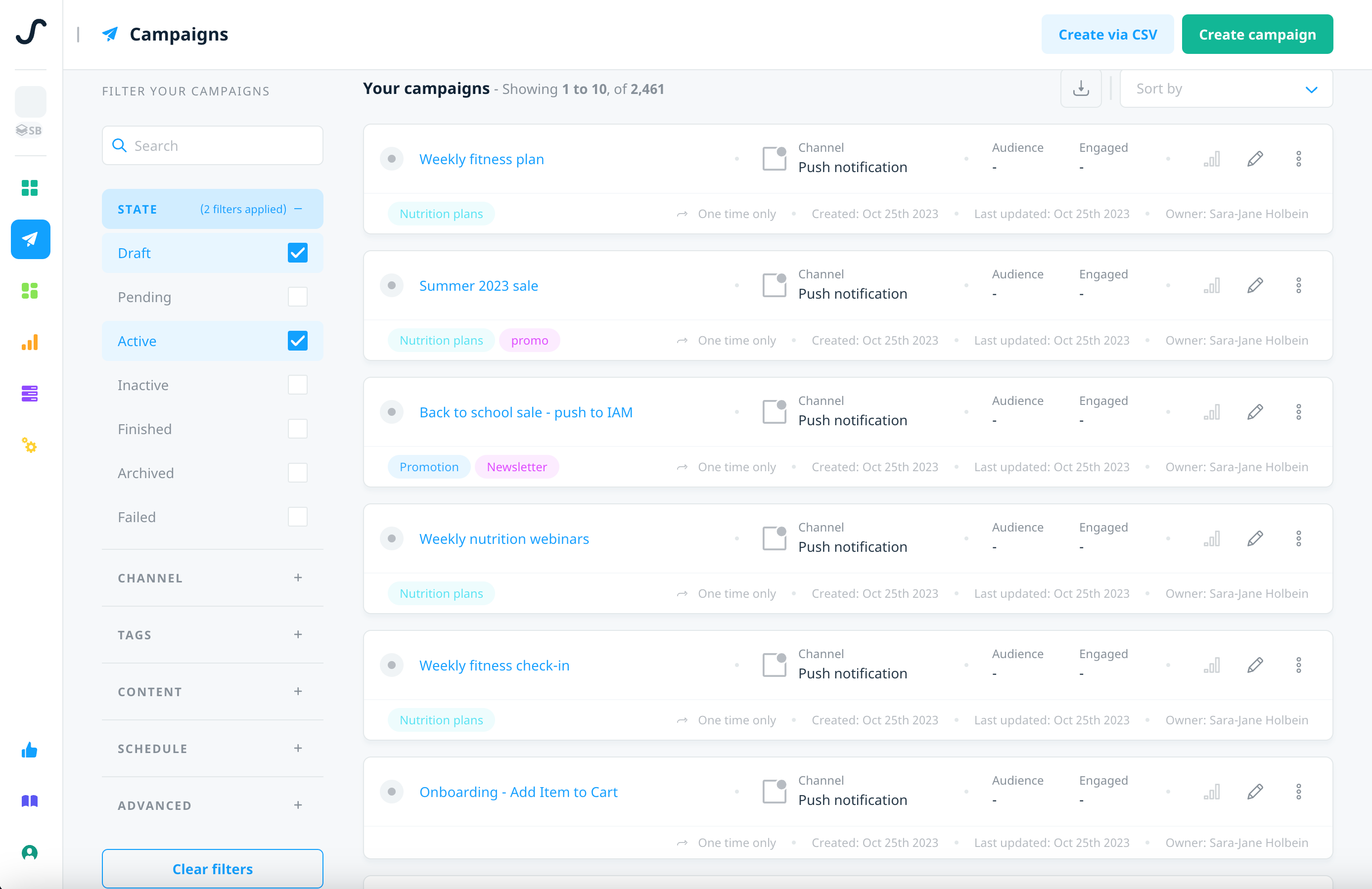
Customize your campaign view
Use the available filter conditions to personalize your campaign view from a broad overview of all your campaigns to a small set of targeted campaigns based on your personal requirements. The default view is all campaigns, but after you personalize your campaign view, the filter set is automatically saved in the most recent state until you clear the filters or make another selection. To clear your filter conditions and return to the default view, select Clear Filters. You can also use the search box to filter your campaigns by keyword.
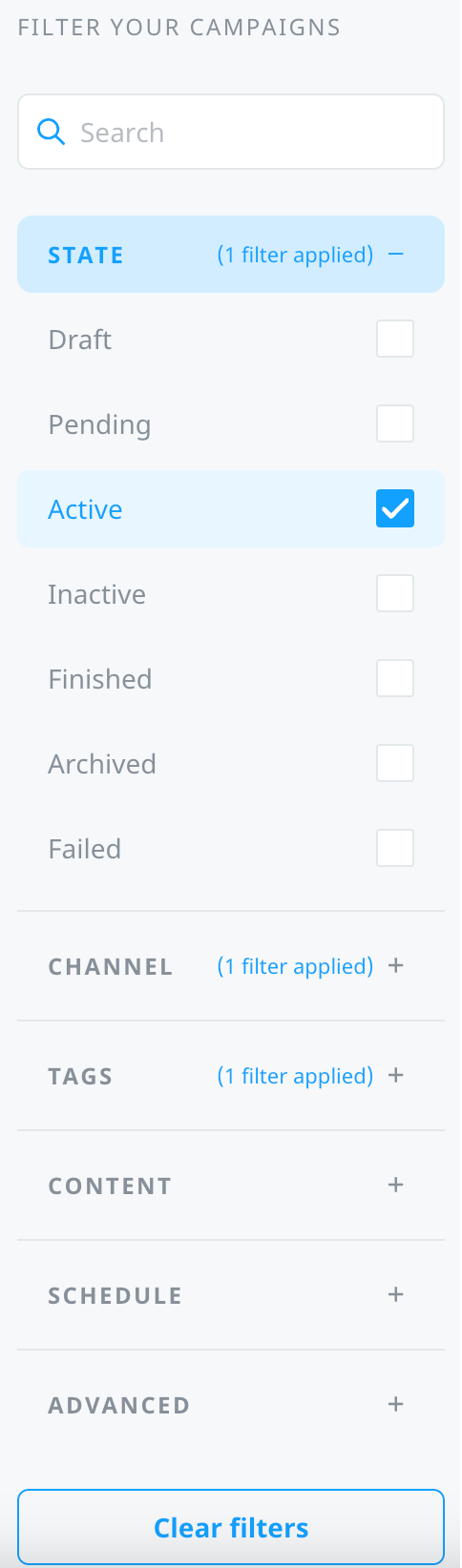
Filters
Customize your campaign view using the following filter options:
State
Filters campaigns by the current state
| Filter | Applies to |
|---|---|
| Draft | Campaigns that are created but not yet scheduled or launched. |
| Pending | Campaigns that are scheduled but haven't reached the start date, or launched and in the process of sending. |
| Active | Scheduled campaigns where the start date has passed, or any one time notifications, quick push notifications, or other campaign types that were launched immediately. |
| Inactive | Previously active campaigns that were stopped, paused, or set to inactive. |
| Finished | Campaigns that have finished sending or reached the scheduled end date. |
| Archived | Campaigns that are manually archived. |
| Failed | Campaigns that failed to send due to an error. |
Channel
Filters the list by campaign delivery channel
| Filter | Applies to |
|---|---|
| Push notification | Push notification campaigns. Use the secondary filter to select specific notification types—Scheduled, Via API, Quick, Geo (if enabled), or Triggered. |
| In-app message | In-app message campaigns. Use the secondary filter to select specific message types–Classic or Story. |
| Background update | Background update campaigns, both scheduled and via API. |
| Embedded | Embedded campaigns |
Tags
Filters the list by campaign tags
| Filter | Applies to |
|---|---|
| Tag | All campaigns associated with the selected tag(s). |
Content
Filters the list for campaigns that include localized or A/B tested content
| Filter | Applies to |
|---|---|
| Localized | Campaigns that include localized content. |
| A/B tested | Campaigns that include A/B tested content. |
Schedule
Filters the list by the scheduled campaign frequency
| Filter | Applies to |
|---|---|
| One time only | Campaigns that were sent as a one-off occurrence. |
| Recurring | Campaigns that are sent on a recurring schedule. |
| End date | Campaigns that ended or are scheduled to end during the specified time frame. |
Advanced
Filters the list by the campaign creator, created on date, or created via API campaign
| Filter | Applies to |
|---|---|
| Created by | Campaigns that a selected user created. |
| Created date | Campaigns that were created on or during the specified time frame. |
| Created via API | Campaigns that were created via one of Swrve's campaign APIs. |
Filter view by tags
To filter your campaigns by tags, expand the tags section, and then search for or select the desired tags from the list.
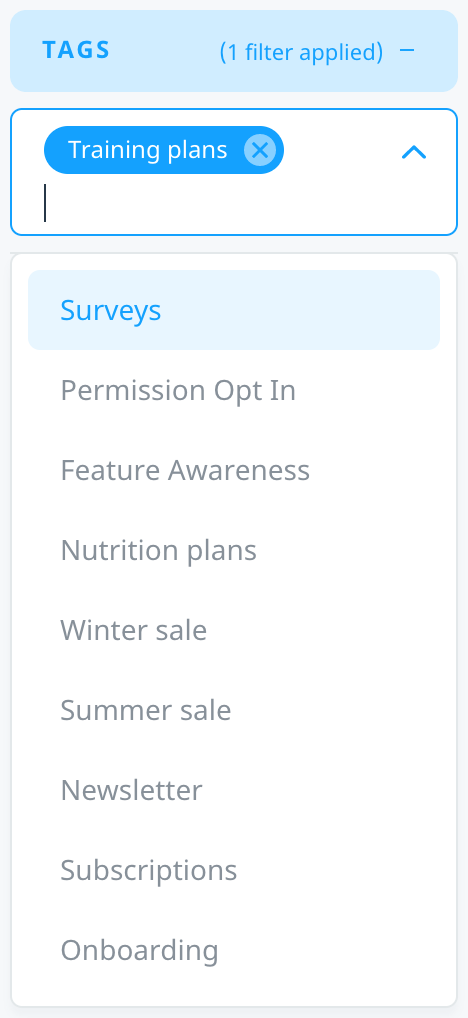
For more information on creating and managing tags, see Campaign tagging.
Filter view by dates
To filter your campaigns by dates, select the timeline (After, Before, Between, On), and then enter or select the desire dates from the calendar.
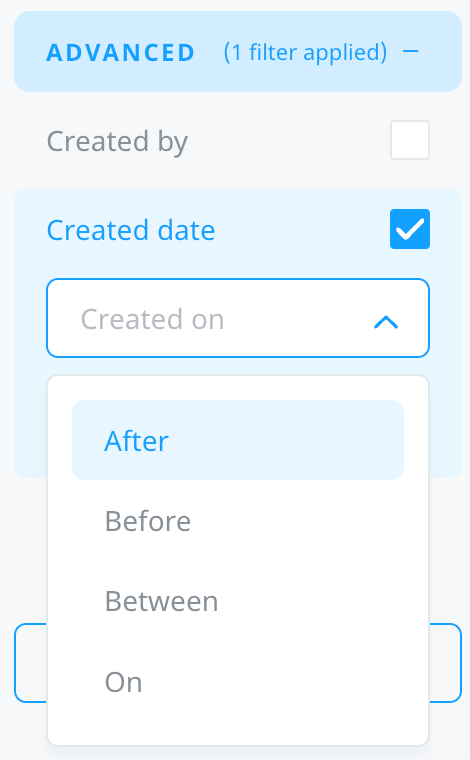
Sort campaign results
To order the displayed campaign results by various options, use the Sort by list.
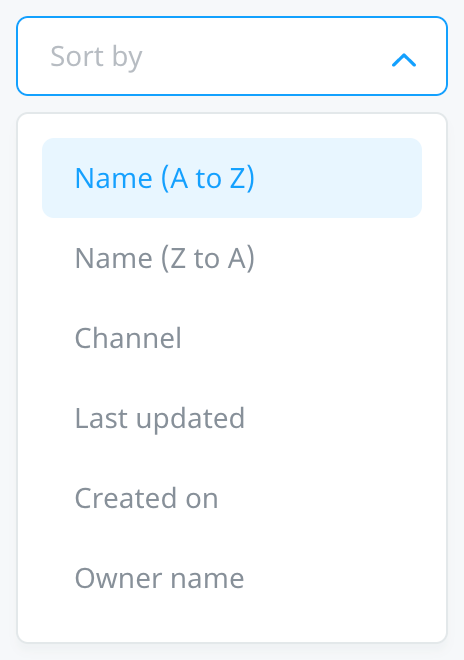
View campaign details
To quickly view basic campaign details and high-level metrics, on the campaign card, select View metrics  .
.
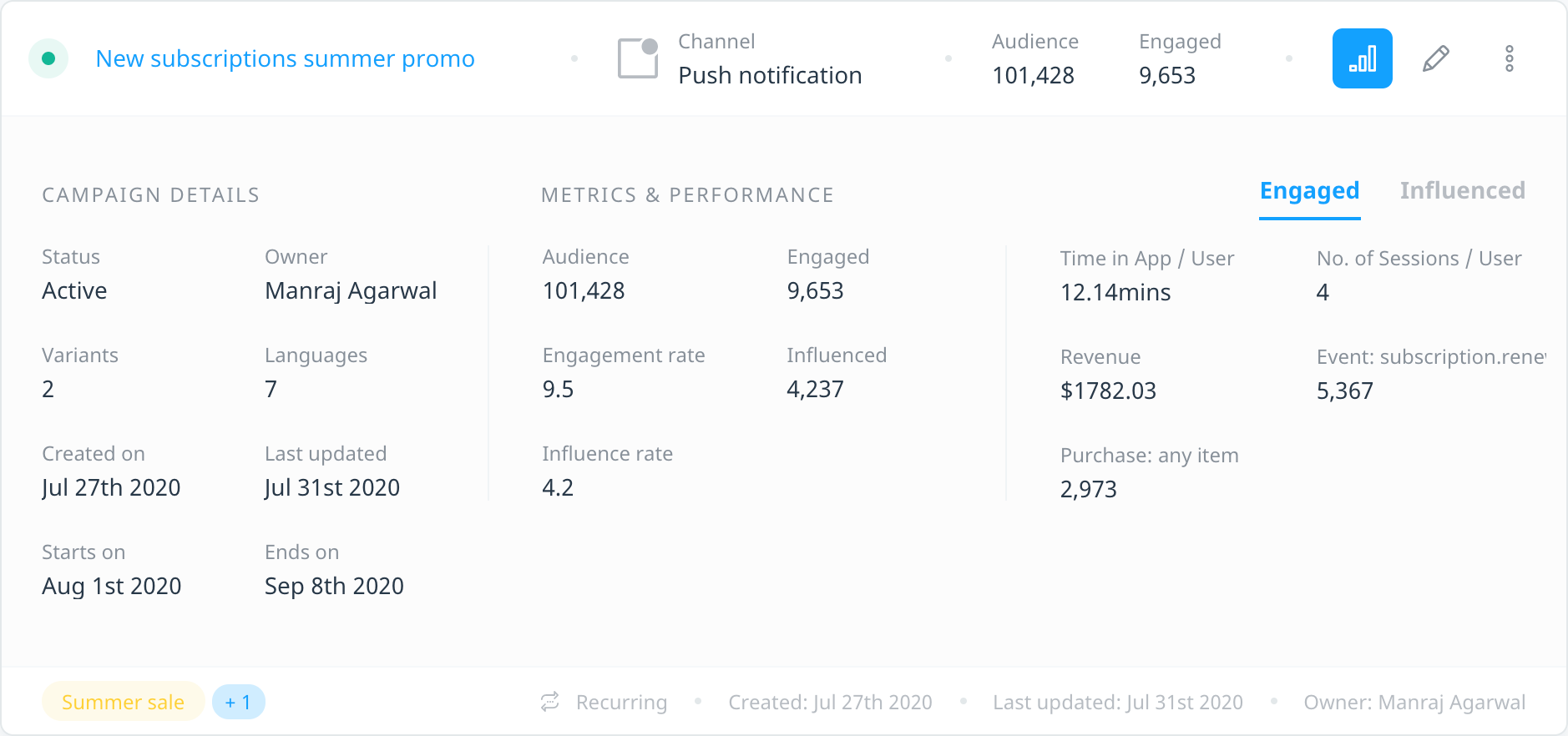
Depending on the delivery channel, the following details are displayed in the expanded card view:
- Campaign details - displays the campaign status, owner, date created, and date last updated. Also displays number of variants and languages for localized or A/B tested campaigns, and campaign start and end dates, if relevant.
- Metrics & performance - displays audience, engagement, and influenced metrics, if relevant, plus any custom metrics set when you created the campaign. For more information on channel-specific metrics, see the related campaign report page:
Campaign reports (includes in-app messages, push, and embedded campaigns)
To view campaign details or make changes to a campaign, select the campaign name, Edit campaign or Actions. For more information on the actions available from specific campaign reports, see the related links above.
Download campaign reports
To access the Download Campaign Reports screen, select Download campaign csv.

For information on how to download your campaign reports as CSV files, see Downloading campaign reports.
Create a new campaign
Create a campaign directly from the Campaign center by selecting Create campaign and then selecting the relevant channel.
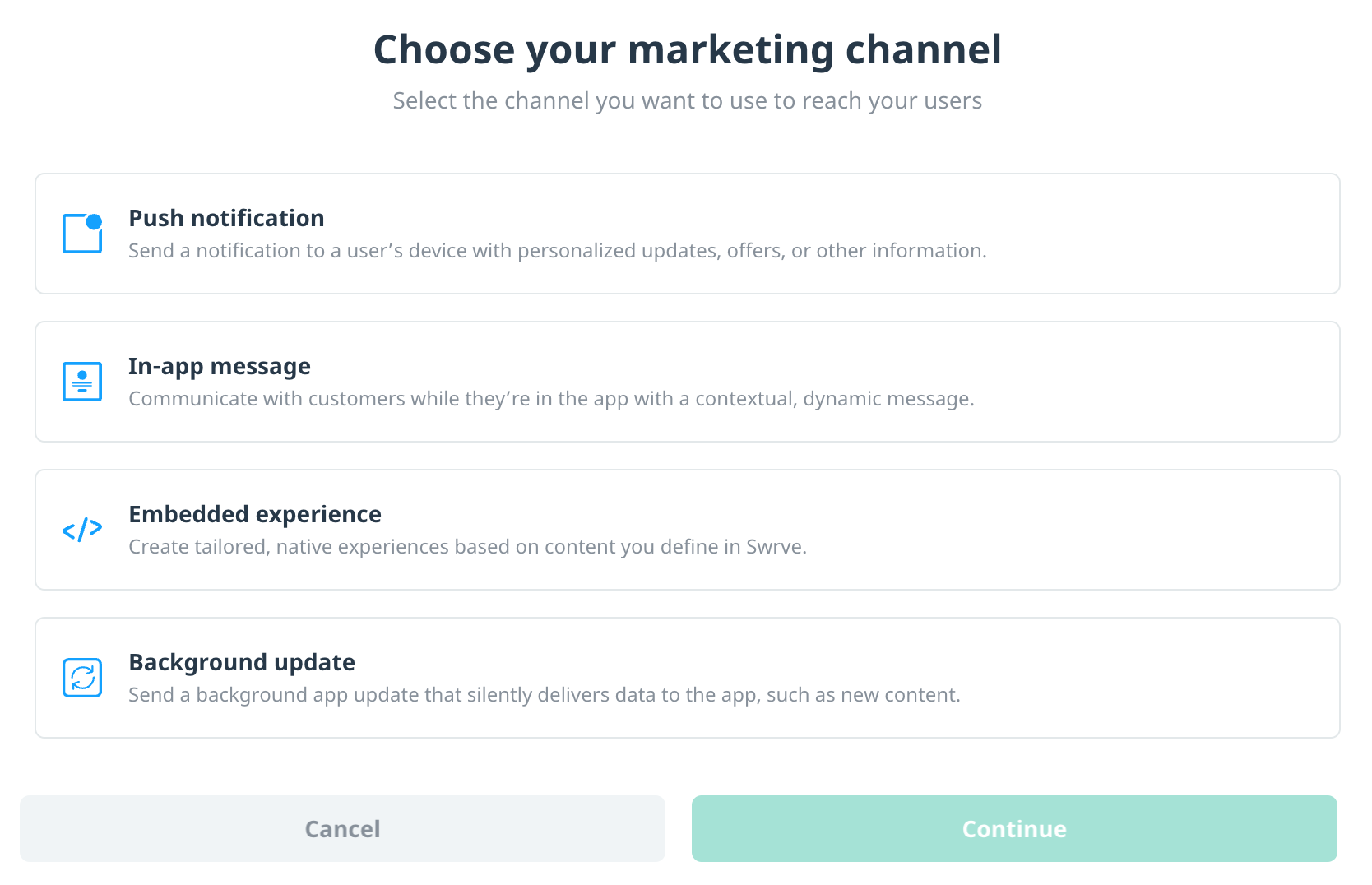
After you select the delivery channel, you're guided through the associated campaign workflow. For more information on how to create specific campaigns, see the following tutorials:
- Push notification:
In-app message Embedded experience Background update
Stop or end a campaign
To end an active campaign, on the campaign summary card, select the campaign name link or Edit campaign . The actions taken to stop a campaign depend on the campaign channel:
- Push notifications: To stop a sending, recurring, or push via API campaign, select Stop campaign.
- In-app messages and Embedded campaigns: To pause and edit an active campaign, select Pause. To end and automatically archive a campaign, select End Campaign.
- Background updates: To stop a sending, recurring, or update via API campaign, select Stop campaign.
Next steps
- Create a new campaign. For more information, see Campaign overview and channels.
- Create and manage your campaign tags. For more information, see Campaign tagging.