Using predictive models in campaigns and journeys
This feature requires Accelerator version 26.3.1 or later.
Predictive models that MessageGears previously scored only in the background are now usable directly when you configure a campaign or journey. You can let a model choose the best channel per recipient, or segment an audience on a model's score, without leaving the campaign or journey builder.
How it works
Optimal channel
Optimal Channel is a model-driven routing option for message delivery. It becomes available as a channel delivery option once you've selected two or more sending channels for a multi-channel campaign or in a journey's multi-channel tile. When selected, it uses each recipient's MLOptChan output to route their message to a single channel from among the ones you've enabled, rather than sending on every selected channel.
Accelerator checks that the audience or user profile has an MLOptChan column before allowing Optimal Channel to be used, and disables or warns on the option if the column is missing. Even when the column exists, individual recipients' optimal channel may not match a selected channel for the campaign.
In that case, Accelerator falls back to sending that recipient across all the channels you selected for the send, rather than excluding them. This fallback is why it's safe to turn Optimal Channel on for an audience with only partial score coverage: every recipient still gets a message, either model-routed to one channel or sent across all selected channels. A breakdown component on the campaign overview shows how many contacts have an MLOptChan value and how that value distributes across channels, so you can see how much of the send will actually be model-routed before you launch.
Predicitive model scores
Separately from optimal channel selection, predictive models (churn, purchase propensity, second purchase propensity, customer lifetime value, engagement index, and optimal hour) are available as segmentation criteria in Blueprints and journeys. This is a subset from the general model catalog. Wherever these columns appear, in the column picker, audience previews, Blueprint previews, and User Profile previews, they're grouped separately from general audience attributes and highlighted in lilac.
Before you begin
- Predictive Models must be enabled in Admin > System Config > System Defaults.
- The relevant reserved predictive model columns must exist in your data warehouse and be surfaced in the audience query or Journey User Profile under their exact reserved names. See Reserved predictive model column names for the complete list and casing requirements.
Select Optimal Channel in a Marketing Campaign
-
In the Marketing campaign's Overview, open the Who or What card and select two or more Sending channel(s). Optimal Channel only appears as an option once multiple channels are selected.
-
Select Optimal Channel as the channel option.
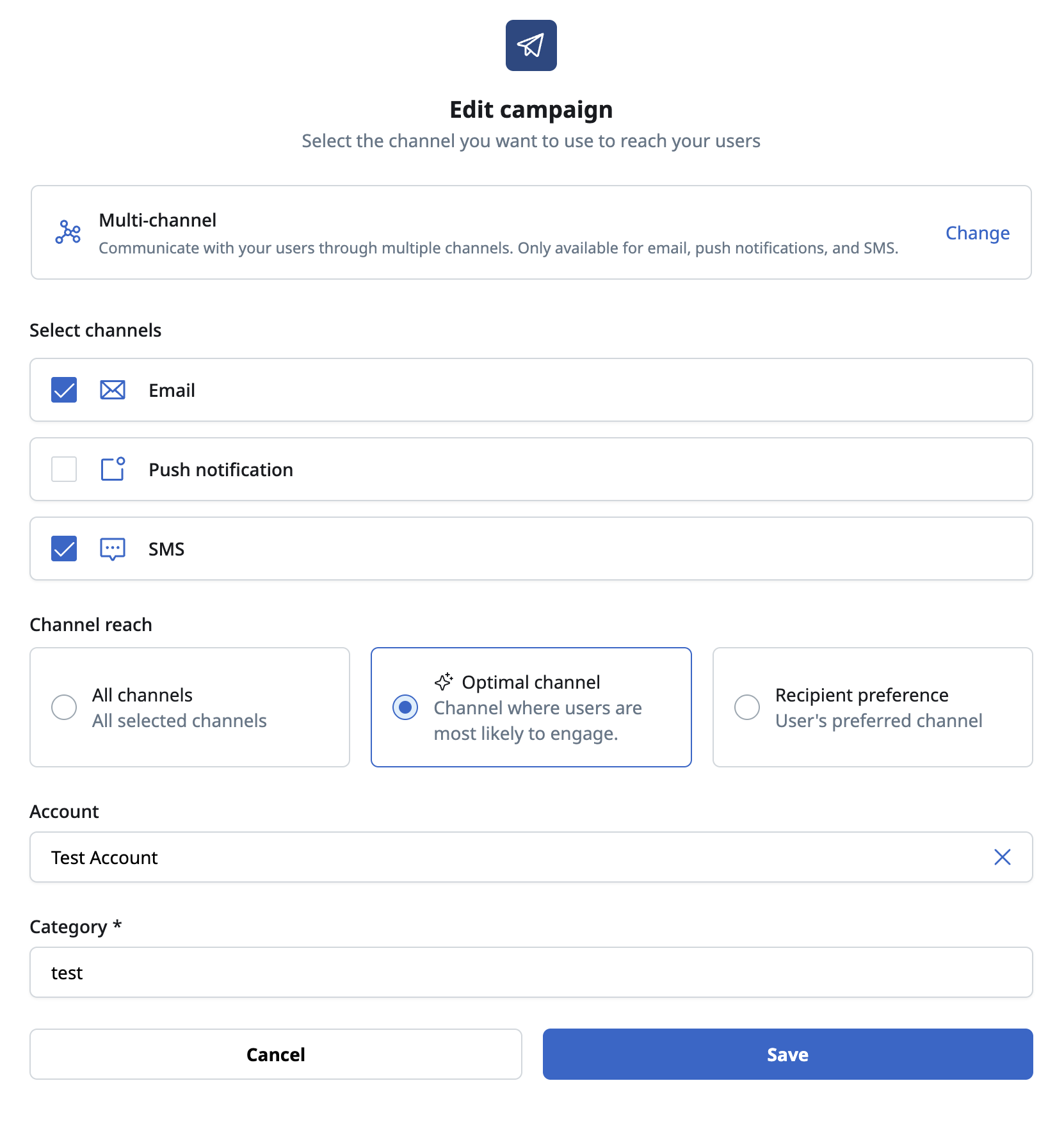
The channel option list showing Optimal Channel available once 2+ channels are selected noteBecause a recipient with no
MLOptChanscore still receives a message across all selected channels rather than being excluded, it's safe to enable Optimal Channel even on an audience with partial score coverage. Review the coverage breakdown first (next step) so you know how much of the send will actually be model-routed versus falling back to all channels. -
Before launching, review the breakdown component on the campaign overview page. It shows how many contacts in the have an Optimal Channel value and how that value distributes across channels.
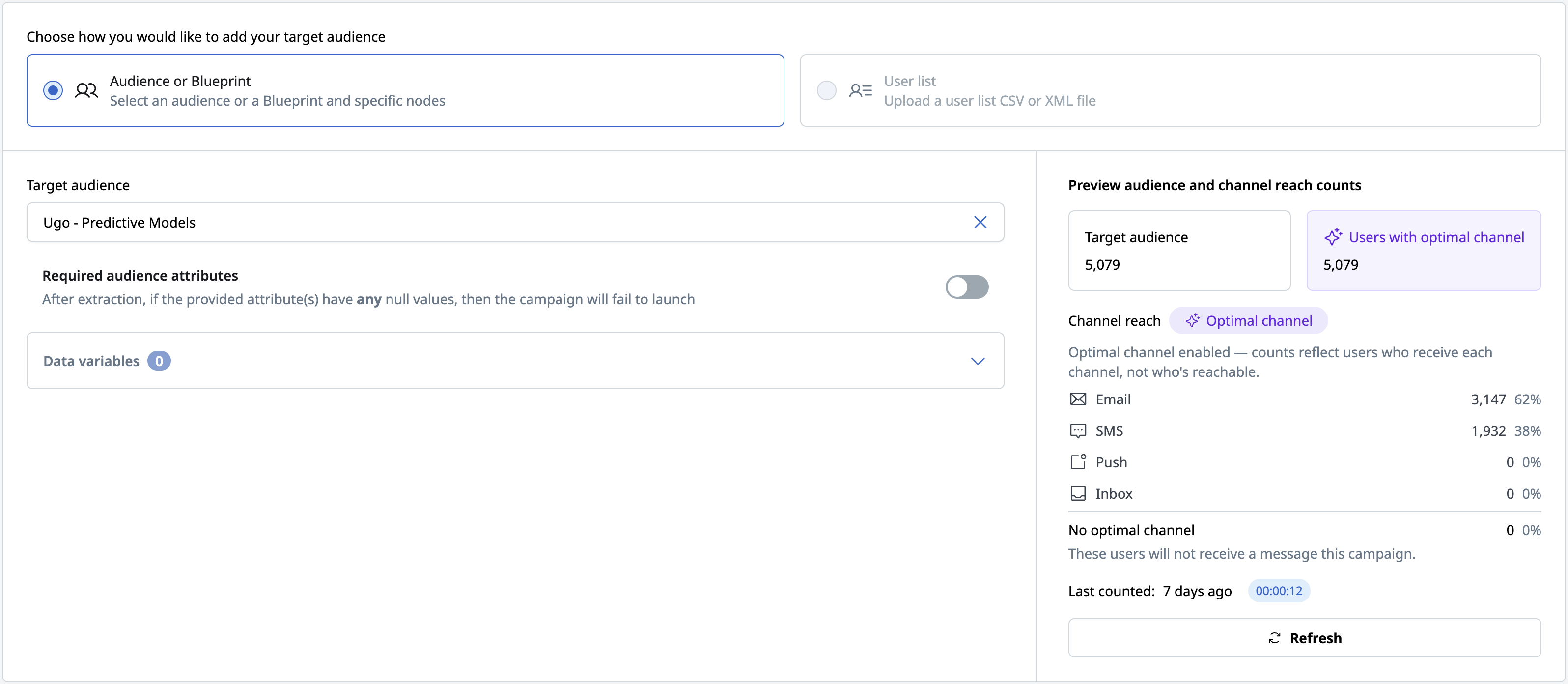
The Optimal Channel coverage breakdown component on the campaign overview -
Confirm the model pill shown on the campaign overview and launch confirmation. This indicates Optimal Channel is active for the send.

The campaign overview page showing the Optimal Channel model pill
Select Optimal Channel in a journey Multi-channel tile
-
Open a Multi-channel tile in a journey.
-
Under Channels, select Optimal Channel among the tile's channel options.
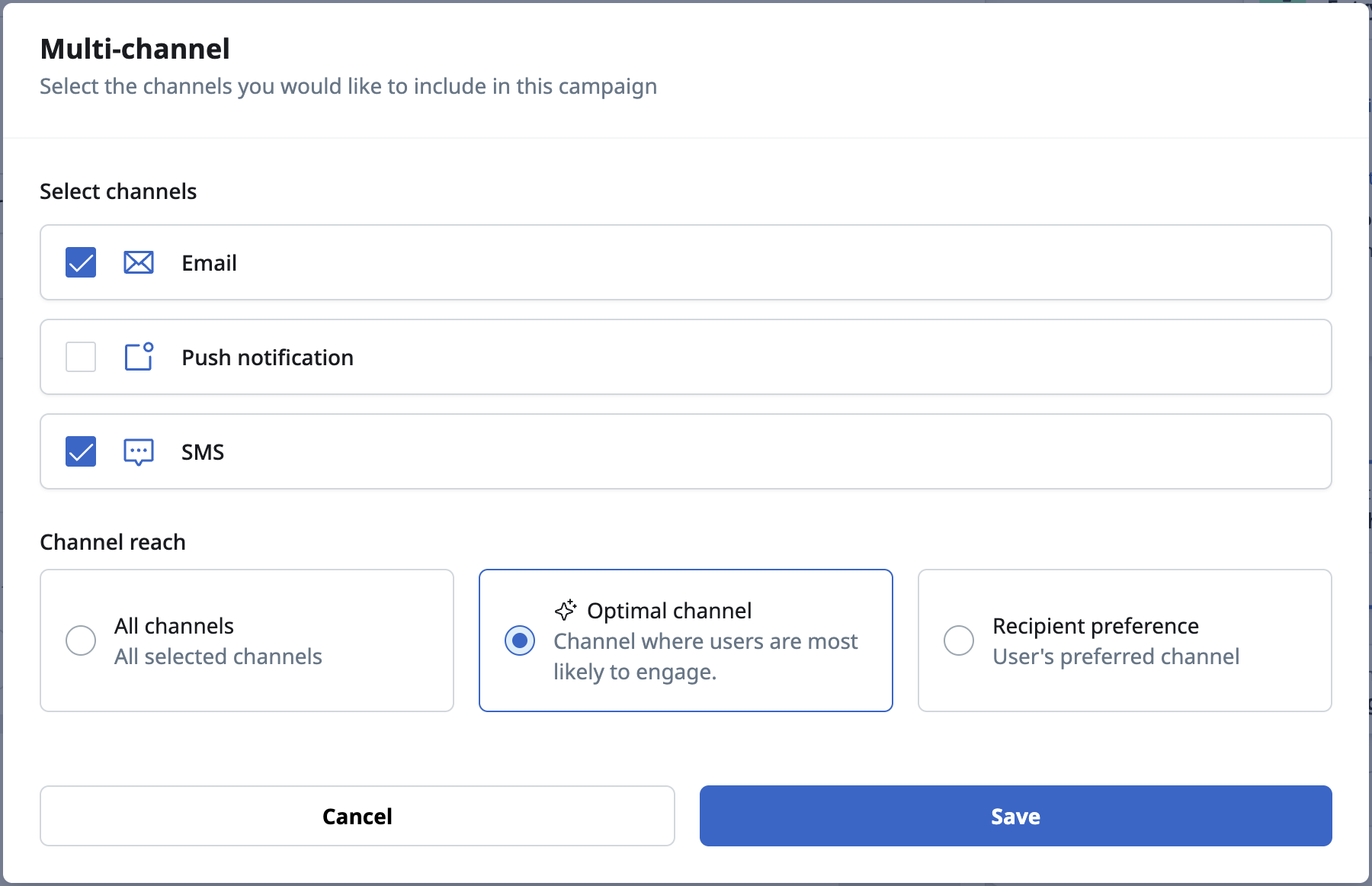
The journey Multi-channel tile's channel options with Optimal Channel selected -
Confirm the model pill shown on the tile and in the tile overview. It's visually distinct from the tile's AI summaries icon, though shown in a similar position.
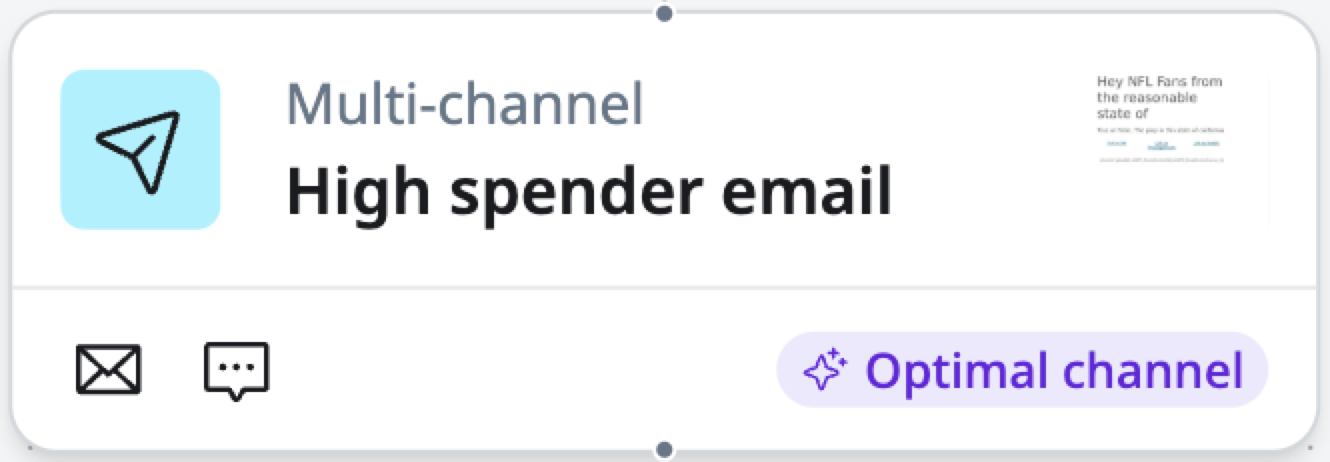
The journey Multi-channel tile showing the Optimal Channel model pill
Segment on a predictive model in a Blueprint or journey
-
Open the column picker when building segmentation rules in a Blueprint node or journey segment tile.
-
Select a predictive model from its own group, separate from general audience attributes. Predictive model columns are highlighted in lilac wherever they appear.
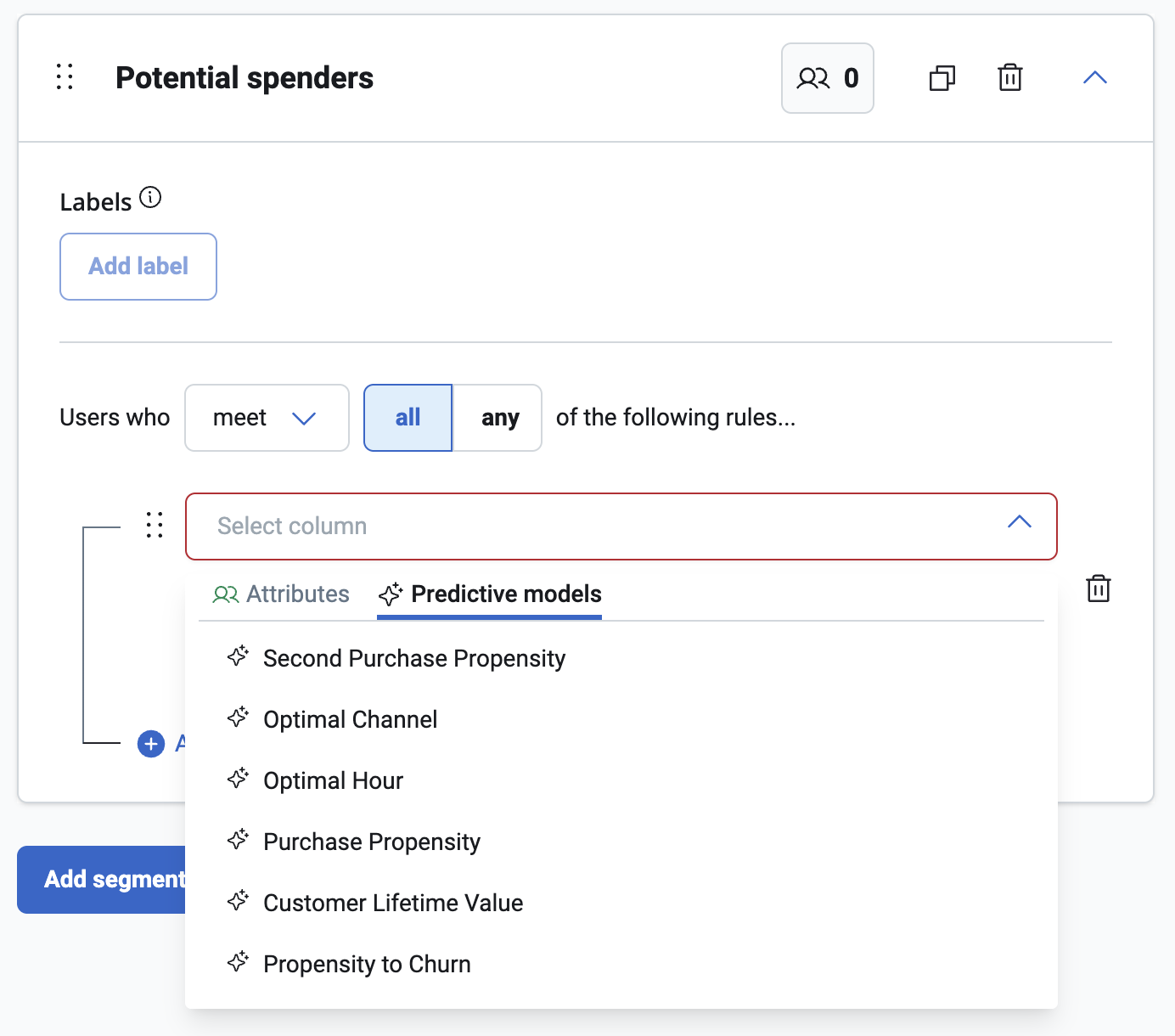
The Blueprint column picker showing the predictive models group separated from general attributes 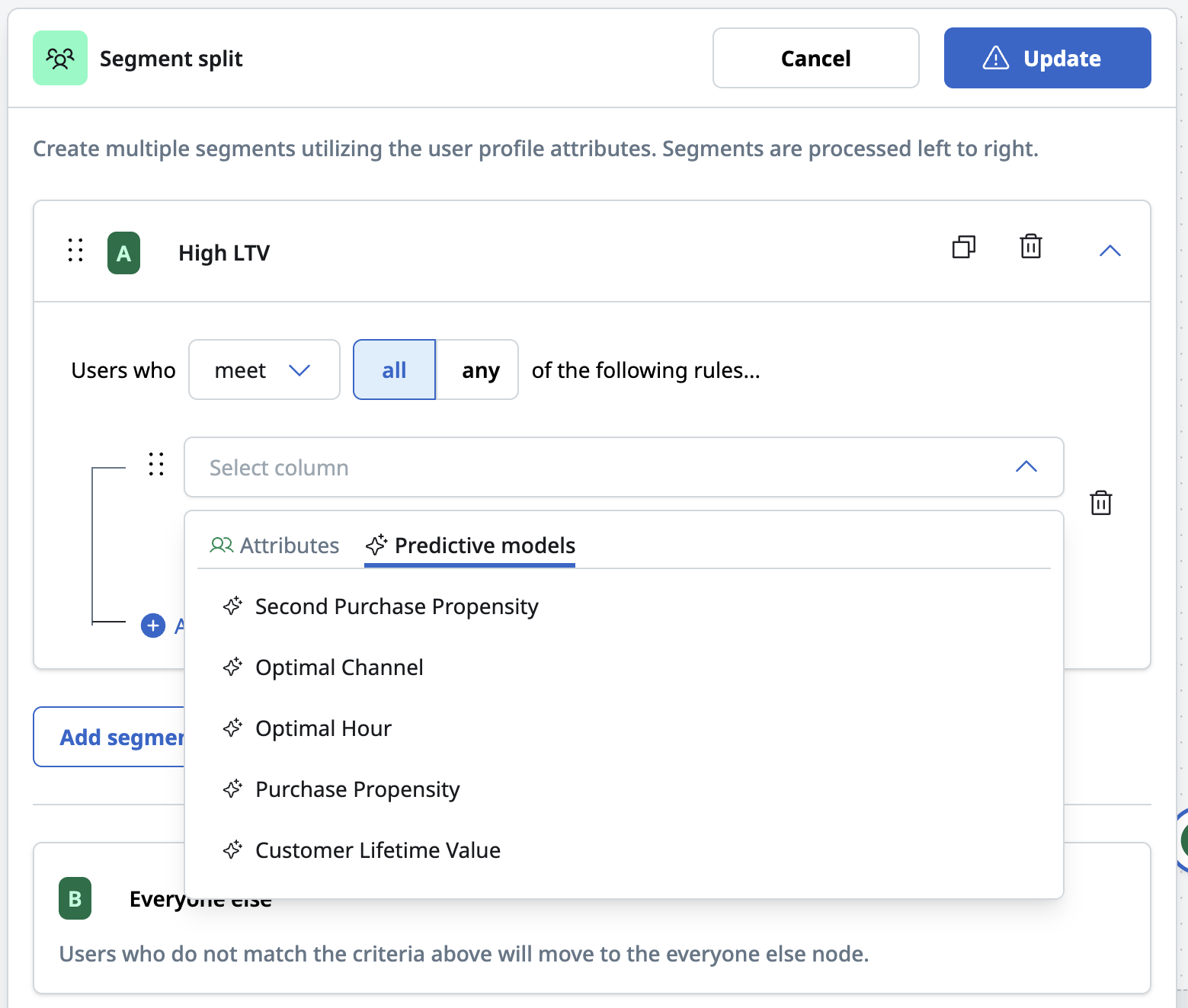
The journey segment column picker showing the predictive models group separated from general attributes 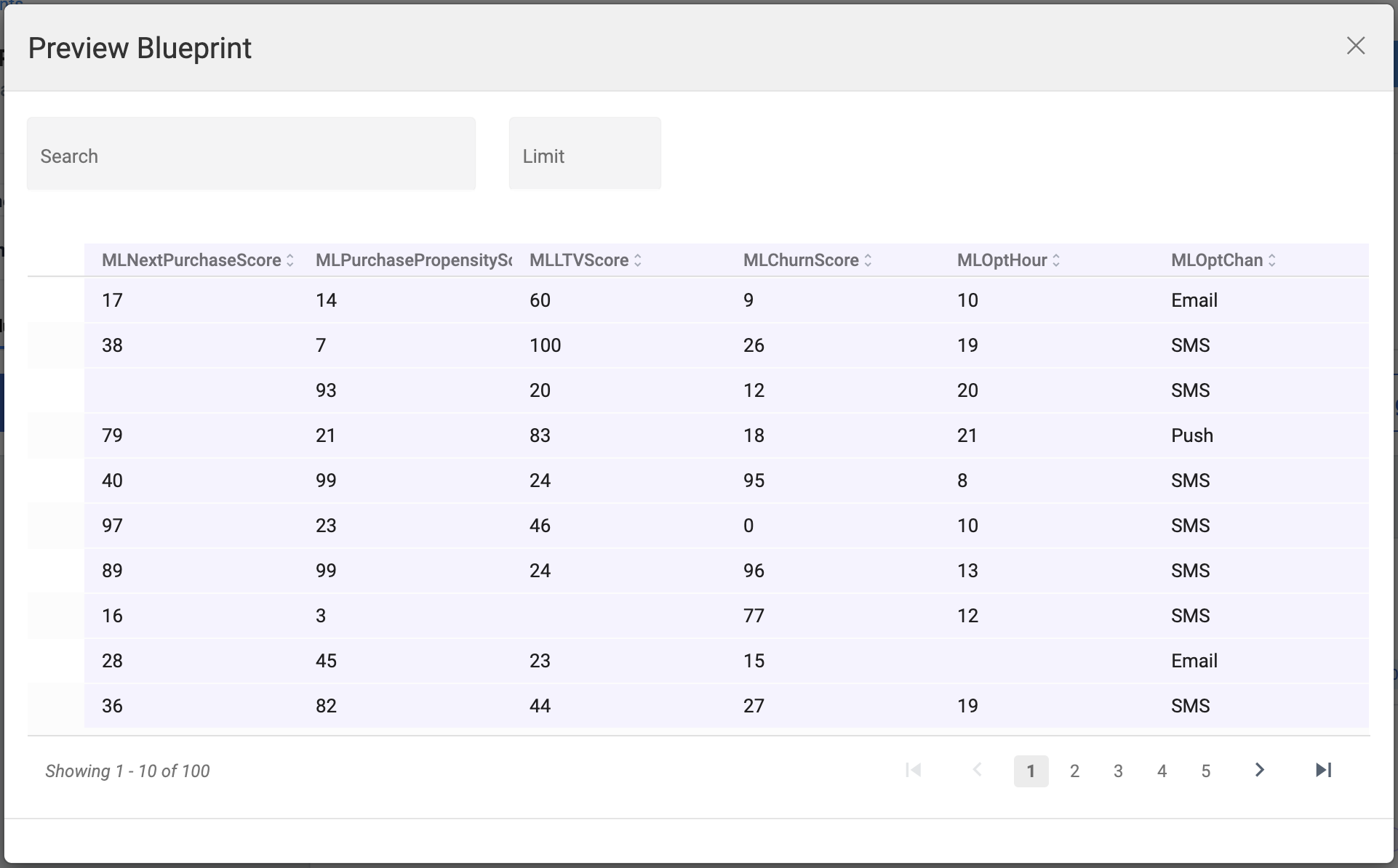
Predictive model columns highlighted in lilac in a Blueprint preview -
Apply an operator and threshold to the model score, the same way you would for any other segment condition.
-
On a Blueprint, check the Available Predictive Models callout on the starting population. It lists every model actually referenced in the audience query, so you can see at a glance which models are already wired up for that Blueprint.
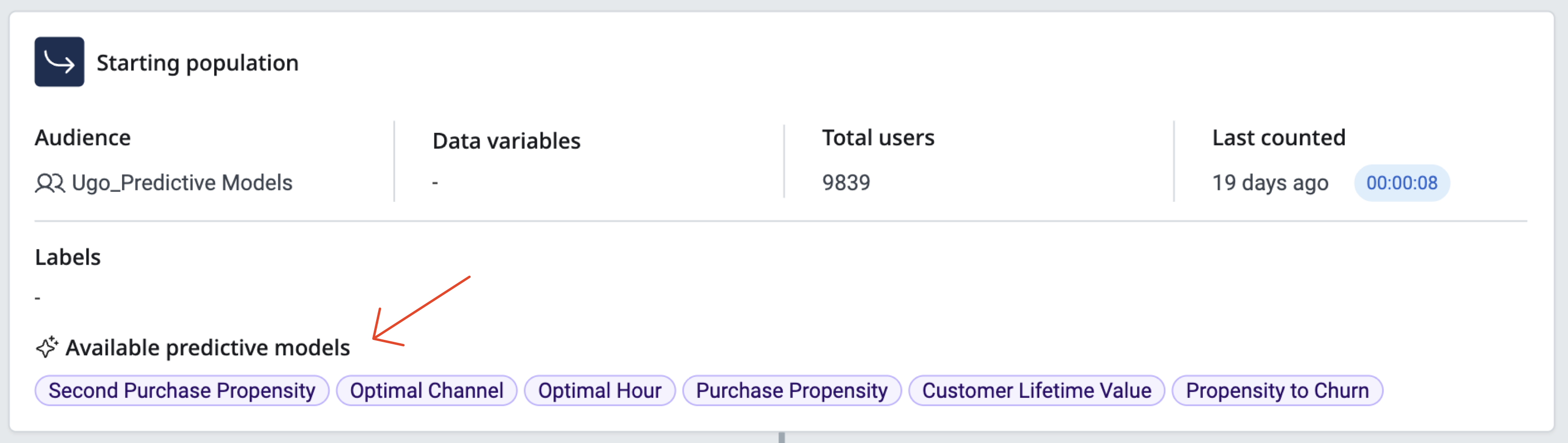
The Available Predictive Models callout on the Blueprint starting population
Considerations
- The seven segmentable predictive models are available in Blueprint nodes and journeys segment tiles.
- Optimal hour (MLOptHour) is exposed only as a segmentation criterion in release 26.3.1. Scheduling sends by hour in the UI based on this model is planned for a future release. Optimal hour can continue to be used with sending via API using Send Time Designation.
- For the exact reserved column names, data types, and setup requirements, see Reserved predictive model column names.
- For the general model catalog, see Machine learning models overview. For background on how the underlying send time and channel optimization models are trained, see Send time, day, and channel optimization (STO).