Touring the mobile UI
The Swrve platform is easy to navigate and gives you quick access to your App Dashboards and other important features. Take this short tour to familiarize yourself with the mobile dashboard.
The Swrve dashboard provides a simple and intuitive way to view the current state of your user base and manage your workflows. Manage and create campaigns, view your custom trend reports and other key metrics, and manage your app settings and configurations from the navigation menu.
Dashboard overview
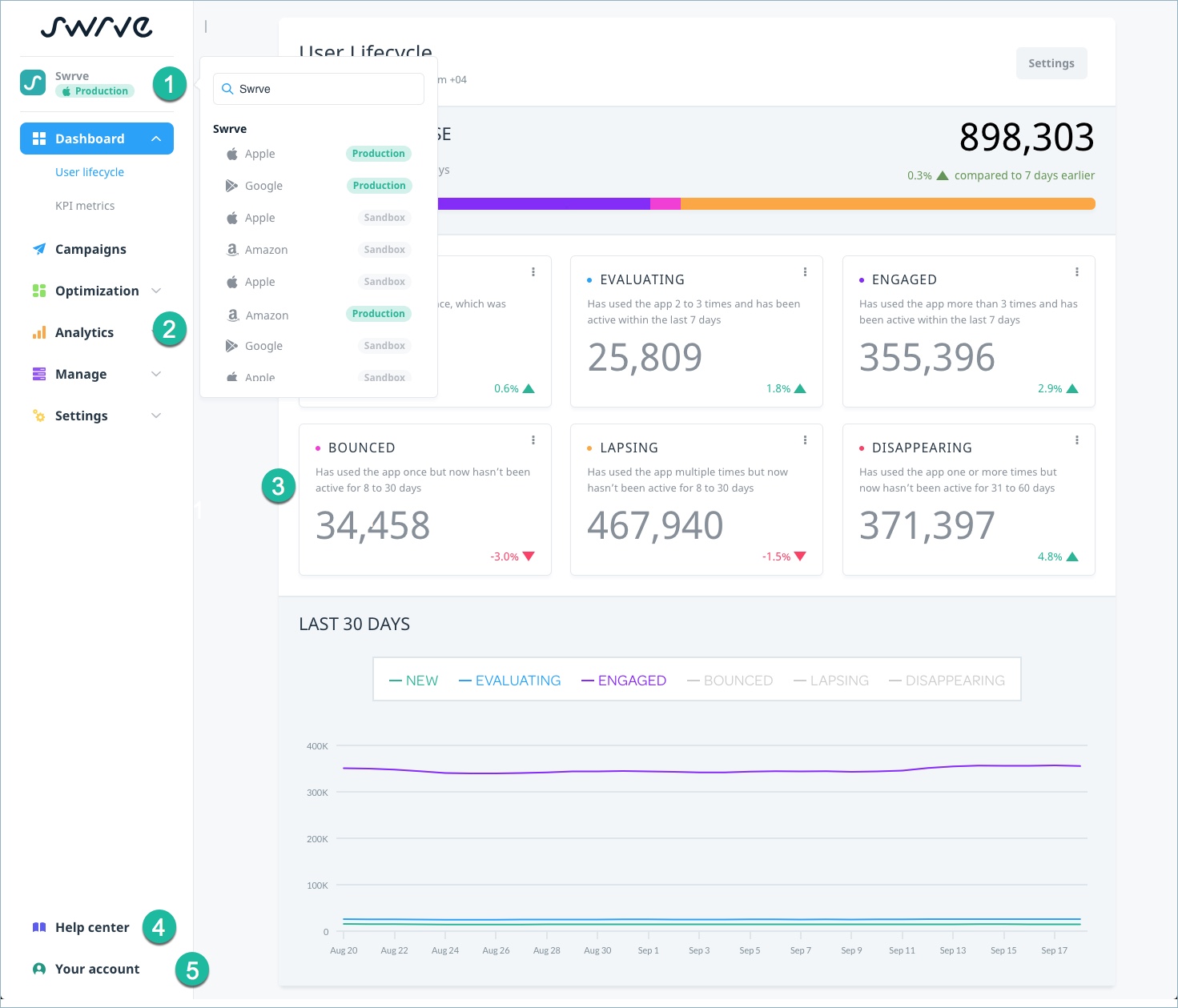
The Swrve dashboard consists of the following major sections:
| Element | Description | |
|---|---|---|
| 1 | App selector | Select the app selector to display the list of available apps. |
| 2 | Main navigation menu | Select an app on the Apps Overview screen to display this menu. It gives you access to the App Dashboards and main features of Swrve. |
| 3 | Content area | The Content area shows you the associated content based on your menu selection. |
| 4 | Help center | Access support documentation and release notes from here. |
| 5 | User menu | Access user settings and company settings from here. |
Apps Overview screen
The Apps Overview screen is the first screen you see when log in to Swrve. It contains your app portfolio and options for adding new or additional titles.
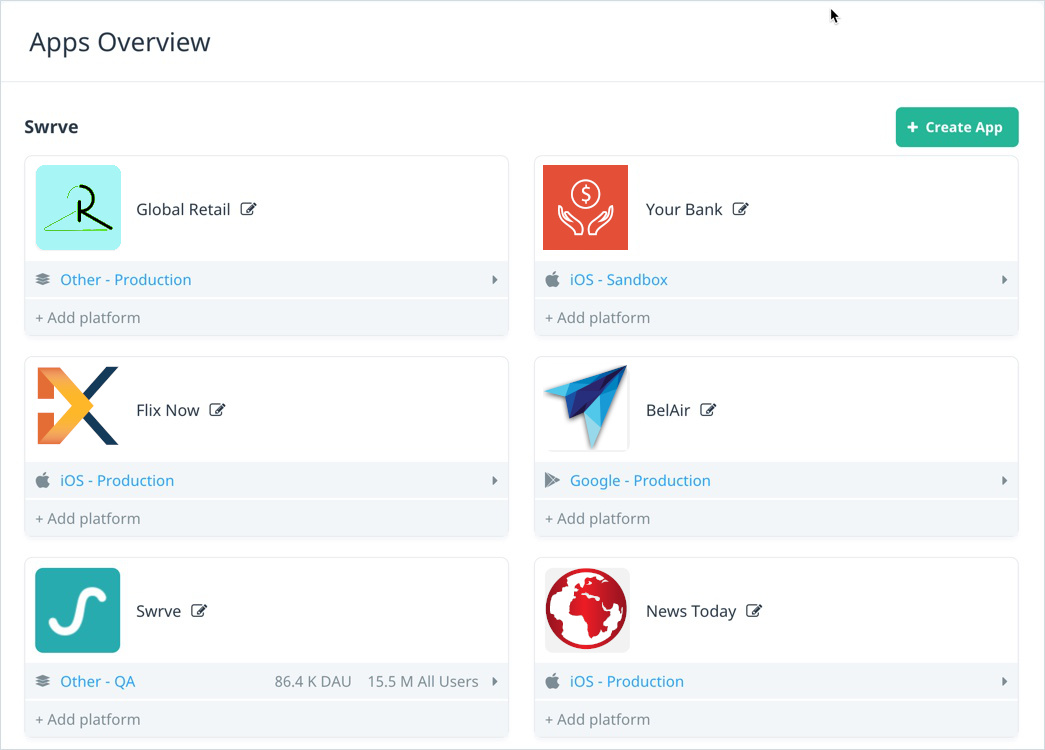
On the Apps Overview screen, there are two ways to access the App Dashboards for a specific app:
- Locate the app in your app portfolio (using the scrollbar, if necessary), and select the app platform.
- Select the App Selector and then select the app from the list of available apps, or use Search to find the app by title.
After you select an app, the associated icon displays in the App Selector. You can use the App Selector to navigate between your apps at any time. For more information on adding new titles to your portfolio, see Add Your App.
Menu
The main menu is where you can create, launch, manage your campaigns, and access company and user settings.
Main navigation
Select a menu item to expand the section and view further options.
| Menu Item | Description |
|---|---|
| App Dashboards | Select different dashboard views for your app (for example, User Lifecycle, KPI metrics). The view defaults to the dashboard you set as your default dashboard. To change the default, select Set as default dashboard on the relevant dashboard. |
| Campaigns | Filter the view of your campaigns and create a new campaign. |
| Optimization | Set up and edit resource A/B testing. |
| Analytics | Access reports and metrics, for example, Trend reports, User acquisition, Top items, and Funnels. |
| Manage | Contains options for managing your app and campaign configurations. For example, geoplaces, segments, event payloads, campaign tags, and realtime user properties. |
| Settings | Contains options for integrating your app and managing app, campaign, report, integration, and QA device settings. |
Help center
| Menu Item | Description |
|---|---|
| Documentation | Opens the Swrve help site in a new browser window. |
| Release notes | Opens the Swrve Release Notes in a new browser window. |
| Privacy policy | Opens the Swrve Privacy policy in a new browser window. |
| Legal | Opens the Swrve Legal Notices in a new browser window. |
Your account
The items available from the Your account menu depend on your login and user permissions.
| Menu Item | Description |
|---|---|
| User Settings | Displays options for updating your user preferences and changing your password. |
| Company Settings | Displays options for specifying app supported stores and adding or editing Swrve user details (administrator only). |
| Company Usage Report | Displays your company usage data for the past six months (administrator only) . For more information, see How do I view usage information? |
| Logout | Logs you out of Swrve and returns you to the log in screen. |
Content area
The content area is your main workspace. Depending on your menu selection, the content area displays an overview of your app's performance over the last 24 hours (or the user lifecycle, depending on which dashboard you chose), and enables you to create and manage campaigns, or display various analytic tools and reports.
Next steps
- Get started with Swrve by adding your app's platform titles to the Swrve service. For more information, see Add your app.
- Find out what's involved in integrating the Swrve SDK into your app. For more information, see Integrate your app.
- Read how to use Swrve to build relationships with your app users. For more information, see Understand and engage your users.