How do I implement deeplinks in push notifications?
When creating push notifications in Swrve, the default action if a user engages with the push notification is to open the app. You can also configure the action to direct users to a specified URL or other location in the app—this is called deeplinking. For example, you might configure a push notification to direct the user straight to the app store to provide a rating. This article explains how to implement deeplinks for push notifications in your app and then use them in your push notification campaigns to direct users to a desired location.
Implementing deeplinks for push notifications
- iOS
- Android
For iOS, Swrve’s default deeplink behavior for push notifications is to treat deeplinks as URLs, so you can use your existing custom URL scheme. If you have not already registered a custom URL scheme, you’ll need to do this before using deeplinks in push notifications. There are two main steps: creating a custom URL scheme and adding a custom URL scheme handler.
Create a custom URL scheme
Step 1: In your Xcode project, open the Information Property List file (Info.plist).
Step 2: In the Info.plist, add a new property. Select the Add (+) icon and enter or select URL types.
Step 3: Expand URL types, and under Item 0, you should see the URL identifier. In the Value field, enter a string of your choice. This is the URL that you will use to deeplink to your app.
Step 4: Under URL types> Item 0, select the Add (+) icon and then select URL Schemes.
Step 5: Expand URL Schemes and in the Value field, enter a string of your choice.
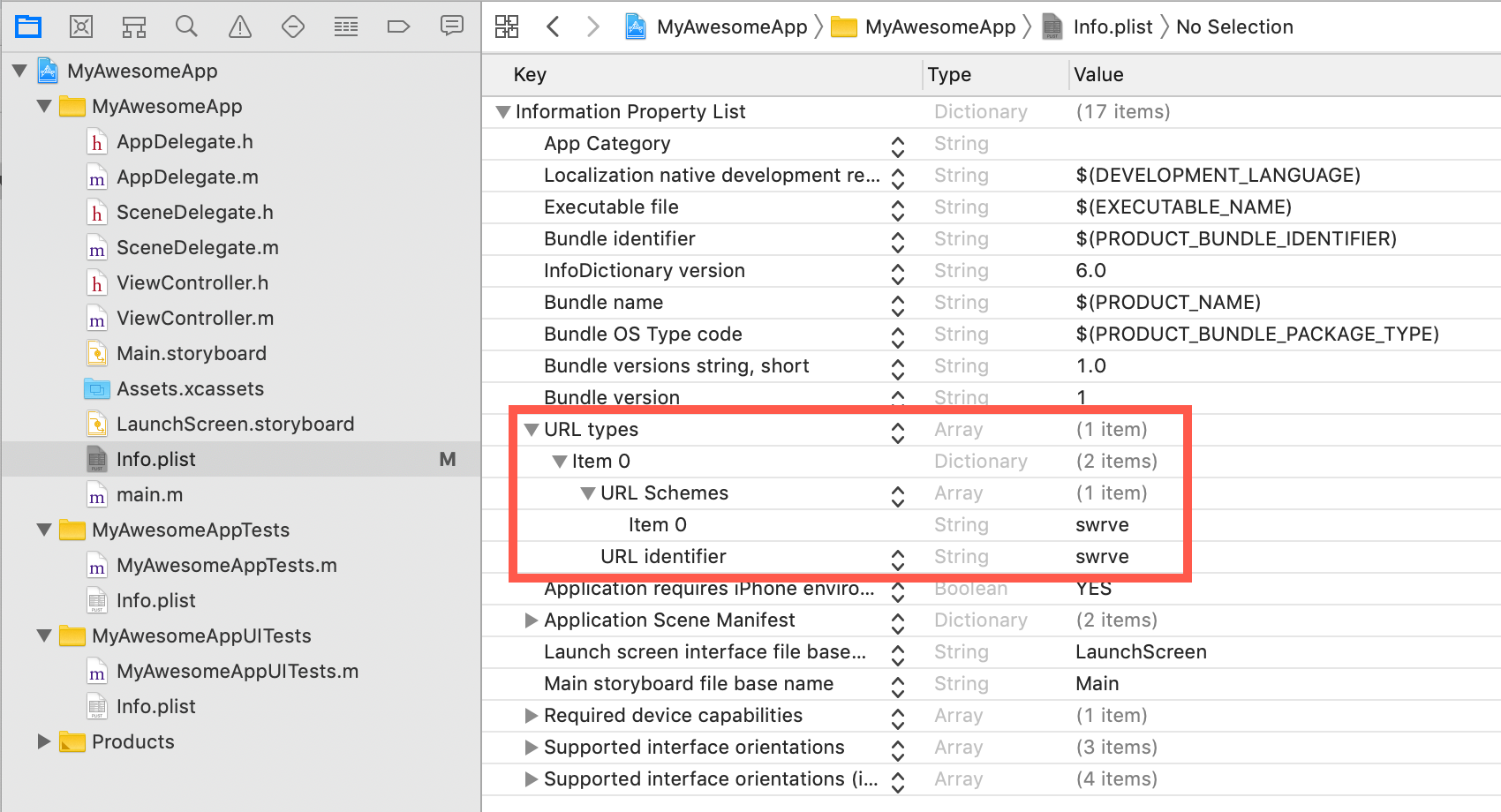
Add a custom URL scheme handler
To enable your Swrve users to include deeplinks in the push notification action in the form of swrve://, include the following example in your code AppDelegate.m file.
- (BOOL)application:(UIApplication *)application openURL:(NSURL *)url sourceApplication:(NSString *)sourceApplication annotation:(id)annotation {
    if ([url.scheme isEqualToString:@"<url_identifier>"]) {
        // if ([url.relativePath isEqualToString:@"<event_string>"]) {
            // Handle deep link in app. Do something inside your app.
        UIStoryboard *storyboard = [UIStoryboard storyboardWithName:@"Main" bundle:nil];
        UIViewController *obj=[storyboard instantiateViewControllerWithIdentifier:@"<View_to_deeplink_to>"];
        self.window.rootViewController = obj;
        [self.window makeKeyAndVisible];
        //  }
    }
    return YES;
}
To add a deeplink to your Android app, you need to add the URL scheme to your Android manifest file as an intent filter. You need to do this before you can use deeplinks in your push notifications campaigns. For information on how to implement deeplinks in your Android app, see the Android Developer article, Create Deep Links to App Content.
Using deeplinks in a push notification campaign
Once your development team implements deeplinks for push notifications in your app, you can include them in the button actions of your push notification campaigns.
To use deeplinks in your push notification campaigns, in the Content screen of the campaign workflow, for the On engage option, select Deeplink/URL and then enter the deeplink/URL value. Coordinate with your development team to determine the exact deeplink URL to enter.
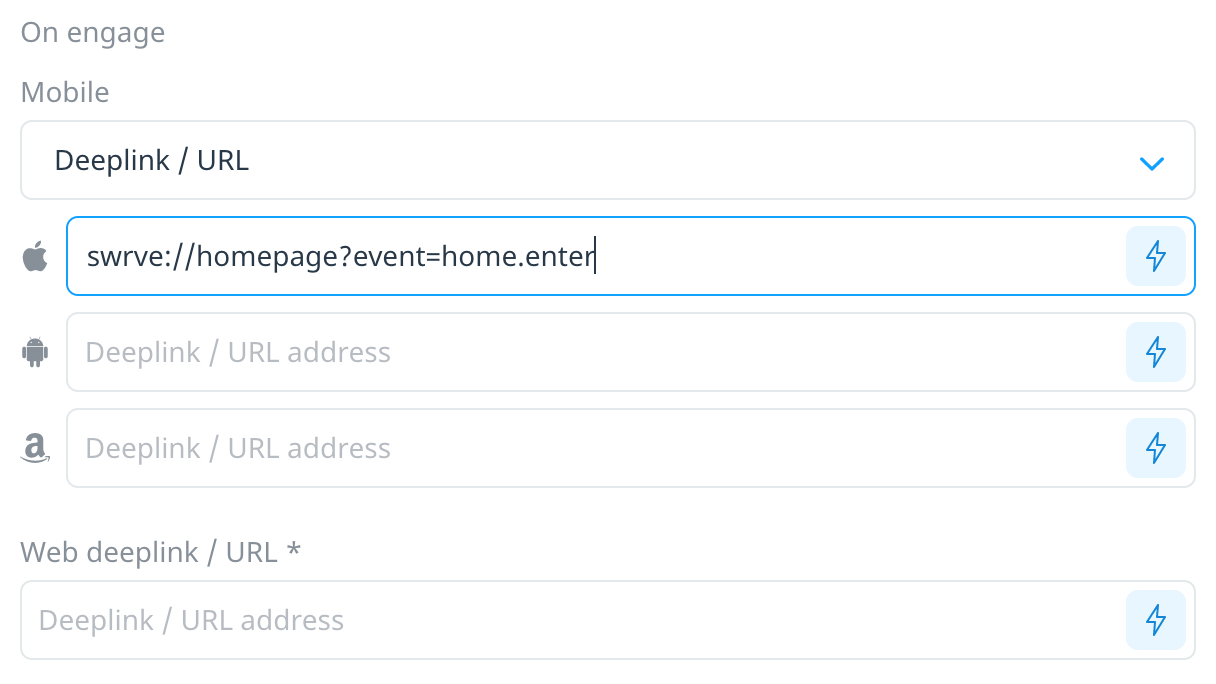
Example deeplink URL structure
swrve://homepage?event=home.enter
- swrve:// - the URL scheme
- homepage - the host
- ?event=home.enter - anything after the query is additional data you can use in the Swrve push notification payload custom processing code.