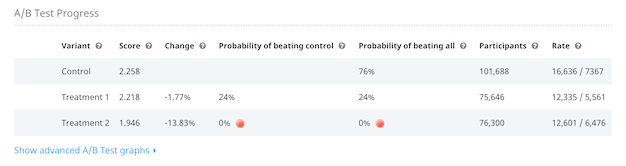
How do I A/B test in-app message location?
After splitting up your user base with Swrve's A/B Resources tool, you can use those segments in different campaigns to determine where your in-app message is most effective.
Create an in-app message to target A/B test variants
Step 1: In the Campaigns center, select Create campaign.
Step 2: On the Choose your marketing channel screen, select In-app message as your campaign channel, then select Continue.
Step 3: Complete the Overview and Content sections of the in-app message workflow (for more information, see Creating in-app messages).
Step 4: On the Audience screen, select Custom Audience and then define the following values:
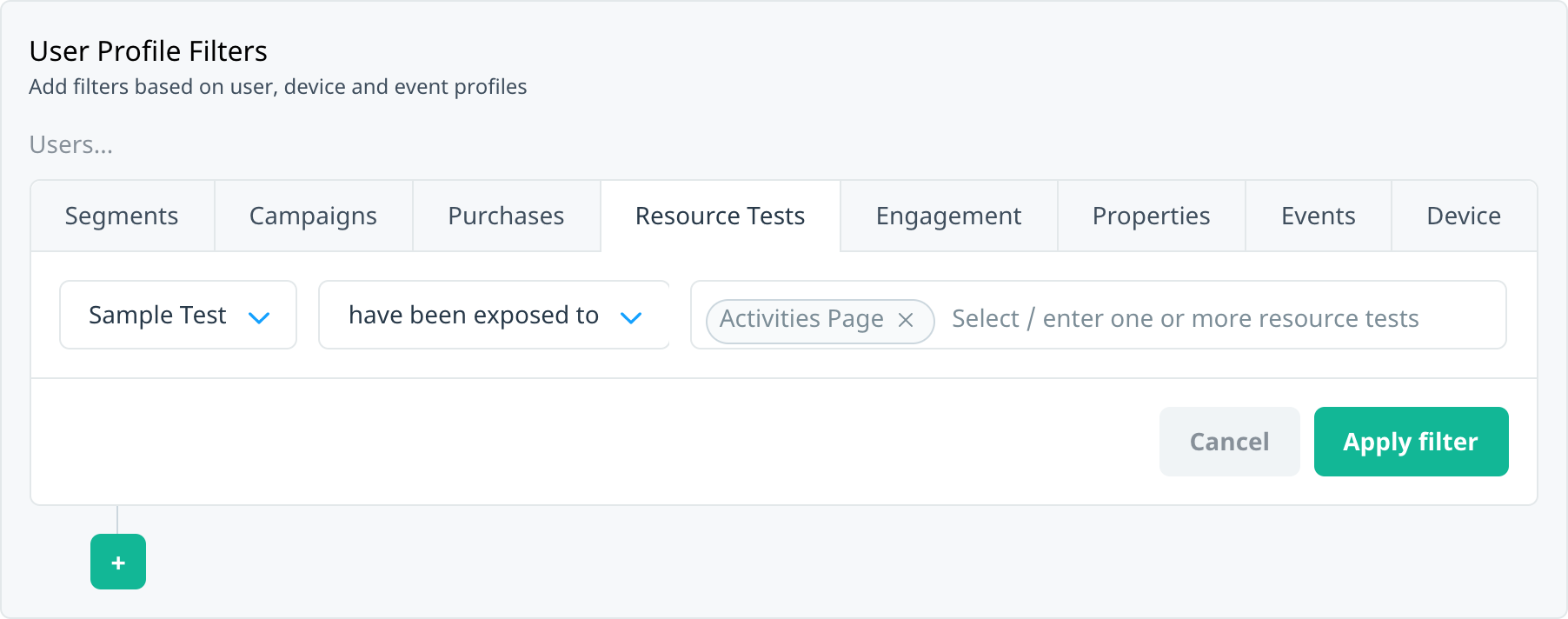
- Under User Profile Filters, select Resource Tests.
- Select the test from the list of available resource A/B tests.
- In the next list, select have been exposed to.
- Select one of the two variants you created (for example, Activities Page).
- To add the audience filter, select Apply filter.
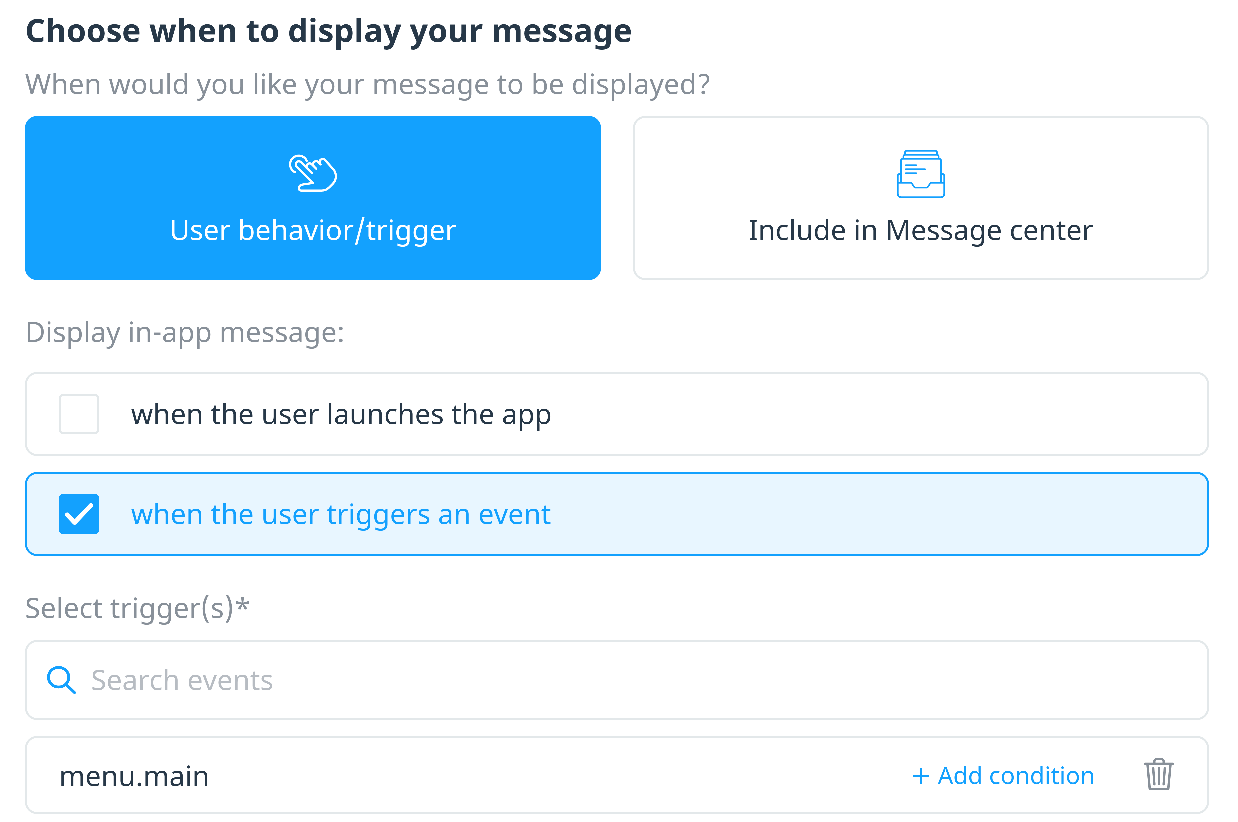
Step 5: On the Schedule & display screen, select the event you want to use to trigger the in-app message (for example, menu.main).
Step 6: On the Goals screen, select any additional campaign goals you want to track.
Step 7: Schedule or activate the campaign as required.
Step 8: Create and activate another in-app message campaign. Follow the same steps, but this time use the variant you didn’t use in Step 4 (for example, Messages Page), and set the display trigger to the appropriate event/location (messages_page_open).
Step 9: After users have had a chance to engage with the app, return to the Resource A/B Testing screen and select the A/B test you created to compare how each of the variants are performing.