Accelerator 24.4.1 release notes
Initiatives Released
Smartling integration
Use Case
Setting this feature up for the first time? Check out the Smartling Integration Guide for step-by-step instructions on connecting to your Smartling project.
Accelerator currently supports localization of templates via Freemarker, but does not offer customers an efficient way to retrieve, preview, and test localized content generated by external services. The Smartling integration provides template authors with a streamlined experience for translating email templates via Smartling, and subsequently previewing and testing the translated content before using in a campaign. Furthermore, use of Smartling translated content does not require any knowledge of Freemarker, lowering the technical barrier of entry to content localization.
Goals
- Give MessageGears' customers the ability to upload their email templates directly to Smartling and download the translated versions into Accelerator to enable seamless campaign localization
- Improve the experience for previewing and testing localized versions of content, so that customers can execute localized campaigns confidently and efficiently
- Handle mapping localized versions of content to the recipient based on the recipient’s locale, to ensure they receive the email in their preferred language
Capabilities
Submit email content to Smartling for translation
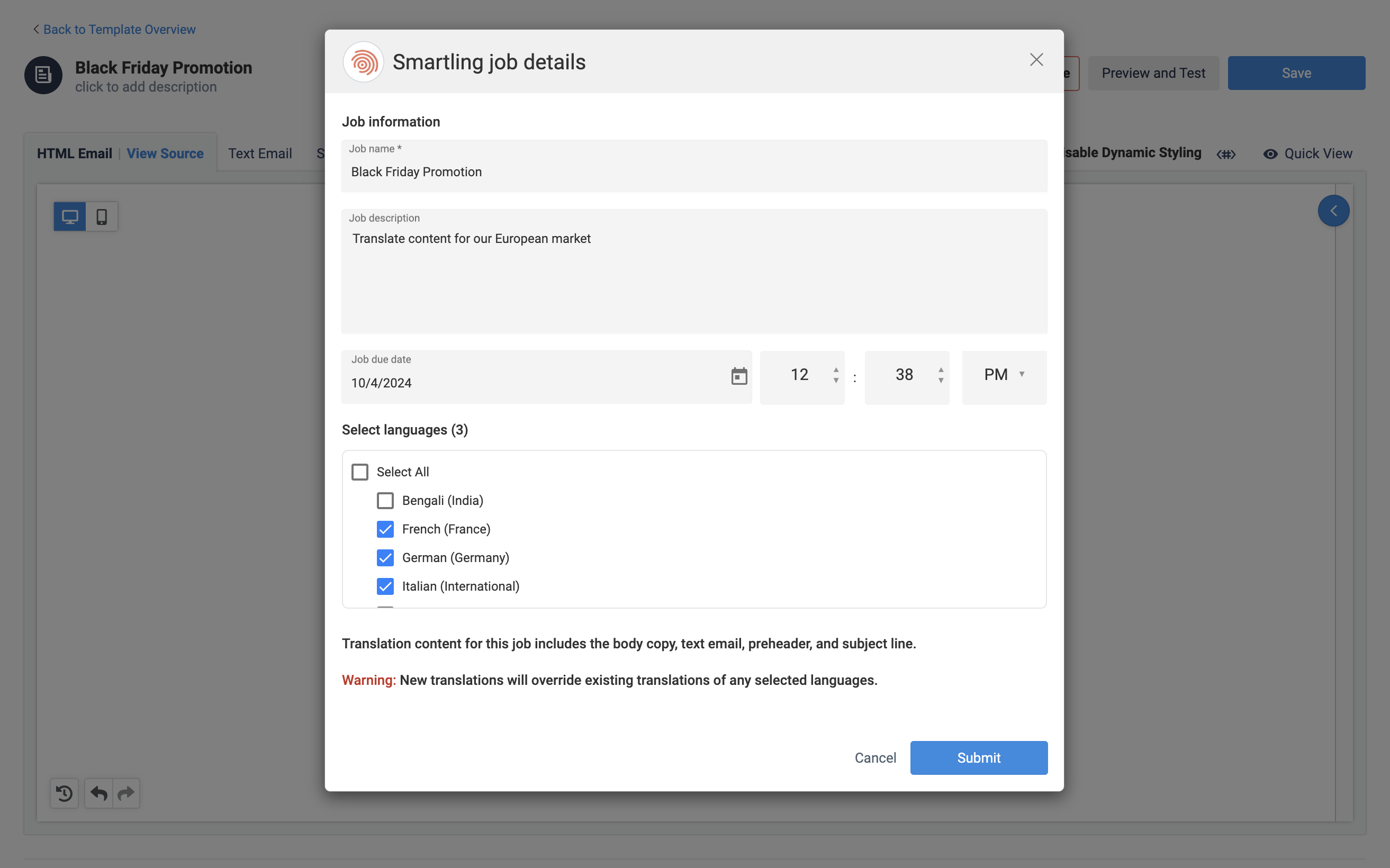
Customers who have connected their Smartling project in their Accelerator instance will have the ability to submit their email template to Smartling for translation.
Upon saving the email template, click “Translate” to configure a Smartling translation job for your email content (including text email, subject line, pre-header), providing the job details and selecting the languages you want the content translated into.
Download translation files
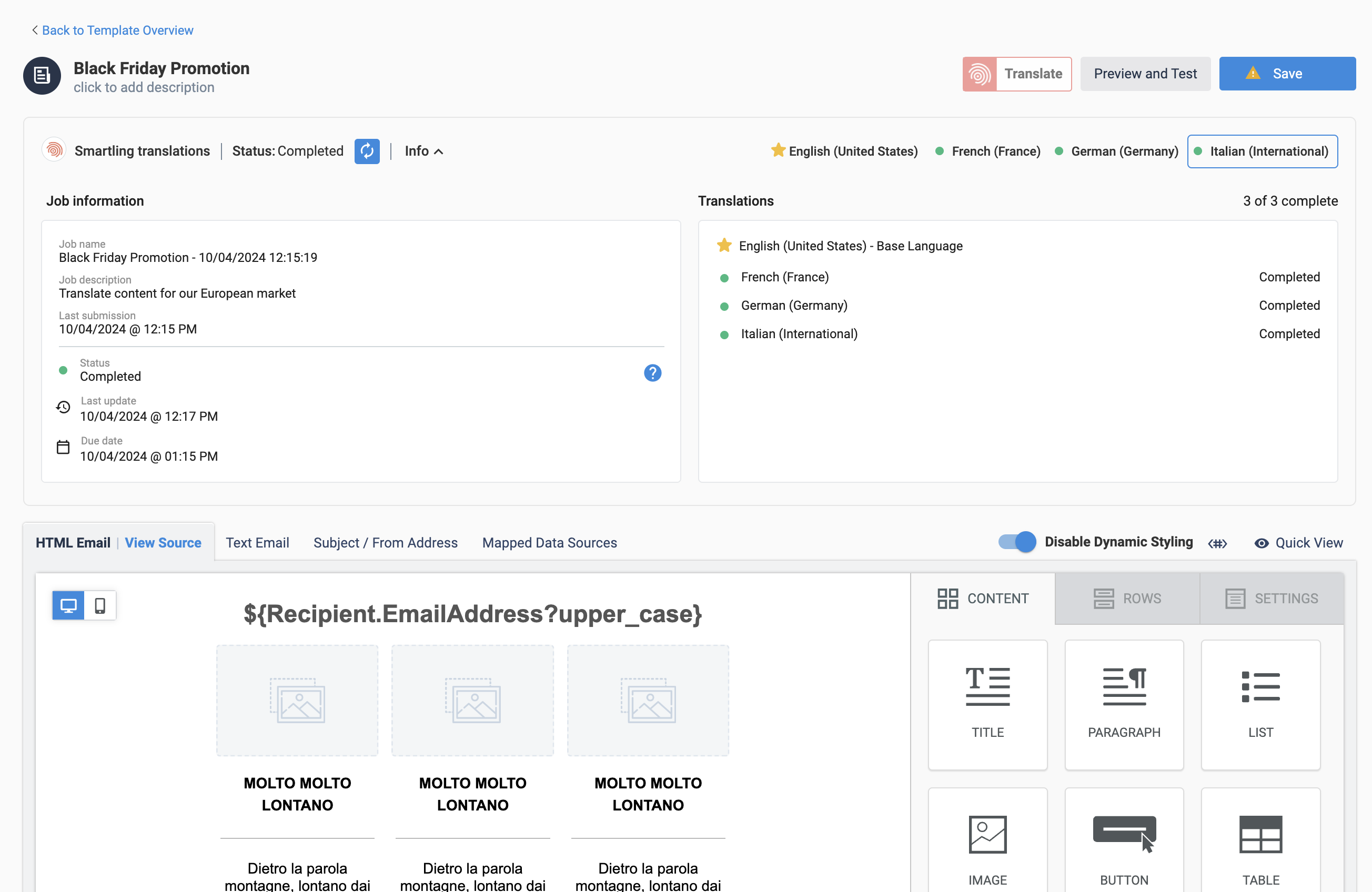
Once the Smartling job is submitted, you can see the Smartling translations toolbar above your email content. Click the “Refresh” icon to retrieve the latest job status and download completed translated files from Smartling.
If some Smartling has not finished translated into all languages, the job status remains “In Progress”, but any completed translations are as "Complete" and become viewable in the template. The translation job becomes "Complete" once all translation files have been downloaded.
Review translated content in the editor
To view the translated content for each locale, select the individual locale tabs - e.g. French (France). You can also modify the locale’s content after it’s been downloaded. Click “Save” to save the updated locales to the template after they’ve been applied.
Preview and Test Locales
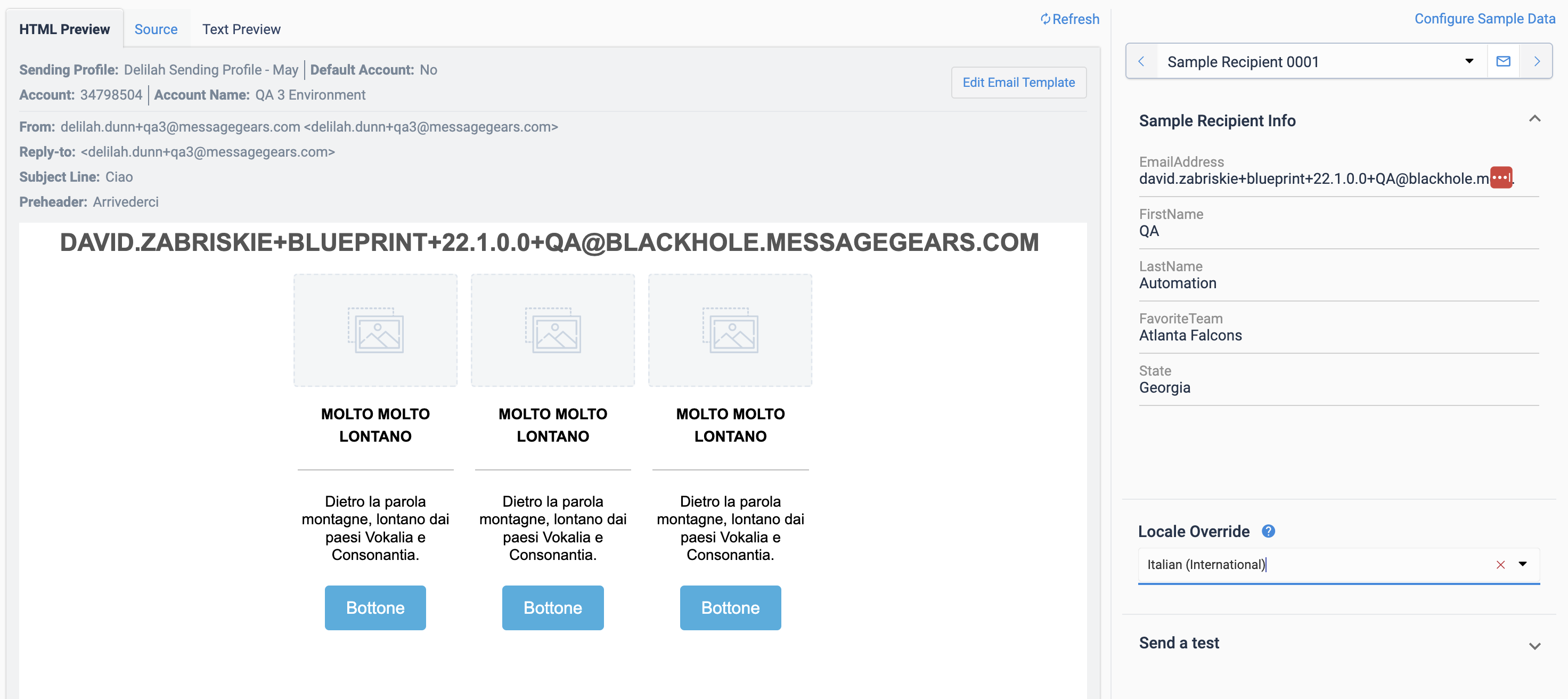
Template authors and reviewers can use the rendered preview to see how the localized content is displayed for a sample recipient. The locale displayed is governed by the selected recipient’s locale.
Use the Locale Override dropdown to override the selected recipient’s locale value and see how the email is displayed in another locale. This field is particularly useful if your sample audience does not contain the locale field, in which case the preview defaults to the template’s base content.
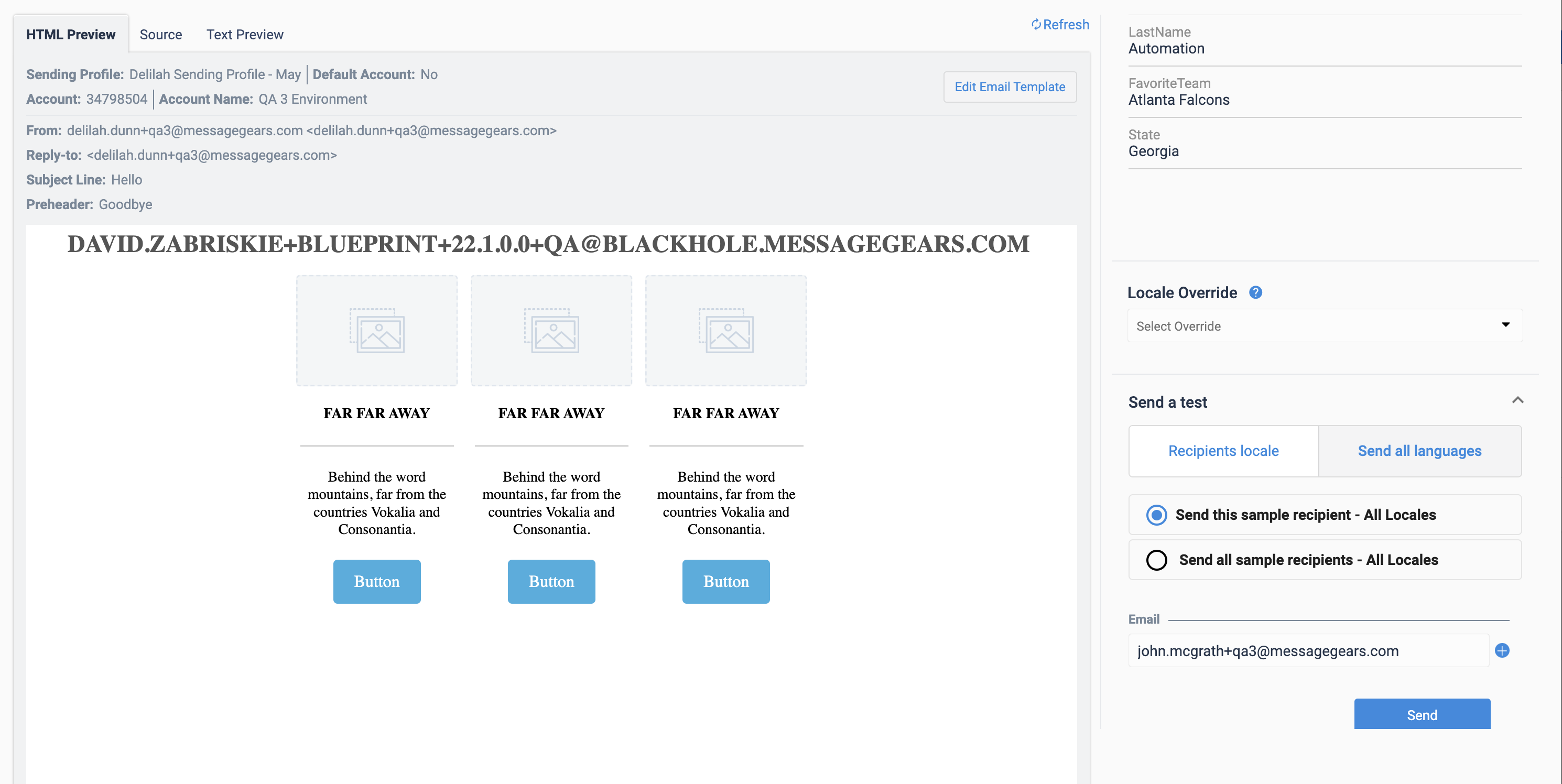
Additionally, reviewers can now send test emails in all translated locales, regardless of the sample audiences' recipients' locale values. Within the Send a test section, select the All languages tab, then choose Send this sample recipient - All locales or Send this sample recipient - All locales. Clicking Send will send an individual email for each of the template’s configured locales, per recipient.
General Changes
- Added support for including a Preheader with the email Subject line